How to Delete Pinterest Boards: Curating Your Digital Life
Learn how to gently clear your digital space by deleting or archiving Pinterest boards. A step-by-step guide to curating a profile that reflects who you are today.
Sometimes, we outgrow the spaces we build for ourselves. You might open your Pinterest profile one morning and realize that the boards you created years ago—the wedding planning ideas, the minimalist apartment decor you never used, or the marketing strategies from a past career—no longer resonate with who you are right now.
I know how heavy it can feel to carry around old digital baggage. When a platform meant for inspiration becomes a cluttered archive of abandoned projects, it stops being a place of joy. It doesn't mean you failed at those past interests; it just means your energy has shifted, and your environment needs to shift with it.
If you are wondering how to delete Pinterest boards and make room for new inspiration, you are making a beautiful, intentional choice. Let's walk through the steps together, quietly and thoughtfully, so you can curate a profile that feels like a breath of fresh air.
The Weight of Digital Clutter
Before we dive into the technical steps, let's pause for a moment. Have you ever noticed how physical clutter affects your mood? Digital clutter does the exact same thing, even if we can't touch it.
Every time you log into Pinterest, your brain has to process all those old boards. It is like walking into a room full of boxes you haven't unpacked. Letting go of a Pinterest board is not just about organizing a website; it is about giving yourself permission to move forward.
Pinterest is a visual search engine designed to learn from your behavior. When you keep boards that are no longer relevant, the algorithm continues to feed you ideas tied to a past version of yourself. By clearing them out, you are gently redirecting the algorithm—and your own focus—toward what matters to you today. If you want to understand more about how this visual ecosystem works, you might find our guide on how to use Pinterest helpful.
Archiving vs. Deleting: What is Right for You?
Sometimes, we aren't ready to erase a memory, but we also don't want it sitting in the center of our living room. Pinterest offers two paths for dealing with old boards: Archiving and Deleting.
| Action | What it means | How it feels |
|---|---|---|
| Archive | Hides the board from your public profile and stops Pinterest from recommending related content. You can still view it privately. | Like gently placing a cherished photo album in the attic. Safe, but out of the way. |
| Delete | Permanently erases the board and all the pins within it. It cannot be undone. | Like clearing off a desk completely to start a brand new project. Light and final. |
If you feel absolutely certain that a board no longer serves you, deleting is incredibly freeing. But if you feel a tug of hesitation, choose to archive. You can always change your mind later.
How to Delete a Pinterest Board
If you are ready to let go, the process is quite simple. Whether you are sitting at your computer with a cup of tea or using your phone on the couch, here is how to create that space.
Finding Space on Your Desktop
- Visit your profile: Log in to your Pinterest account and click your profile picture in the top-right corner.
- Locate the board: Scroll through your profile until you find the board you wish to release.
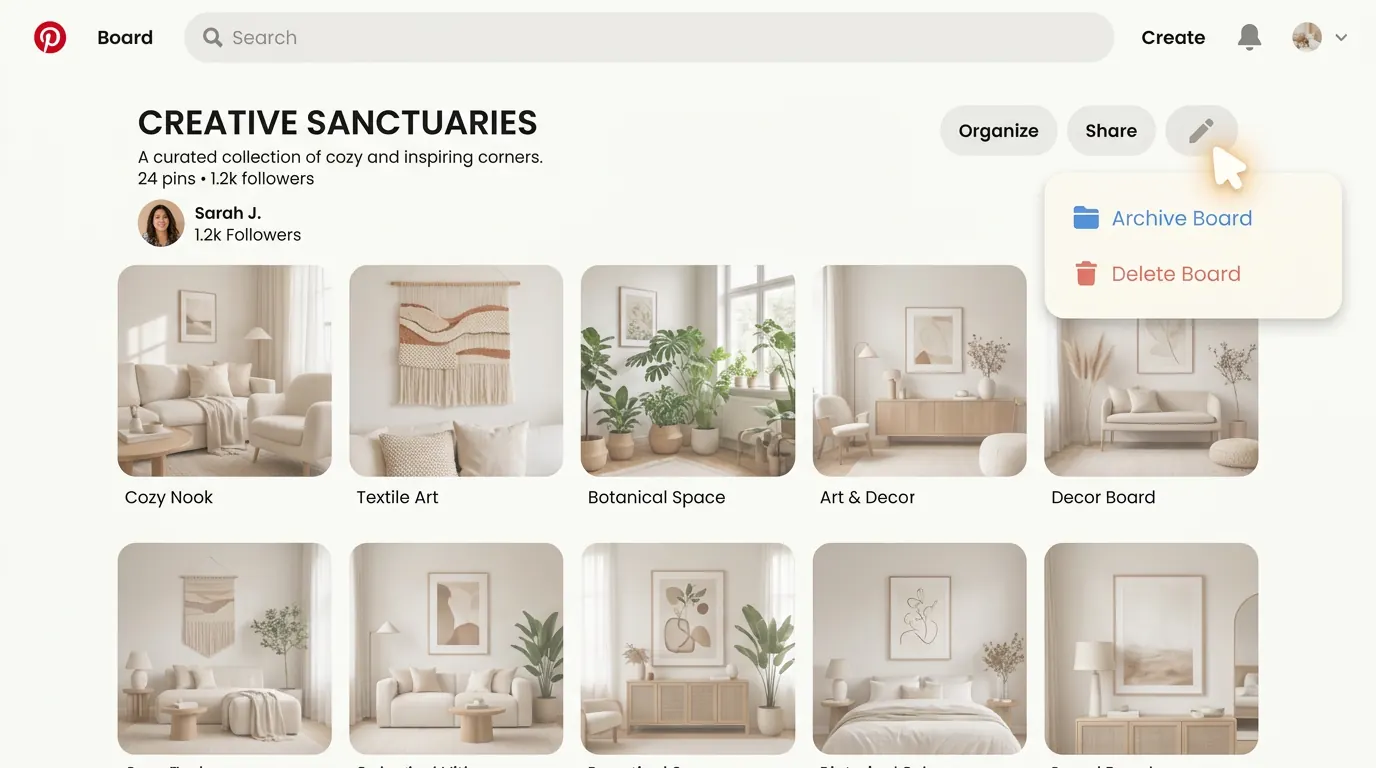
- Open the editor: Hover your mouse over the board. You will notice a small pencil icon appear in the bottom-right corner. Click it gently. (Alternatively, you can click into the board itself, click the three dots (...) near the title, and select Edit board).
- Make the choice: Scroll to the very bottom of the edit menu. There, you will find the Delete button.
- Confirm your intention: Pinterest will ask if you are sure, reminding you that this action is permanent. If your heart says yes, click Delete forever.
Clearing Room on the Mobile App
- Open your space: Launch the Pinterest app on your iOS or Android device and tap your profile picture at the bottom right.
- Find the board: Tap on the specific board you want to remove.
- Access settings: Look for the three dots (...) icon in the top-right corner of your screen and tap it.
- Choose to edit: Select Edit board from the menu that slides up.
- Let it go: Scroll down to the bottom of the screen and tap Delete board.
- Final confirmation: Tap Delete one last time to confirm your choice.
(For the most up-to-date technical nuances, you can always refer to the Pinterest Help Center on deleting boards).
What Happens After You Delete?
Once the board is gone, you might feel a sudden sense of lightness. The pins are cleared, the space is open, and your profile is a little closer to reflecting your current reality.
If you had hundreds of pins saved in that board, you might have also wondered how to delete pins on Pinterest individually. But deleting the whole board is often the most profound way to clean the slate.
Now, look at the boards that remain. Do they inspire you? Do they represent your current business goals, your actual hobbies, your authentic aesthetic?
If you are using Pinterest to grow a creative business or a blog, curation is everything. Your boards should act as a beacon, signaling to the right audience exactly what you value. When your profile is focused, your audience feels that clarity.
Filling the Open Space
You have cleared the brush; now it is time to plant new seeds.
Perhaps you want to start a new board that aligns with a project you are genuinely excited about. As you create new content and discover new ideas, try to be intentional about what you save. Ask yourself: Does this earn a place in my newly curated space?
If you run a blog, you might want to start pinning your own insights, but the thought of constantly designing new graphics can feel exhausting. You don't have to do it all manually.
Share your voice without the burnout
If you want to fill your new boards with your own blog content but lack the energy to design, let Redol help. We gently extract your core ideas and turn them into beautiful pins.
Summary
Learning how to delete Pinterest boards is an exercise in intentional living, applied to our digital worlds. By navigating to the board's edit menu and selecting "Delete," you permanently remove outdated ideas that no longer serve you. If you feel hesitant, remember that Archiving is a gentle alternative that hides the board without erasing it entirely.
Taking the time to curate your profile is an act of self-care. It tells the algorithm—and more importantly, yourself—what truly matters to you right now. Take a deep breath, clear the digital clutter, and allow your newly opened space to invite the inspiration you are actually seeking today.
Related posts
About the Author

Zhang Guo
AI Product Manager · Digital Marketing Consultant
AI product manager and digital marketing consultant with a background in music. I see creativity as the bridge between rhythm and logic, where musical intuition and mathematical precision can coexist in every meaningful product decision.
Follow on X