If you searched for how to publish a website with html, the practical answer is this: choose the publishing path that matches the job. A one-page demo, AI report, or portfolio review can become a share link. A public site with custom domains, SEO controls, and many assets belongs on static hosting. A developer project that will keep changing usually belongs in a repository workflow such as GitHub Pages or a Netlify-style deploy.
Do not start by asking which platform is "best." Start by opening your local index.html, checking whether the page depends on extra CSS, images, JSON, or JavaScript files, then deciding who needs the link and how long the page should stay live.
The Fastest Way to Choose a Publishing Path
Use this table before uploading your HTML anywhere.
| Publishing job | Best path | Why it fits | Check before publishing |
|---|---|---|---|
| Share one HTML report, demo, or portfolio page | Hosted share link | Fastest path from file to URL | Confirm the page opens locally |
| Share a simple HTML or ZIP package with access control | Redol HTML Share | Public or password-protected link without server setup | Check file size, assets, and link behavior |
| Publish a permanent public website | Static hosting | Better for domains, SEO, and multi-page sites | Make sure index.html is in the right folder |
| Publish an ongoing developer project | Repository deploy | Changes can be versioned and redeployed | Commit files and choose a publishing source |
| Publish a production business site | Full hosting or app platform | Better for analytics, redirects, auth, and operations | Plan domain, SSL, redirects, and maintenance |
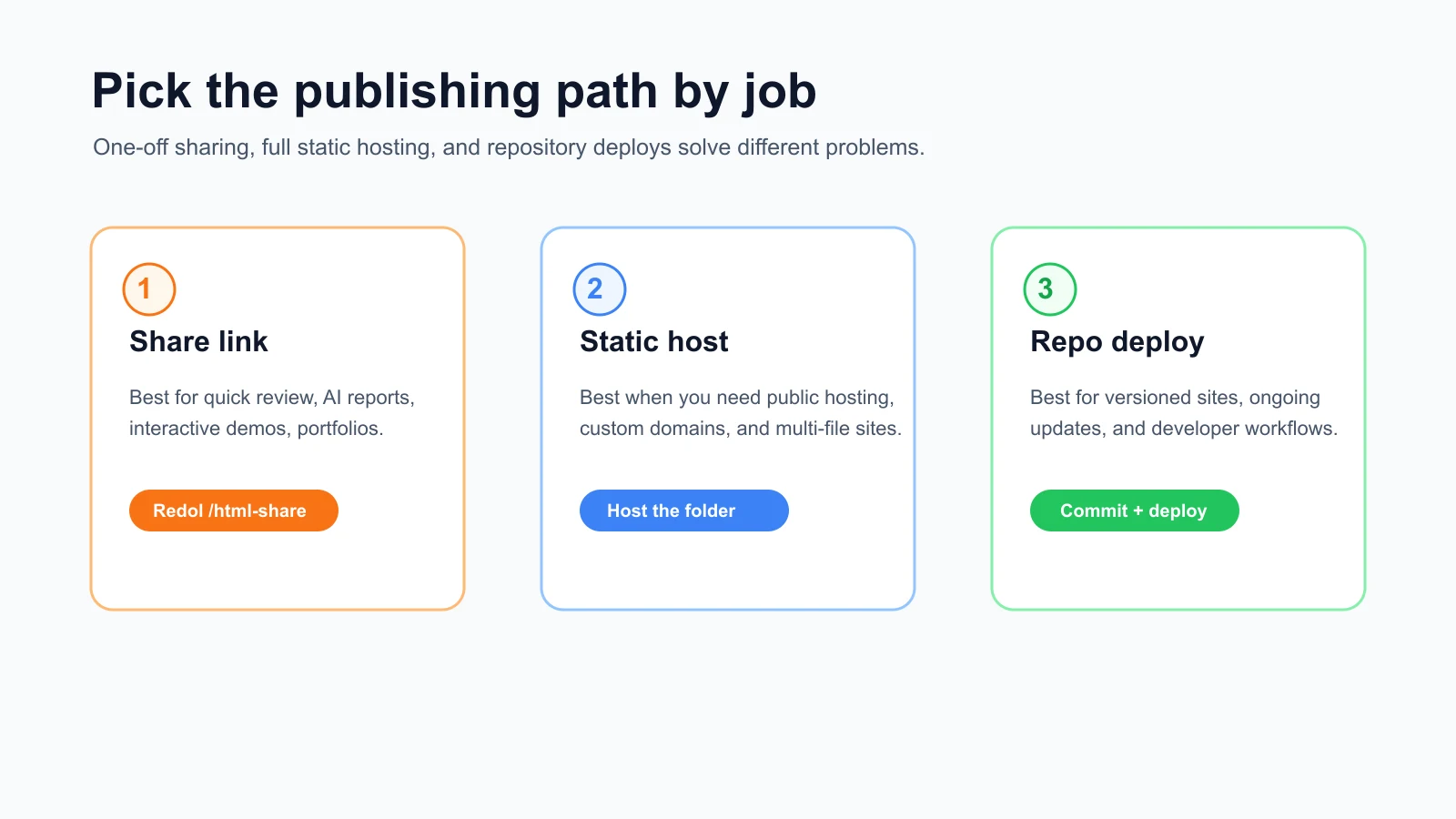
Method One Publish a Single HTML Page as a Share Link
Use a share link when you already have the HTML and need people to view it without asking them to download files, run a local server, or understand a deployment pipeline.
This is the cleanest path for:
- AI-generated reports
- interactive prototypes
- visual dashboards
- simple portfolios
- one-off campaign previews
- educational HTML handouts
- internal review pages
Redol HTML Share is built for this job. The current product route turns a static .html or .htm file, or a .zip package with an HTML entry point, into a hosted share link. The uploader lets you add a page title, summary, and author name, then choose public access or password protection.
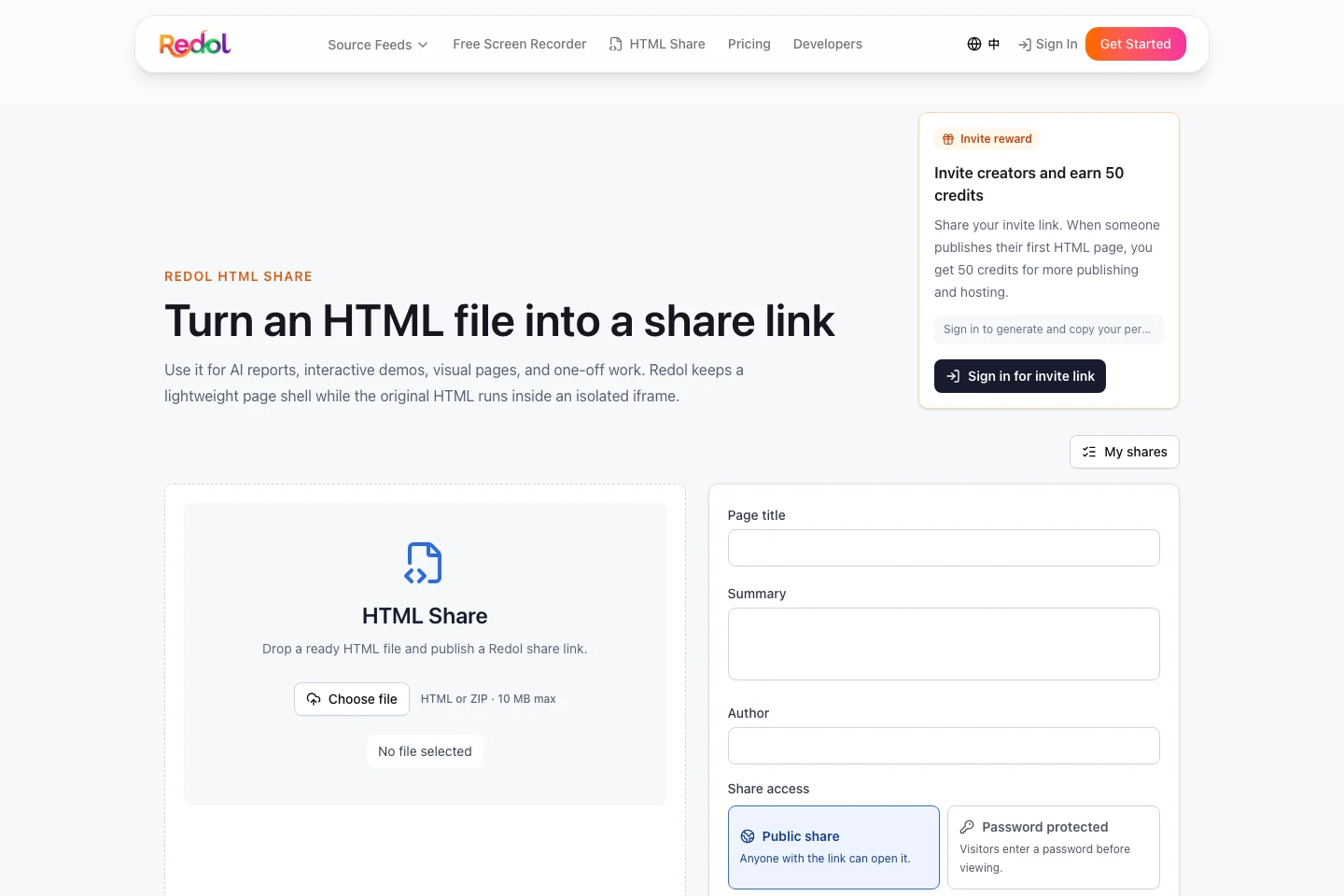
The current Redol source and product page support these conservative claims:
- accepted files are
.html,.htm, and.zip - the client-side file limit is 10 MB
- smaller payloads use a direct upload path, while larger HTML payloads use chunked upload
- ZIP packages need an HTML entry file
- Redol keeps lightweight metadata such as title, summary, and author name
- shares can be public or password-protected
- public share pages render the uploaded page inside an isolated iframe preview
There is one important caveat. If your HTML references local images, CSS, videos, or other files, check the preview carefully. The current Redol UI says packaged asset upload is planned for Redol Premium, not something to treat as fully live for every local asset bundle. If the HTML only works with a folder of files beside it, a static host or repository deploy may be a better fit.
Turn an HTML file into a share link
Use Redol HTML Share when you need to publish a report, demo, dashboard, or one-page HTML preview without setting up servers, domains, or a deploy pipeline.
Method Two Publish the Folder on a Static Host
Use static hosting when the website has more than one file, needs normal public-site behavior, or should keep working as a durable web property. This is usually the right answer for a real portfolio, documentation page, landing page, or simple marketing site.
Before uploading the folder, make sure:
- the main file is named
index.html - CSS, image, font, and script paths are relative and correct
- the site opens locally in a browser
- there is no private data in the files
- the host will serve the folder you expect
MDN's beginner publishing material is a good neutral reference if you are learning the web basics. The MDN guide to publishing your website sits inside its "Your first website" learning path and explains the beginner publishing step in context.
Netlify's current docs also describe a file-first route. The Netlify docs for starting from files say you can publish by dragging and dropping the project folder with your site files. That path is useful when you have a finished static folder but do not want to connect a Git repository yet.
Static hosting is stronger than a share link when you need:
- a custom domain
- normal public indexing
- site-wide redirects
- multiple pages
- asset folders
- repeatable updates
- a more conventional production setup
It is heavier than a share link because you now own the folder structure, deploy settings, and future maintenance.
Method Three Use GitHub Pages for a Versioned HTML Site
Use GitHub Pages when the HTML website should live with source control. It is a good fit for developer portfolios, documentation, demos, project pages, and static sites that will be updated over time.
GitHub's docs describe GitHub Pages as a static site hosting service that publishes HTML, CSS, and JavaScript files from a GitHub repository. The official What is GitHub Pages page is the safe reference for that capability.
For a simple HTML site, the workflow usually looks like this:
- Create or choose a GitHub repository.
- Add
index.htmland any CSS, image, or JavaScript files. - Commit the files.
- Configure the Pages publishing source.
- Wait for the Pages URL to become available.
- Test the page in a private browser window.
The official GitHub Pages quickstart walks through the setup. If your publishing source uses GitHub Actions, GitHub's docs also note that the deployed artifact needs an entry file at the top level, so treat the folder layout as part of the publishing job.
GitHub Pages is not the fastest path for one private HTML preview. It becomes valuable when version history, repository ownership, and repeatable updates matter.
Pre-Publish Checklist for Any HTML Website
Most "how to publish an HTML page" problems come from publishing before checking the file, assets, and audience.
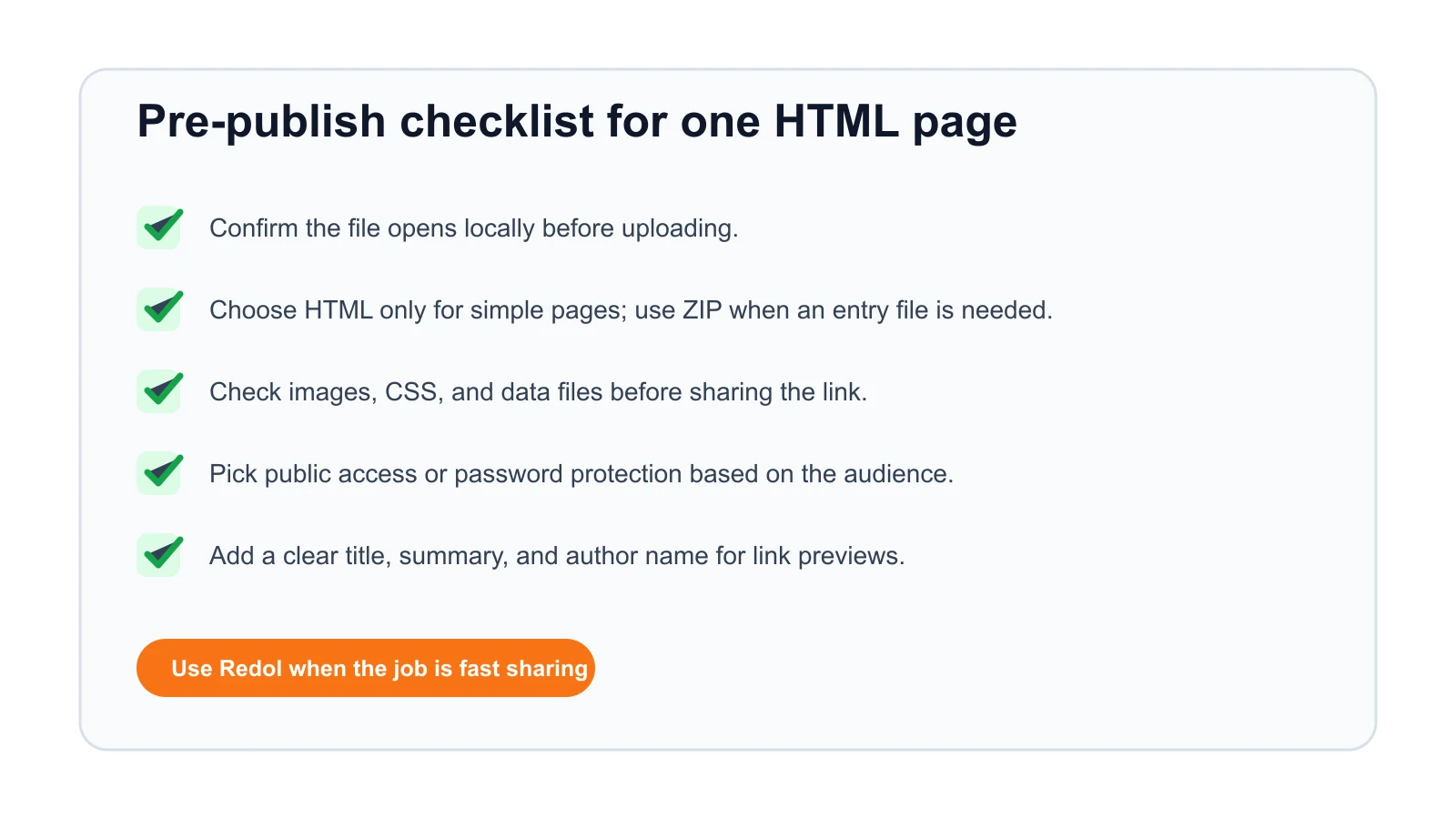
Run this checklist before you share the URL:
- Open the HTML file locally in a browser.
- Click through the important links and buttons.
- Check images, CSS, fonts, videos, and JSON files.
- Remove private data, API keys, personal files, and internal notes.
- Decide whether the page should be public or password-protected.
- Add a title and summary if the publishing tool supports metadata.
- Test the final URL in a private browser window.
- Send the URL to one person first before broad distribution.
If the page breaks locally, publishing will not fix it. If the page depends on files outside the HTML, choose a path that supports those assets.
HTML File vs ZIP Package
A single HTML file is easiest to publish when everything is inline or remote. A ZIP package is useful when the HTML entry point needs nearby data files, but it still depends on what the publisher supports.
| Package type | Use it when | Watch out for |
|---|---|---|
Single .html or .htm file | The page is self-contained or mostly text and inline styles | Missing local images or CSS can still break the page |
.zip with an HTML entry point | The page has an entry file and supporting data | The publisher must know which HTML file to open |
| Static site folder | The site has many pages and assets | Use a host that preserves the folder structure |
| Repository | The site will keep changing | You need Git workflow and publishing settings |
For Redol specifically, the current product source supports .html, .htm, and .zip uploads with an HTML entry point. It also detects local asset references and warns that packaged asset upload is planned. That makes Redol strongest for lightweight publishing, reports, demos, and shareable previews, not as a replacement for every full static-hosting workflow.
Common Mistakes When Publishing HTML
Uploading the wrong folder
If your host asks for a folder, upload the folder that contains index.html, not the parent folder that contains another nested site folder.
Forgetting local assets
An HTML file can look perfect on your computer because it can see local files beside it. After publishing, those files may be missing. Check every image, stylesheet, script, and data file.
Treating a share link like production hosting
A share link is excellent for fast distribution. It is not always the right answer for custom domains, multi-page navigation, analytics governance, long-term redirects, or production site operations.
Publishing private content
HTML can contain more than visible text. Check source comments, embedded data, screenshots, file names, script URLs, and copied customer information before uploading.
Skipping the final URL test
Always open the final URL in a private browser window. That catches login-only previews, missing public permissions, wrong access mode, and broken asset paths.
Which Path Should You Use
Choose a Redol share link when you need to publish one HTML file or a lightweight ZIP package quickly for review, reporting, demos, dashboards, or portfolio sharing. Choose static hosting when the site has multiple files, public-site expectations, or a custom domain. Choose GitHub Pages when the HTML site belongs in a repository and will keep changing.
For the exact keyword how to publish a website with html, the best article-level answer is not one platform. It is the decision rule: publish the smallest thing that satisfies the job, test the final URL, and do not use a lightweight share link when the page really needs full hosting.
Related posts
About the Author

Zhang Guo
AI Product Manager · Digital Marketing Consultant
AI product manager and digital marketing consultant with a background in music. I see creativity as the bridge between rhythm and logic, where musical intuition and mathematical precision can coexist in every meaningful product decision.
Follow on X