If you are searching for a free screen recorder no watermark, you probably do not want a long tour of every recorder on the internet. You want to know which tools actually let you record without stamping a logo over your tutorial, demo, course, or product walkthrough.
The short answer is this: the best free option depends on your operating system and how much control you need. A simple Mac recording, a Windows app clip, a streaming-style setup, and a privacy-sensitive product demo are different jobs.
Quick Comparison
Use this table first, then read the notes below before choosing a recorder for real work.
| Tool | Best for | Platform | Watermark | Main tradeoff |
|---|---|---|---|---|
| Redol Screen Recorder | Private Mac recordings with mic, system audio, and export control | macOS | No watermark | Mac-first workflow |
| OBS Studio | Advanced recording, scenes, cameras, and live-stream style control | Windows, macOS, Linux | No watermark | More setup time |
| QuickTime Player | Simple built-in Mac screen recordings | macOS | No watermark | Basic capture controls |
| Xbox Game Bar | Fast Windows app or game clips | Windows | No watermark | Best for app clips, not full production workflows |
| ShareX | Windows power users who also need screenshots, GIFs, and automation | Windows | No watermark | Dense interface for beginners |
What Counts as a Real No-Watermark Recorder
A no-watermark recorder should let you export a usable video file without adding the vendor name, logo, trial badge, or "made with" overlay. That is the minimum.
For practical work, I would also check four other things:
- Recording limits: Some tools remove watermarks but cap minutes, resolution, or export quality.
- Audio control: Screen-only capture is not enough for tutorials. You may need microphone audio, system audio, or both.
- Local privacy: If you are recording customer data, unreleased software, or internal workflows, local recording matters.
- Editing handoff: A recorder should make it easy to trim, export, or move the file into your editing workflow.
The goal is not to find the tool with the longest feature list. The goal is to choose the lightest tool that covers your actual recording job.
1. Redol Screen Recorder
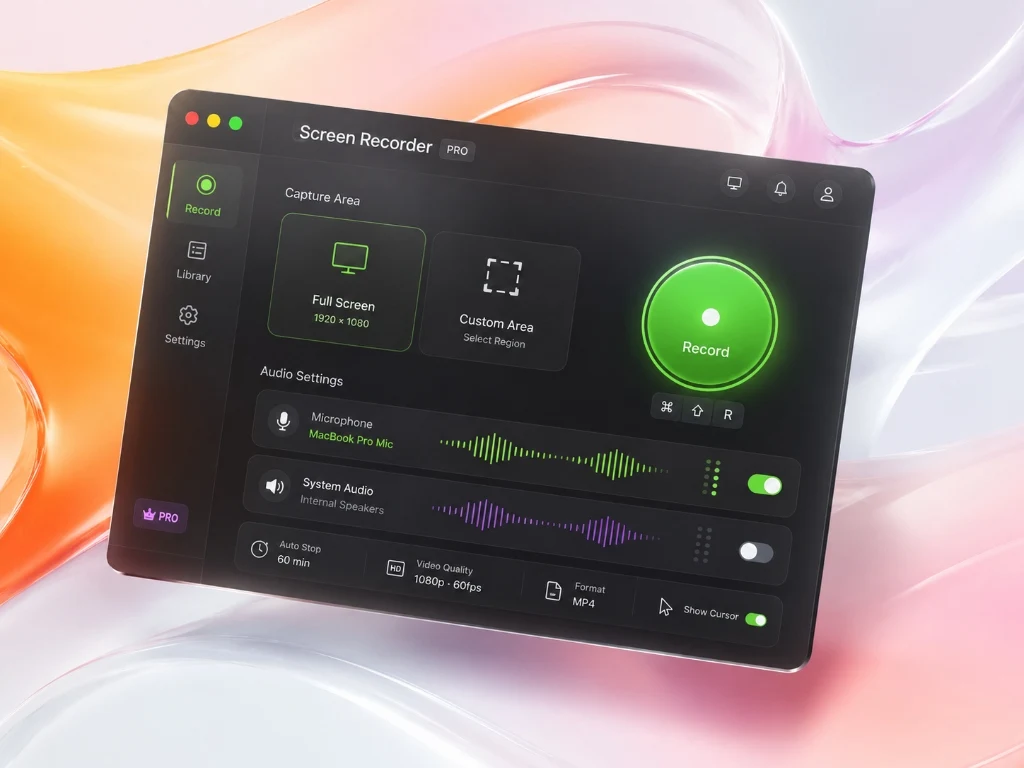
Redol Screen Recorder is the strongest fit when your job is a clean Mac recording and you do not want a cloud-first workflow. The product page positions it around free macOS screen recording with no watermark, no time limits, and support for microphone, system sound, webcam overlay, and local privacy.
That makes it especially useful for:
- recording product demos before launch
- capturing app walkthroughs for customers
- making async team videos
- recording course modules or tutorial clips
- saving private workflows without uploading raw footage first
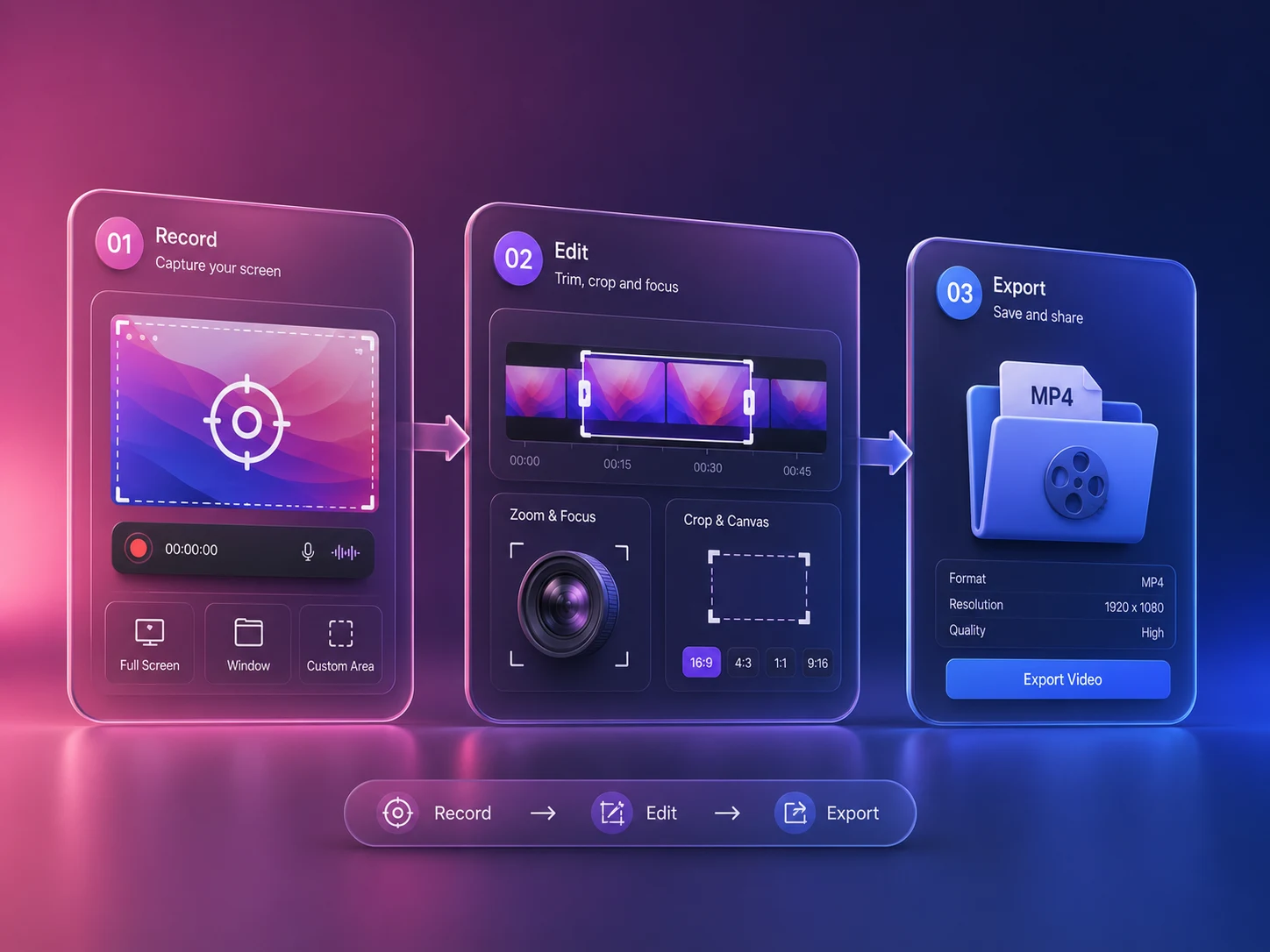
Redol is also the most natural choice if the search behind "free screen recorder no watermark" is really "I need a simple Mac recorder that will not punish me at export." It keeps the workflow focused: choose a capture area, set audio, record, then export a clean MP4.
Where Redol Fits Best
Redol is not trying to be a full broadcast studio. That is a good thing for most screen-recording tasks. If you need multiple live scenes, streaming overlays, and plugin-heavy production, OBS is the better fit. If you need a simple Mac recording with private local capture and no watermark, Redol is the more direct answer.
Record a clean screen video without the trial-badge feeling
Use Redol Screen Recorder for private Mac captures with microphone, system audio, webcam overlay, and clean MP4 export.
2. OBS Studio
OBS Studio is free and open-source software for video recording and live streaming. Its official site lists support for Windows, macOS, and Linux, and it is the best choice in this roundup when you need professional control.
Use OBS when you need:
- multiple scenes or layouts
- camera plus screen plus browser sources
- audio filters and advanced routing
- live-streaming features
- reusable production templates
The tradeoff is setup friction. OBS can be simple once configured, but it is not the fastest path if you just need to record a short product walkthrough. You may need to choose a display source, configure audio, check resolution, and test your scene before recording.
Best OBS Use Case
Pick OBS for repeatable productions: webinars, YouTube tutorials, recorded live demos, and streaming-style lessons. If you only need one clean screen recording today, use a lighter recorder.
3. QuickTime Player
Apple's QuickTime Player guide explains that the app can make a video recording of your Mac screen and save it locally. It is built into macOS, so it is the easiest zero-install option for many Mac users.
QuickTime is a good fit for:
- one-off screen recordings
- quick internal explanations
- simple software walkthroughs
- recordings where advanced audio mixing is not required
The limitation is control. QuickTime is intentionally simple. If you need system audio, webcam overlay, recording presets, or more intentional export handling, you may outgrow it quickly.
Best QuickTime Use Case
Use QuickTime when the recording is short, low-risk, and does not need much polish. It is often the fastest way to capture something on a Mac, but it is not the most complete no-watermark workflow.
4. Xbox Game Bar
Microsoft's Xbox Game Bar support page documents recording a clip with the Windows key + Alt + R shortcut, microphone toggling with Windows key + Alt + M, and saved MP4 files under the Captures folder.
That makes Xbox Game Bar useful when you need a quick Windows clip without installing anything.
Good fits include:
- recording a short app issue
- capturing a game or app moment
- sending a quick support clip
- making a lightweight internal demo
The tradeoff is production depth. It is a fast capture tool, not a full tutorial-recording environment. If you need a full desktop workflow, custom layouts, or repeatable creator settings, OBS or a dedicated recorder will feel better.
5. ShareX
ShareX describes itself as a screen capture, file sharing, and productivity tool for Windows. Its official site highlights that it is completely free, open source, has no advertisements, and includes screen recording and GIF recording.
ShareX is best for Windows users who want more than a recorder:
- screenshots and annotations
- screen recording and GIF capture
- OCR and productivity utilities
- custom workflows
- upload and post-capture automation
The main issue is density. ShareX is powerful, but a beginner who only wants a clean MP4 might feel like they opened a toolbox when they expected one red record button.
Which Free Recorder Should You Choose
Use this decision rule:
| If you need... | Choose... | Why |
|---|---|---|
| A clean Mac recording with local privacy | Redol Screen Recorder | Focused no-watermark capture with Mac-first controls |
| Advanced scenes and production layouts | OBS Studio | Best free control for complex recording setups |
| A quick built-in Mac capture | QuickTime Player | Already on macOS and simple enough for one-off recordings |
| A quick Windows app clip | Xbox Game Bar | Built into Windows and fast by keyboard shortcut |
| Windows screenshots plus recording automation | ShareX | Combines capture, recording, GIFs, and workflow tools |
For most creators, the mistake is choosing the most complex recorder too early. A screen recorder should reduce friction. If your first hour goes into settings instead of the actual video, the tool is working against you.
A Practical Setup Before You Record
No-watermark export is only one part of a usable recording. Before you hit record, run this checklist:
- Close tabs, notifications, and private documents.
- Choose a fixed capture area before you start.
- Test microphone and system audio separately.
- Record a 10-second sample and play it back.
- Keep the cursor visible only when it helps the viewer.
- Export a short MP4 and check that no watermark appears.
This last step matters. Some tools look free during capture but reveal export limits later. Test export before recording a 40-minute course module.
Best Overall Pick
The best free screen recorder without a watermark is not one universal app. It is the recorder that matches your operating system and recording job.
For Mac creators who want a private, simple, no-watermark workflow, start with Redol Screen Recorder. For advanced production, use OBS. For built-in convenience, use QuickTime on Mac or Xbox Game Bar on Windows. For Windows power workflows, ShareX is still one of the most capable free options.
The cleanest workflow is the one you can trust at export time: no watermark, no surprise time cap, no unnecessary upload, and no extra friction between the idea and the final video.
Related posts
About the Author

Zhang Guo
AI Product Manager · Digital Marketing Consultant
AI product manager and digital marketing consultant with a background in music. I see creativity as the bridge between rhythm and logic, where musical intuition and mathematical precision can coexist in every meaningful product decision.
Follow on X