Topic: Screen recording guides
The best desktop screen recorder is the one that matches your operating system and the work that happens after capture. Redol is the direct choice for private, local recordings on Apple Silicon Macs. OBS is better for multi-source scenes. Windows and macOS built-in tools handle quick clips, while Camtasia, ScreenFlow, Movavi, and FonePaw add broader recording or editing workflows.
Do not choose from a feature count alone. First decide whether you need a built-in shortcut, a browser recorder, or installed desktop software. Then test system audio, microphone sync, export limits, and one real output file before recording something important.
Quick Comparison
| Recorder | Best for | Platform | Recording workflow | Main constraint to check |
|---|---|---|---|---|
| Redol Screen Recorder | Private local Mac demos and tutorials | Apple Silicon macOS | Screen, system audio, mic, webcam, quick edits, local MP4 | Windows and Intel Mac clients are not currently available |
| OBS Studio | Multi-source recording, scenes, and livestream production | Windows, macOS, Linux | Sources, scenes, audio mixer, plugins, local recording | More setup than a one-off desktop clip needs |
| Xbox Game Bar | Fast Windows app or game clips | Windows | Shortcut-driven app capture with optional mic | Not a full-desktop production recorder |
| Apple Screenshot and QuickTime | Built-in Mac captures | macOS | Entire screen or selected area with microphone options | Confirm that the available audio path fits your job |
| ShareX | Windows capture automation and power-user workflows | Windows | Screenshots, screen recording, GIFs, after-capture actions | Dense workflow surface for beginners |
| Camtasia | Training videos that need capture and editing together | Windows, macOS | Separate screen, camera, system-audio, and mic tracks | Free Editor exports include a watermark |
| ScreenFlow | Mac tutorials with a full editing handoff | macOS | Screen, camera, mic, multi-app capture, timeline editing | Trial exports are watermarked |
| Movavi Screen Recorder | Conventional scheduled desktop capture | Windows, macOS | Area capture, audio, webcam, annotations, scheduling | Trial period and watermark limits require checking |
| FonePaw Screen Recorder | A conventional Windows or Mac recorder with several capture modes | Windows, macOS | Screen, audio, webcam, scheduling, basic editing | Verify vendor claims and trial behavior with a short export |
Desktop Recorder vs Browser Recorder
A browser recorder is useful when installation is blocked or the recording is short. It can also simplify link-based sharing. But browser permissions, account requirements, tab or window limits, cloud handling, and session caps may shape the workflow more than the record button does.
Installed desktop software is usually the better category when you need any of these:
- reliable system-audio capture
- repeatable microphone and webcam settings
- a selected window that stays isolated from the rest of the desktop
- long recordings or scheduled capture
- local files before upload
- cursor emphasis, annotations, or editing metadata
- consistent output settings across a series
That distinction is why this guide does not duplicate our free no-watermark recorder roundup. The question here is not merely whether an export carries a watermark. It is whether an installed desktop workflow is the right operating model.
How We Evaluated the Recorders
This is an official-source comparison, not a claim of laboratory benchmarking or hands-on testing across every current build. We checked current public product pages and support documentation for platform support, capture scope, audio, webcam, editing handoff, trial limits, and local-versus-cloud workflow.
Before adopting any recorder, verify these five items on your own machine:
- Record a specific window and a selected area.
- Capture system audio and microphone narration together.
- Play back a 30-second test to catch drift, silence, or clipping.
- Export once and check resolution, format, watermark, and file location.
- Confirm what stays local and what requires an account or upload.
1. Redol Screen Recorder
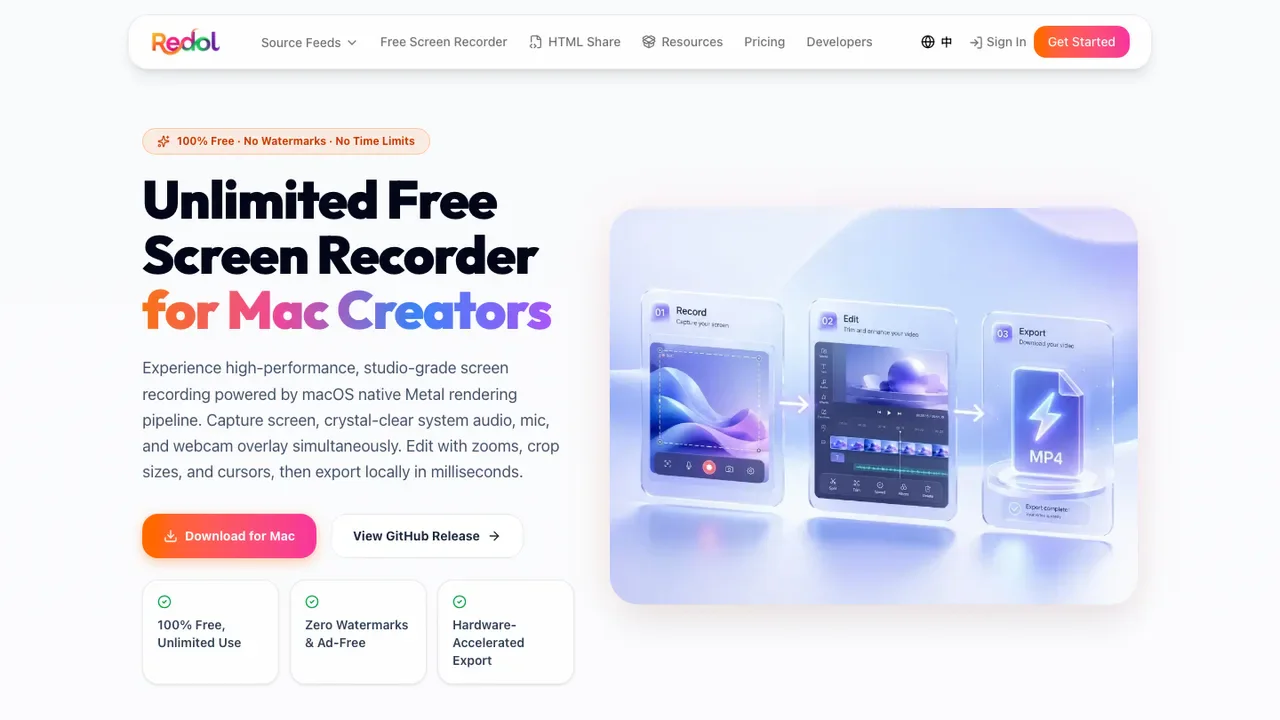
Redol Screen Recorder is the most direct fit when you use an Apple Silicon Mac and want a local recording-to-export workflow. The current product route documents screen capture, system audio, microphone narration, webcam overlay, cursor emphasis, zooms, cropping, quick editing, and local MP4 export. It also states that the current client is free, without recording time limits or watermarks.
Choose Redol for product demos, support clips, developer tutorials, course segments, and other recordings where the raw capture should not be uploaded before you decide to share it.
The boundary matters: Redol is not a Windows recorder, and the current route marks the Intel Mac client as coming soon. It is also not trying to replace a scene-based broadcast studio such as OBS.
2. OBS Studio
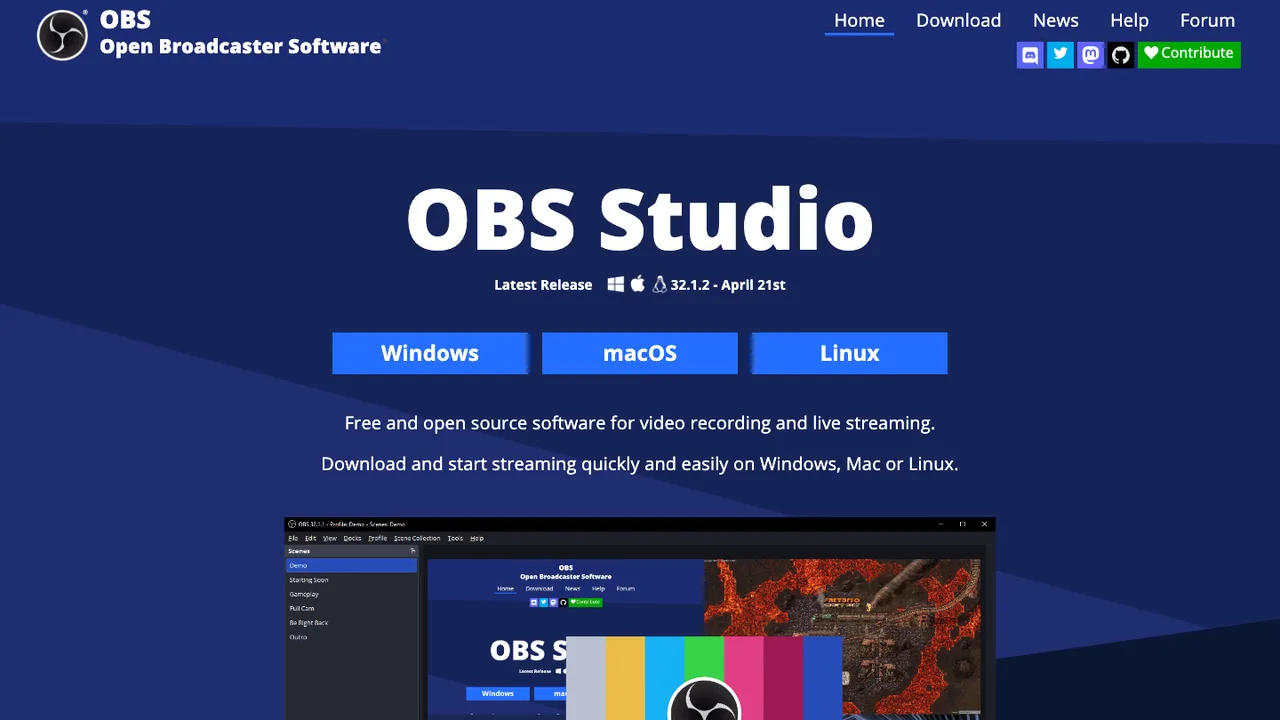
OBS Studio is free and open-source software for recording and live streaming on Windows, macOS, and Linux. Its official page documents real-time video and audio capture, scenes built from windows, webcams, browser sources, images, capture cards, and other inputs, plus an audio mixer and plugins.
OBS is the strongest option in this list when the recording is really a small production system. It fits webinars, multi-camera lessons, reusable YouTube layouts, and any workflow that needs scene switching.
It is less attractive when the job is one clean application walkthrough. A short clip can require source setup, audio routing, canvas sizing, output settings, and a test recording before you are ready.
3. Xbox Game Bar
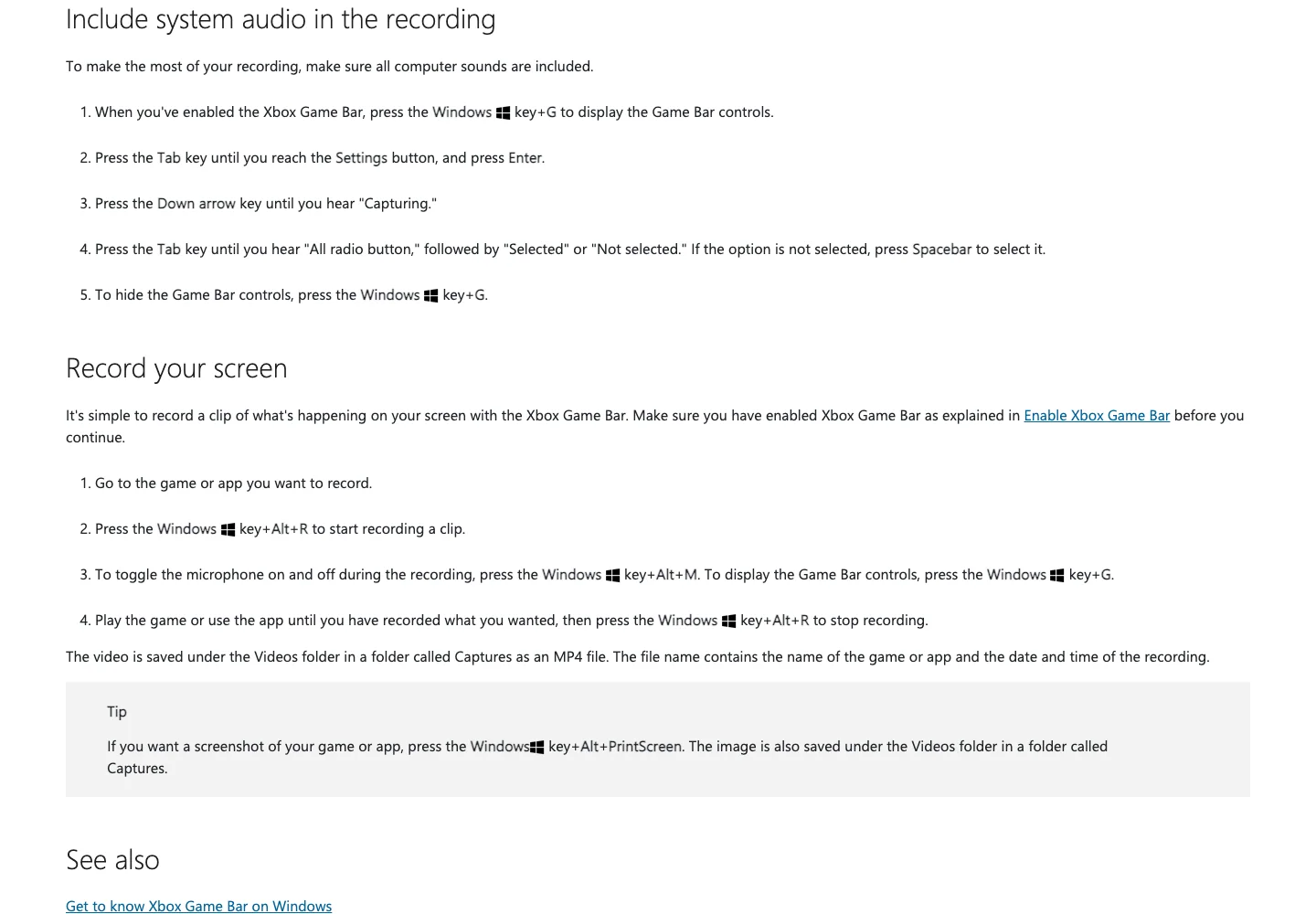
Microsoft's Xbox Game Bar recording guide documents the Windows key + Alt + R shortcut to start or stop a recording and Windows key + Alt + M to toggle microphone capture. Recordings are saved as MP4 files in the Captures folder.
This is the fastest Windows choice when you need a clip from a supported app or game and do not want another installer. It is useful for bug reports, quick software demonstrations, and game moments.
Treat it as a shortcut recorder, not a complete desktop studio. If you need precise area selection, webcam layout, annotations, scheduling, or a reusable tutorial setup, move to a dedicated tool.
4. Apple Screenshot and QuickTime
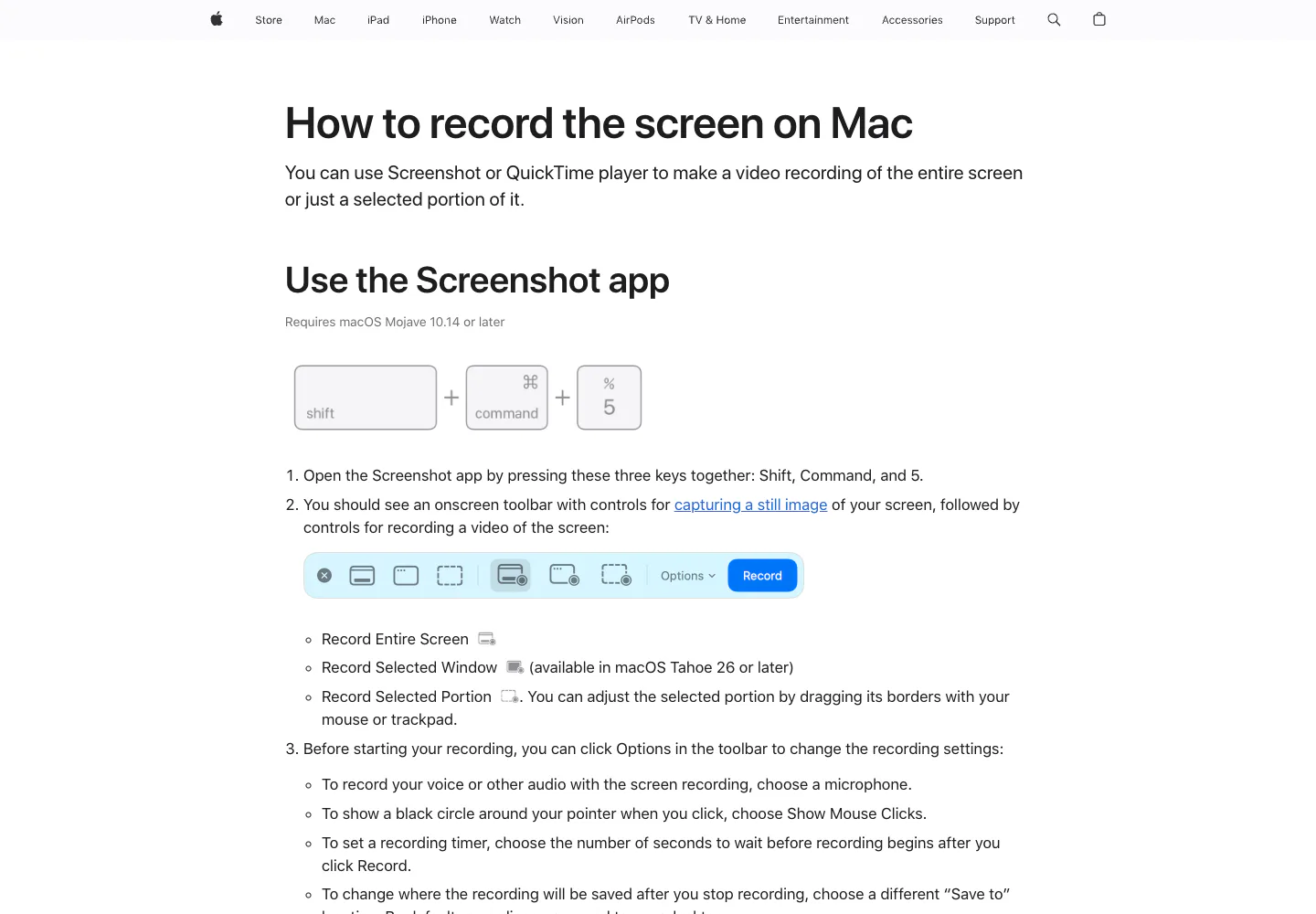
Apple's current Mac screen-recording guide documents two built-in paths: the Screenshot app and QuickTime Player. Screenshot opens with Shift + Command + 5 and can record the entire screen or a selected area. Its options include a microphone, click indicators, a start timer, and the save location.
This is the right starting point for a one-off Mac clip because it is already installed and saves locally. QuickTime is similarly useful when you want a straightforward screen recording that opens immediately for playback, editing, or sharing.
The decision turns on audio and editing depth. Apple's guide documents microphone selection, but a tutorial that depends on application audio, webcam composition, repeated presets, or richer editing may need a dedicated recorder.
5. ShareX
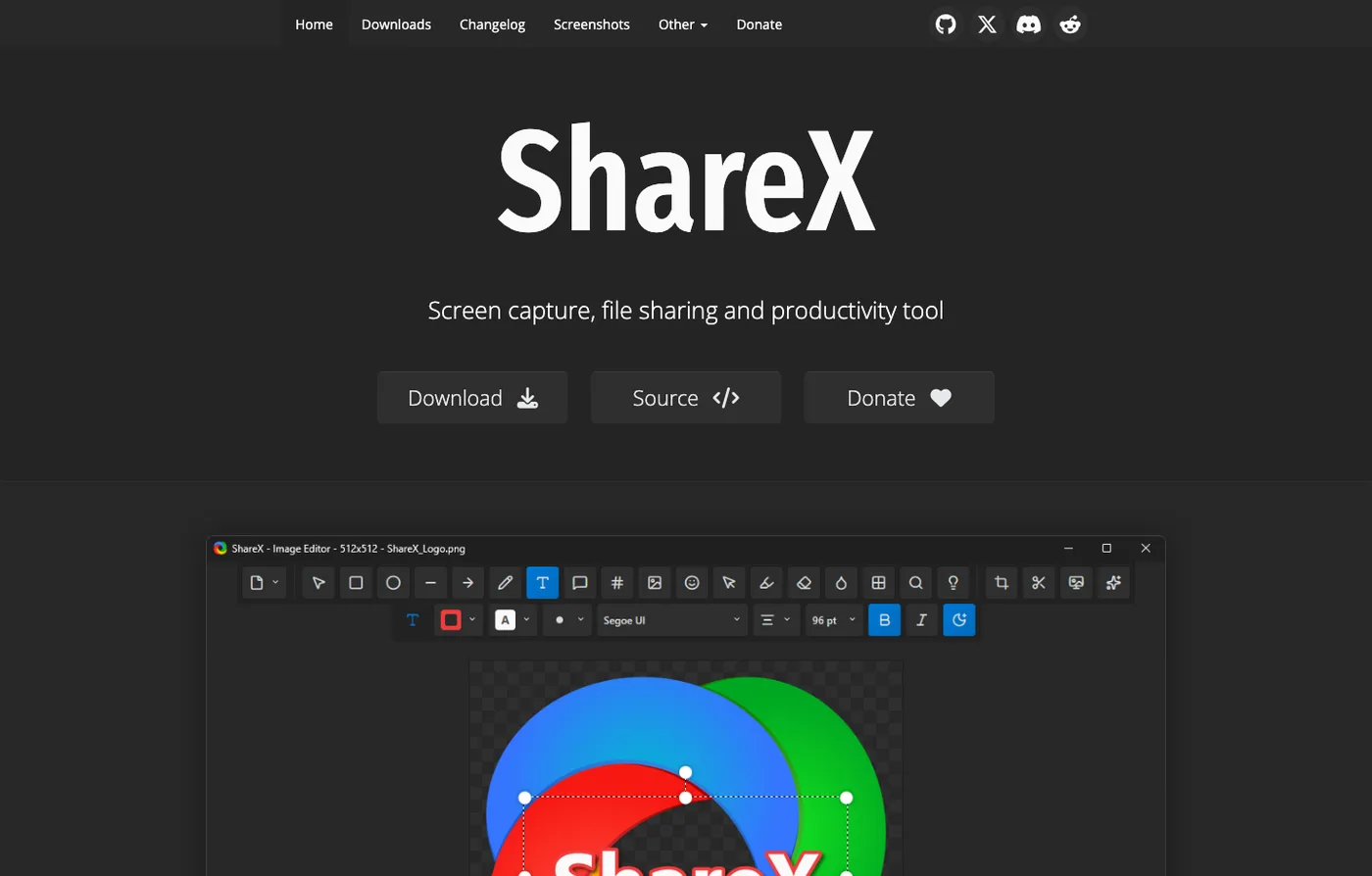
ShareX is a free, open-source Windows capture and productivity tool. Its official page includes screen recording, GIF recording, region capture, scrolling capture, image editing, OCR, customizable after-capture actions, and upload workflows.
ShareX makes sense when screen video is only one part of a larger Windows capture system. A support engineer might record a short clip, annotate screenshots, redact information, copy file paths, and run an after-capture action from one tool.
That flexibility creates the tradeoff. A beginner looking for one large record button may find the workflow dense. Test the recording configuration, audio path, save destination, and any automatic upload action before using it around sensitive material.
6. Camtasia
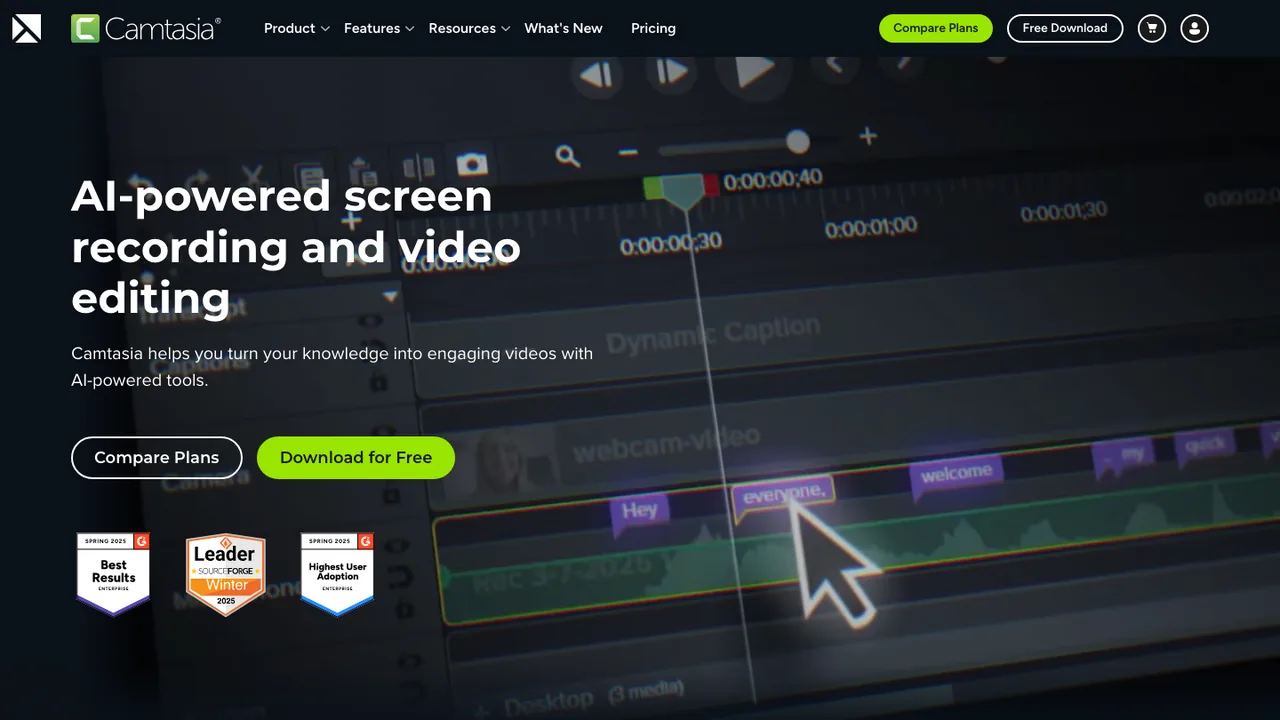
Camtasia is built around recording and editing as one workflow. TechSmith's current page documents separate tracks for screen, camera, system audio, and microphone, followed by editing, captions, cursor effects, annotations, templates, and other training-video features. It is available on Windows and macOS.
Choose Camtasia when the final deliverable is a polished lesson, onboarding video, software tutorial, or customer-education asset. Separate tracks give you more control when the webcam framing, narration, or system audio needs repair after recording.
The current official page also states that the free Editor includes all editing features but adds a watermark to exported videos until you upgrade. Test the full capture-to-export path before committing to a series.
7. ScreenFlow
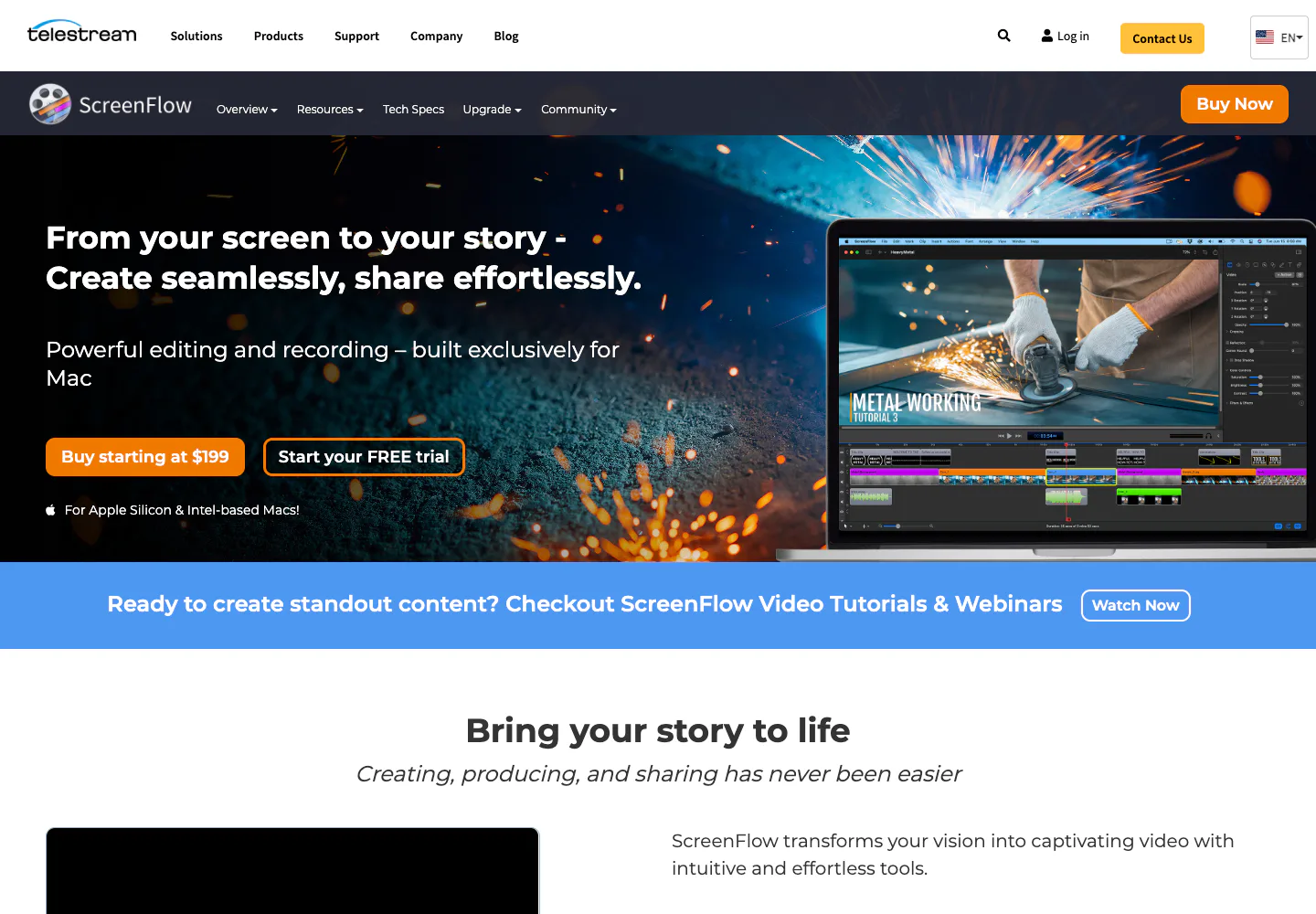
ScreenFlow is a Mac-only recorder and editor. Telestream's public page describes simultaneous screen, camera, and microphone recording, multi-app capture, timeline editing, annotations, captions, templates, iPhone or iPad recording, and several export options.
ScreenFlow is a strong fit for Mac creators who make edited tutorials repeatedly. It offers a deeper production surface than a lightweight local recorder, especially when every capture becomes a multi-track project.
The tradeoff is cost and complexity. Telestream states that the free trial is fully functional without a time limit, but exported movies are watermarked. If the recording only needs a trim and a clean MP4, a smaller tool may be faster.
8. Movavi Screen Recorder
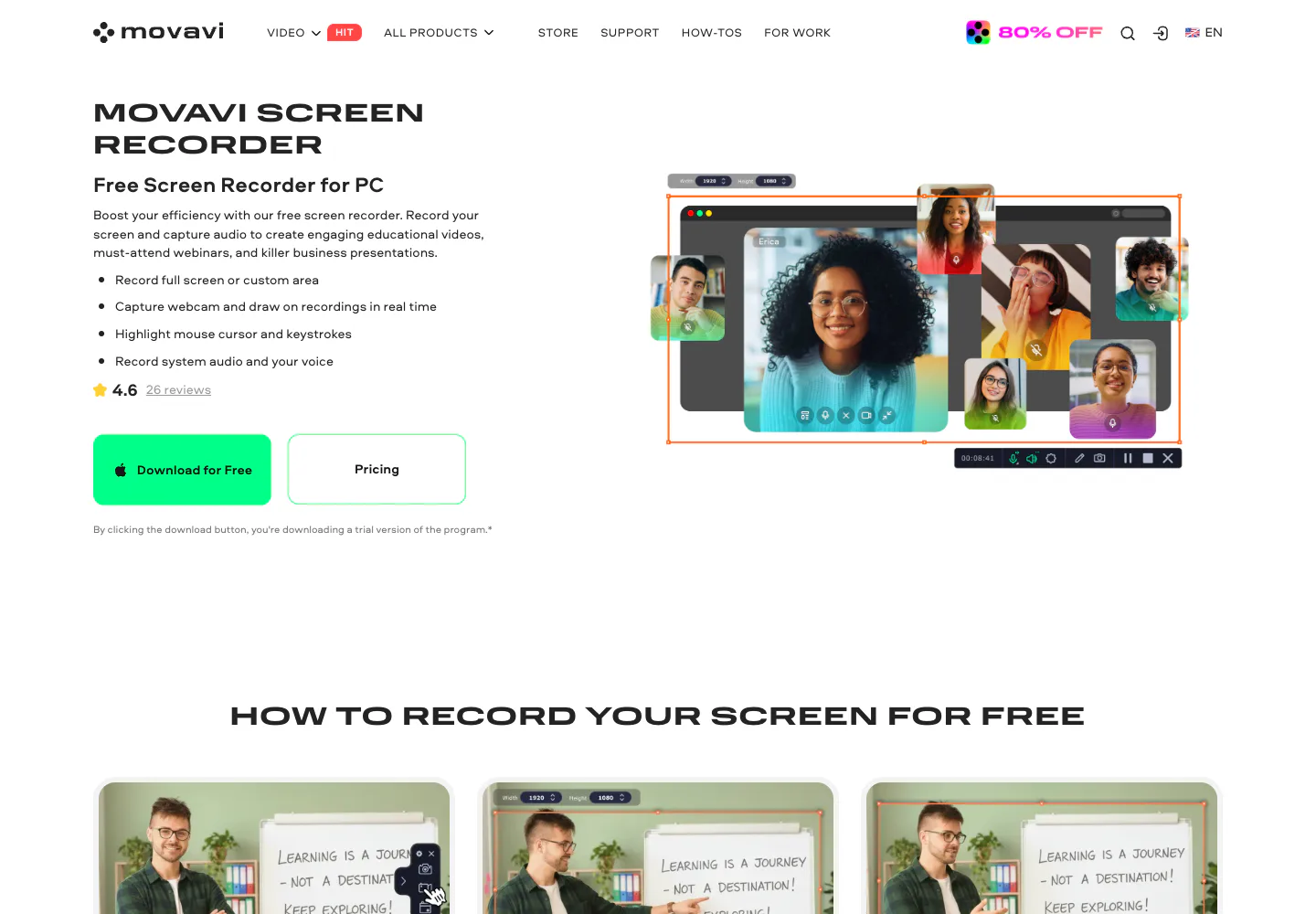
Movavi Screen Recorder is a conventional Windows and Mac capture tool. Its current official page documents full-screen or custom-area recording, system audio, microphone, webcam, cursor and keystroke emphasis, annotations, scrolling screenshots, and scheduled recording.
Movavi is worth considering when you want more structure than a built-in recorder without moving into an OBS-style scene system or a full training editor. Scheduling is particularly relevant for webinars or other events that begin when you may be away from the keyboard.
Check the license boundary before a long session. Movavi's page identifies the download as a trial and currently lists a seven-day trial period and watermark on output videos.
9. FonePaw Screen Recorder
FonePaw's desktop recorder page presents its product as a Windows and Mac recorder for screen, system audio, microphone, webcam, scheduled capture, annotations, and basic editing. The same page compares the product with built-in and browser recording paths.
FonePaw belongs in the comparison because it represents the conventional all-purpose desktop-recorder category. But treat feature, performance, resolution, and trial statements as vendor claims. Verify operating-system support, recording length, watermark behavior, export formats, and one completed file in the version you actually install.
For a fuller brand-specific evaluation, read our FonePaw Screen Recorder review. The page below is the live competitor source that prompted this broader desktop-recorder guide.
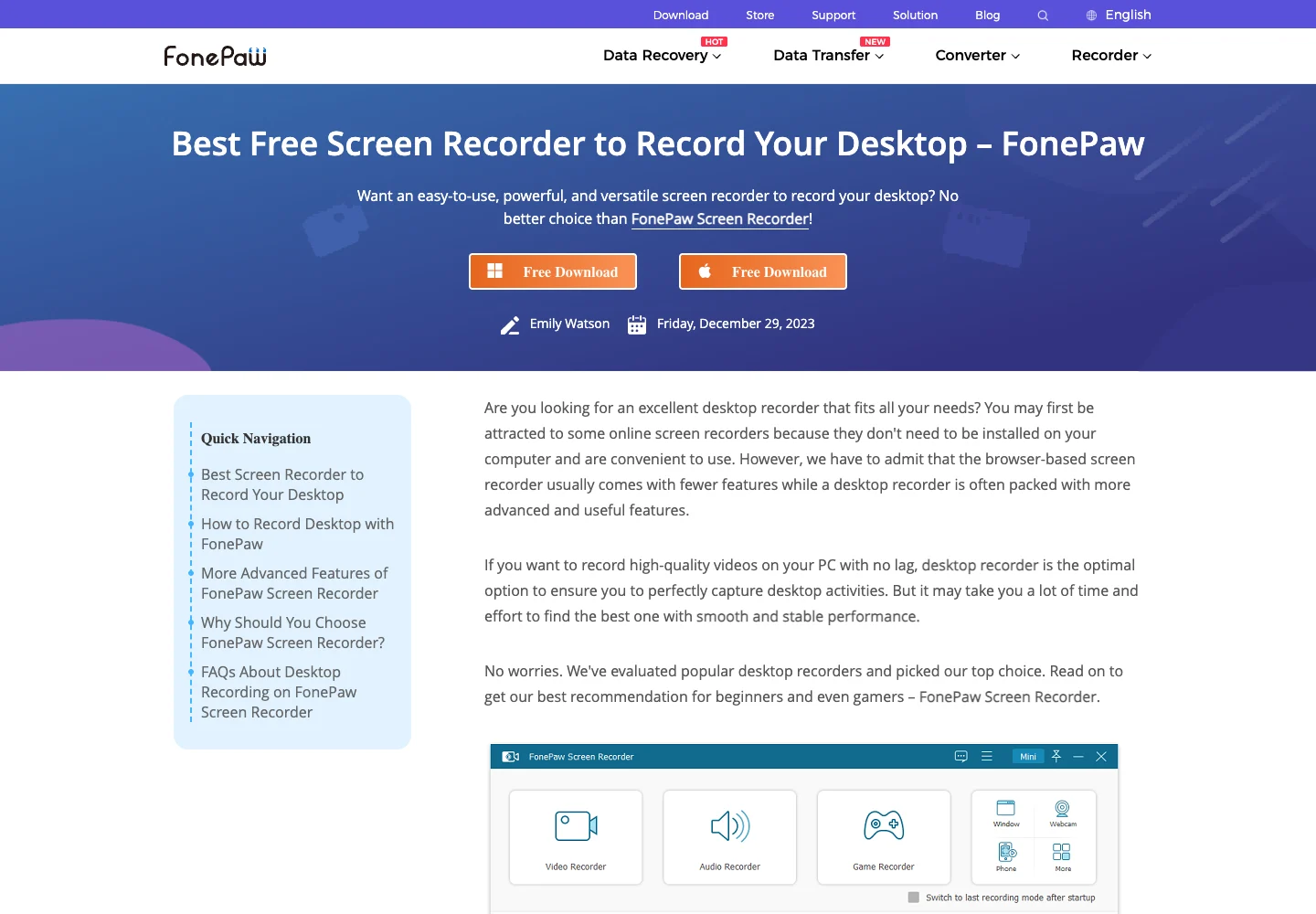
Which Desktop Screen Recorder Should You Choose
Use the smallest recorder that safely completes the job:
| Your job | Start with | Move up when... |
|---|---|---|
| A private Mac product demo | Redol | You need scenes, live switching, or a full editor |
| A quick Windows app clip | Xbox Game Bar | You need area control, webcam, or repeatable settings |
| A quick built-in Mac clip | Screenshot or QuickTime | System audio or editing becomes essential |
| A multi-source production | OBS | The editing handoff matters more than live control |
| A Windows capture-automation workflow | ShareX | You need a simpler recorder or Mac support |
| A polished training video | Camtasia | You need a lighter capture-only workflow |
| An edited Mac tutorial series | ScreenFlow | You only need a fast local capture and export |
| A conventional scheduled capture | Movavi or FonePaw | Trial, watermark, or platform limits do not fit |
The parent rule is simple: built-in tools win on speed, browser tools win when installation is blocked, and desktop applications win when capture settings, local control, audio, and repeatability matter.
Run This Preflight Before the Real Recording
- Close notifications, private documents, password managers, and unrelated tabs.
- Choose the exact screen, window, or area rather than deciding after recording starts.
- Set system audio and microphone independently, then monitor both.
- Record 30 seconds with the same resolution, application, and audio sources as the real session.
- Stop, export, and play the file from beginning to end.
- Check for a watermark, time cap, missing cursor, silent audio, drift, or cloud upload.
- Confirm free disk space and disable sleep before a long capture.
That test is more valuable than a long feature table. It proves that the recorder can finish your specific job on your current machine.
Best Overall Pick
There is no universal best desktop screen recorder. For Apple Silicon Mac users who want a private, local, no-watermark workflow, Redol is the most direct option. Use OBS for scenes and production control, built-in tools for quick clips, ShareX for Windows capture automation, and Camtasia or ScreenFlow when editing is the center of the workflow.
Record, refine, and export without sending the raw capture to the cloud
Use Redol Screen Recorder on Apple Silicon Mac for system audio, mic narration, webcam overlay, quick edits, and local MP4 export.
Related posts
About the Author

Zhang Guo
AI Product Manager · Digital Marketing Consultant
AI product manager and digital marketing consultant with a background in music. I see creativity as the bridge between rhythm and logic, where musical intuition and mathematical precision can coexist in every meaningful product decision.
Follow on X