Topic: Screen recording guides
The best open source screen recorder depends on where you record and how much control you need. OBS Studio is the strongest cross-platform production choice. ShareX is the Windows power-user pick. Screenity is the easiest browser-first option. Kooha, vokoscreenNG, and SimpleScreenRecorder cover different Linux recording jobs.
Open source does not automatically mean simple, private, actively maintained, or available on every platform. Check the license, recent project activity, supported operating systems, audio path, and one completed export before adopting any recorder.
Quick Comparison
| Recorder | Best for | Platform | License | Maintenance signal checked July 2026 | Main limit to check |
|---|---|---|---|---|---|
| OBS Studio | Multi-source recording and livestream production | Windows, macOS, Linux | GPL-2.0-or-later | Current 32.1 release line | More setup than a short clip needs |
| ShareX | Windows capture automation, GIFs, and quick video | Windows | GPL-3.0 | Current 21.0 release line | Dense power-user workflow |
| Screenity | Browser, tab, desktop, and camera recording | Chromium-based browser | GPL-3.0 for current MV3 code | Current 4.6 release line | Browser permissions and extension scope |
| Kooha | Minimal GNOME and Wayland recording | Linux | GPL-3.0 | Current 2.3 release line | PipeWire and portal compatibility |
| vokoscreenNG | Guided desktop capture with audio, camera, and timers | Windows, Linux | GPL-2.0 | Current 4.10 release line | Some capture behavior differs by platform |
| SimpleScreenRecorder | Linux and OpenGL recording with detailed controls | Linux | GPL-3.0 | Official project site updated in 2026 | Older interface and distribution-specific packaging |
What Counts as an Open Source Screen Recorder
For this roundup, a public code repository was not enough. Each primary recommendation needed:
- an identifiable open-source license
- an official project page or repository
- a usable screen-recording workflow rather than screenshot-only capture
- a platform and installation path that a reader can verify
- current maintenance evidence or a clear explanation of the project's present state
- enough official documentation to describe strengths and constraints without inventing a benchmark
We did not rank the tools by star count or claim that one records with less lag than another. Performance depends on the encoder, resolution, frame rate, source type, graphics driver, and machine. The safer test is a 30-second recording with the exact audio and application setup you plan to use.
This article also serves a different job from our free no-watermark screen recorder comparison. A free recorder can still be closed source, while an open-source recorder can still require complex setup.
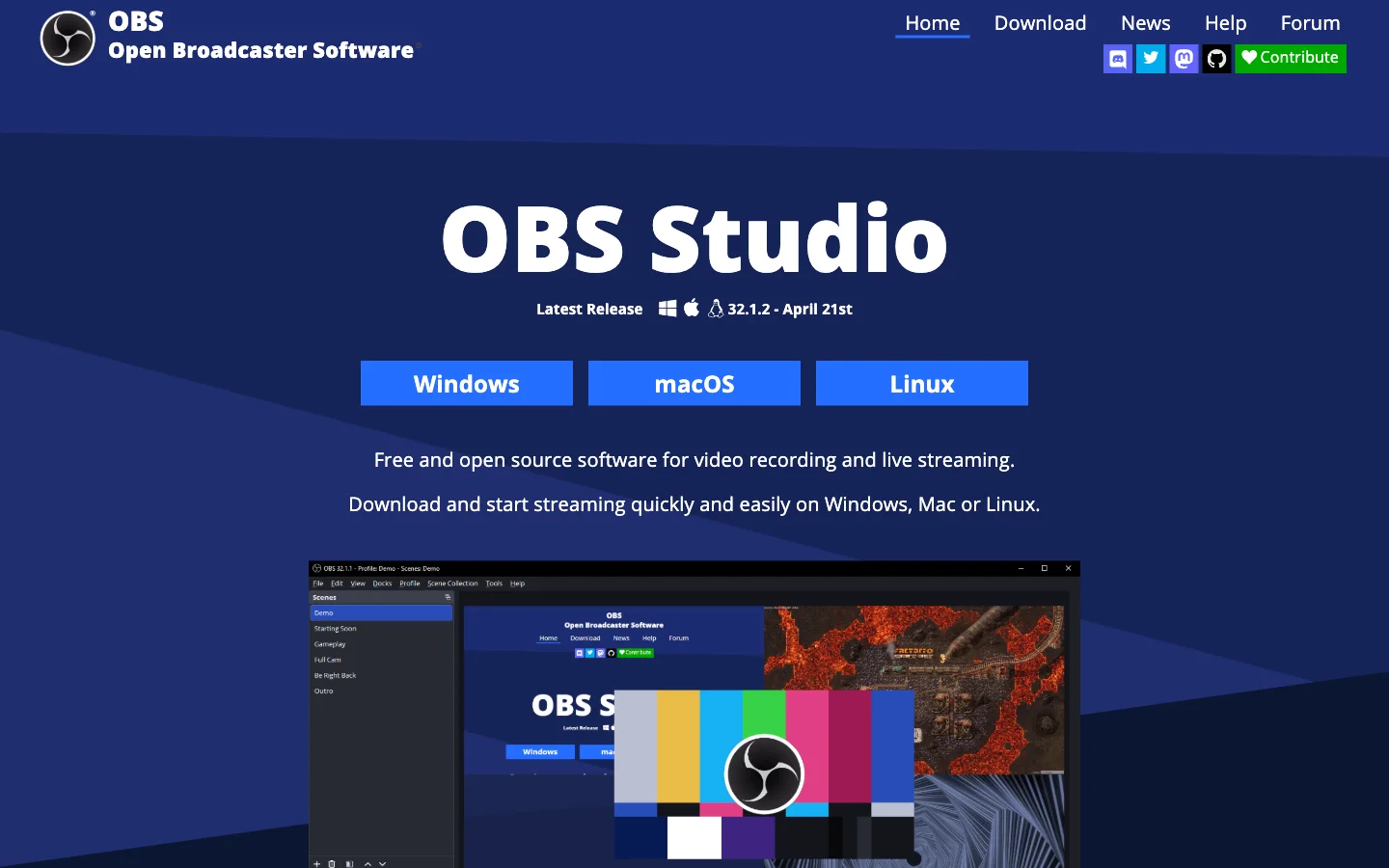
1. OBS Studio
OBS Studio is the best overall open-source screen recorder when capture is part of a reusable production system. The official project describes it as software for capturing, compositing, encoding, recording, and streaming video. Its repository is licensed under GPL-2.0-or-later.
OBS runs on Windows, macOS, and Linux. It can combine display or window capture, cameras, browser sources, images, audio devices, and capture cards into scenes. That makes it the clearest choice for livestreams, multi-camera lessons, webinars, and recurring video layouts.
The same flexibility is the main cost. A one-off application demo can require canvas sizing, source selection, audio routing, output settings, and a test recording before the record button is useful. If you only need one clean local clip, a smaller recorder may remove work rather than features.
Choose OBS when:
- you need scenes or multiple visual sources
- recording and livestreaming belong in one setup
- plugins, scripts, or reusable layouts matter
Check first: run a short export with your intended encoder and audio sources. A successful preview does not prove that the saved file has the right sound, frame rate, or resolution.
2. ShareX
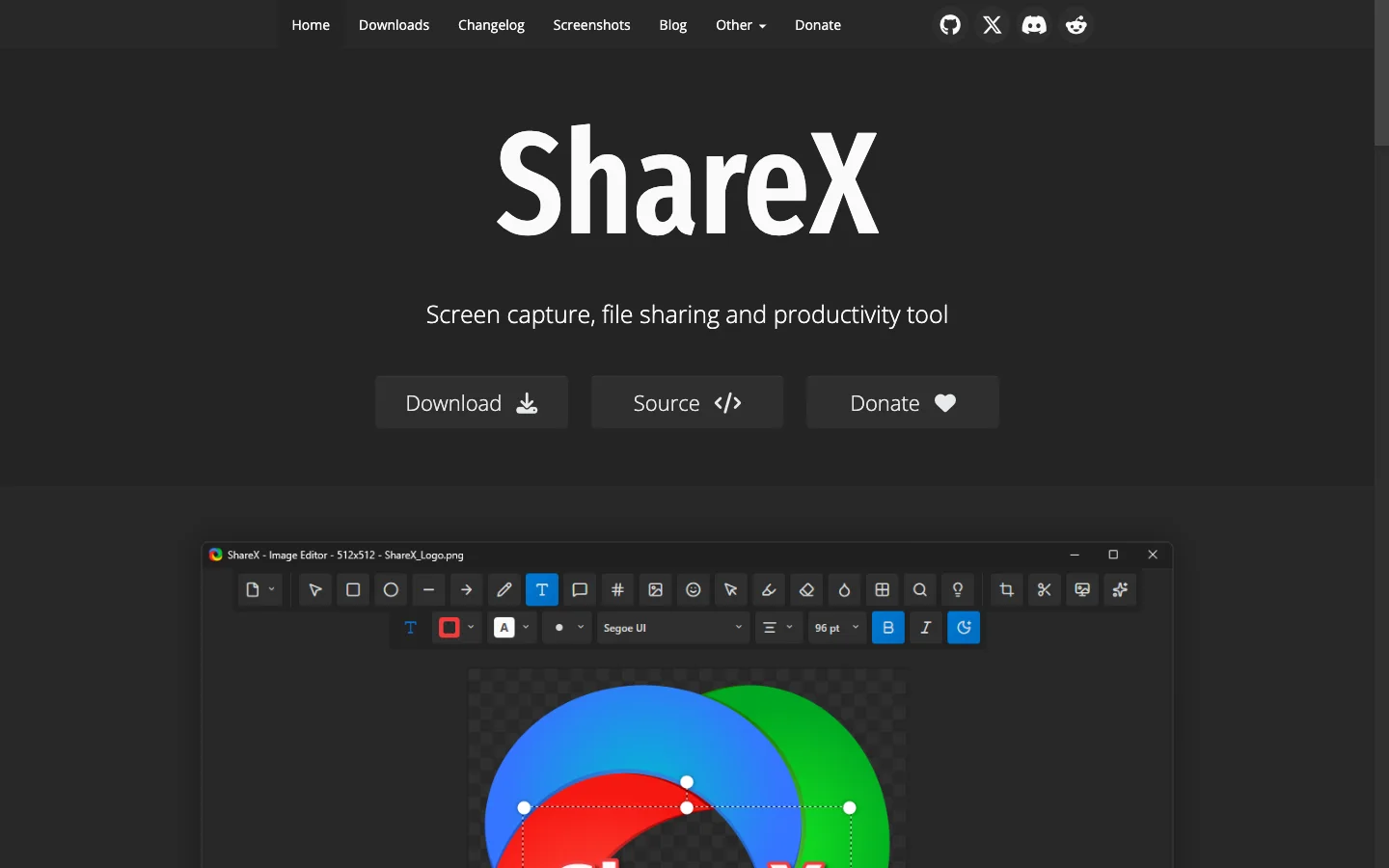
ShareX is the strongest Windows option when screen recording is one step inside a broader capture workflow. Its official site and repository identify it as a free, open-source Windows tool under GPL-3.0.
ShareX includes region and window capture, video and GIF recording, scrolling screenshots, annotations, OCR, file handling, and configurable after-capture actions. It fits support engineers, documentation teams, and power users who want hotkeys and automation around every captured asset.
It is not a minimal recorder. The task chain, uploader options, and capture settings are an advantage only when you intend to use them. Review automatic upload destinations before recording sensitive content, and confirm where video files are saved.
Choose ShareX when:
- Windows is your only target platform
- you also capture, annotate, transform, and route screenshots
- GIF recording or automated after-capture steps matter
Check first: verify the FFmpeg-backed recording setup, audio source, save folder, and any upload action with a disposable clip.
3. Screenity
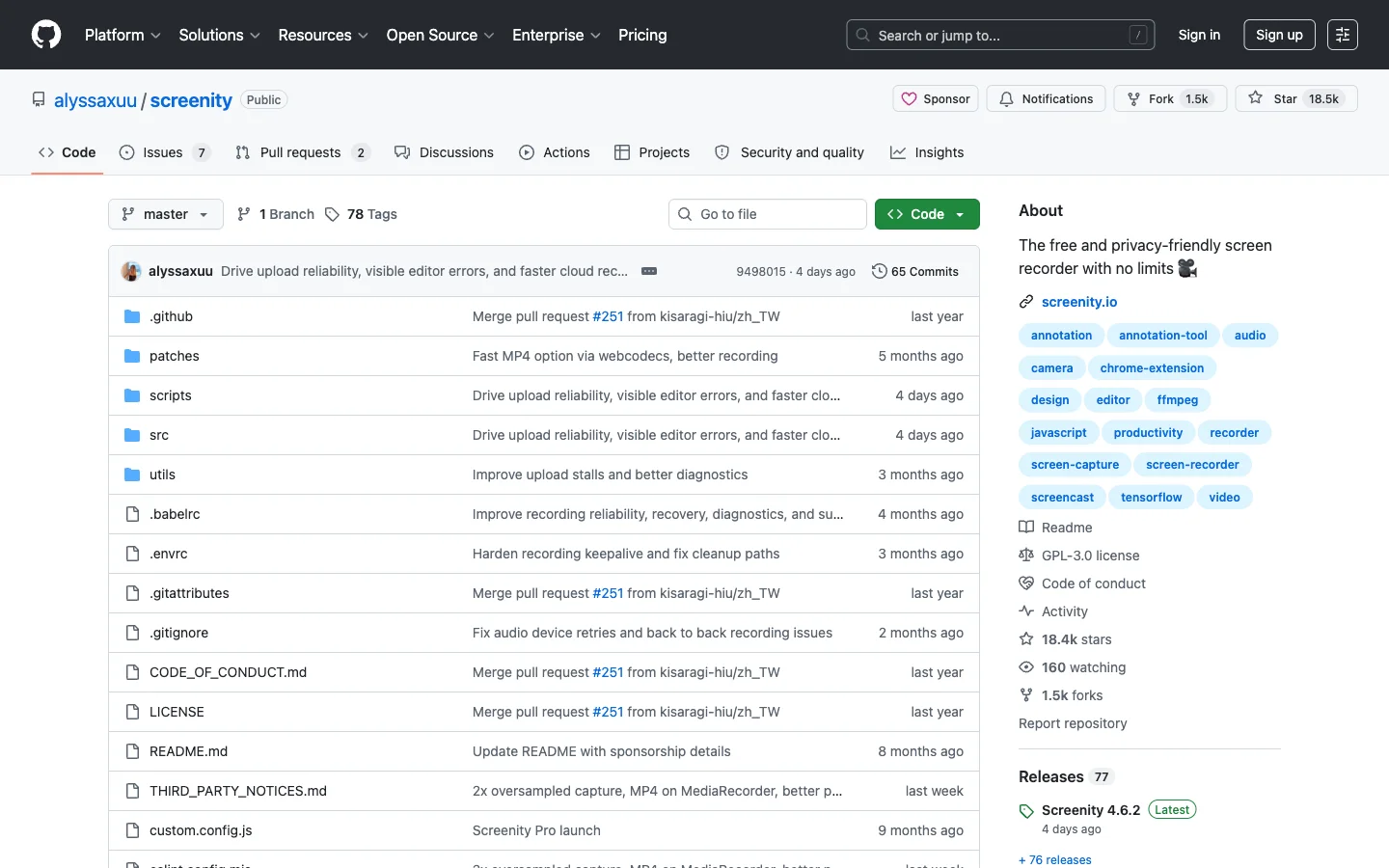
Screenity is the best browser-first open-source recorder in this list. The official repository documents tab, area, desktop, application, camera, microphone, and internal-audio recording, along with annotations, zooms, blur, trimming, cropping, and local export. Current Manifest V3 code is GPL-3.0.
The project is useful when installing a desktop recorder is blocked or unnecessary. Product demos, browser tutorials, feedback clips, and classroom explanations can stay inside a familiar extension workflow.
There is an important scope boundary. The repository states that a self-hosted build runs in local-only mode without platform API calls, while some paths in the official store version can connect to Screenity Pro. That does not make either path inherently wrong, but it means you should decide whether you want the store product or a self-hosted local build.
Choose Screenity when:
- most recording happens in a browser
- annotations and quick trimming matter
- you want a self-hostable extension path
Check first: confirm the selected capture surface, browser audio permissions, export format, and whether you installed the store build or a self-hosted build.
4. Kooha
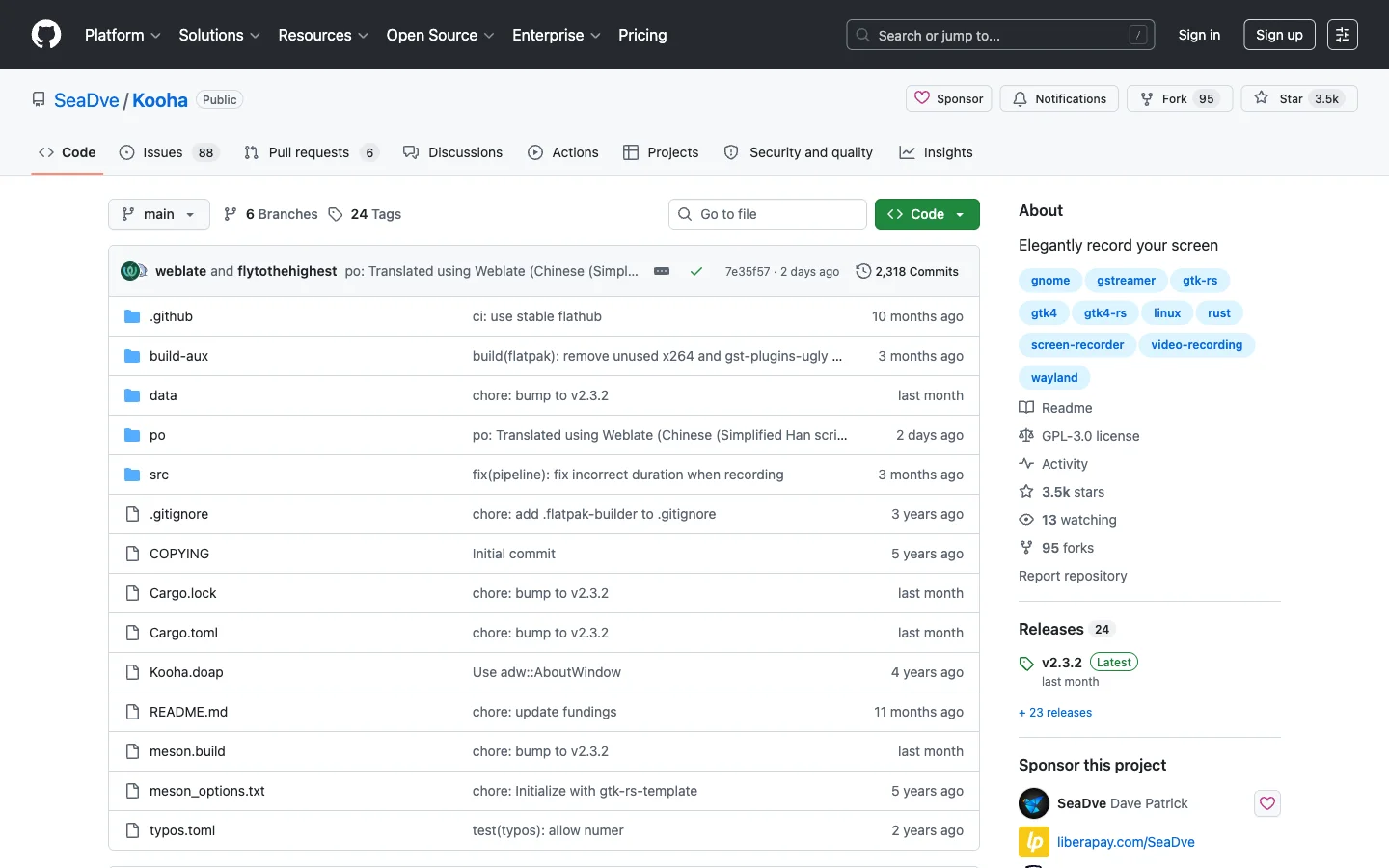
Kooha is the best fit for a simple GNOME-oriented Linux recorder. Its GPL-3.0 repository describes a minimal interface for recording a monitor or selected area with microphone audio, desktop audio, or both.
Kooha supports WebM, MP4, GIF, and Matroska output, plus frame-rate, pointer, delay, and save-location controls. It is intentionally narrower than OBS, which is useful when the job is a local screencast rather than a scene-based production.
Linux capture compatibility is the real decision point. Kooha relies on PipeWire and an appropriate desktop portal. Window recording and some formats or hardware-accelerated paths are documented as experimental. Desktop environment and distribution details can matter more than the feature list.
Choose Kooha when:
- you use GNOME or a compatible Linux desktop
- you want a focused local recorder
- monitor or selected-area capture is enough
Check first: confirm PipeWire, the correct xdg-desktop-portal backend, desktop audio, and the output format on your distribution.
5. vokoscreenNG
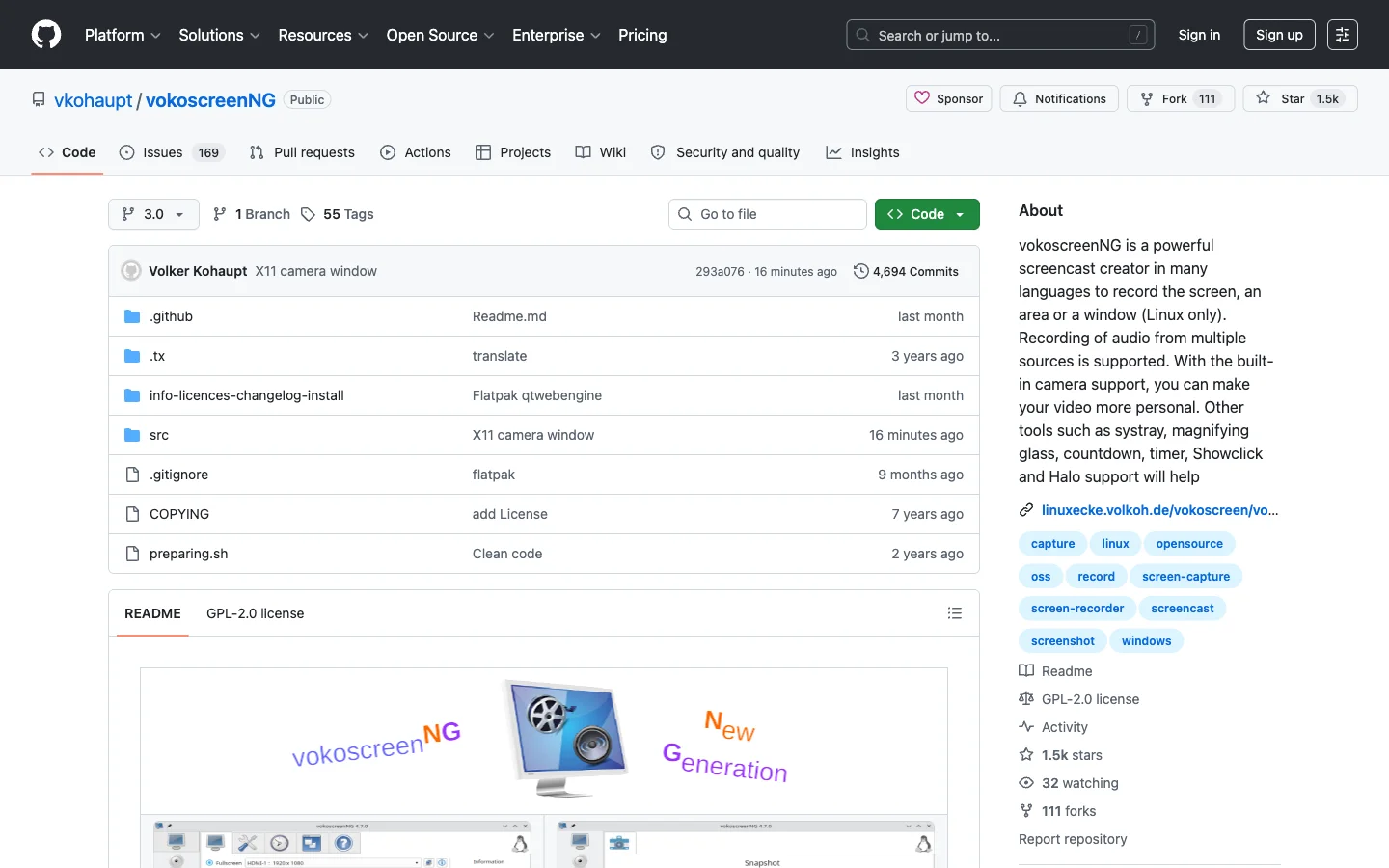
vokoscreenNG is a practical Windows and Linux option for users who want guided controls around the recording. Its official GPL-2.0 repository documents screen, area, and window capture, multiple audio sources, camera support, a countdown, timer, click display, and pointer emphasis tools.
That combination fits software tutorials, narrated walkthroughs, class material, and scheduled demonstrations. The interface exposes more recording aids than Kooha without turning every job into an OBS scene collection.
Read platform notes carefully. The project describes window recording as Linux-only, while Windows and Linux have different installation and runtime requirements. On Wayland, the same PipeWire and portal checks that affect other Linux recorders still apply.
Choose vokoscreenNG when:
- timer, webcam, click, or cursor aids matter
- you want one project spanning Windows and Linux
- you prefer guided capture controls over a broadcast studio
Check first: verify the exact capture modes on your operating system and test simultaneous system and microphone audio.
6. SimpleScreenRecorder
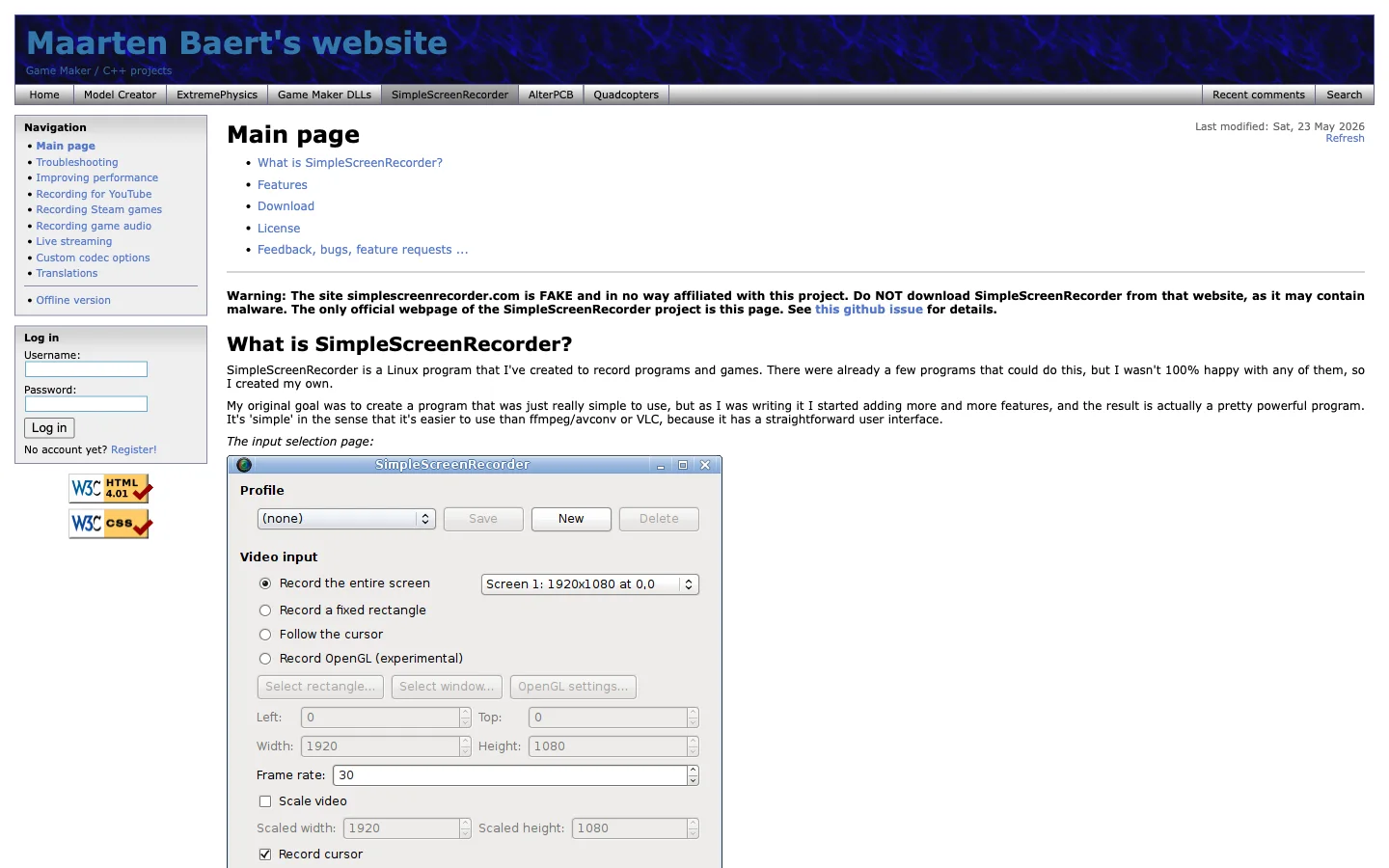
SimpleScreenRecorder remains a useful Linux choice when OpenGL capture and detailed recording statistics matter. The official project page and repository identify it as GPL-3.0 software for recording a full screen, selected area, or OpenGL application.
The project documents pause and resume, recording previews, frame-rate and file statistics, multithreaded processing, audio-video synchronization, and FFmpeg-backed codecs. It is more configurable than its name suggests.
Its older interface and distribution-specific packaging make it a more deliberate choice than Kooha. The official site also warns that simplescreenrecorder.com is not affiliated with the project and may be unsafe. Use the maintainer's official page, repository, or your distribution's trusted package source.
Choose SimpleScreenRecorder when:
- you record Linux applications or OpenGL workloads
- preview and live recording statistics are useful
- you want detailed codec and input control
Check first: use the official project source, verify your distribution package, and test OpenGL capture with the exact graphics driver in use.
Which Open Source Recorder Should You Choose
Start with the user job, not the longest feature list:
| Your recording job | Start with | Why |
|---|---|---|
| Multi-source production or livestream | OBS Studio | Scenes, compositing, audio mixing, and plugins |
| Windows capture automation | ShareX | Recording plus screenshots and after-capture workflows |
| Browser demo or feedback clip | Screenity | Browser-first capture, annotations, and local export |
| Minimal GNOME or Wayland screencast | Kooha | Focused Linux workflow with PipeWire support |
| Guided Windows or Linux tutorial | vokoscreenNG | Timer, audio, webcam, and cursor aids |
| Linux or OpenGL recording | SimpleScreenRecorder | Detailed input, preview, and codec controls |
Then run this preflight:
- Confirm the license in the official repository.
- Check the latest release or project activity instead of trusting an old roundup.
- Verify that your operating system and desktop environment are explicitly supported.
- Record the actual application, window, or monitor you plan to capture.
- Test system audio and microphone narration together.
- Stop and play the exported file from beginning to end.
- Check file location, format, frame rate, resolution, and any automatic upload behavior.
When a Simpler Mac Recorder Is the Better Fit
Open source is a valid requirement when you need code inspection, self-hosting, community modification, or a license-compatible component. It is not automatically the best requirement for every recording.
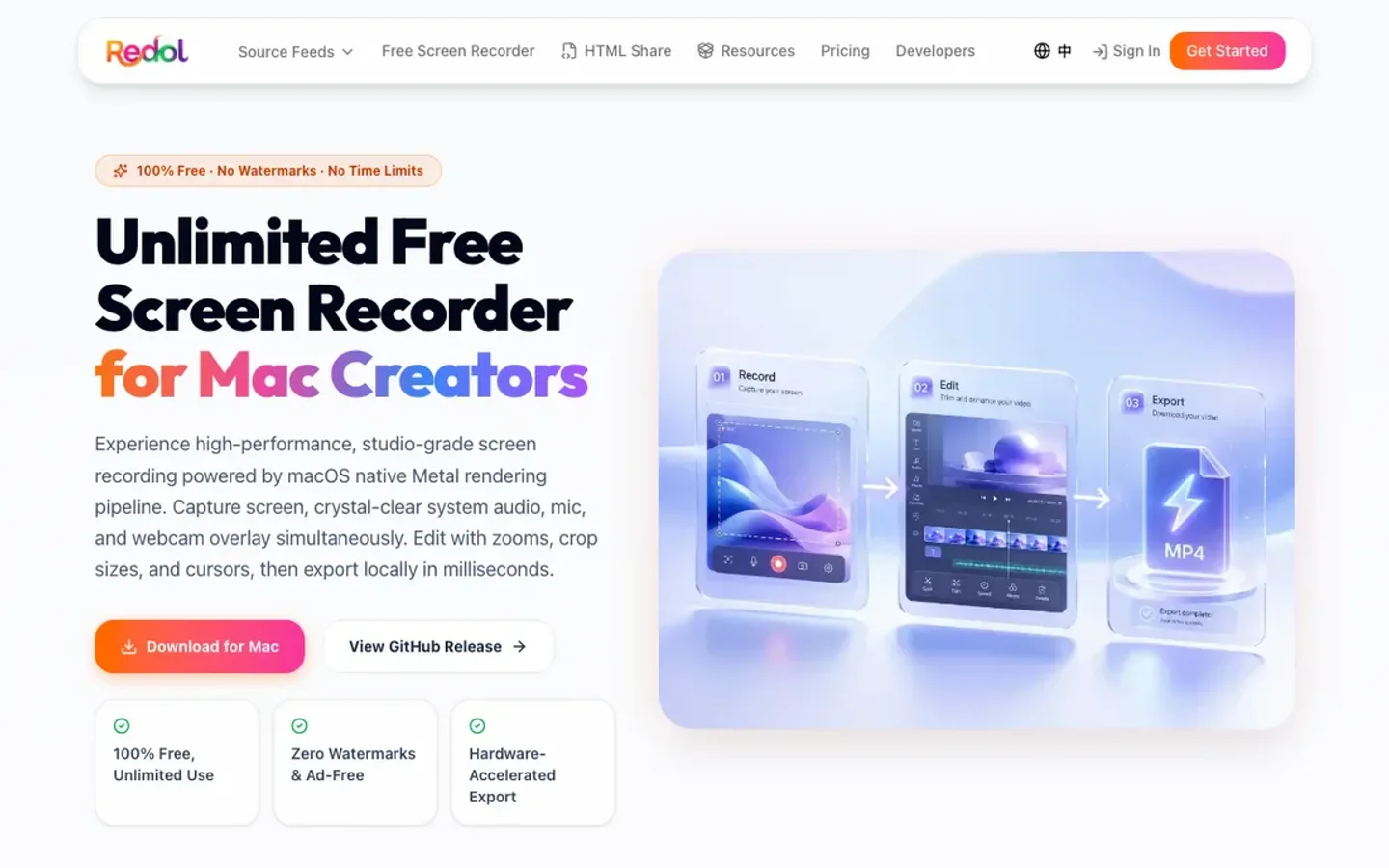
Redol Screen Recorder is not presented as open-source software. It is a separate option for Apple Silicon Mac users who want a local recording-to-export path with system audio, microphone narration, webcam overlay, cursor and zoom tools, cropping, quick editing, and local MP4 export. The current product route also states that recordings stay on the Mac and that the client has no watermark or recording-time limit.
Choose Redol only when that local Mac workflow is the actual fit. Choose one of the open-source projects above when source availability, platform breadth, browser self-hosting, Linux compatibility, or production control matters more.
For more cross-category context, compare the best desktop screen recorders before deciding whether open source should be a hard requirement or one evaluation criterion.
Use a simpler local recorder when source access is not the job
Redol records, refines, and exports locally on Apple Silicon Mac without positioning itself as an open-source replacement.
Related posts
About the Author

Zhang Guo
AI Product Manager · Digital Marketing Consultant
AI product manager and digital marketing consultant with a background in music. I see creativity as the bridge between rhythm and logic, where musical intuition and mathematical precision can coexist in every meaningful product decision.
Follow on X