If you need the best screen recorder with timer support, start with the exact timing job. Some tools can start or stop a recording automatically. Some focus on scheduled meetings. Some are better for simple manual Mac recordings where the bigger risk is a watermark, missing audio, or a messy export.
The safest choice is not always the tool with the longest feature page. Choose a timer recorder when the session must run while you are away from the keyboard. Choose a local no-watermark recorder when you are present and need a clean tutorial, product demo, course clip, or support video.
Quick Comparison
| Tool | Timer or scheduling evidence | Best fit | Watch out for |
|---|---|---|---|
| FonePaw Screen Recorder | Official timer roundup says its recorder includes a timer inside the program | Desktop users comparing timer-capable recorders | Verify current trial, export, and license behavior before long recordings |
| Movavi Screen Recorder | Official page mentions a recording scheduler and automatic recordings for meetings | Webinars, streams, recurring meetings, and simple desktop capture | Check current plan and export limits before relying on it |
| ApowerREC | Official page describes scheduled recording tasks for screen and webcam | Users who want task-based scheduled capture across desktop/mobile workflows | Broader product scope may be more than a focused Mac workflow needs |
| Bandicam | Official support page documents scheduled recording start time and behavior | Windows users who need scheduled desktop recording | Windows-first fit; not a Mac recommendation |
| EaseUS RecExperts | Official guide explains scheduling screen recording on Windows/Mac | Readers who want a step-by-step scheduling workflow | The guide is tutorial-led, so confirm product limits on the current product page |
| Debut Video Capture | Official page says it can automatically record scheduled meetings with start/end time | Meeting and webcam/video-capture scheduling | Interface and plan fit should be tested before production use |
| Redol Screen Recorder | No native timer claim in current Redol product evidence | Manual no-watermark Mac recordings with system audio, mic, webcam, zooms, and local MP4 export | Use as the fallback when scheduling is not the core requirement |
How to Evaluate Timer Screen Recorders
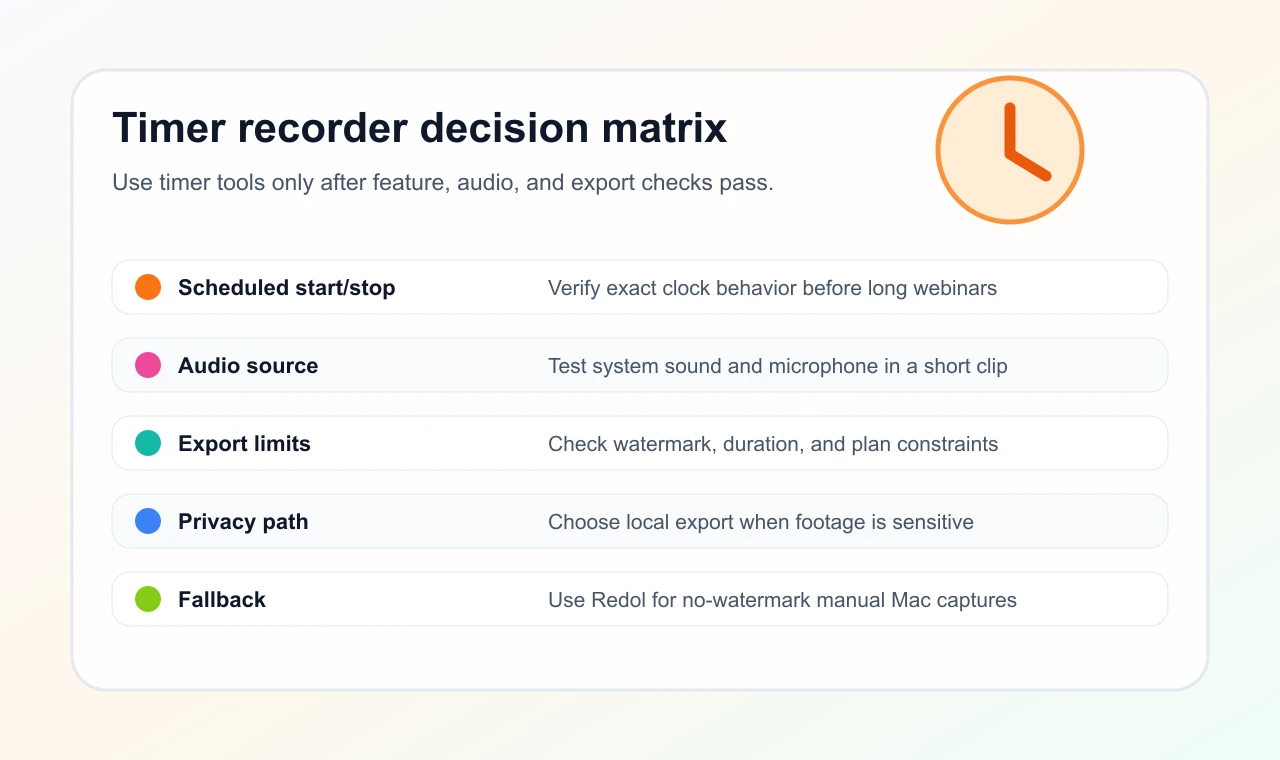
A timer feature sounds simple, but it can fail in several practical ways. Before you trust any recorder for a webinar, lecture, livestream, or recurring meeting, check five things.
- Scheduled start: Can the tool start at a specific time, or only stop after a duration?
- Scheduled stop: Can it end the recording automatically without leaving a huge file?
- Audio source: Does the scheduled task capture system sound, microphone, or both?
- Capture target: Does it remember the window, display, webcam, or capture region?
- Export behavior: Does the final file have watermarks, duration limits, cloud requirements, or plan limits?
Timer recording is useful when you are away. Manual local recording is better when you are at the keyboard and need control over privacy, framing, narration, webcam placement, and export quality.
Timer Recorder Shortlist
1. FonePaw Screen Recorder
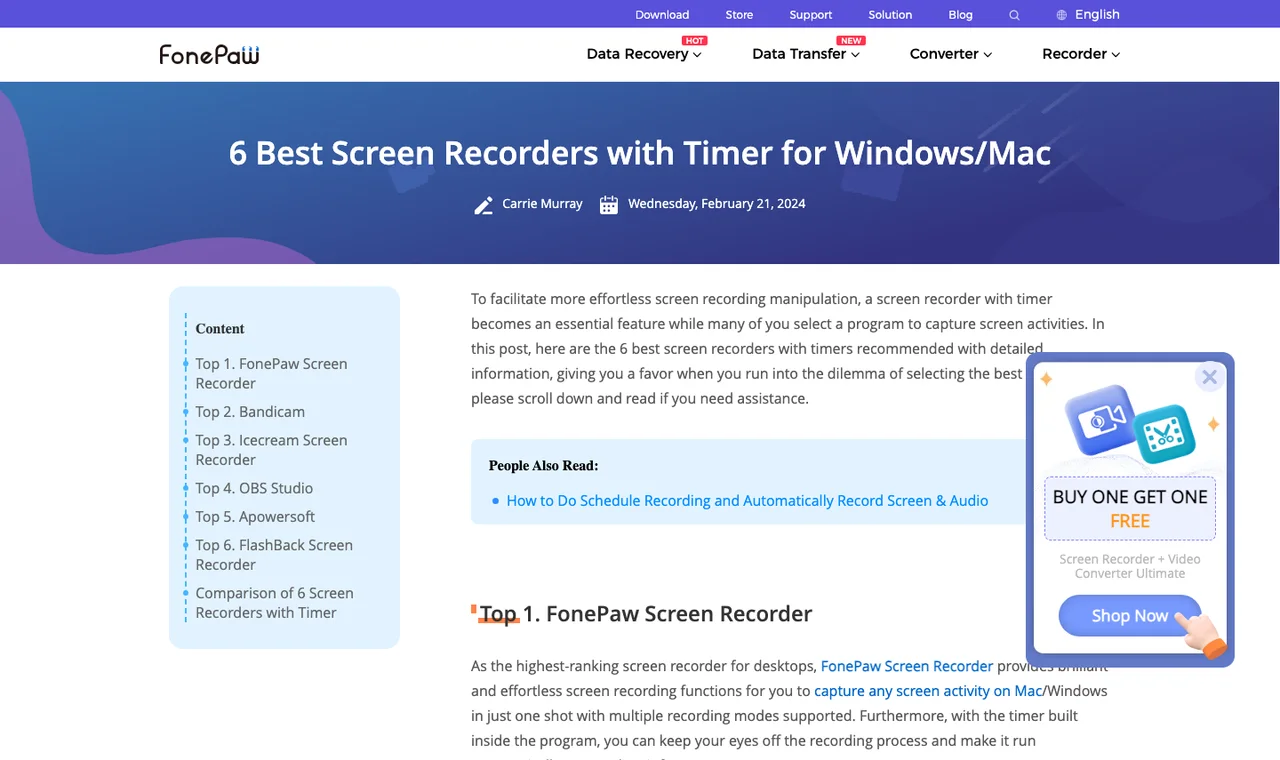
FonePaw's official timer-recorder roundup lists FonePaw Screen Recorder first and says the timer is built into the program. The same page frames the search intent clearly: readers want easier screen recording control when a recording needs to run at a planned time.
Use FonePaw as a candidate when:
- you want a conventional desktop recorder with a timer feature
- you are comparing Windows and Mac commercial recorders
- your task is a scheduled desktop capture rather than a local Mac creator workflow
- you are willing to verify current trial, license, and export behavior before recording
Do not treat an official roundup as a substitute for a test clip. If the recording matters, schedule a short 30-second capture first and confirm the timer, audio, and output file before recording the real session.
2. Movavi Screen Recorder
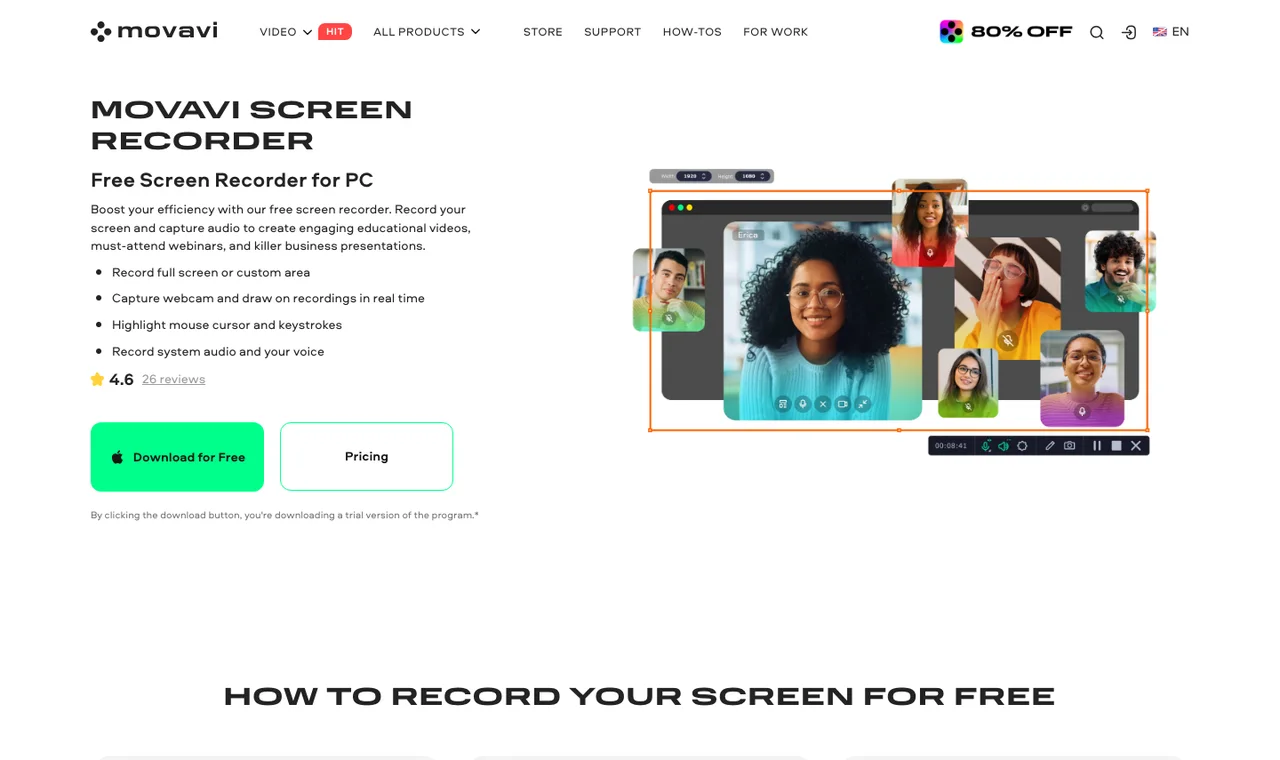
Movavi's official Screen Recorder page mentions a recording scheduler for webinars or streams and describes automatic recordings for recurring meetings. That makes it one of the clearer timer-related options for users who want scheduled desktop capture without building a complex scene setup.
Use Movavi when:
- scheduled webinars, online courses, or meetings are the main job
- you want a desktop recorder rather than a streaming studio
- you need a Mac and Windows category option
- you are comfortable checking current plan, watermark, and export constraints
Movavi is a better timer candidate than a generic manual recorder when you need the task to begin without you. If you are present and only need a no-watermark Mac recording, that scheduler may be less important than audio, privacy, and export control.
3. ApowerREC
ApowerREC's official page describes task recording for scheduled screen or webcam capture at a specific time. It also positions the product across desktop and mobile workflows, which can be useful if your recording needs are not limited to one Mac.
Use ApowerREC when:
- you need scheduled recording tasks
- screen and webcam capture may both matter
- your workflow spans desktop and mobile devices
- you want a broader recorder family rather than a Mac-only tool
The tradeoff is scope. A broad recorder can be useful, but it may add setup and account decisions that do not matter for a one-off tutorial. For long scheduled tasks, verify where files land, what audio sources are captured, and whether the output is usable under your current plan.
4. Bandicam
Bandicam's official scheduled recording support page documents scheduled recording around a specific start time. That makes Bandicam a strong timer-reference source, especially for Windows users.
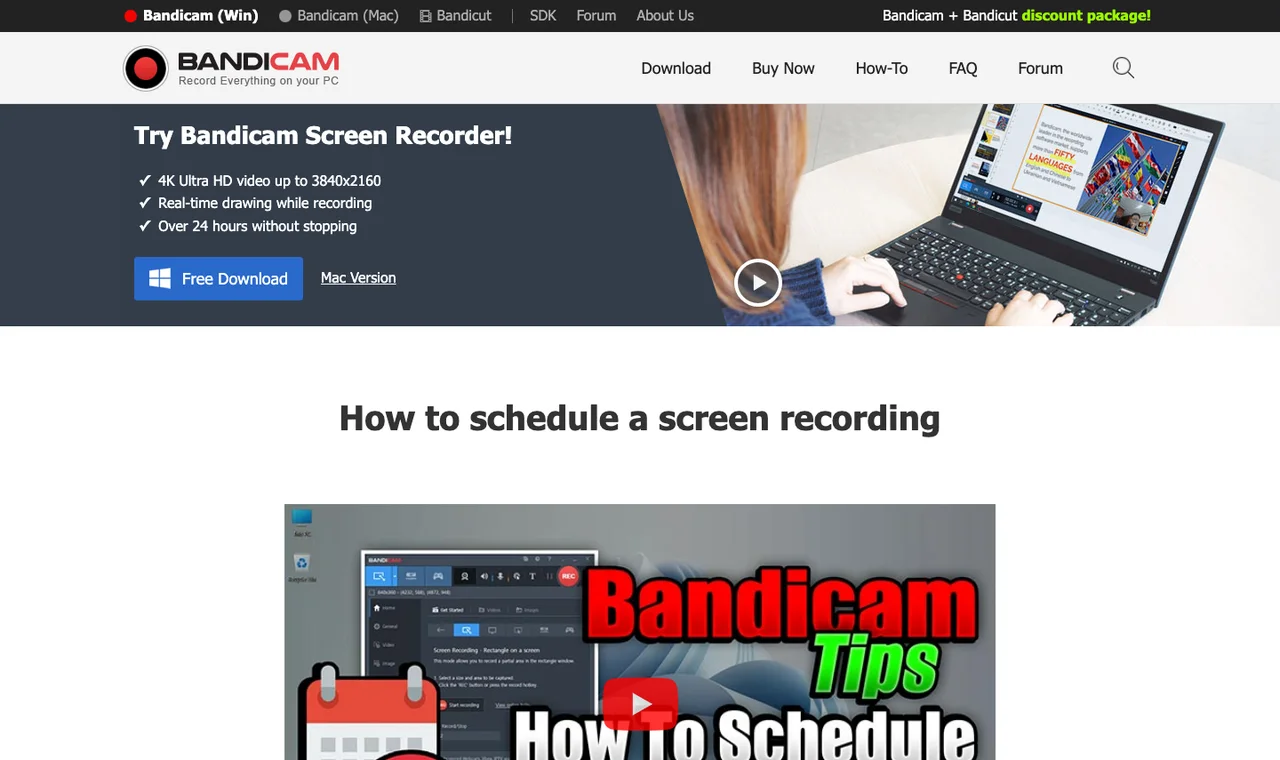
Use Bandicam when:
- the recording environment is Windows
- you need a documented scheduled recording path
- you are recording gameplay, desktop activity, or screen sessions where Bandicam already fits
- you can test the timer with your exact audio and capture region
Bandicam should not be treated as a Mac-first recommendation. If your search is specifically for Mac recording, compare Mac-supported tools first, then use Bandicam only when Windows is part of the workflow.
5. EaseUS RecExperts
EaseUS's schedule recording guide explains how to schedule screen recording on Windows and Mac. The page is helpful because it frames the user job directly: record the screen and audio automatically for scheduled calls, classes, or time-based sessions.
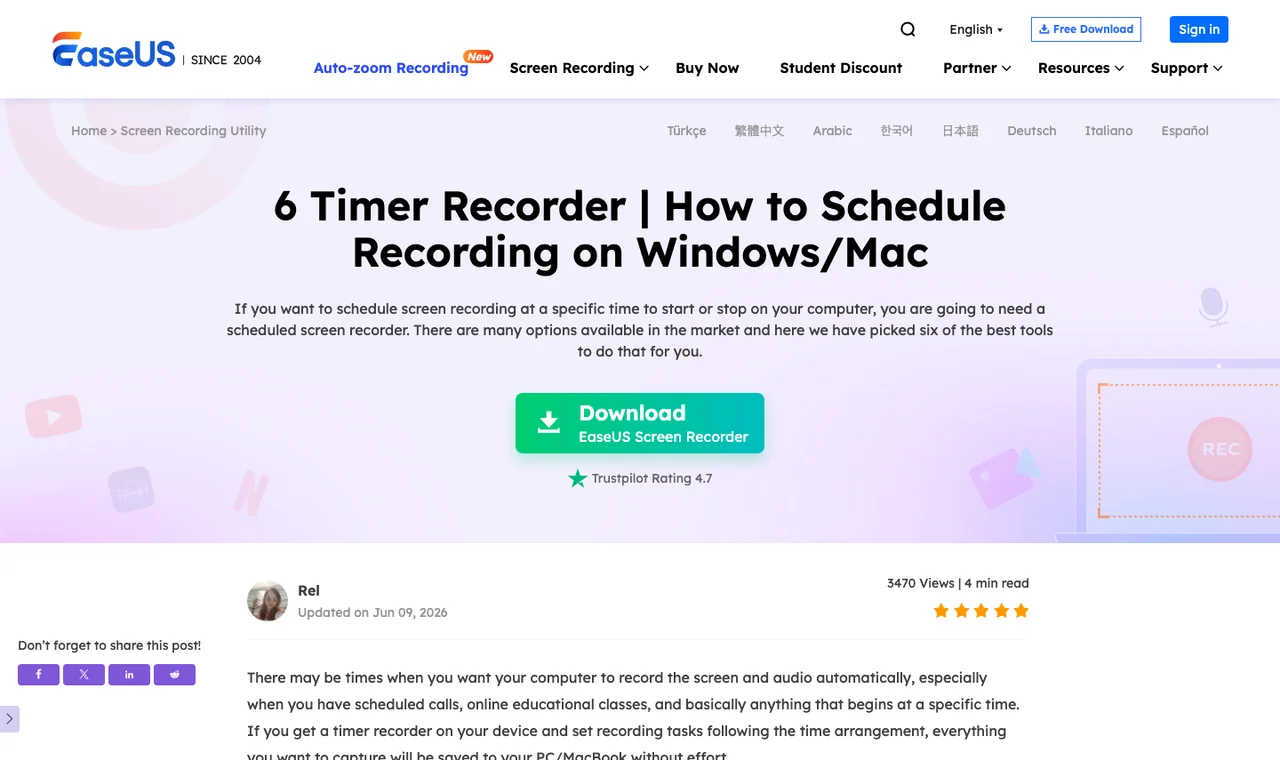
Use EaseUS RecExperts as a candidate when:
- you want tutorial-style guidance for scheduled recording
- Windows or Mac scheduling is the main task
- you need to capture screen and audio around a planned session
- you will verify current product limits before relying on the workflow
Because the source is a guide, separate the instructions from the product decision. A guide can show the workflow, but you should still confirm the current installer, plan, watermark behavior, and export settings before recording something important.
6. Debut Video Capture
Debut Video Capture's official page says it can automatically record scheduled online meetings with start and end time settings. It also frames the product as video screen capture software for PC or Mac.
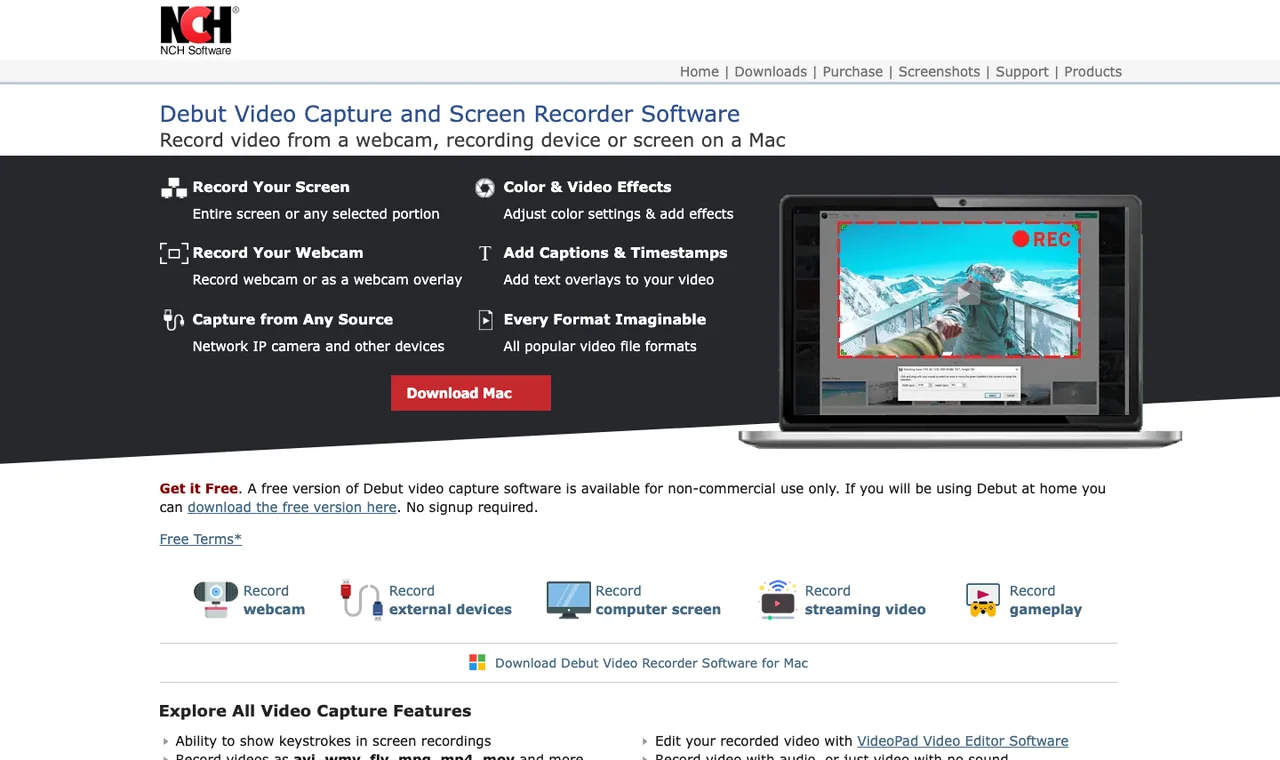
Use Debut when:
- scheduled online meetings are the exact job
- you want a desktop video-capture tool rather than a browser extension
- start and end time control matters more than creator-style editing
- you can test the output quality and interface before a long session
Debut belongs in the timer shortlist because the scheduled meeting claim is direct. The fit question is whether its workflow feels right for your operating system, audio sources, and export needs.
When Redol Screen Recorder Is the Better Fallback
Redol Screen Recorder is not presented in current Redol product evidence as a scheduled or timer-based recorder. That limit matters. If your recording must start while you are away, choose a tool whose official page documents that behavior.
Redol is the better fit when scheduling is not the real problem. The current Redol product page positions it as a free macOS screen recorder with no watermarks, no recording time limits, system audio, microphone narration, webcam overlay, crop and resize controls, zooms, cursor actions, and local MP4 export. It also shows the Windows client as planned, so keep this recommendation Mac-specific.
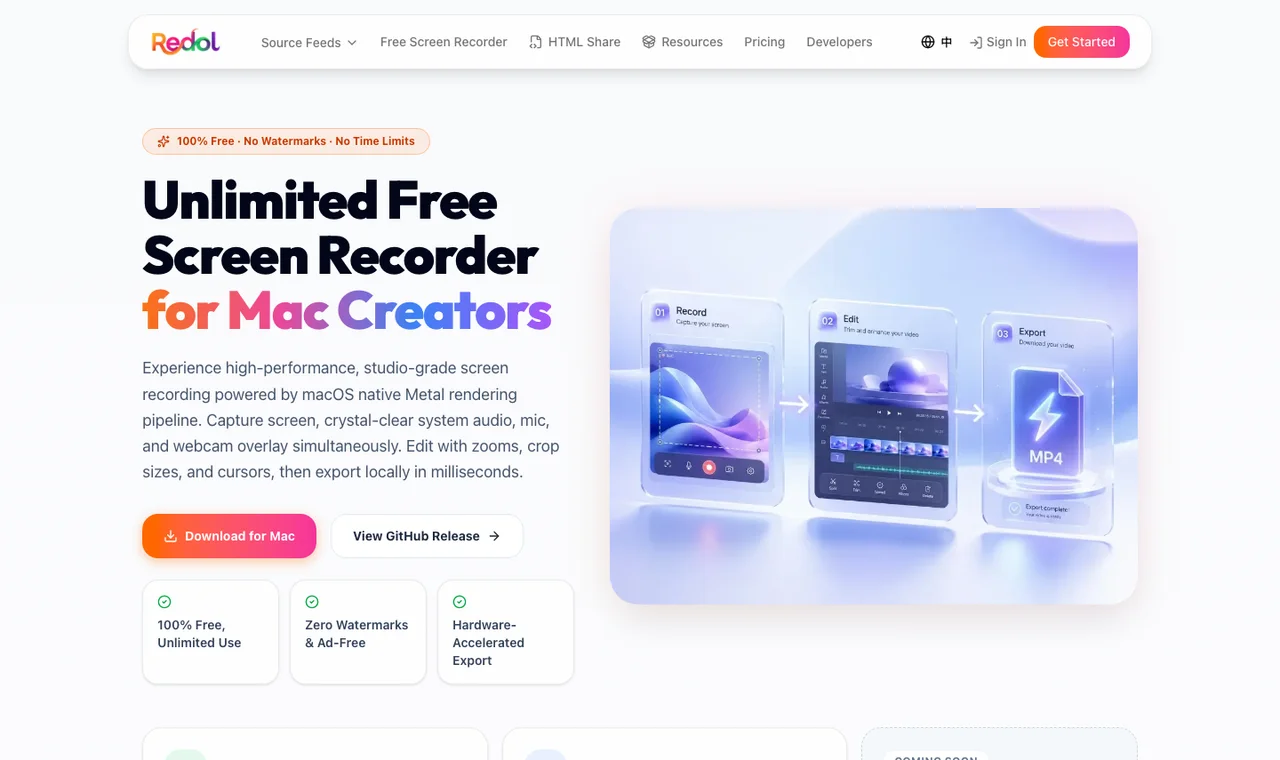
Use Redol when:
- you are recording on Mac and will start the session manually
- no-watermark export matters more than scheduled automation
- raw footage should stay local before sharing
- system audio, mic narration, and webcam overlay all matter
- zooms, crop controls, cursor emphasis, and quick MP4 export make the final video clearer
Record a clean local Mac video
Use Redol Screen Recorder when you do not need a scheduled start, but you do need no-watermark Mac capture with system audio, mic narration, webcam overlay, zooms, crop controls, and local MP4 export.
Timer Recording Checklist
Before you trust any timer recorder, run this checklist with a short sample capture.
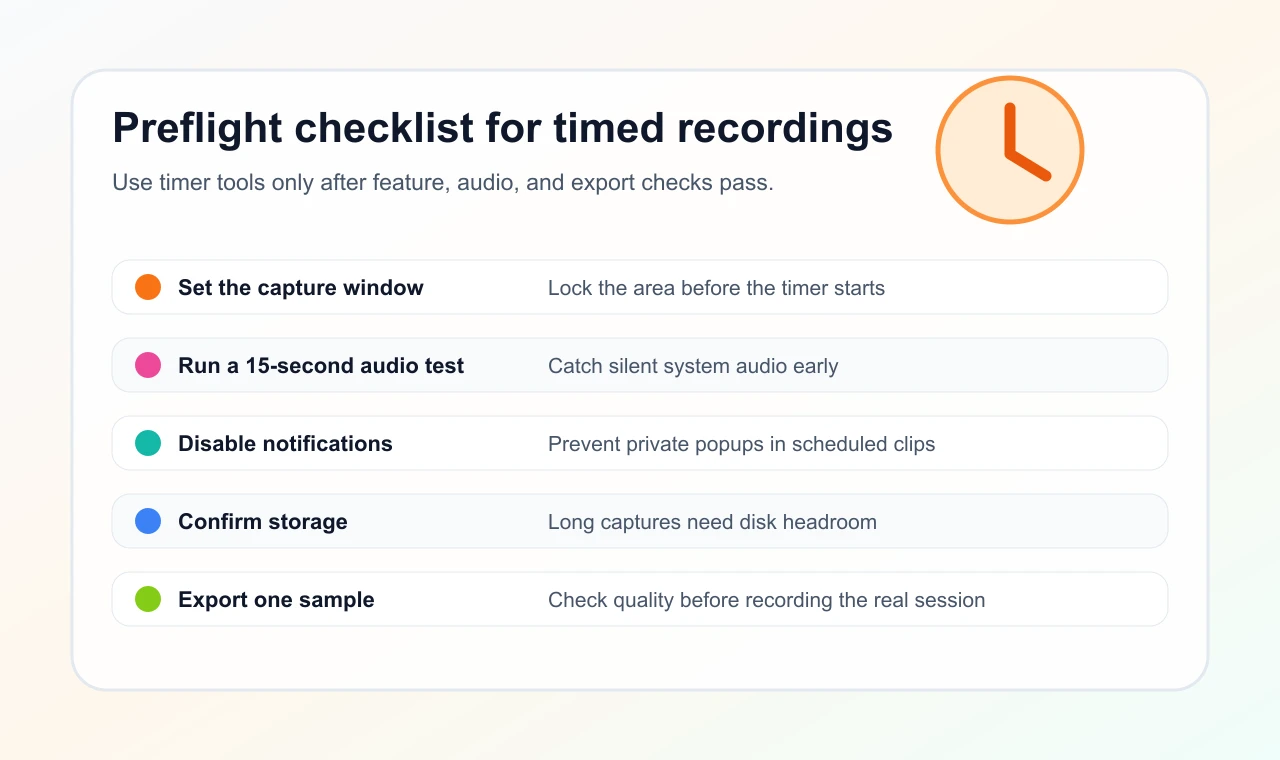
- Set the exact capture window, display, or region.
- Confirm system audio and microphone behavior in a short test.
- Disable notifications, alerts, and private message previews.
- Check disk space before long recordings.
- Confirm the computer will not sleep before the scheduled session ends.
- Export one sample file and check watermark, resolution, and audio sync.
- Keep a manual backup path ready if the scheduled task fails.
If your main concern is watermark-free output rather than scheduling, compare Redol's guide to free screen recorders without watermarks. If your recording is on Mac and audio is the hard part, use the workflow guide for screen recording on Mac with audio.
Final Recommendation
Choose FonePaw, Movavi, ApowerREC, Bandicam, EaseUS, or Debut when the timer or scheduled-recording feature is the core requirement and the official page supports the behavior you need. Then test a short scheduled clip before any long webinar, class, meeting, or livestream.
Choose Redol when the job is manual Mac recording and the practical risks are different: watermarks, missing system audio, webcam placement, privacy, crop consistency, and local MP4 export. In other words, timer tools solve absence. Redol solves clean local Mac capture when you are present and want the recording to be reusable.
Related posts
About the Author

Zhang Guo
AI Product Manager · Digital Marketing Consultant
AI product manager and digital marketing consultant with a background in music. I see creativity as the bridge between rhythm and logic, where musical intuition and mathematical precision can coexist in every meaningful product decision.
Follow on X