If you are searching for the best OBS alternatives, start with the reason OBS feels wrong for this recording. OBS is powerful when you need scenes, sources, plugins, overlays, and livestream control. It can feel heavy when the real job is a quick Mac tutorial, an async customer walkthrough, an edited course clip, or a simple local MP4.
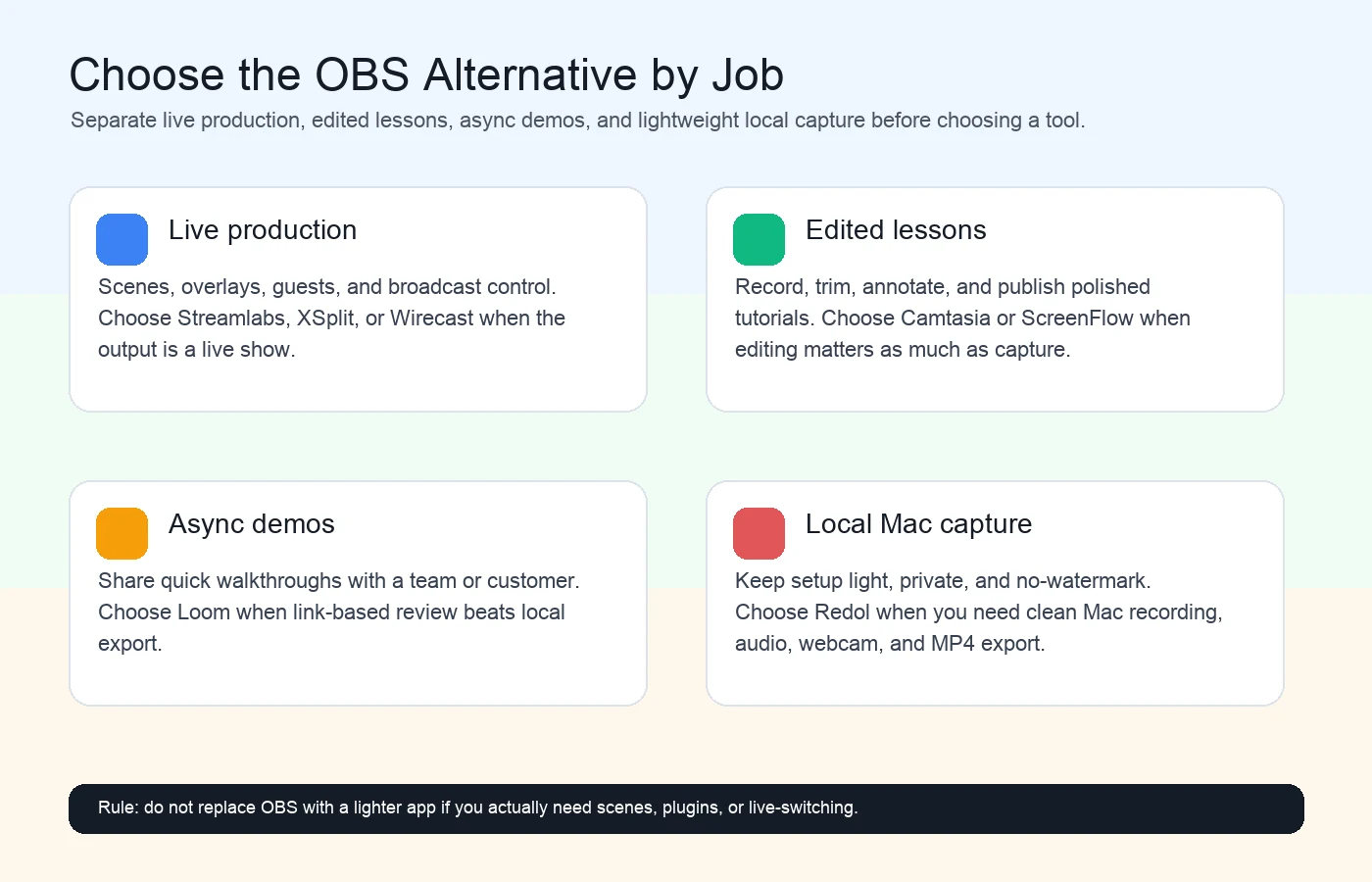
The best alternative depends on the job: use Streamlabs, XSplit, or Wirecast for live production; use Camtasia or ScreenFlow when editing depth matters; use Loom for async sharing; use Redol when you need a lightweight no-watermark Mac recording that stays local.
Quick Comparison
| Tool | Best for | Platform fit | Strongest reason to use it | Watch out for |
|---|---|---|---|---|
| Redol Screen Recorder | Local Mac tutorials, product demos, support clips, and no-watermark MP4 exports | macOS now; Windows planned | Fast local capture with system audio, mic, webcam, zooms, crop controls, cursor actions, and no upload requirement | Not a livestream studio or OBS scene replacement |
| Streamlabs Desktop | Streamers who want an OBS-like production surface with creator monetization tools | PC and Mac from the official page | Stream-first setup for broadcasts, alerts, and creator workflows | More streaming workflow than a quick screen recording needs |
| XSplit Broadcaster | Live streaming and recording with a polished studio interface | Windows-focused public product page | Good fit when scenes, broadcast layout, and production control matter | Not the lightest option for simple local captures |
| Wirecast | Professional live production, guests, events, and broadcast-style workflows | Desktop production software | Strong fit for advanced live shows and event production | Overpowered for one-off tutorials |
| Camtasia | Screen recording plus edited training videos and lessons | Desktop recorder/editor | Capture-to-edit workflow in one product | More editing surface than a quick demo needs |
| ScreenFlow | Mac screen recording plus deeper timeline editing | macOS | Strong Mac recording-to-editing path | Heavier than a simple capture utility |
| Loom | Async video messages and link-based handoffs | Browser and apps | Fast capture-to-share workflow | Cloud/account workflow may not fit private source footage |
| Movavi Screen Recorder | Straightforward desktop capture and meeting-style recordings | Desktop recorder category | Simple recorder workflow without OBS-level setup | Verify current plan, watermark, and export limits |
| Bandicam | Windows desktop, gameplay, and PC recording | Windows/PC from the official page | Focused PC recording with game/desktop use cases | Not a Mac recommendation |
When You Should Stay with OBS
Before switching tools, be honest about why OBS was on your list. OBS Studio's official site positions it as free and open-source software for video recording and live streaming on Windows, macOS, and Linux.
Stay with OBS when you need:
- Multiple scenes, source groups, overlays, or reusable layouts.
- Audio filters, mixer control, or routing across several inputs.
- Streaming and recording from the same production setup.
- Plugins, virtual cameras, or advanced encoder control.
- A cross-platform open-source tool with a large ecosystem.
Switch away from OBS when the setup time is the problem. If you only need to record a product walkthrough, support answer, course clip, or customer demo, the scene system may be more machinery than the job needs.
1. Redol Screen Recorder
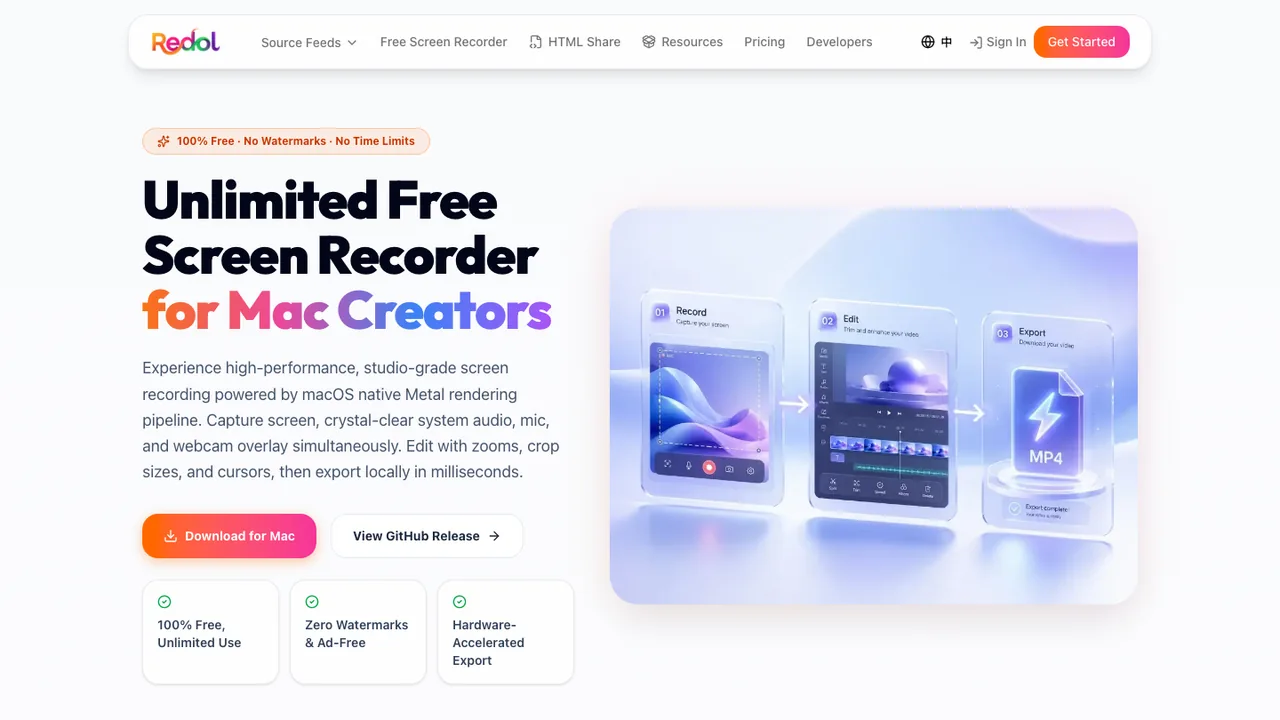
Redol Screen Recorder is the best OBS alternative in this list when the actual job is a clean local Mac recording, not livestream production. The current Redol source and rendered product page position it as a macOS screen recorder with no watermarks, no recording time limits, system audio, microphone narration, webcam overlay, zooms, crop and resize controls, cursor actions, and local MP4 export. The Windows client is still planned, so keep this recommendation Mac-specific.
Use Redol when:
- you are on Mac and need a local recording rather than a broadcast setup
- system audio and microphone narration both matter
- a webcam overlay, zoom, crop, or cursor emphasis will make the video clearer
- raw footage should stay on the device until you decide where to share it
- OBS feels too slow for a quick tutorial, demo, or async support clip
Redol is not a replacement for OBS scenes, plugins, or livestream switching. It is the better path when OBS is solving the wrong problem and the real need is a private, no-watermark Mac MP4.
Record a clean local Mac video
Use Redol Screen Recorder when you need no-watermark Mac capture with system audio, mic narration, webcam overlay, zooms, crop controls, cursor actions, and local MP4 export.
2. Streamlabs Desktop
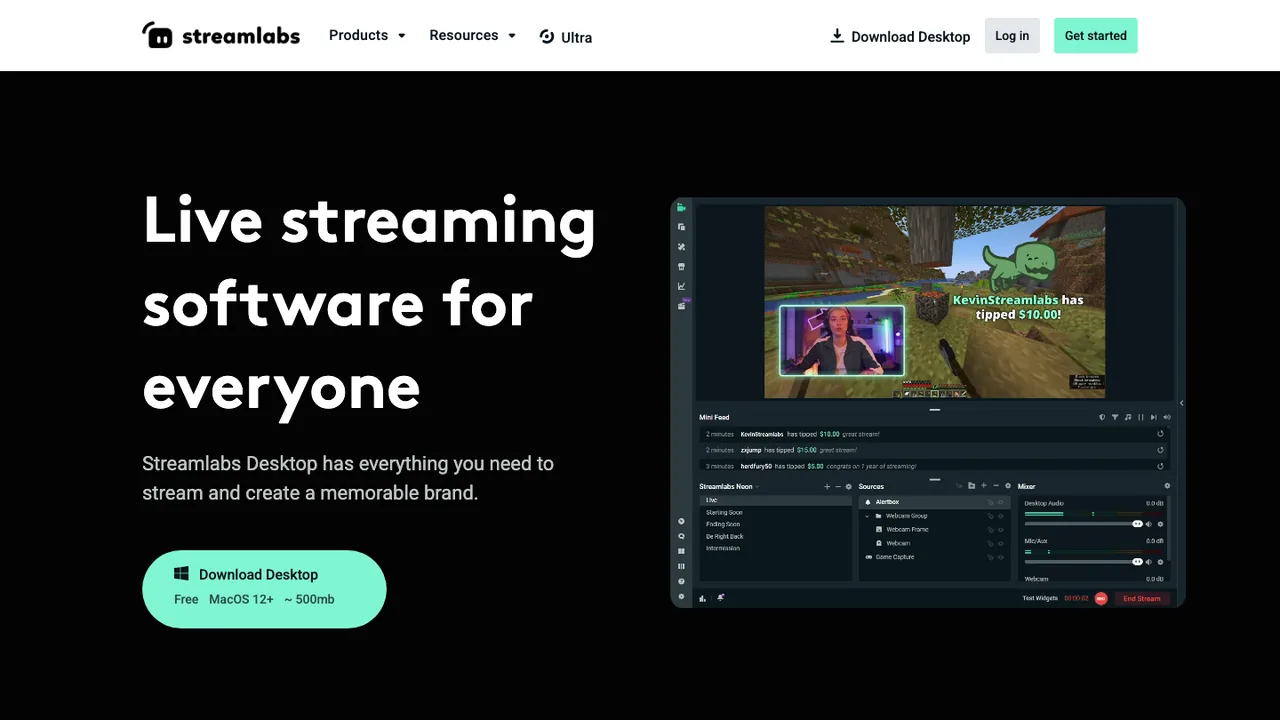
Streamlabs Desktop's official page presents it as live streaming software for PC and Mac. That makes it one of the closest OBS-style alternatives when the job is still streaming, but you want a more creator-oriented setup.
Use Streamlabs when:
- streaming is still the main job
- alerts, overlays, donations, or creator monetization matter
- you want a production surface built around live creator workflows
- you are comfortable with a streamer-oriented account and app ecosystem
Do not choose Streamlabs just to record one simple screen clip. If you do not need a live production surface, a lighter recorder will usually feel faster.
3. XSplit Broadcaster
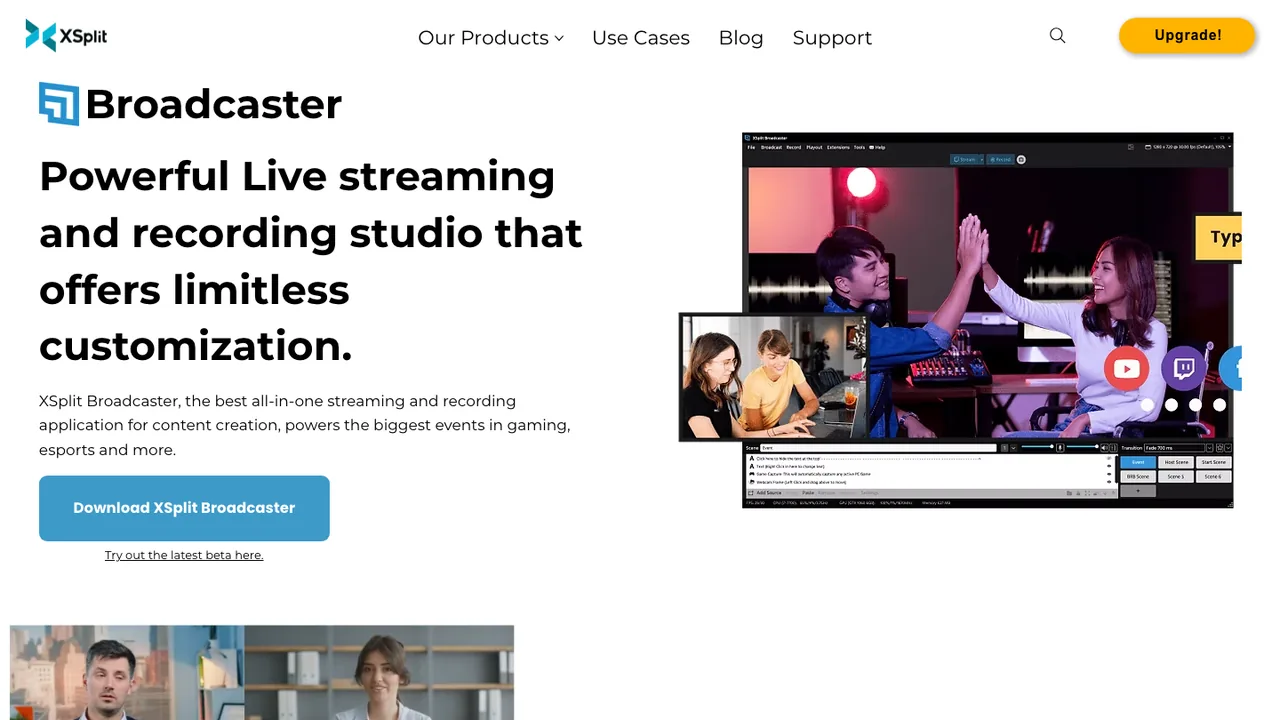
XSplit Broadcaster's official page frames it as live streaming and recording studio software. It belongs on the OBS alternatives shortlist when you still need studio-style production, but prefer a more guided commercial product.
Use XSplit when:
- you need a broadcast-style interface
- scenes and production layouts matter
- livestreaming and recording are both part of the workflow
- you want a commercial alternative to OBS rather than a lightweight recorder
The fit is weaker for private one-off recordings. If your task is a local Mac demo or a quick support video, XSplit can be more setup than the clip deserves.
4. Wirecast
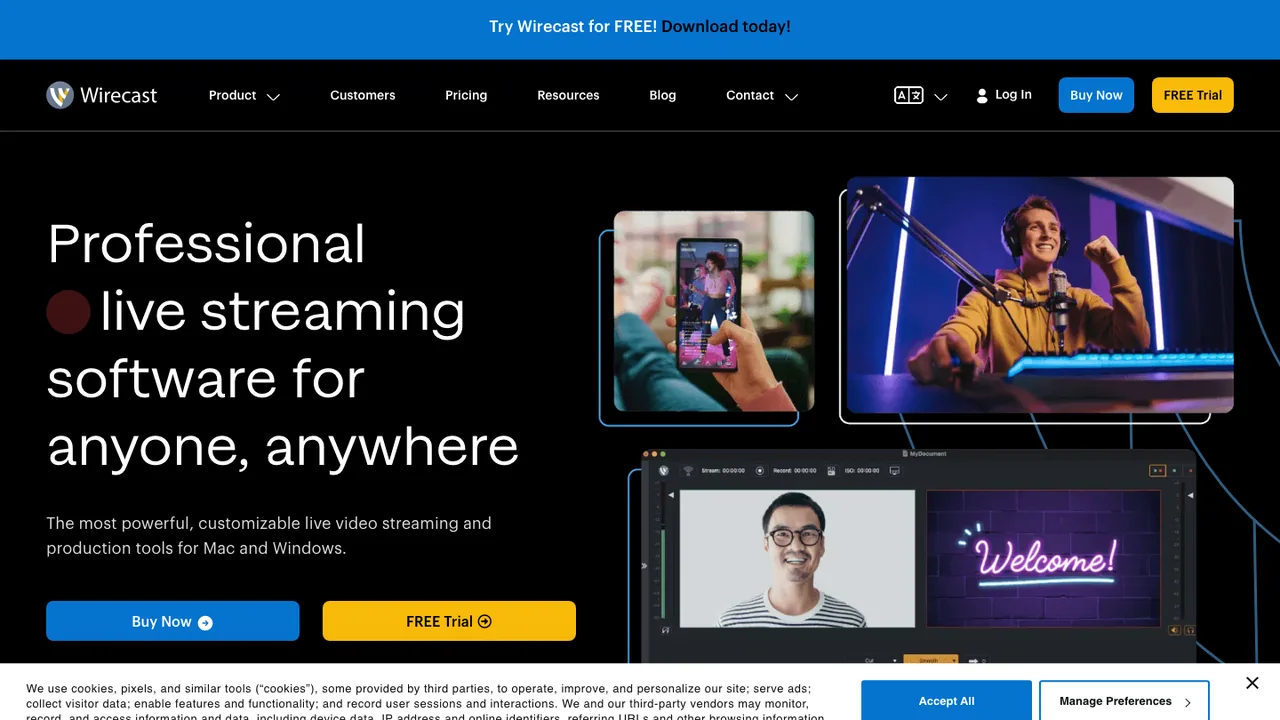
Wirecast's official page positions it as professional live streaming software. That wording matters: Wirecast is not trying to be a tiny capture utility. It is for serious live production.
Use Wirecast when:
- you are producing live shows, webinars, events, or multi-source broadcasts
- guests, switching, titles, and event reliability matter
- you need a professional production workflow rather than a recorder shortcut
- OBS is flexible enough, but you want a commercial live-production environment
For a simple screen recording, Wirecast is likely too much. Treat it as an OBS alternative only when the recording is part of a real live-production workflow.
5. Camtasia
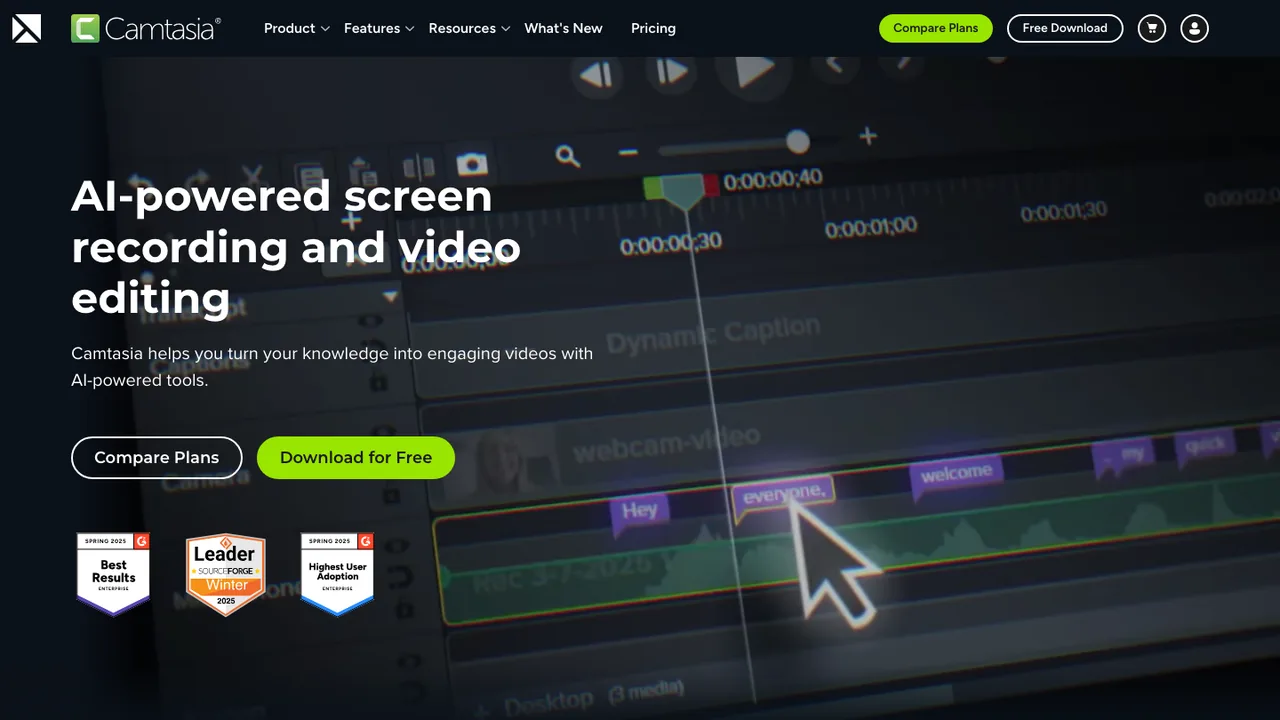
Camtasia's official page presents it as a screen recorder and video editor. It is a strong alternative when the recording is only the first step and the final deliverable needs editing, callouts, trimming, or training-video polish.
Use Camtasia when:
- you are creating lessons, tutorials, training videos, or polished walkthroughs
- editing matters as much as capture
- annotations, trims, and post-production will happen in the same workflow
- OBS feels too production-heavy and a plain recorder feels too thin
The tradeoff is tool depth. Camtasia is useful when editing is part of the job, but slower than a simple recorder when all you need is a clean source clip.
6. ScreenFlow
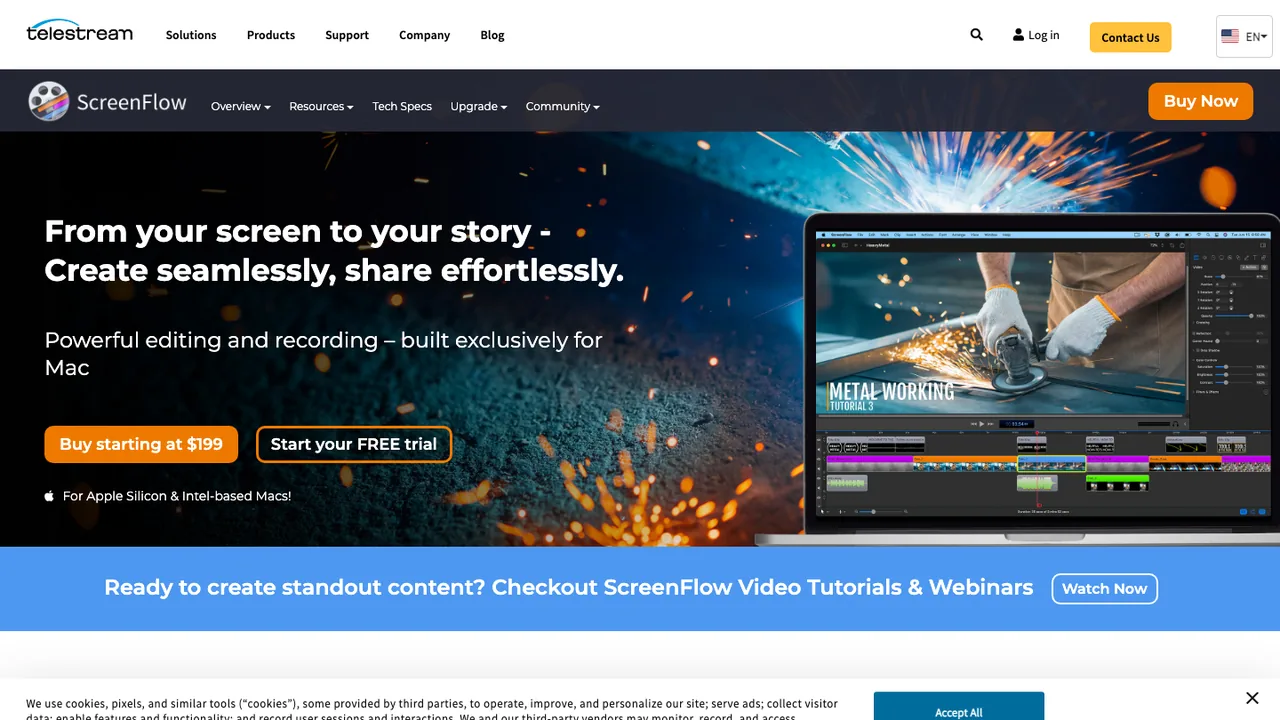
ScreenFlow's official page describes video editing and screen recording software. It is one of the more natural OBS alternatives for Mac creators who need a recording-to-editing workflow.
Use ScreenFlow when:
- you are on Mac and the output needs timeline editing
- software demos, tutorials, or training videos are the main format
- you want capture and editing in one Mac-focused workflow
- OBS feels too live-production oriented for your final deliverable
If you only need a short MP4, ScreenFlow may be more than necessary. If the final asset needs polish, it is a better fit than a bare recorder.
7. Loom
Loom's official page frames the product around recording and sharing video messages. It is not an OBS replacement for production control. It is an alternative when the real output is a link that someone can watch quickly.
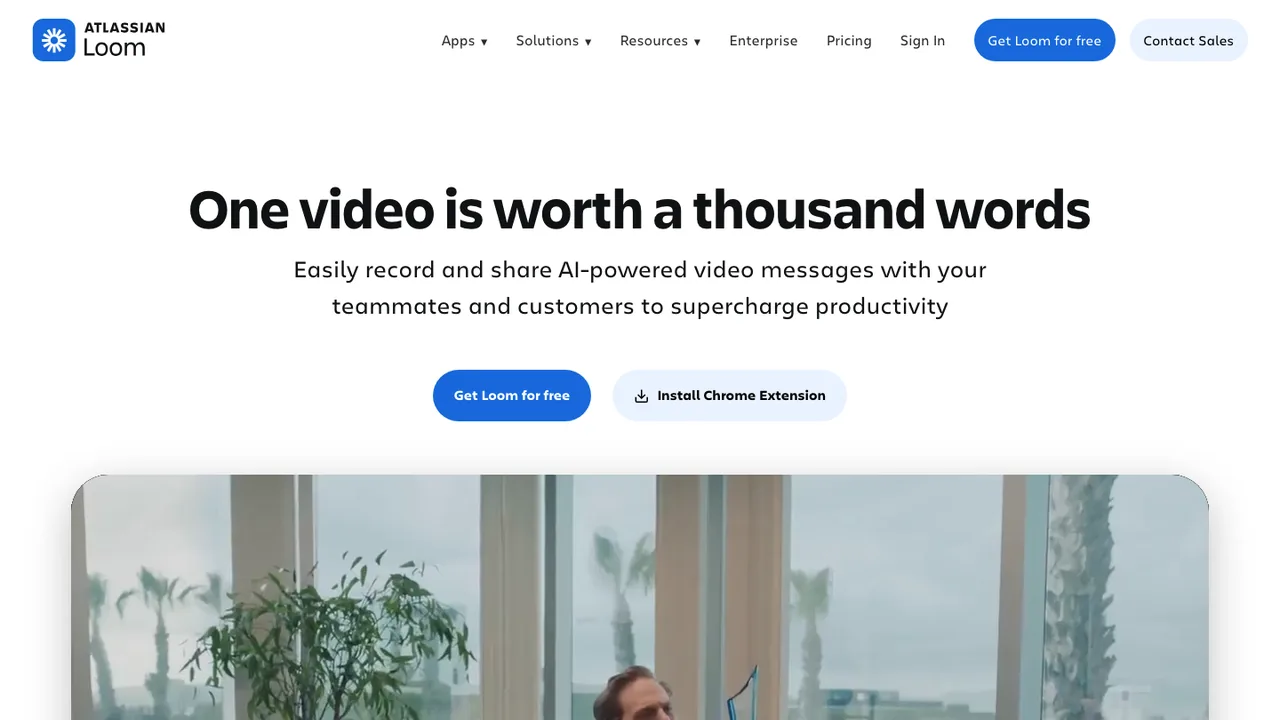
Use Loom when:
- the recording is an async update, customer explanation, or team walkthrough
- a share link matters more than a local editing file
- speed of capture and handoff is the whole point
- your team already works in a Loom-style communication flow
Use something else when privacy, local storage, or post-production control is the reason you are leaving OBS. Loom is fast because it is built around sharing.
8. Movavi Screen Recorder
Movavi's official Screen Recorder page presents a straightforward recorder for desktop capture. It is worth comparing when OBS is too complex and you want a conventional recorder rather than a live-production studio.
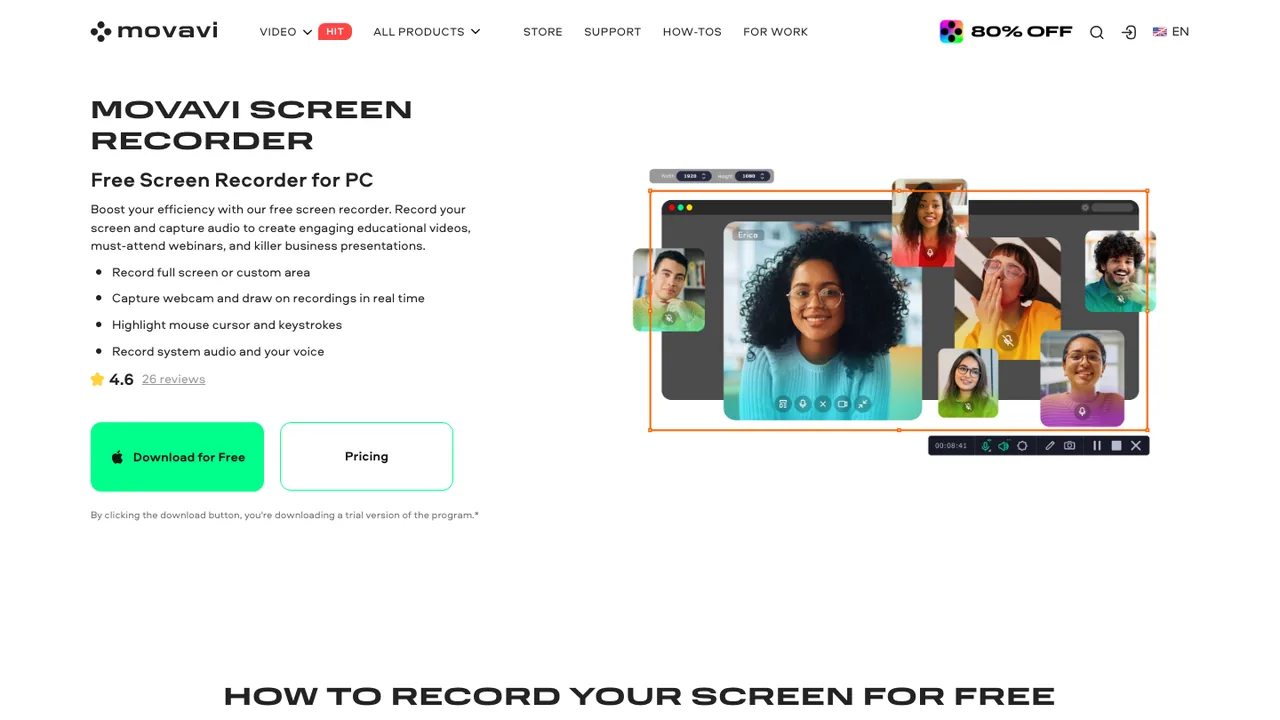
Use Movavi when:
- you want a familiar desktop-recorder workflow
- meetings, tutorials, or short screen clips are the main job
- OBS feels too configurable for your needs
- you are willing to verify the current plan, watermark, trial, and export behavior before relying on it
That last check matters for every commercial recorder. Official pages and plan limits can change; do a short test export before recording something long.
9. Bandicam
Bandicam's official page positions it as PC screen recording software. It belongs in the OBS alternatives set for Windows users who care about desktop, game, or PC recording.
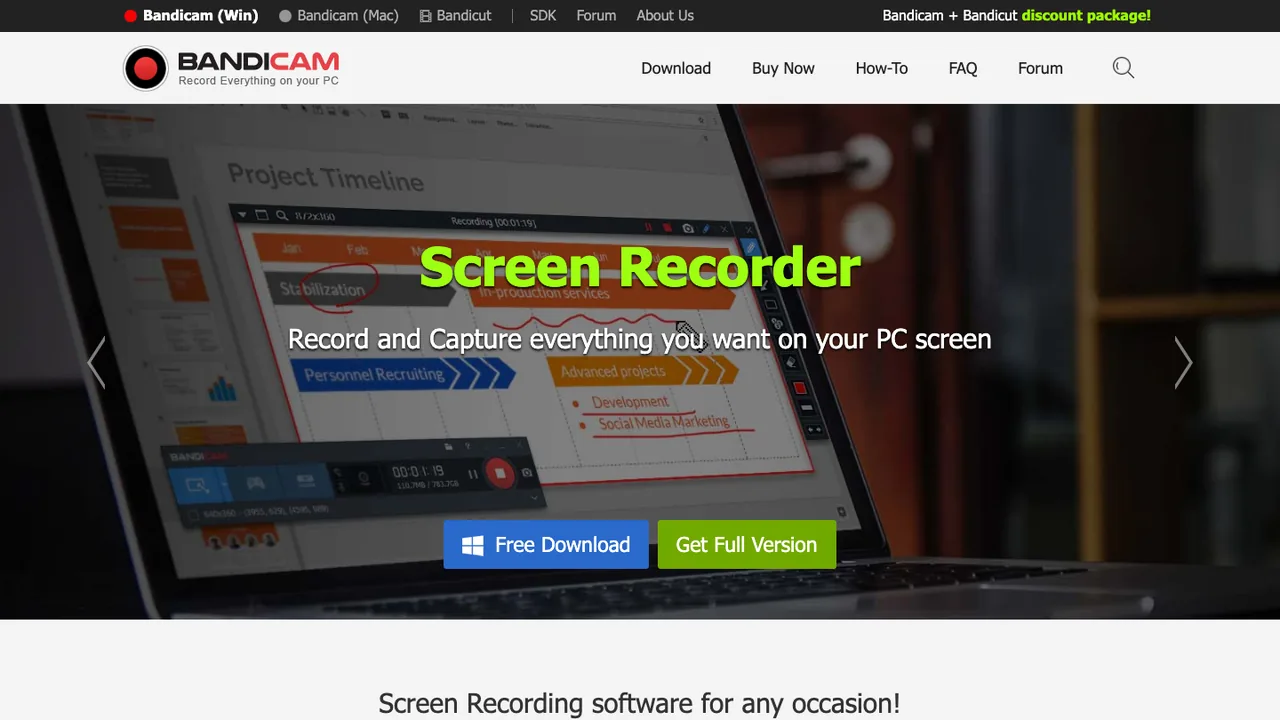
Use Bandicam when:
- the workflow is Windows or PC-first
- gameplay, app capture, or desktop recording is the job
- you want a focused recorder rather than a full live-production setup
- you can verify the current license and watermark behavior before production use
Do not use Bandicam as a Mac recommendation. For Mac local recording, compare Redol, ScreenFlow, Loom, Camtasia, or OBS itself first.
How to Pick Without Wasting a Day
Before downloading another recorder, write down the output you need.
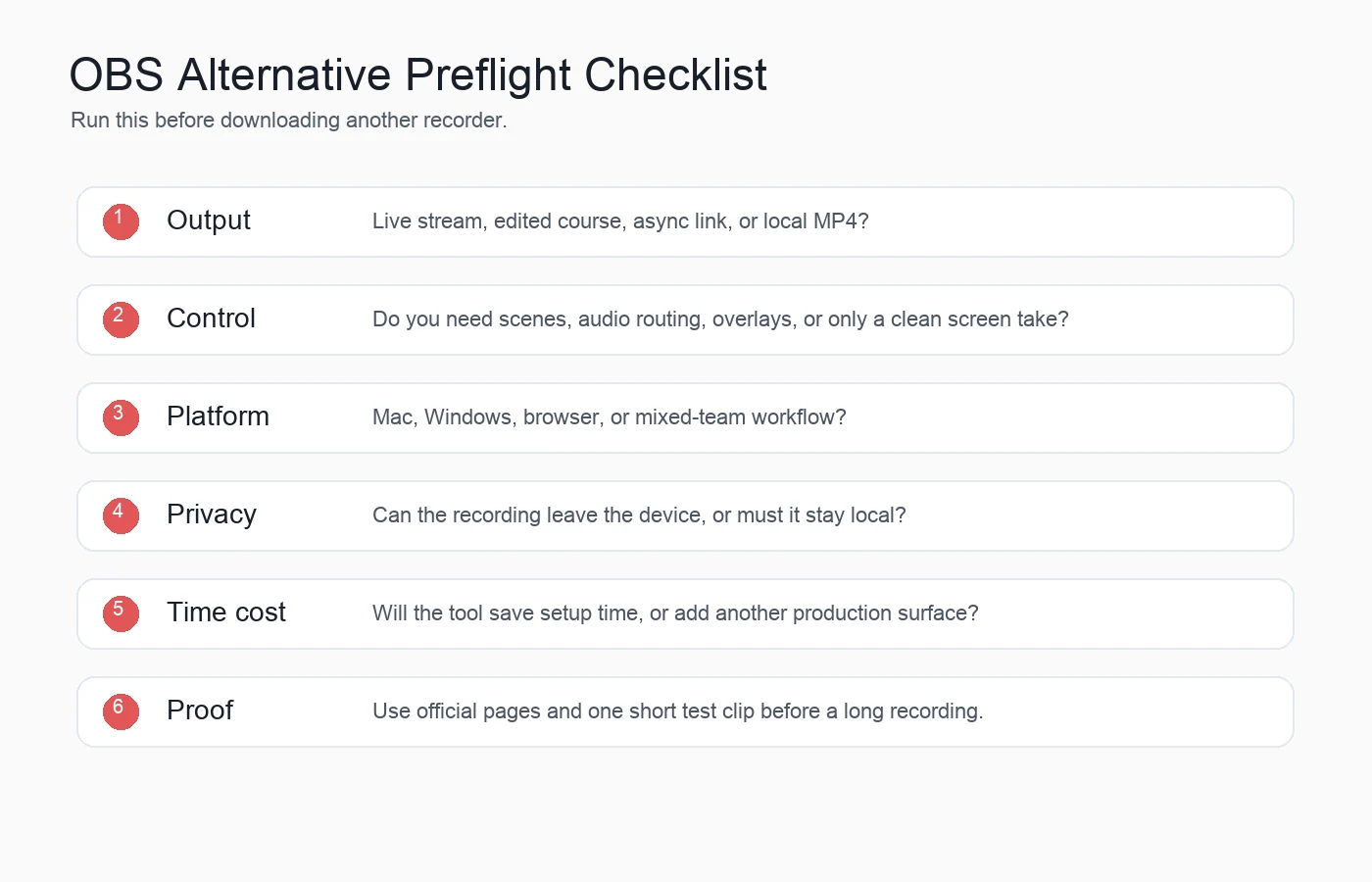
- Live show: choose Streamlabs, XSplit, Wirecast, or stay with OBS.
- Edited lesson: choose Camtasia or ScreenFlow.
- Async link: choose Loom.
- Local Mac MP4: choose Redol.
- Windows game or PC recording: compare Bandicam and the Windows-focused recorders.
- Advanced open-source scenes: stay with OBS.
The mistake is treating every recorder like a smaller OBS. Sometimes you need a better streaming studio. Sometimes you need an editor. Sometimes you need a local recorder that starts quickly and exports a clean file.
Final Recommendation
Choose Redol if OBS is too heavy for a local Mac tutorial, product demo, support clip, or course recording. Choose Streamlabs, XSplit, or Wirecast if your OBS problem is still a livestreaming problem. Choose Camtasia or ScreenFlow if editing is the real bottleneck. Choose Loom if the output is an async video link. Choose Movavi or Bandicam when a conventional desktop recorder fits your operating system and license needs.
If you still need scenes, sources, plugins, and live switching, OBS may already be the right answer. If you only need a clear Mac recording with audio, webcam, cursor emphasis, local privacy, and no watermark, use the lighter workflow and keep the production system out of the way.
Related posts
About the Author

Zhang Guo
AI Product Manager · Digital Marketing Consultant
AI product manager and digital marketing consultant with a background in music. I see creativity as the bridge between rhythm and logic, where musical intuition and mathematical precision can coexist in every meaningful product decision.
Follow on X