If you searched for the best screen recorder for Zoom meetings, start with the recording job, not the tool list. A host-approved meeting archive, a private Mac recap, a tutorial clip, and a Windows app note all need different controls.
The safest default is this: use Zoom's own recording workflow when the host, account policy, and consent rules allow it. Use a screen recorder when you need a local copy of your own screen, a cleaner edit handoff, a camera-and-screen layout, or a short reusable clip from a meeting you are allowed to record.
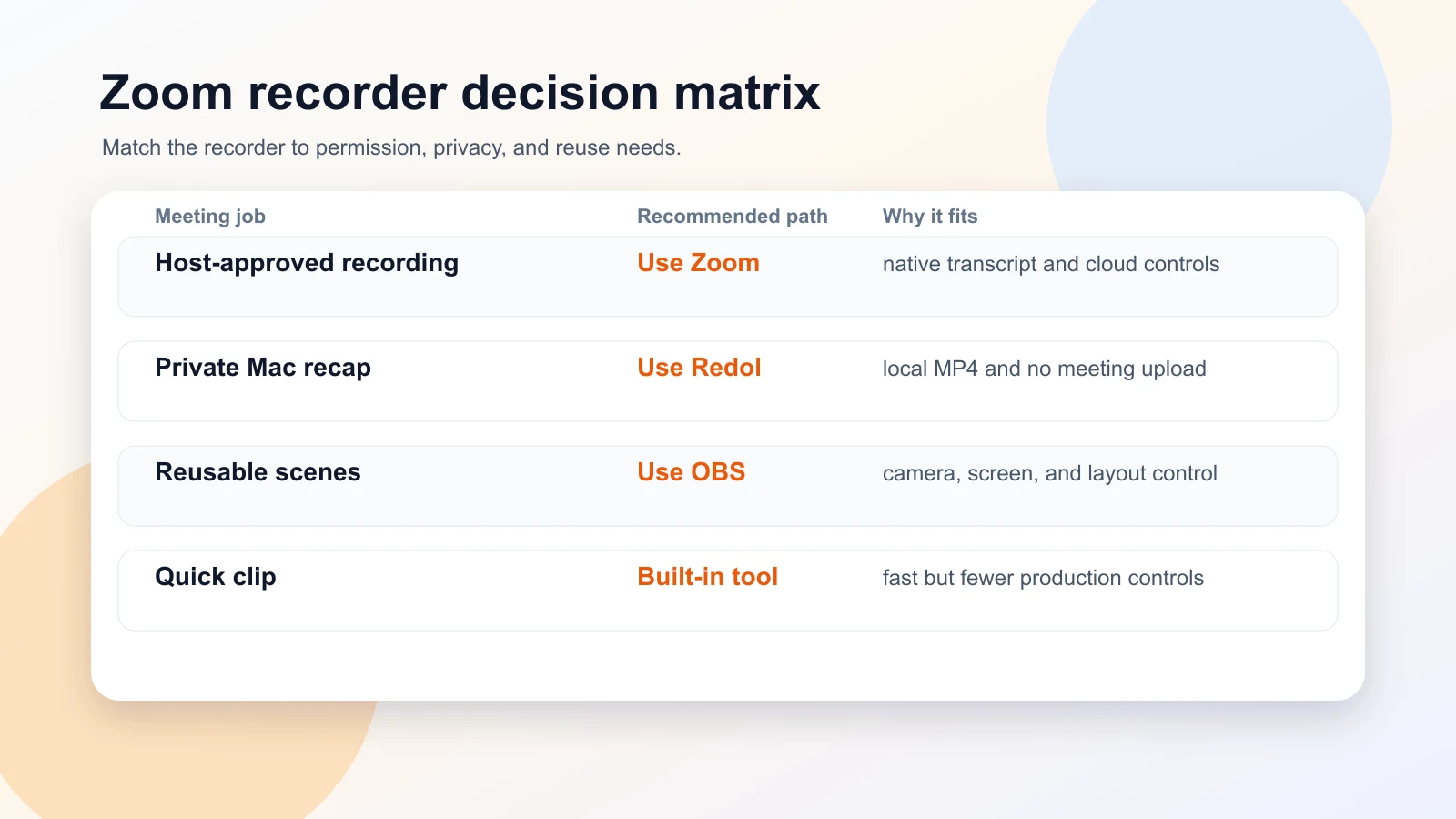
Quick Comparison
Use this table before installing anything.
| Recorder | Best for Zoom meetings when... | Platform fit | Main strength | Watch out for |
|---|---|---|---|---|
| Zoom recording | You are the host or have recording permission | Zoom app and account dependent | Native meeting archive and cloud/local options | Permissions, account settings, and consent rules |
| Redol Screen Recorder | You want a local Mac recording of your screen, audio, and camera | macOS | No-watermark local export with mic, system audio, webcam, zooms, crop, and cursor controls | Mac-first; Windows client is planned, not live |
| OBS Studio | You need reusable scenes, multiple sources, or broadcast-style control | Windows, macOS, Linux | Advanced layouts and audio/source control | More setup than most meeting recaps need |
| Mac Screenshot or QuickTime | You need a fast built-in Mac clip | macOS | No install and simple selected-area recording | Limited meeting-production controls |
| Xbox Game Bar | You need a quick Windows app or screen clip | Windows | Fast keyboard-driven capture | Not a full meeting-production studio |
What Makes a Good Zoom Meeting Recorder
A meeting recorder has to solve more than capture. Check five things before you choose:
- Permission and consent: the host, account policy, and participants should allow the recording.
- Audio reliability: your voice, meeting audio, and any shared media need to be audible in the exported file.
- Privacy: chat messages, attendee names, private tabs, and notifications can leak into a screen recording.
- Local export: sensitive internal meetings may need a local MP4 instead of an uploaded workflow.
- Reuse: a customer call recap, course lesson, support clip, and webinar archive need different edit controls.
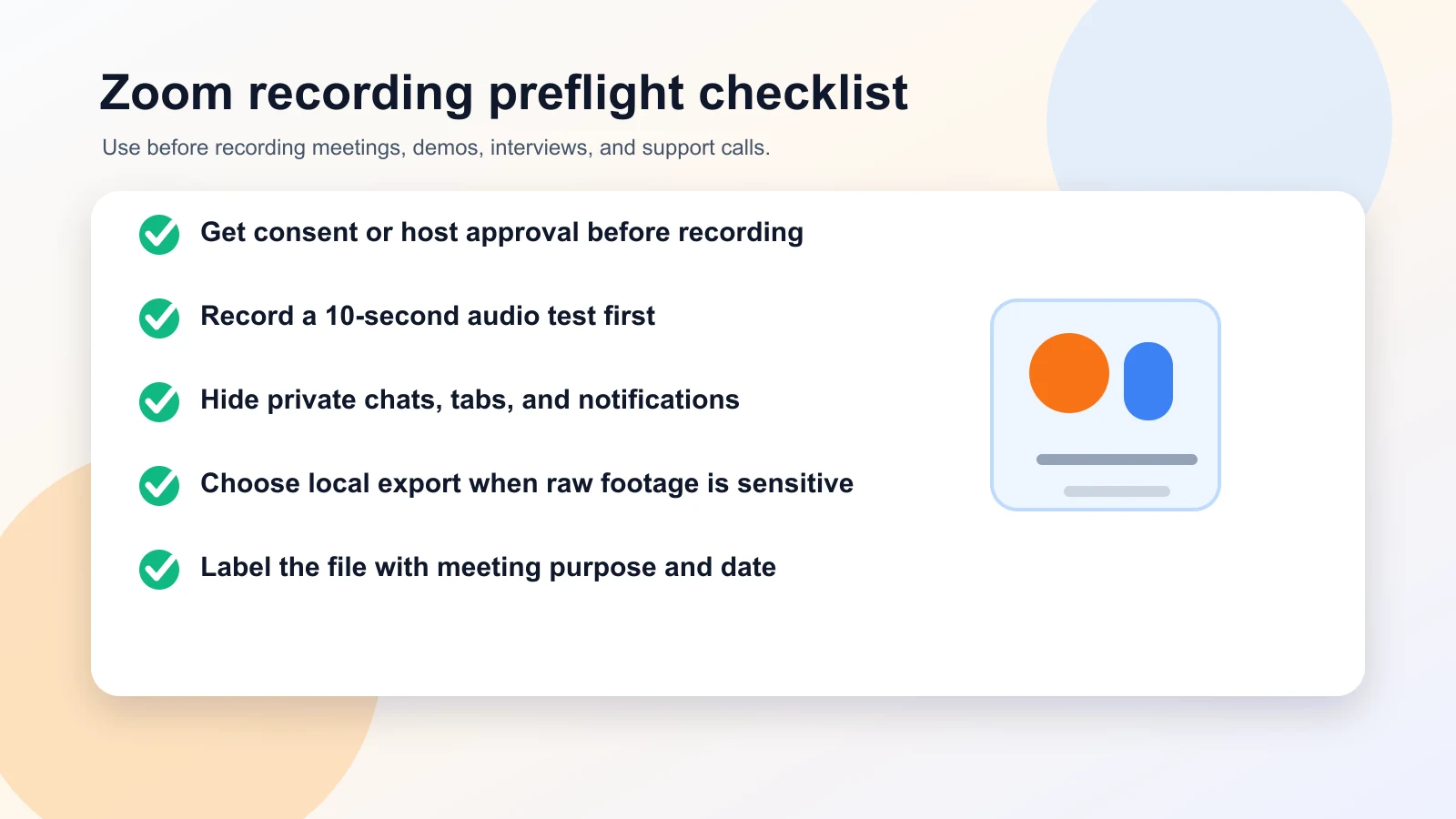
For most teams, the mistake is recording a long meeting before testing the export. Record 10 seconds, play it back, and confirm the audio before the real call.
1. Zoom Recording
Use Zoom's own recording workflow when you need the official meeting record and the host or account policy allows recording. Zoom's public support guidance is the right source to check before relying on local or cloud recording for a real meeting.
Zoom Support's recording guidance is the official place to verify current recording behavior and account requirements. The public article did not render a usable automated screenshot in this run, so the local visual below is a source card rather than a fake Zoom UI screenshot.
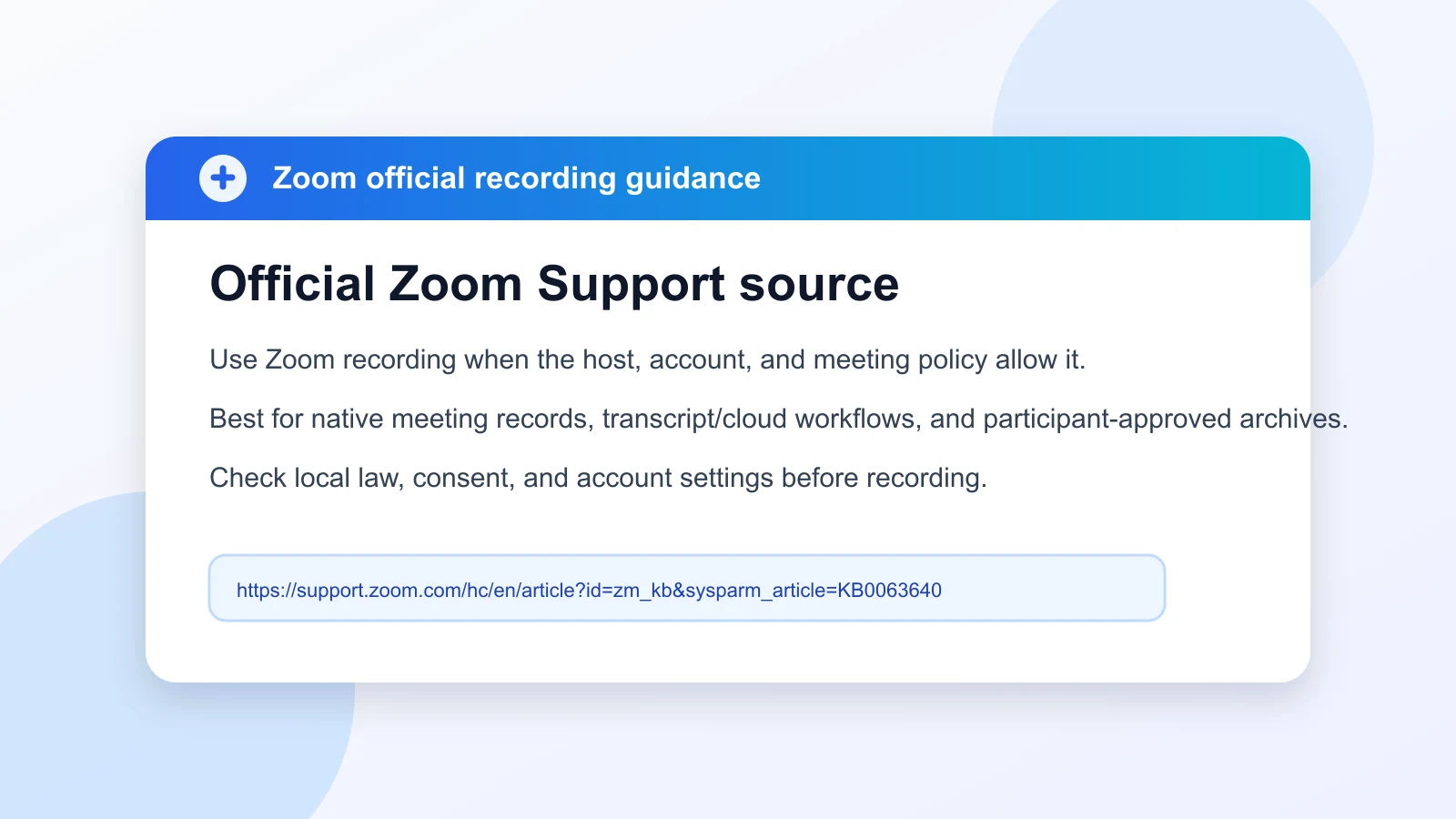
Zoom recording is the best fit when:
- the host wants the meeting archive
- participants expect the meeting to be recorded
- your account settings support the recording mode you need
- the output should stay tied to Zoom's meeting workflow
It is not always the best fit for quick tutorial clips, private Mac walkthroughs, or reusable product videos. In those cases, record only the allowed screen area and keep the export local.
2. Redol Screen Recorder for Mac
Redol Screen Recorder is the best fit in this list when your Zoom-related job is a local Mac recording: a customer recap, async handoff, product demo, interview note, or training clip that should not go through a cloud-first meeting archive.
The current Redol product page positions the app as a free Mac screen recorder with no watermarks, no time limits, system audio, microphone narration, webcam overlay, zooms, crop controls, cursor actions, and local MP4 export. It also shows the Windows client as planned, so keep this recommendation Mac-specific.
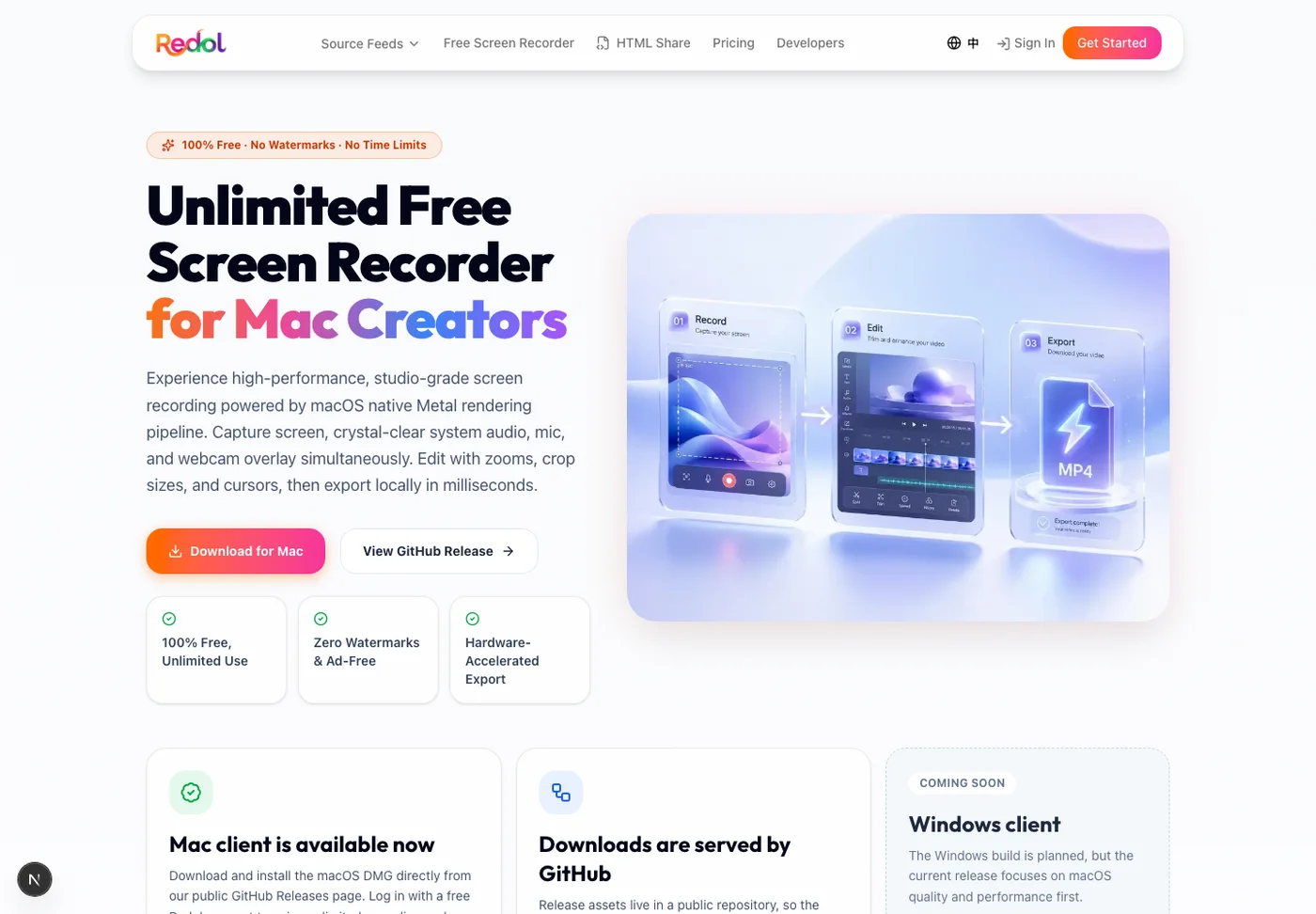
Use Redol for Zoom meeting work when:
- you need to record your own screen and audio locally on a Mac
- the meeting clip will become a support answer, lesson, or product walkthrough
- you want webcam overlay and cursor emphasis without building an OBS scene
- you need to check the file before sharing it outside the meeting
Redol should not be framed as a way to avoid Zoom controls. It is a local recorder for allowed captures. If you need a Windows recorder today, use a Windows option instead of stretching a Mac-first product.
Record a clean local Zoom recap on Mac
Use Redol Screen Recorder for local Mac captures with mic, system audio, webcam overlay, zooms, crop controls, cursor actions, and no-watermark MP4 export.
3. OBS Studio
OBS Studio is free and open-source software for video recording and live streaming. Its official site lists Windows, macOS, and Linux downloads, which makes it the most flexible option when a Zoom recording needs reusable scene control.
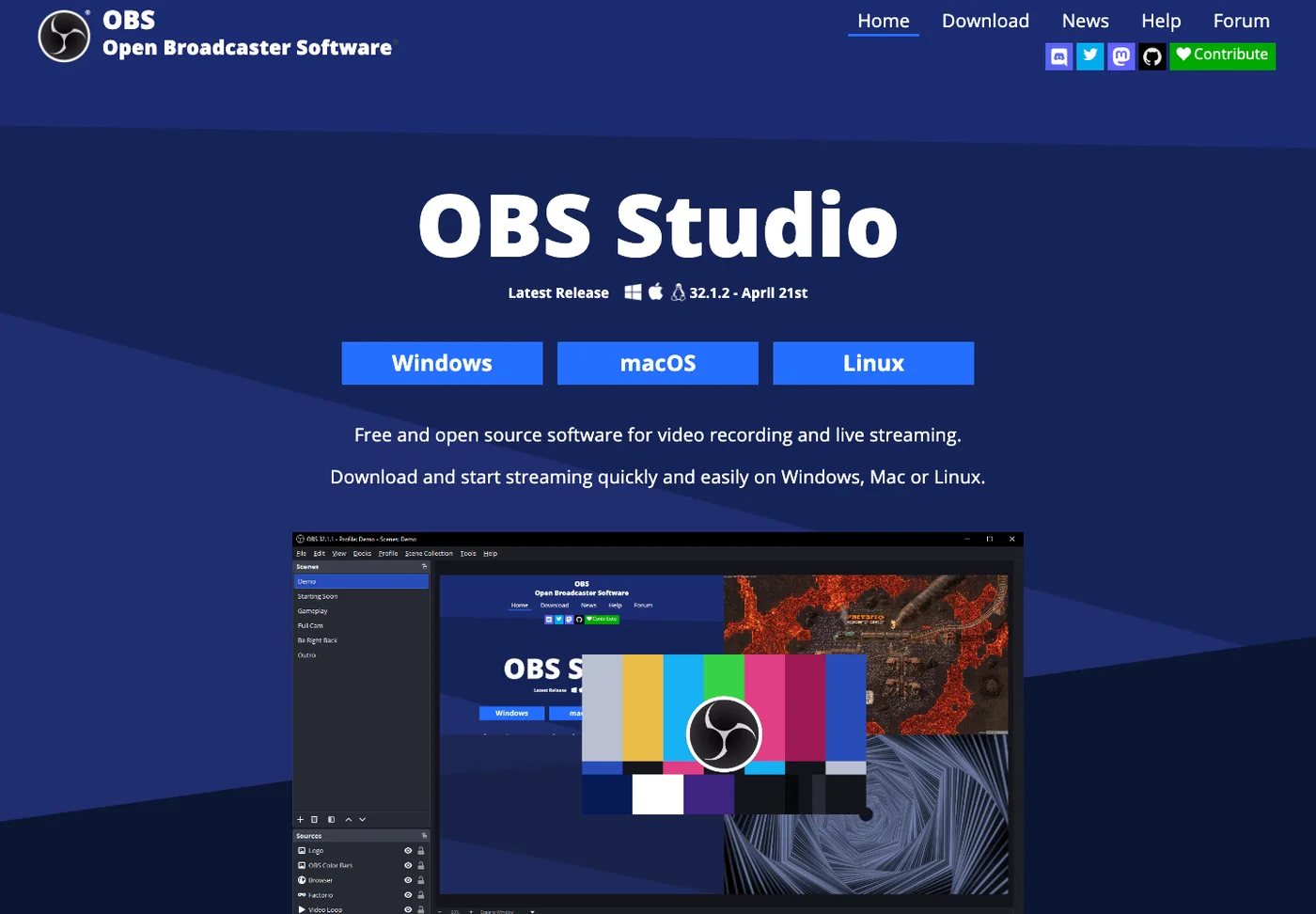
Use OBS when you need:
- a reusable scene with Zoom, slides, camera, and browser sources
- separate audio sources and filters
- a webinar-style layout
- a repeatable training or livestream setup
- cross-platform control beyond a built-in recorder
The tradeoff is setup time. OBS is powerful, but that power can be too much for a simple meeting recap. If you only need to capture your own Mac screen and export a clean MP4, Redol is faster. If you need a reusable production rig, OBS is the better fit.
4. Mac Screenshot or QuickTime
Apple's official Mac screen recording guide explains that Screenshot and QuickTime Player can record the entire screen or a selected portion. That makes the built-in Mac path useful for quick Zoom-adjacent clips when you do not need camera overlay, zoom editing, or a more controlled export workflow.
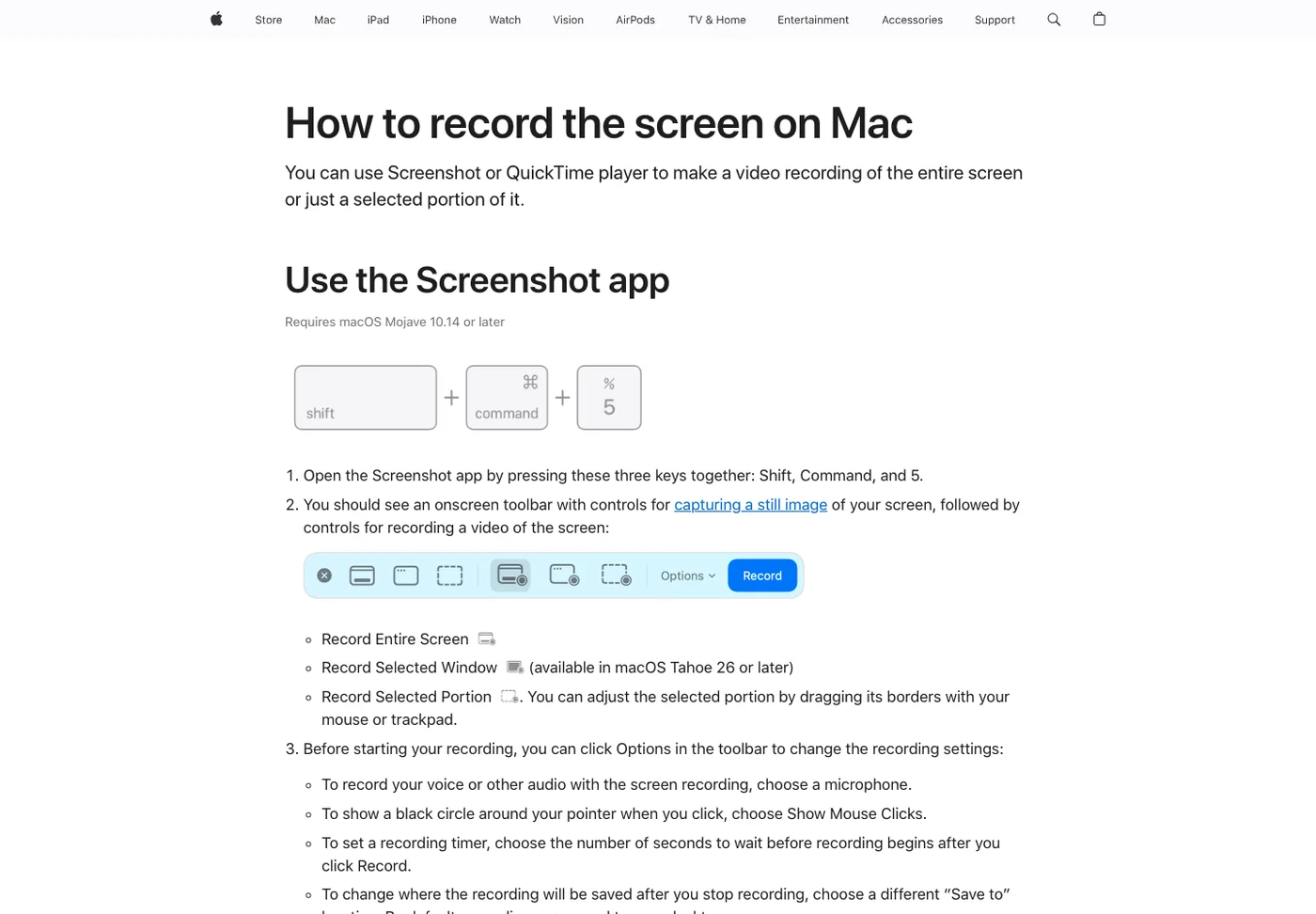
Use the built-in Mac route when:
- the clip is short
- microphone narration is enough
- you only need the screen or selected portion
- you can accept minimal editing controls
- privacy risk is low after you hide notifications and private windows
If you need system audio, webcam overlay, crop sizing, cursor emphasis, or a no-watermark local workflow for a reusable asset, use a dedicated Mac recorder instead. For deeper setup details, read the Redol guide to screen record on Mac with audio.
5. Xbox Game Bar for Windows
Microsoft's Xbox Game Bar support page documents enabling the Game Bar, including system audio, and recording the screen. It is useful for quick Windows clips, especially when you are capturing an app issue or short explanation.
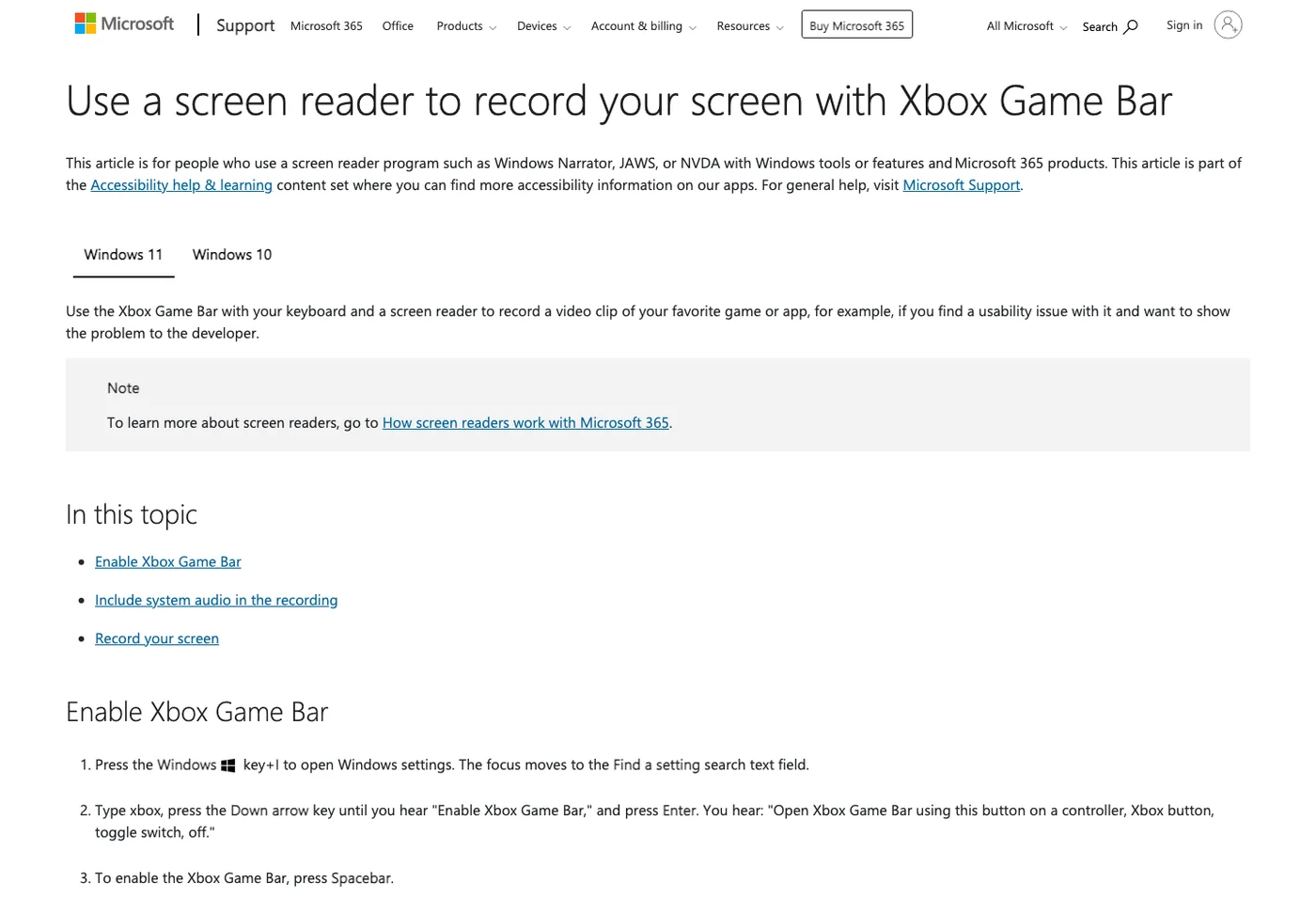
Use Xbox Game Bar when:
- you are on Windows and need a quick app or meeting-adjacent clip
- the capture is short
- built-in controls are enough
- you do not need a reusable video-production layout
It is not the most complete choice for structured Zoom training videos, multi-source scenes, or polished support walkthroughs. For those jobs, compare OBS, a dedicated Windows recorder, or a Mac local recorder when the work happens on Mac.
A Safe Zoom Recording Workflow
Before recording an important Zoom meeting, run this sequence:
- Confirm the meeting can be recorded.
- Decide whether the official Zoom recording or a local screen recording is the right path.
- Hide private tabs, chats, notifications, and attendee details that should not be captured.
- Record 10 seconds with the same mic, speaker, and screen area.
- Play the test file back with headphones.
- Check voice, meeting audio, cursor visibility, camera placement, and saved location.
- Record the full meeting or clip only after the test passes.
- Name the file with the meeting purpose and date so the clip is easy to find later.
This habit matters more than the tool. A meeting recording that misses audio, exposes private chat, or exports to the wrong place is hard to recover.
Which Recorder Should You Choose
Choose Zoom recording when the official meeting archive is the goal. Choose Redol when you need a private local Mac clip with screen, system audio, mic, webcam overlay, and clean MP4 export. Choose OBS when you need reusable scenes and advanced production control. Choose Mac Screenshot or QuickTime for a fast built-in Mac clip. Choose Xbox Game Bar for a quick Windows app recording.
If your Zoom recording turns into a tutorial, product demo, or support asset, also read the Redol guides on recording your screen with facecam and choosing free screen recorders without watermarks.
The best Zoom meeting recorder is the one that respects the meeting rules, captures clear audio, protects private information, and gives you a file you can actually reuse.
Related posts
About the Author

Zhang Guo
AI Product Manager · Digital Marketing Consultant
AI product manager and digital marketing consultant with a background in music. I see creativity as the bridge between rhythm and logic, where musical intuition and mathematical precision can coexist in every meaningful product decision.
Follow on X