If your QuickTime screen recording is lagging, do not start by rerecording the whole tutorial. Start with a short test clip. Most laggy or oversized Mac recordings come from one of four causes: the Mac is under load, the capture area is too large, the recording includes more motion than needed, or the export is not shaped for the final use.
The fastest fix is a small triage loop: reduce background load, capture only the useful area, record 10 seconds, play it back, then decide whether QuickTime is enough or a dedicated Mac recorder will save time.
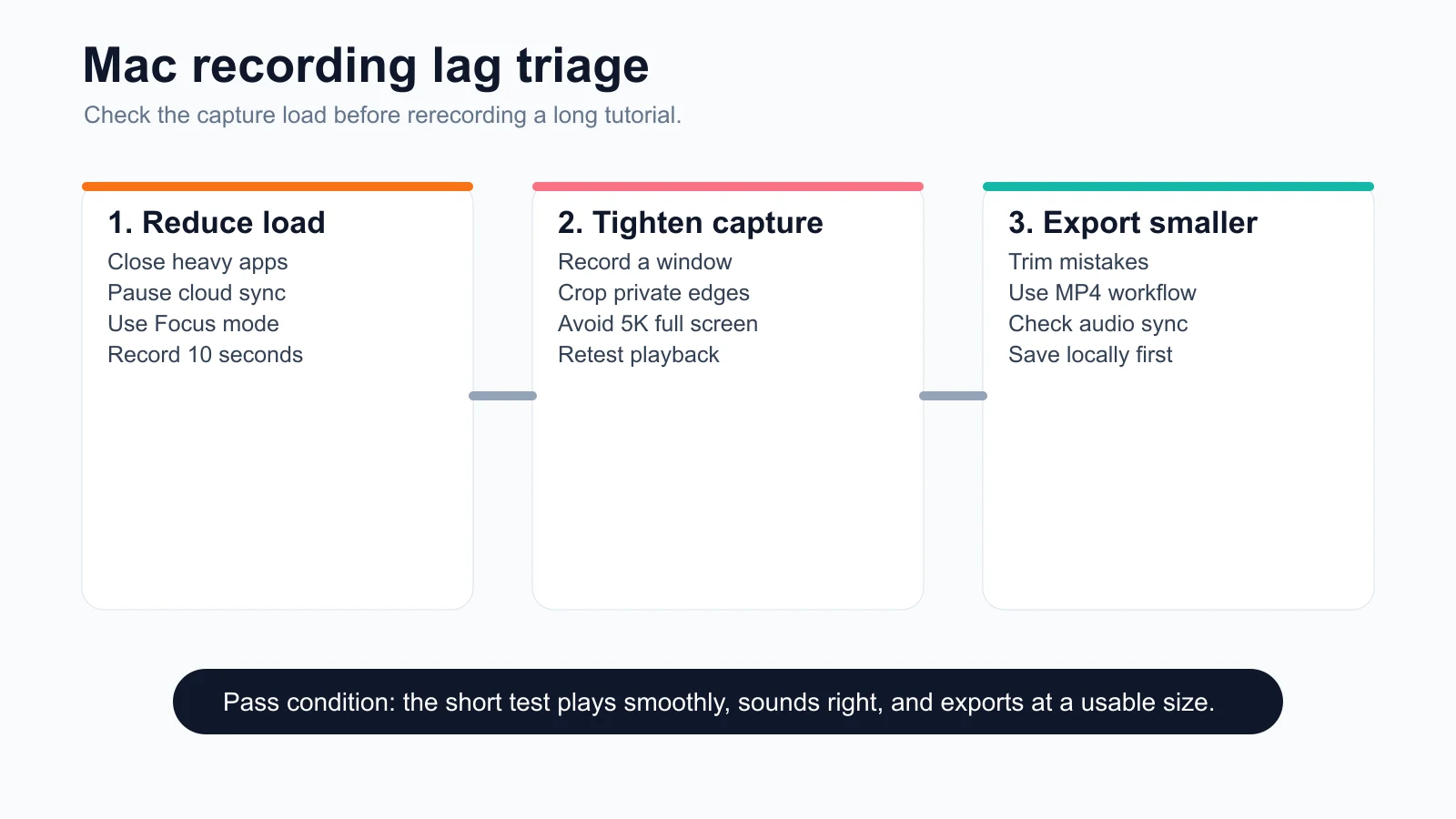
Quick Fix Checklist
Use this before recording anything long.
| Problem | First check | Better recording choice |
|---|---|---|
| Playback stutters or freezes | Close heavy apps, pause sync, and record a 10-second test | Use a lighter capture area or a hardware-accelerated Mac recorder |
| File is too large | Record a window or selected portion instead of the full display | Export a smaller MP4 or trim dead air before sharing |
| Audio is out of sync | Test mic and system audio in the same short clip | Use a recorder that keeps screen, mic, and system audio in one workflow |
| Viewer cannot see the action | Zoom or crop to the active app instead of capturing everything | Use a workflow with crop, zoom, cursor, and local review controls |
Why QuickTime Recordings Lag or Become Huge
QuickTime is useful because it is already on the Mac and starts quickly. Apple's official Mac screen recording guide explains the built-in Screenshot and QuickTime path for recording the entire screen or a selected portion.
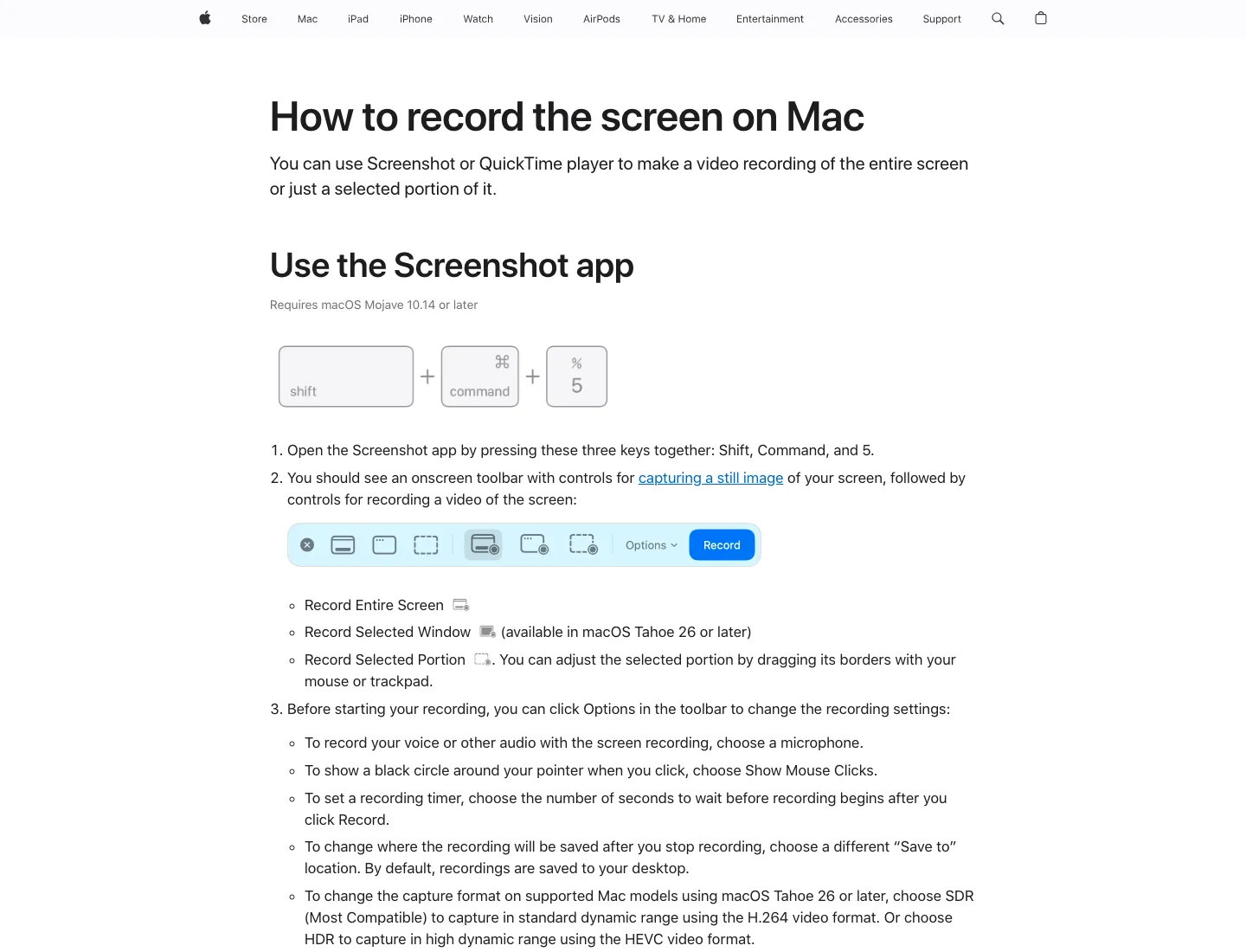
The tradeoff is that simple tools expose simple decisions. If you record the full display, keep background apps running, leave notifications on, and then record a long tutorial, QuickTime has to capture everything the Mac is drawing. That can create lag during capture, choppy playback after export, or a file that is much larger than the useful part of the video.
Before blaming QuickTime, check the recording job:
- Are you capturing the full screen when one app window is enough?
- Is the display resolution higher than the audience needs?
- Are browser tabs, cloud sync, screen sharing, or video calls running in the background?
- Are you recording long pauses, setup time, or repeated mistakes?
- Do you need system audio, mic narration, webcam overlay, cursor emphasis, or crop control?
If the answer to the last question is yes, QuickTime may still start the job, but it may not be the cleanest workflow.
Method One Reduce Mac Load Before Recording
Start with the boring fixes because they are the most reliable.
- Close video calls, heavy browser tabs, games, IDE builds, and unused creative apps.
- Pause cloud sync, large downloads, and backup jobs.
- Turn on Focus so notifications do not appear in the clip.
- Keep the recording destination on a local drive with enough free space.
- Restart the app you are demonstrating if it has been open all day.
Then record 10 seconds. Include one cursor movement, one click, one spoken sentence if you need narration, and one moment of the app doing real work. Play it back before continuing.
If the short test is smooth, you have probably fixed the main lag source. If it still stutters, reduce the capture area.
Method Two Capture a Smaller Area
A full-screen recording feels safe, but it often captures more pixels, motion, private information, and dead space than the viewer needs. Apple's built-in path can record a selected portion, and Apple's QuickTime Player screen recording guide documents recording the screen from QuickTime Player on Mac.
Use the smallest useful frame:
- Record the active app window instead of the whole desktop.
- Crop out browser bookmarks, sidebars, and secondary monitors.
- Avoid recording a 5K display when the final video will be watched in a smaller player.
- Hide unnecessary animation, live previews, and moving dashboards.
- Keep the cursor movement slower and more intentional.
This helps both lag and file size because the recording has less screen data to capture and less visual noise to encode.
Method Three Trim and Export for the Real Use
A large screen recording is not always a broken recording. Sometimes it is simply too long, too high-resolution, or full of unused setup time.
Apple's QuickTime export guide covers exporting movies to other formats and resolutions in QuickTime Player. Use that idea as a workflow rule: shape the file for where it will actually go.
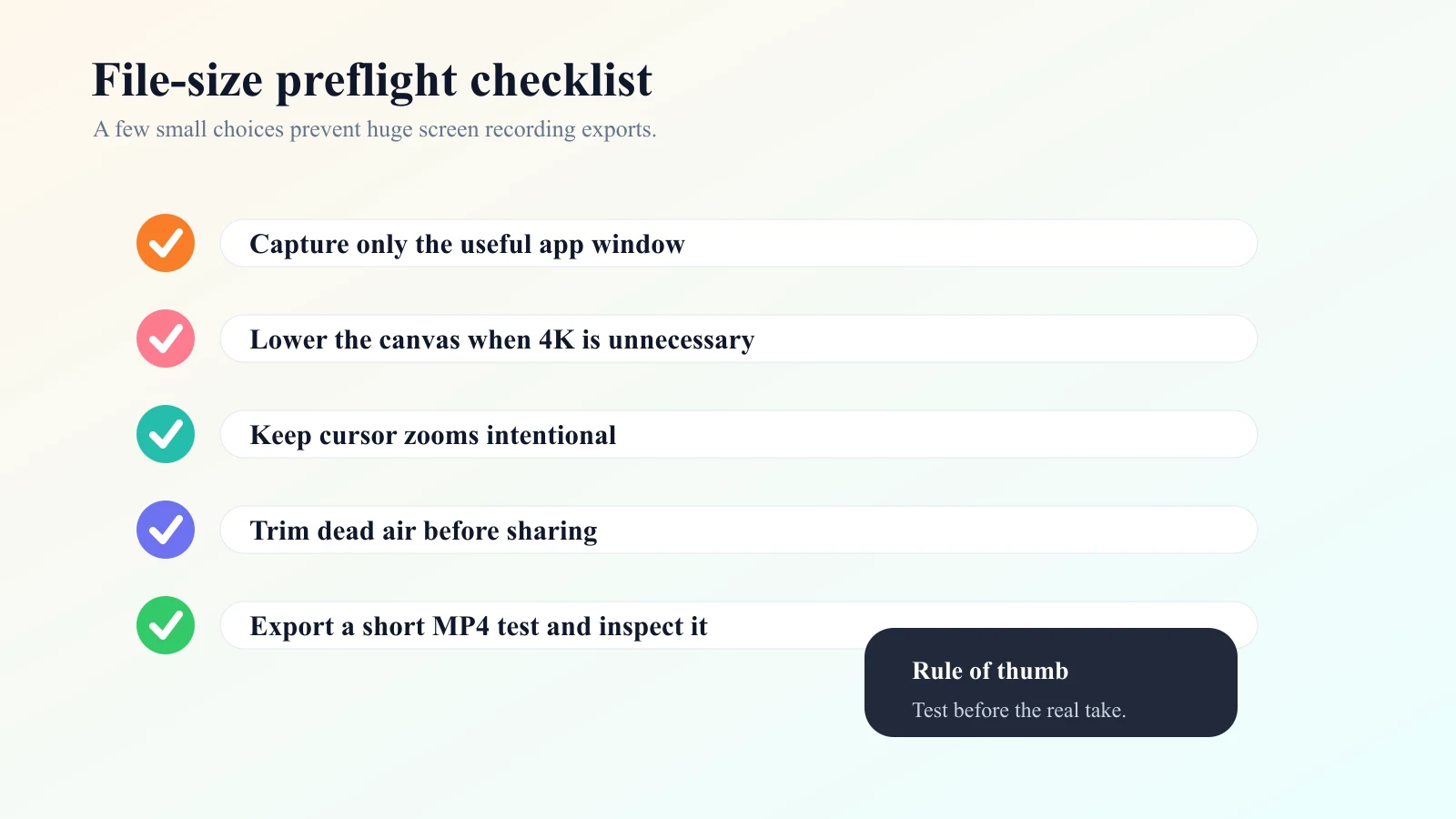
Before sharing the final video:
- Trim the silence before and after the useful action.
- Remove setup mistakes instead of exporting the entire take.
- Export a version that matches the final channel or viewer need.
- Watch the exported file locally, not only inside the recording app.
- Confirm audio sync, cursor visibility, and text readability.
If the file still feels too large after trimming and export choices, the next recording should start smaller. It is usually cleaner to record a focused window than to compress a huge full-screen capture later.
When Redol Is the Better Mac Recording Workflow
Redol Screen Recorder is the better fit when the recording is meant to become a reusable asset: a product walkthrough, support answer, course lesson, async update, or software tutorial. The current Redol product page and source position it as a free macOS screen recorder with no watermarks, no time limits, system audio, microphone narration, webcam overlay, crop and resize controls, zooms, cursor actions, and local MP4 export. The Windows build is planned, not live, so keep this recommendation Mac-specific.
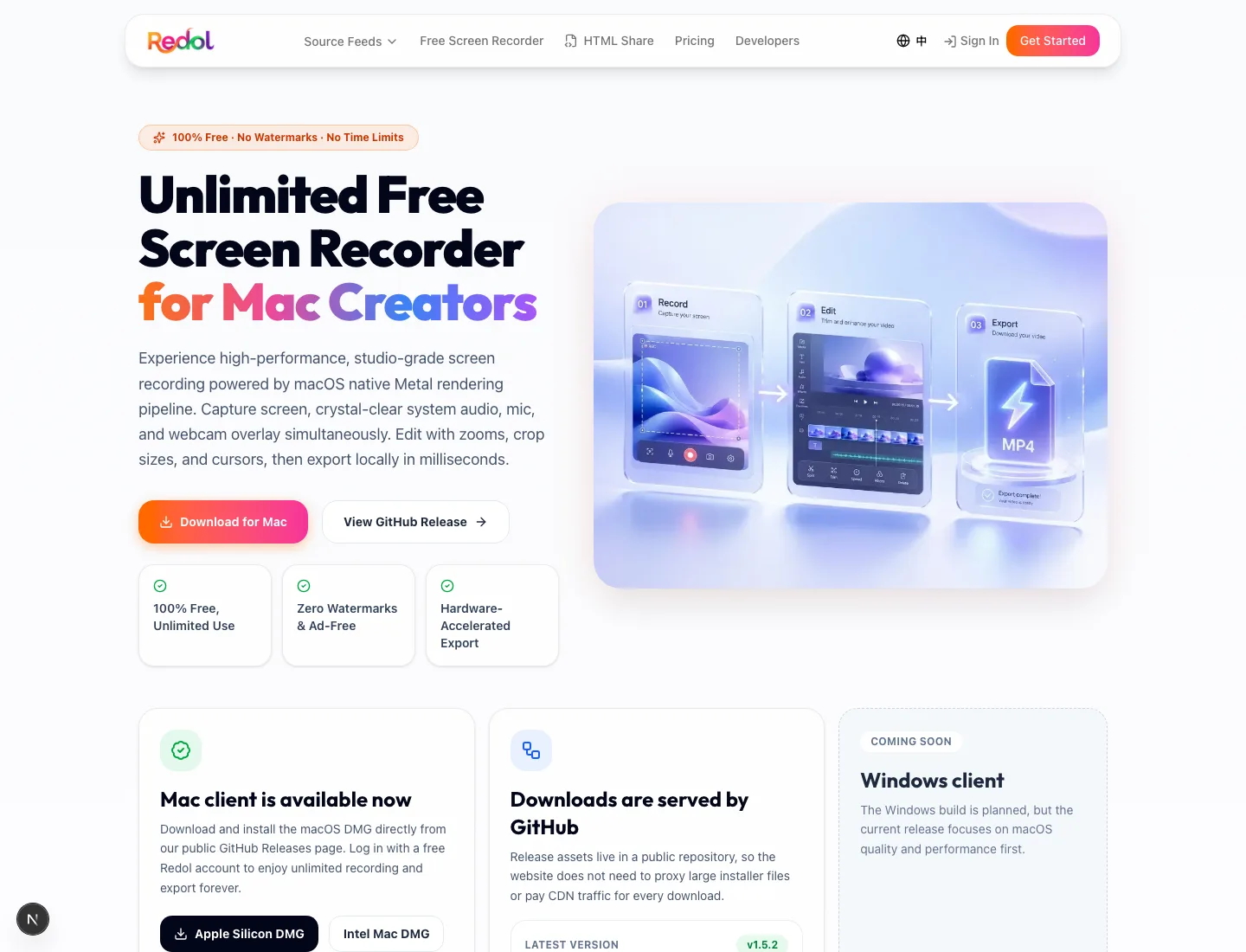
Use Redol when QuickTime feels too bare for the job:
- Choose a window or custom capture area before the real take.
- Toggle microphone narration and system audio in the same workflow.
- Add webcam only when it helps the viewer trust or follow the lesson.
- Use crop, zoom, and cursor emphasis to focus attention.
- Export locally to MP4 and review the file before sharing.
This does not mean every Mac screen recording needs a dedicated recorder. A short voice-only clip can stay in the built-in Mac workflow. Redol is for the recordings where lag, file size, audio, privacy, and reuse all matter at the same time.
Record a smoother Mac tutorial locally
Use Redol Screen Recorder when you need crop control, system audio, mic narration, zooms, cursor emphasis, and no-watermark MP4 export.
Common Mistakes That Make Lag Worse
| Mistake | Why it hurts | Better habit |
|---|---|---|
| Recording the full display by default | Captures extra pixels and private areas | Frame the app or window first |
| Skipping the test clip | You discover lag after a long take | Record and play back 10 seconds |
| Keeping cloud sync running | Adds disk and network load | Pause sync while recording |
| Leaving notifications on | Creates distractions and privacy risk | Use Focus before recording |
| Capturing every mistake | Bloats the export | Stop, reset, and record a cleaner take |
| Fixing everything after export | Compression cannot restore missing frames or bad audio | Fix the source capture |
For audio-specific setup, use the Redol guide to screen record on Mac with audio. If you need a camera overlay, read the guide to record your screen with facecam. For a broader tool comparison, compare the best free screen recorders without watermarks.
Final Recommendation
If QuickTime is lagging, first reduce the Mac's load, capture a smaller area, and run a 10-second test. If the test passes, keep the built-in workflow and export only what the viewer needs.
If the recording needs system audio, mic narration, crop control, cursor clarity, local MP4 export, no watermark, and fewer reruns, use a dedicated Mac workflow like Redol Screen Recorder. The goal is not to chase more features. It is to record a source clip that is smooth enough, small enough, and clear enough before you share it.
Related posts
About the Author

Zhang Guo
AI Product Manager · Digital Marketing Consultant
AI product manager and digital marketing consultant with a background in music. I see creativity as the bridge between rhythm and logic, where musical intuition and mathematical precision can coexist in every meaningful product decision.
Follow on X