Topic: Screen recording guides
If you are searching for a Fraps for Mac alternative, the first thing to know is that you probably need to replace two different jobs, not one app. Fraps is remembered for game video capture, screenshots, and FPS benchmarking, but the official Fraps site describes it as a Windows application for DirectX or OpenGL games.
On a Mac, the cleaner path is to split the decision: choose a Mac screen recorder when you need a video, choose a separate FPS or developer overlay when you need performance visibility, and choose an editor when the recording has to become a polished tutorial.
Quick Comparison
| Alternative | Best for | Recording fit | FPS-counter fit | Main tradeoff |
|---|---|---|---|---|
| Redol Screen Recorder | Local Mac tutorials, product demos, support clips, and clean MP4 exports | Strong | Not an FPS benchmark tool | Mac recording first, not game telemetry |
| OBS Studio | Scene-based recording, camera layouts, and advanced audio routing | Strong | Limited as a Fraps-style FPS overlay | More setup before the first clean export |
| macOS Screenshot or QuickTime | Fast built-in screen clips | Good for simple clips | No | Basic controls and limited production workflow |
| ScreenFlow | Mac recording plus timeline editing | Strong | No | Paid, editing-heavy workflow |
| Fraps itself | Windows DirectX/OpenGL capture and benchmarking | Windows only | Strong on supported Windows games | Not a current Mac app |
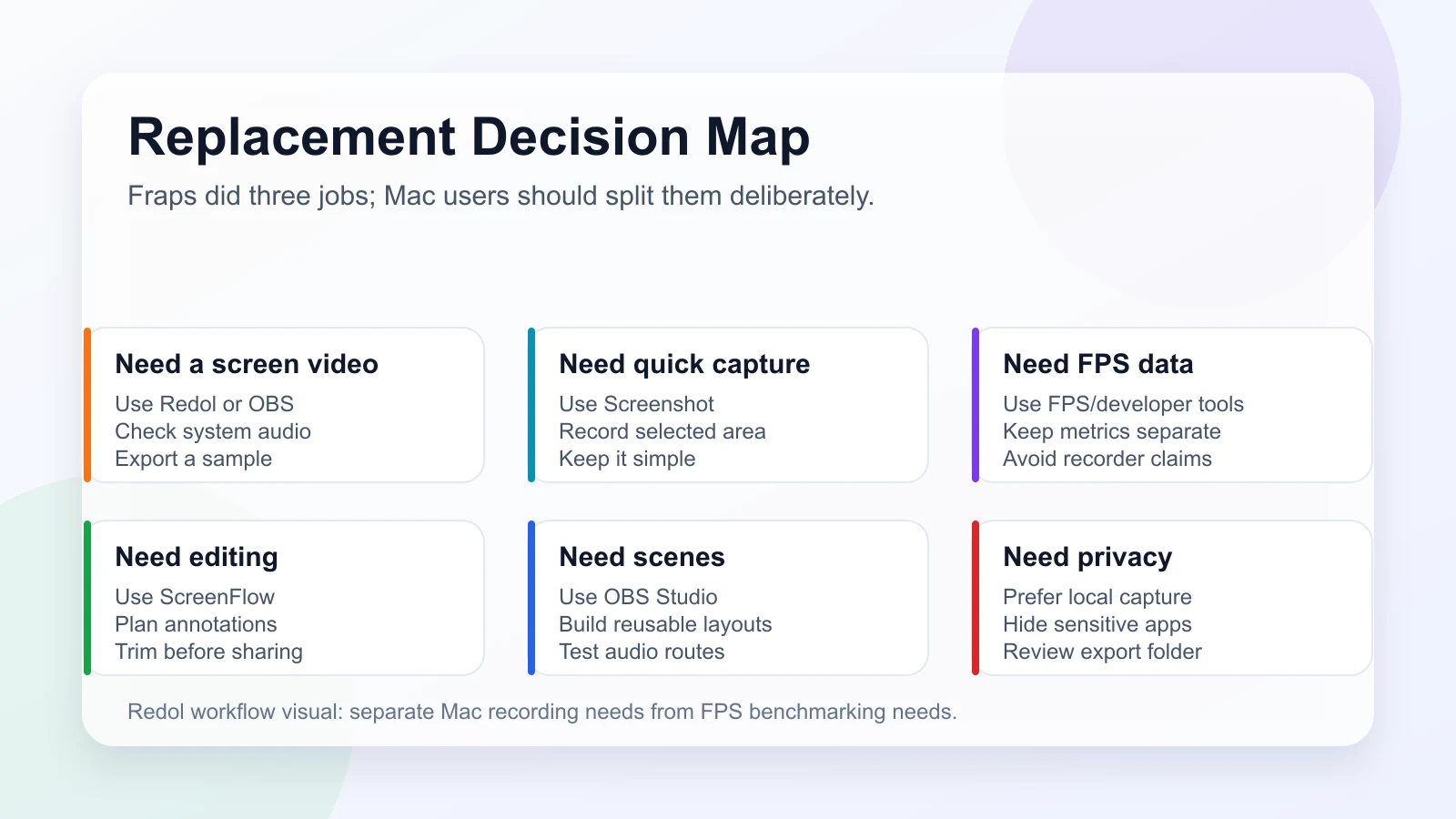
What Fraps Actually Replaced
The official Fraps website frames the product around three tasks: benchmarking software, screen capture software, and real-time video capture software. Its download page lists Fraps 3.5.99 for Windows XP, 2003, Vista, and Windows 7.
That matters because a direct "Fraps for Mac" search can hide very different needs:
- recording gameplay or app video
- seeing FPS while a game runs
- capturing screenshots quickly
- producing clips for YouTube, support, or product demos
- editing the captured footage before sharing
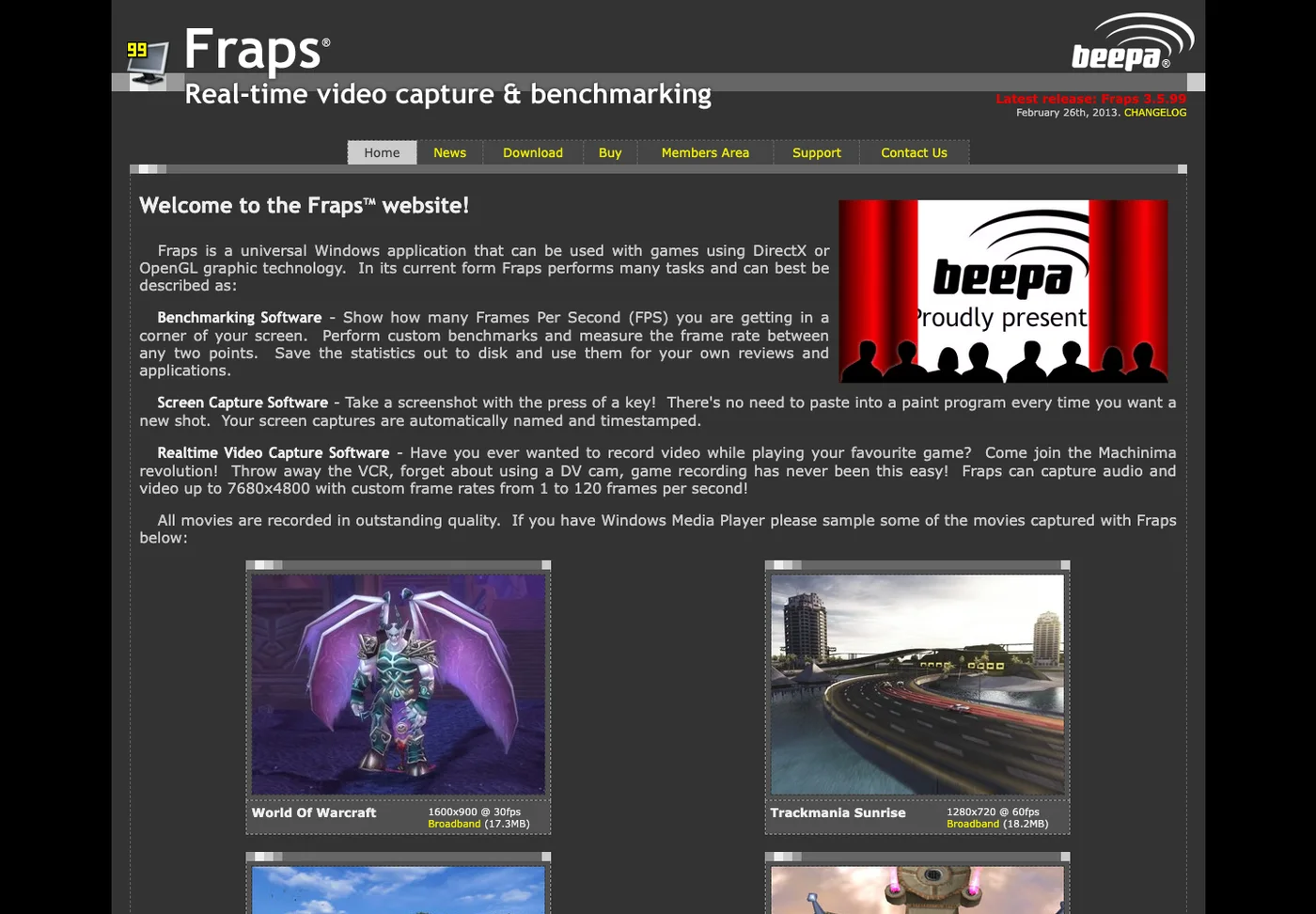
There is no reason to force one Mac tool to cover every Fraps memory. Most Mac workflows are better when the recorder, FPS counter, and editor are chosen separately.
1. Redol Screen Recorder for Local Mac Videos
Redol Screen Recorder is the best fit in this list when the Fraps replacement job is "record my Mac screen cleanly." The current Redol product route positions it as a macOS screen recorder with no watermarks, no recording time limits, system audio, microphone narration, webcam overlay, crop and resize controls, zooms, cursor actions, and local MP4 export.
Use Redol when you need:
- a local Mac recording that does not upload raw footage first
- microphone and system audio in the same workflow
- webcam overlay for tutorials or async demos
- crop, cursor, zoom, and export controls
- a clean MP4 for support, education, or product walkthroughs
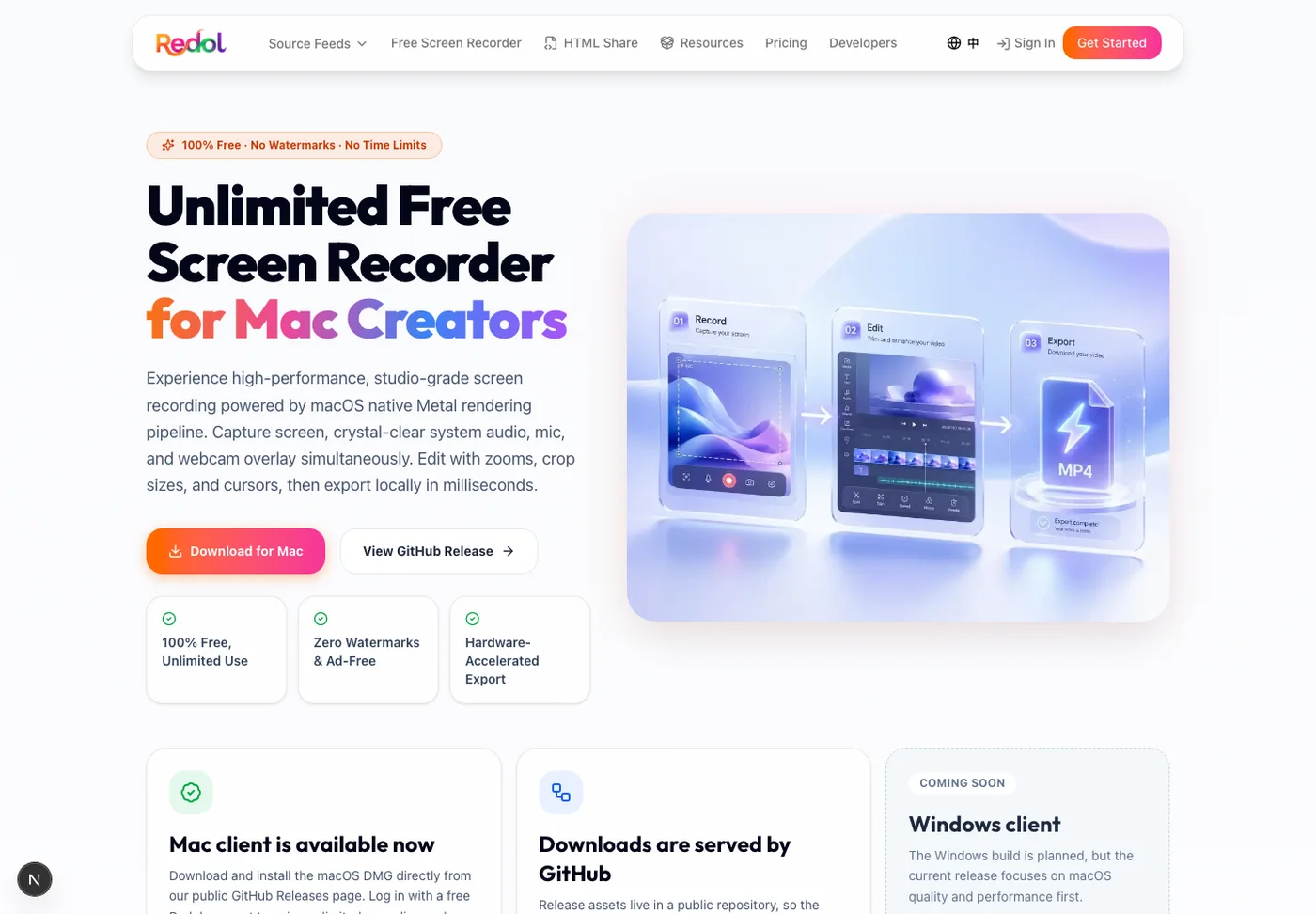
Redol is not an FPS benchmarking app, and that is an important limit. If your Fraps use case was performance telemetry, keep Redol for the video capture layer and use a game, engine, or developer performance tool for the FPS layer.
Record a clean local Mac video
Use Redol Screen Recorder when your Fraps replacement job is private Mac capture with audio, webcam overlay, zooms, cursor controls, and local MP4 export.
2. OBS Studio for Scenes and Advanced Capture
OBS Studio is free and open-source software for video recording and live streaming, with official support across Windows, macOS, and Linux. It is the strongest Fraps alternative here when you need reusable scenes, multiple sources, a camera layout, or advanced audio routing.
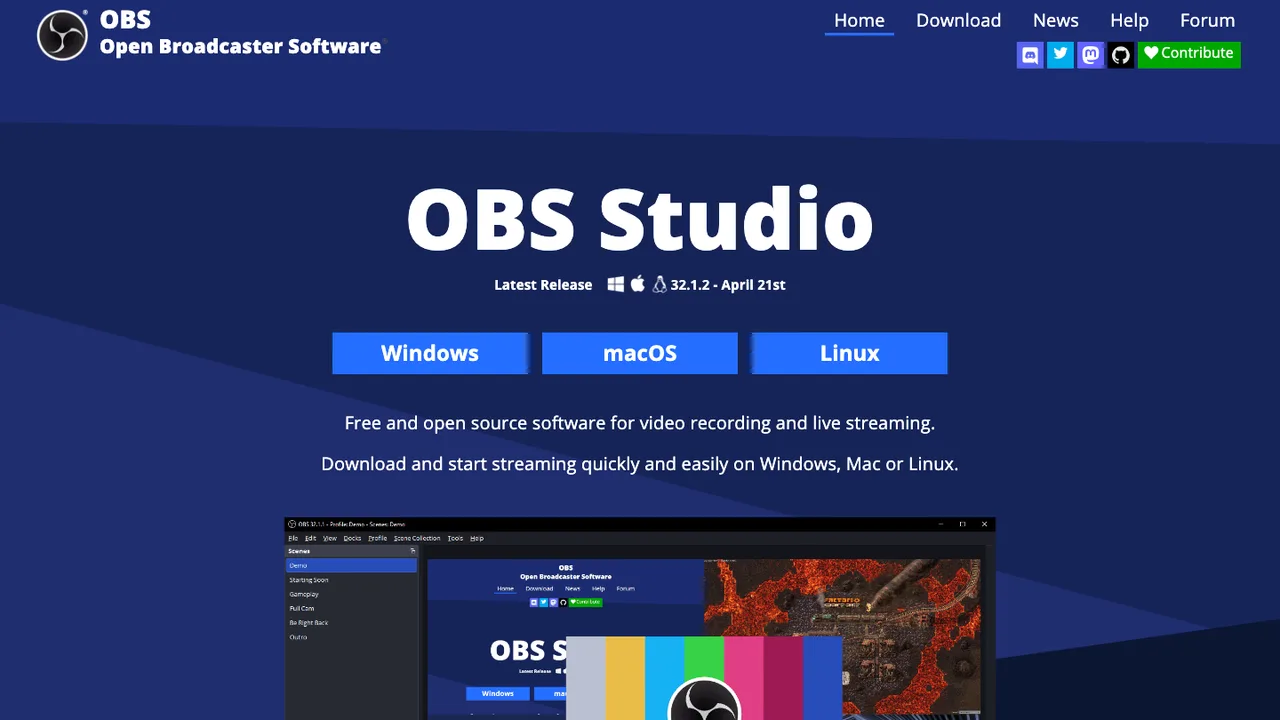
Choose OBS when:
- you need display, window, camera, browser, or media sources in one scene
- you want a reusable game or tutorial layout
- you need deeper audio routing than a simple recorder provides
- live streaming and recording belong in the same setup
The tradeoff is setup time. OBS can be excellent after configuration, but it is not the shortest path if you only need a quick local Mac MP4. It is also not a drop-in FPS overlay in the Fraps sense; treat FPS visibility as a separate check.
3. macOS Screenshot or QuickTime for Fast Clips
Apple's Mac screen recording guide explains that built-in macOS tools can record the entire screen or a selected portion. This is the fastest zero-install alternative when the clip is short and low-risk.
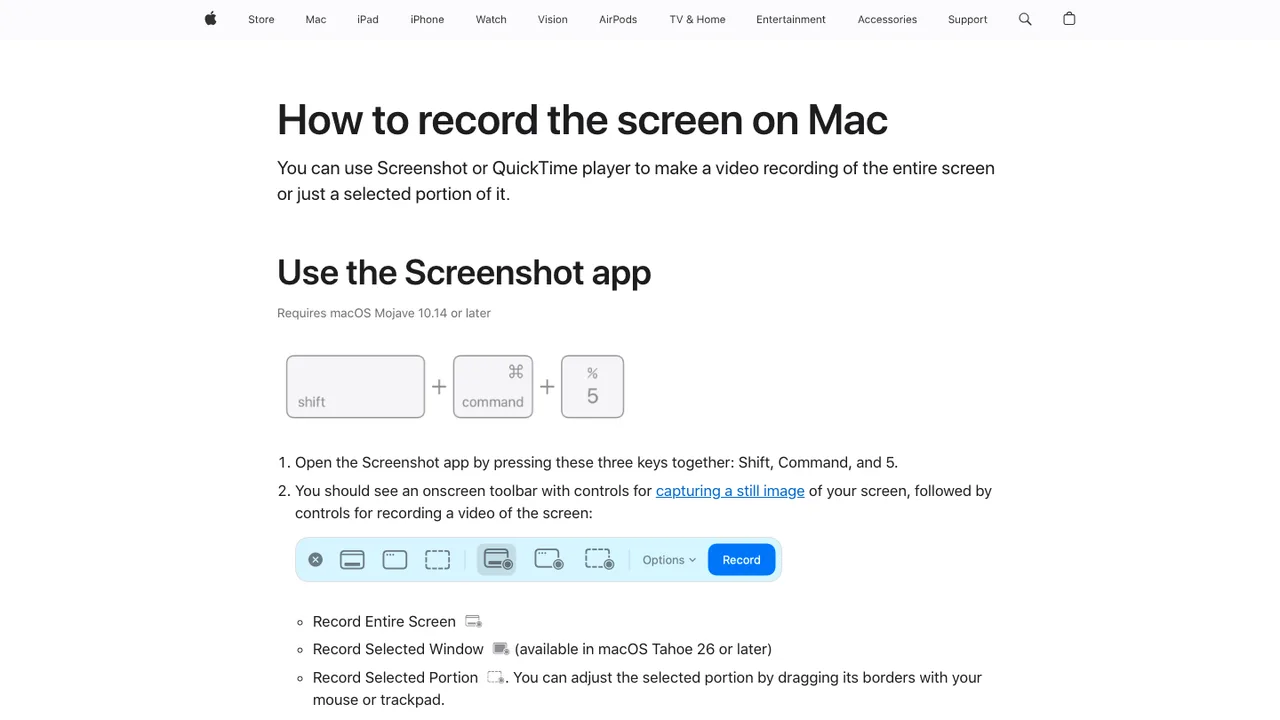
Use built-in macOS recording when:
- the recording is short
- you do not need an FPS overlay
- microphone-only narration is enough
- you are making a quick internal clip
- you do not need a reusable recording workflow
If the clip needs system audio, webcam overlay, zooms, cursor emphasis, or a repeatable export setup, move up to a dedicated recorder instead of stretching the built-in tool.
4. ScreenFlow for Recording Plus Editing
ScreenFlow's official page positions it as video editing and screen recording software for demos, tutorials, video training, and presentations. That makes it useful when the Fraps replacement job is not only capture, but also annotation, trimming, timeline work, and publishing polish.
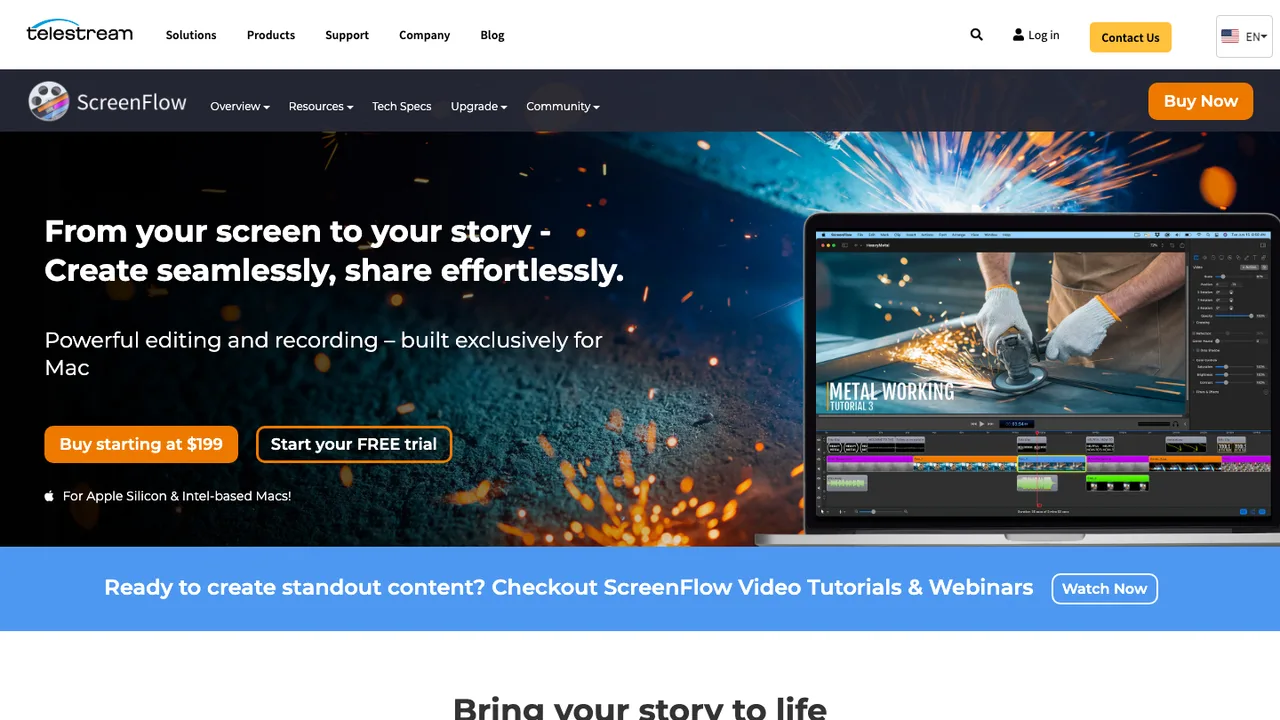
Choose ScreenFlow when:
- the recording will become a polished course, tutorial, or training asset
- timeline editing matters as much as capture
- you need annotations, callouts, or structured post-production
- the extra tool depth is worth the cost and learning curve
If all you need is a short local Mac recording, ScreenFlow may be more than the job requires. If the final asset needs editing depth, it can be a better fit than a lightweight recorder.
How to Handle the FPS Counter Part
The trap in a Fraps-for-Mac search is expecting the recorder to also be the benchmark. That is not always the right split on macOS.
Use this rule:
| If your real need is... | Better path |
|---|---|
| "I need a video of my Mac screen" | Use Redol, OBS, built-in macOS recording, or ScreenFlow |
| "I need gameplay scenes and multiple sources" | Use OBS |
| "I need a short clip right now" | Use macOS Screenshot or QuickTime |
| "I need to see FPS while testing" | Use a game, engine, platform, or developer performance counter |
| "I need a polished tutorial" | Use a recorder plus an editor, or ScreenFlow |
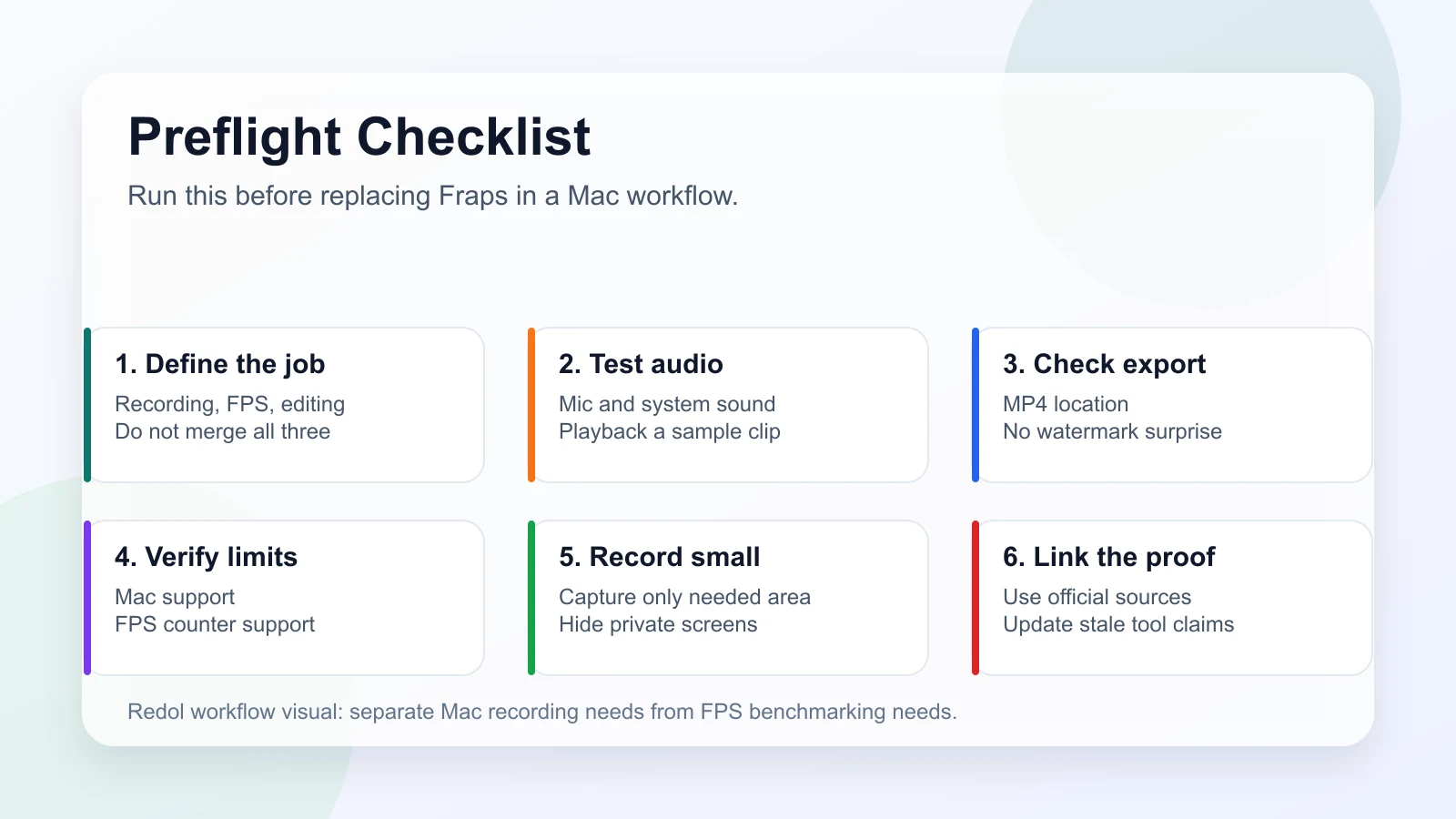
For serious performance testing, keep the FPS metric separate from the recorder. That keeps the video honest: the recording tool captures what happened, while the performance tool measures how the app or game behaved.
Which Fraps Alternative Should You Pick
Start with the job, not the tool name:
- Choose Redol Screen Recorder if you need a private local Mac recording with system audio, microphone, webcam overlay, cursor/zoom controls, and MP4 export.
- Choose OBS Studio if you need reusable scenes, streaming-style layouts, or multi-source production control.
- Choose macOS Screenshot or QuickTime if the clip is short and built-in tools are enough.
- Choose ScreenFlow if editing is part of the outcome, not an afterthought.
- Choose a separate FPS or developer counter if the important output is performance data rather than video.
For most Mac creators, Fraps is not one missing app. It is a bundle of old expectations: show FPS, capture screenshots, record gameplay, and produce a video. Replace those expectations deliberately, and the Mac workflow becomes easier to trust.
If your immediate task is recording a clean Mac video, start with a local Mac recorder. If your task is FPS benchmarking, keep the recorder out of the measurement path and use a purpose-built performance counter alongside it.
Related posts
About the Author

Zhang Guo
AI Product Manager · Digital Marketing Consultant
AI product manager and digital marketing consultant with a background in music. I see creativity as the bridge between rhythm and logic, where musical intuition and mathematical precision can coexist in every meaningful product decision.
Follow on X