If you are comparing the best screen recording software for Mac, start with the recording job. A quick bug clip, a product walkthrough, a course lesson, an async update, and a polished tutorial do not need the same recorder.
The safest shortlist is simple: use a local Mac recorder when privacy, system audio, webcam overlay, and export control matter; use built-in Screenshot or QuickTime for short clips; use OBS when you need scenes; use Loom when the handoff is async and cloud-first; use a heavier editor when post-production matters more than capture speed.
Quick Comparison
| Tool | Best for Mac users who need... | Platform fit | Main strength | Watch out for |
|---|---|---|---|---|
| Redol Screen Recorder | Local creator recordings with screen, mic, system audio, webcam, zooms, and MP4 export | macOS | No-watermark local workflow with Mac-first controls | Windows client is planned, not live |
| OBS Studio | Scene-based recording, livestream-style layouts, and advanced source control | macOS, Windows, Linux | Free, open-source, very flexible | More setup than most simple Mac clips need |
| Mac Screenshot or QuickTime | Fast built-in screen clips | macOS | Already on the Mac | Limited production controls |
| Loom | Async video messages and shareable screen recordings | Browser and apps | Fast sharing workflow | Cloud/account workflow may not fit private source footage |
| ScreenFlow | Mac screen capture plus deeper editing | macOS | Strong recording-to-editing path | More tool than a quick clip needs |
| Movavi Screen Recorder | Straightforward screen capture with audio | macOS and Windows | Simple desktop recorder category | Check current plan and export limits before relying on it |
| Icecream Screen Recorder | Basic screen capture and screenshots | macOS and Windows | Accessible capture workflow | Verify free-version limits for your use case |
| ApowerREC | Cross-platform screen recording across desktop and mobile | macOS, Windows, Android, iOS | Broad device coverage | May be broader than a Mac-only workflow requires |
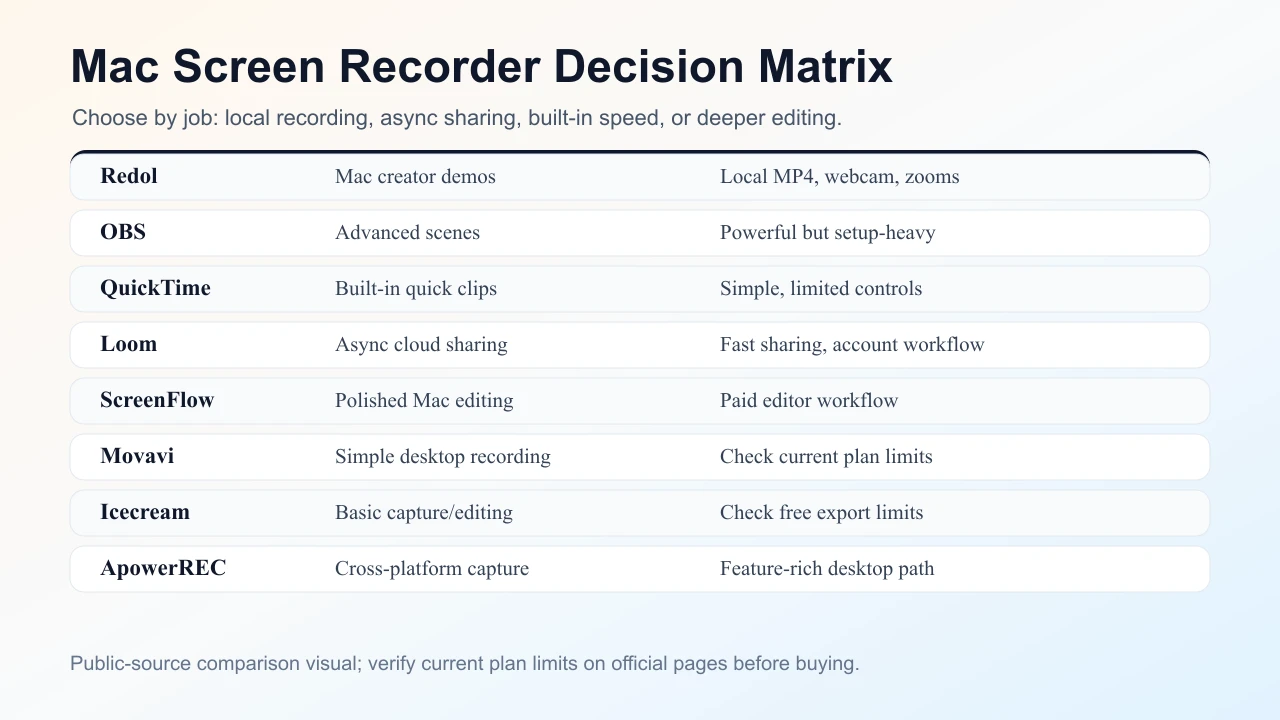
How to Choose a Mac Screen Recorder
Do not choose by feature count alone. Choose by what can go wrong in the recording.
- Privacy: Will raw footage show unreleased product work, customer data, or internal screens?
- Audio: Do you need microphone narration, system audio, or both?
- Camera: Does the viewer need a facecam overlay or presenter bubble?
- Editing: Do you need quick trim/crop/export, or a full editing timeline?
- Sharing: Is the output a local MP4, a cloud link, or a production project?
- Repeatability: Will you record this workflow once, or every week?
If the answer is "I need a clean local Mac recording I can reuse," a focused recorder usually beats a broad production suite. If the answer is "I need a reusable broadcast layout," OBS is worth the setup. If the answer is "I need a clip in 30 seconds," the built-in Mac tools may be enough.
1. Redol Screen Recorder
Redol Screen Recorder is the best fit in this list when the job is a private local Mac recording that should become a usable asset: a product demo, support answer, course clip, async update, or software tutorial.
The current Redol product page and source position it as a free macOS screen recorder with no watermarks, no recording time limits, system audio, microphone narration, webcam overlay, crop and resize controls, zooms, cursor actions, and local MP4 export. The current public page also shows the Windows client as planned, so keep this recommendation Mac-specific.
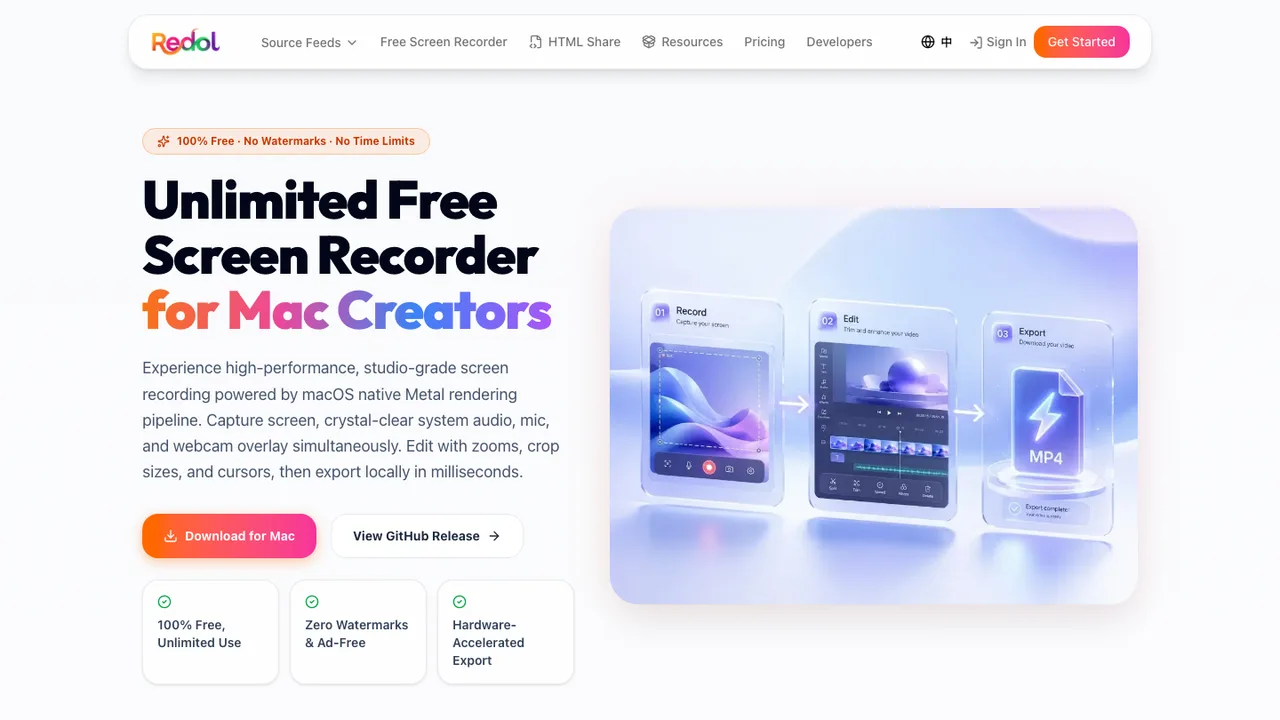
Use Redol when:
- you want a no-watermark local MP4 without uploading raw footage first
- system audio and microphone narration both matter
- a webcam overlay, zoom, cursor highlight, or crop control would make the video clearer
- the recording will be reused as a tutorial, demo, lesson, or support asset
Redol is not trying to replace OBS for broadcast scenes or ScreenFlow for full editing projects. It is the cleaner choice when a Mac creator needs the shortest path from source screen to usable local video.
Record a clean local Mac video
Use Redol Screen Recorder for no-watermark Mac captures with system audio, mic narration, webcam overlay, zooms, crop controls, cursor actions, and local MP4 export.
2. OBS Studio
OBS Studio is free and open-source software for video recording and live streaming. Its official site lists Windows, macOS, and Linux support, which makes it the most flexible option here when you need reusable scenes or multi-source control.
Use OBS when:
- you need multiple scenes, sources, cameras, or layouts
- you want advanced audio routing or filters
- the same recording layout will be reused many times
- livestreaming and recording belong in one setup
The tradeoff is friction. OBS can be simple after setup, but it asks for decisions before the first useful export: display capture or window capture, scene layout, audio sources, resolution, bitrate, and storage location. For a quick Mac product walkthrough, that may be more than you need.
3. Mac Screenshot or QuickTime
Apple's official Mac screen recording guide says Screenshot or QuickTime Player can record the entire screen or a selected portion. That built-in path is still the fastest zero-install answer for a short Mac clip.
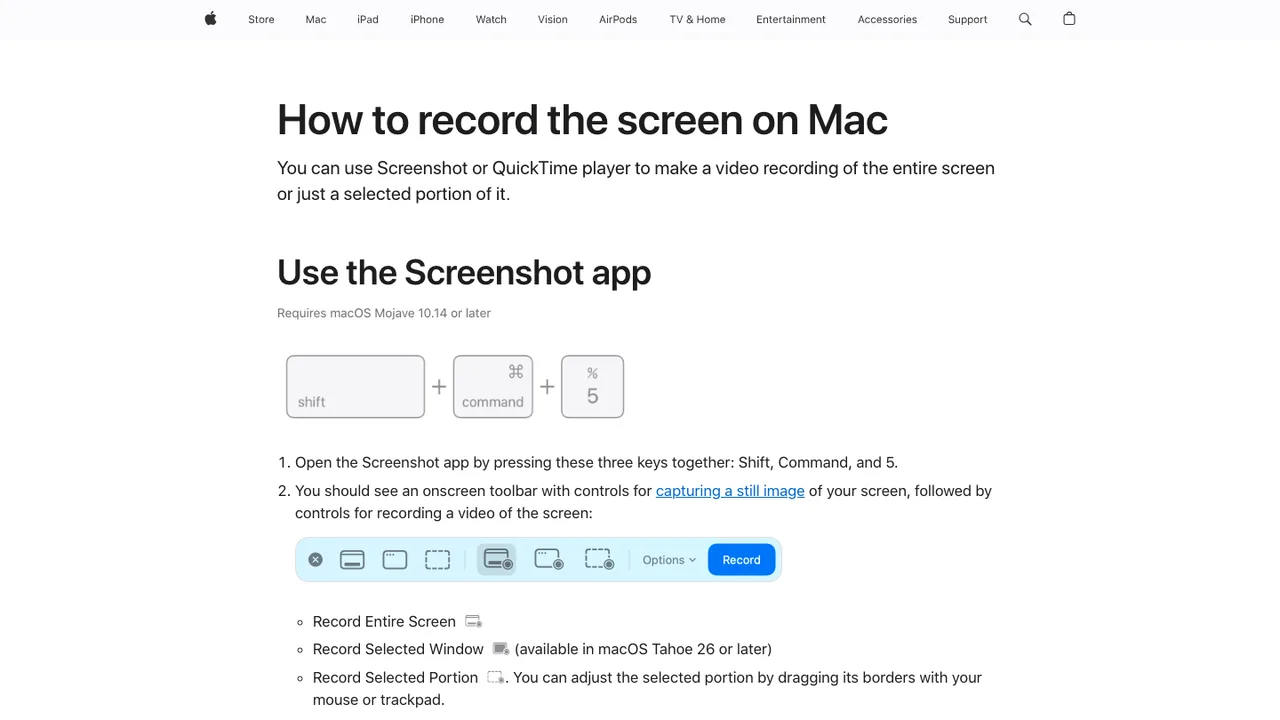
Use Screenshot or QuickTime when:
- the clip is short
- microphone narration is enough
- you do not need a webcam overlay
- you do not need advanced zooms, cursor emphasis, or a repeatable export workflow
The limitation is control. Built-in recording is excellent for simple clips, but it can become awkward when you need system audio, facecam placement, crop consistency, or a predictable production handoff. For deeper setup help, use the Redol guide to screen record on Mac with audio.
4. Loom
Loom's screen recorder page positions Loom around fast screen recording and sharing. That makes it useful when the outcome is an async message, team update, customer explanation, or link-based handoff.
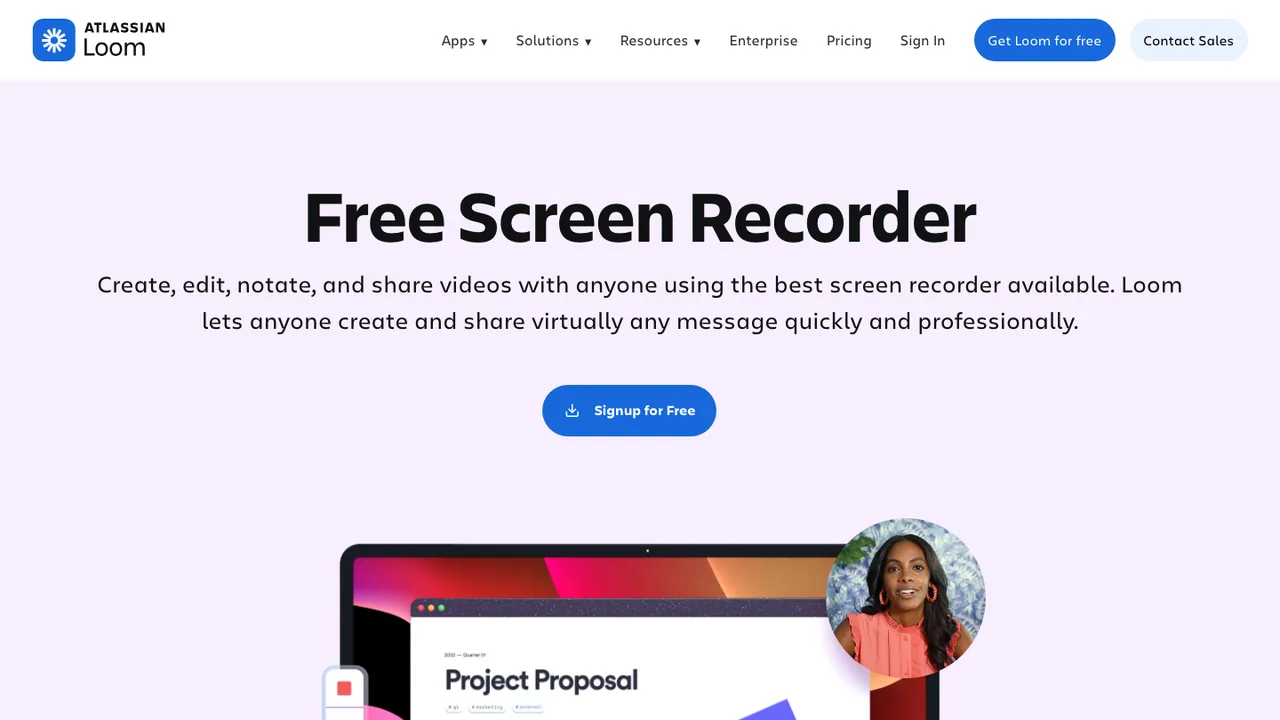
Use Loom when:
- speed of sharing matters more than local file control
- the viewer expects a link rather than an MP4 file
- the recording is a short message, walkthrough, or async update
- your team already uses Loom as a communication workflow
The key question is privacy and ownership. If raw footage should stay local until you decide where it goes, a local recorder is safer. If the recording is meant to become a quick shared message, Loom is often the more natural workflow.
5. ScreenFlow
ScreenFlow's official page describes video editing and screen recording software for software demos, tutorials, video training, and presentations. That is the main reason to consider it: editing depth is part of the product, not an afterthought.
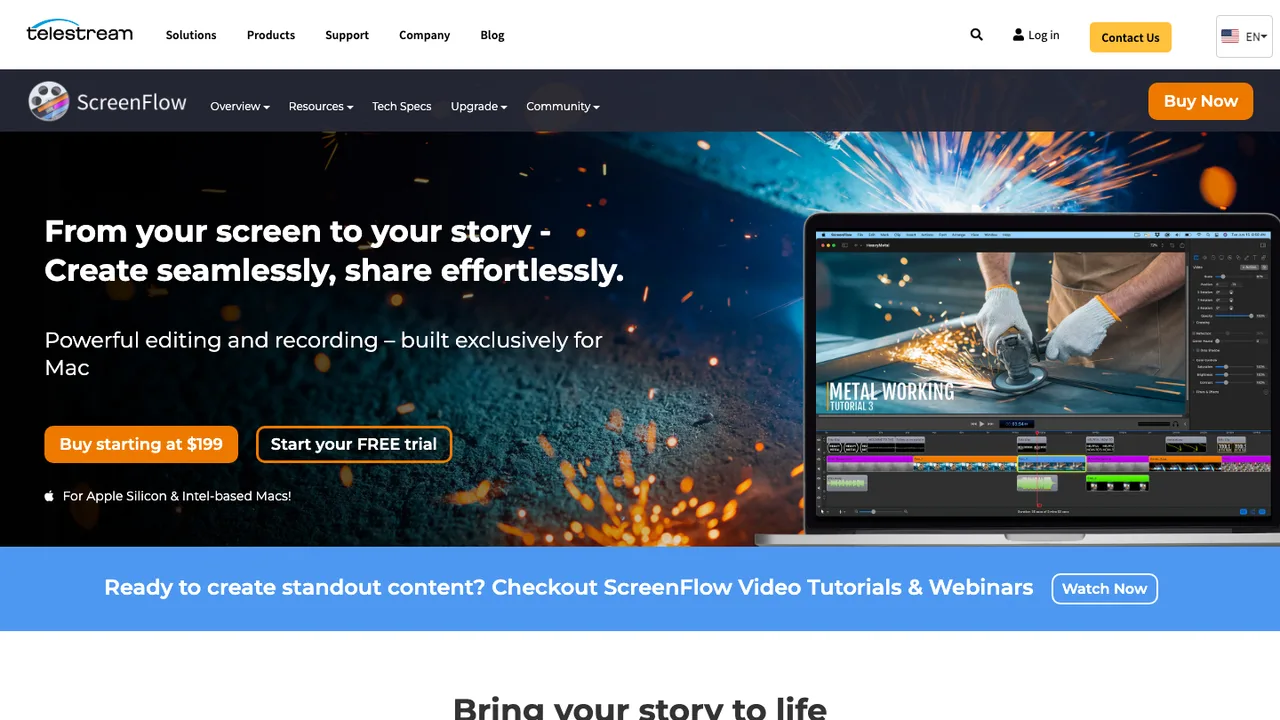
Use ScreenFlow when:
- the recording will become a polished tutorial or training video
- editing, annotations, timeline work, and presentation quality matter
- you expect to refine the video after capture
- the extra tool depth is worth the learning curve
If the job is just a short local walkthrough, ScreenFlow may be more than you need. If the job is a finished training asset, it deserves a look.
6. Movavi Screen Recorder
Movavi's official Screen Recorder page presents a screen capture tool with audio for Windows and Mac. It fits the "straightforward desktop recorder" category: easier than a full production setup, broader than a built-in one-off clip.
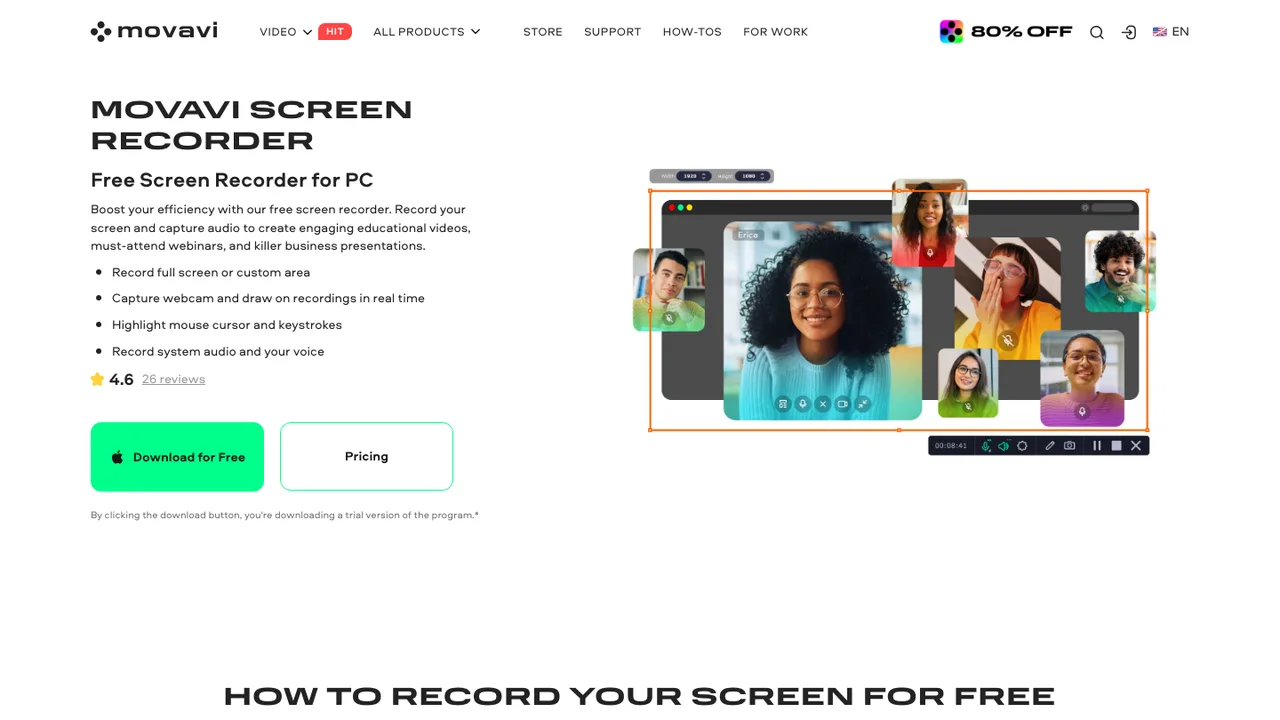
Use Movavi when:
- you want a conventional desktop recorder workflow
- you need a Mac and Windows option in the same general family
- you prefer a simpler interface than OBS
- you are comfortable checking current plan, export, and watermark limits before recording important work
The last point matters. For any commercial screen recorder, verify the current official page before recording a long tutorial. Plan limits, free-version behavior, and export rules can change.
7. Icecream Screen Recorder
Icecream Apps' official Screen Recorder page describes screen capture with audio and screenshots for Windows and Mac. It is worth comparing if your recording needs are basic and you want a straightforward capture tool.
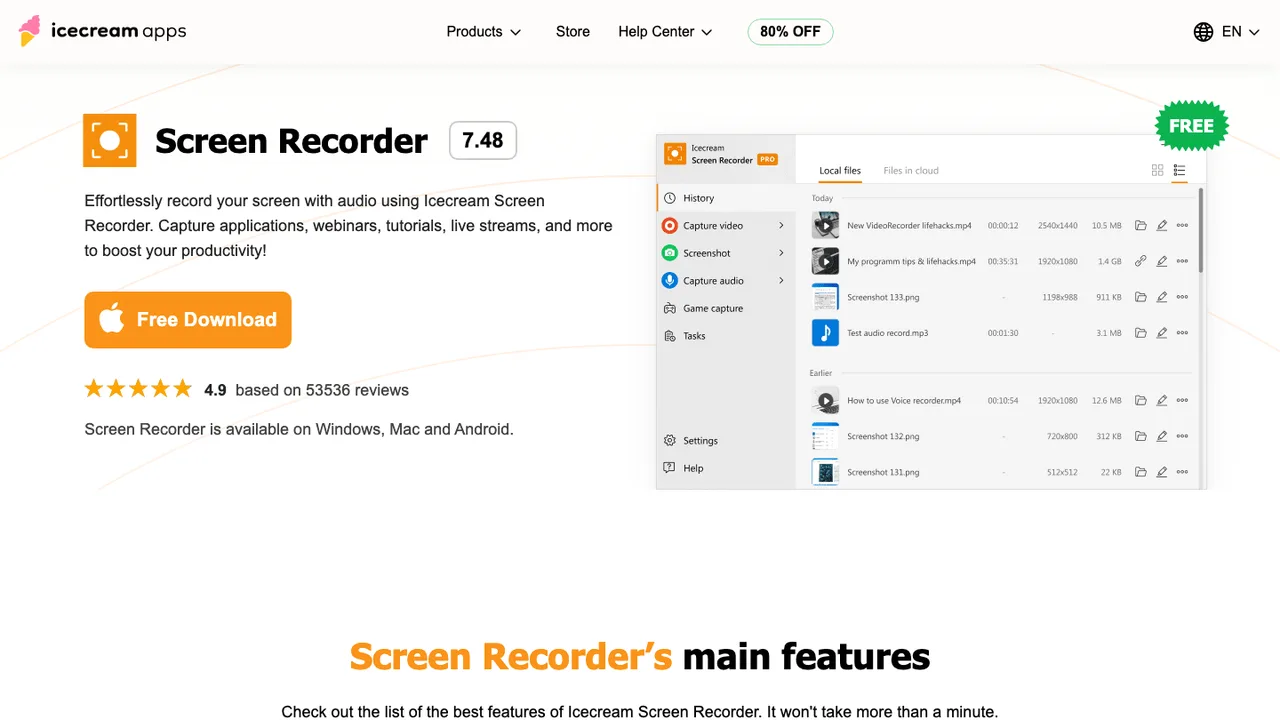
Use Icecream when:
- you need basic screen capture and screenshots
- you want a simple recorder rather than a production suite
- your workflow is occasional, not a weekly creator pipeline
- you have checked the current official free-version limits
Icecream is not the first choice when you need Mac-specific creator controls, repeatable local exports, or deeper production features. It belongs in the comparison because some Mac users need basic capture more than they need a full workflow.
8. ApowerREC
ApowerREC's official page presents a cross-platform recorder for Windows, Mac, Android, and iOS. That makes it useful when the recording workflow spans more than one device family.
Use ApowerREC when:
- cross-platform recording matters
- desktop and mobile capture belong in one tool search
- you need more than a built-in Mac clip
- your team records across several operating systems
If your only job is a focused Mac creator workflow, broader platform coverage may not help. But if your team records Mac, Windows, and mobile screens, ApowerREC is a reasonable tool to compare from the official page.
Which Mac Recorder Should You Choose
Use this decision rule:
| If your main job is... | Choose... | Why |
|---|---|---|
| Private Mac demos, tutorials, support clips, or course recordings | Redol Screen Recorder | Mac-first local capture, no watermark, system audio, mic, webcam, zooms, and MP4 export |
| Advanced scenes, multiple sources, or streaming-style layouts | OBS Studio | Best free control when setup time is acceptable |
| One quick built-in Mac clip | Screenshot or QuickTime | No install, good enough for short captures |
| Async team updates shared as links | Loom | Fast capture-to-share workflow |
| Polished Mac tutorials with heavier editing | ScreenFlow | Recording plus editing depth |
| Conventional desktop recording across Mac and Windows | Movavi or Icecream | Simple recorder category with official Mac support |
| Cross-platform desktop and mobile recording | ApowerREC | Broad device coverage |
The best screen recording software for Mac is not the one with the longest feature page. It is the one that protects the recording job from failure: missing audio, too much setup, a watermark at export, a privacy leak, or a file that is hard to reuse.
A Practical Mac Recording Checklist
Before you record anything long, run this short setup:
- Close private tabs, messages, and notifications.
- Decide whether the video should stay local or be shared as a cloud link.
- Choose the smallest capture area that still explains the task.
- Test microphone and system audio in a 10-second clip.
- Check webcam placement if your face appears on screen.
- Export a sample and confirm file quality before recording the real video.
If your recording is no-watermark and local-first, compare the broader guide to free screen recorders without watermarks. If performance is the problem, read how to fix QuickTime screen recording lag.
For most Mac creators, Redol is the cleanest starting point when the task is a private, reusable screen recording. QuickTime is enough for short clips. OBS is the power option. Loom is the sharing option. ScreenFlow is the editing-heavy option. The right tool is the one that lets you record the source once and trust the export.
Related posts
About the Author

Zhang Guo
AI Product Manager · Digital Marketing Consultant
AI product manager and digital marketing consultant with a background in music. I see creativity as the bridge between rhythm and logic, where musical intuition and mathematical precision can coexist in every meaningful product decision.
Follow on X