The Gemini sparkle is a visible mark Google adds to some AI-generated images. SynthID is an invisible watermark embedded in the image itself. A picture can carry both, and a picture with a clean corner can still carry SynthID. If you want to know whether Google AI created or edited the image, run a SynthID check on the file.
What the Gemini sparkle and SynthID each tell you
| Gemini sparkle | SynthID | |
|---|---|---|
| Where it appears | A visible symbol, typically in a corner of the image | Embedded in the image content, imperceptible to the eye |
| How to check | Open the downloaded image and look for the symbol | Upload the image to a compatible detector |
| What a positive result tells you | The copy you are looking at displays the visible label | In Gemini, a detection indicates that Google AI generated or edited all or part of the image |
| When to use the check | You need to know what will show up in a slide, thumbnail, or layout | You need to verify the origin of a file you received or found |
Google calls the visible mark the “Gemini sparkle” in its Nano Banana Pro announcement. Google DeepMind’s SynthID overview describes the embedded signal and how detection works.
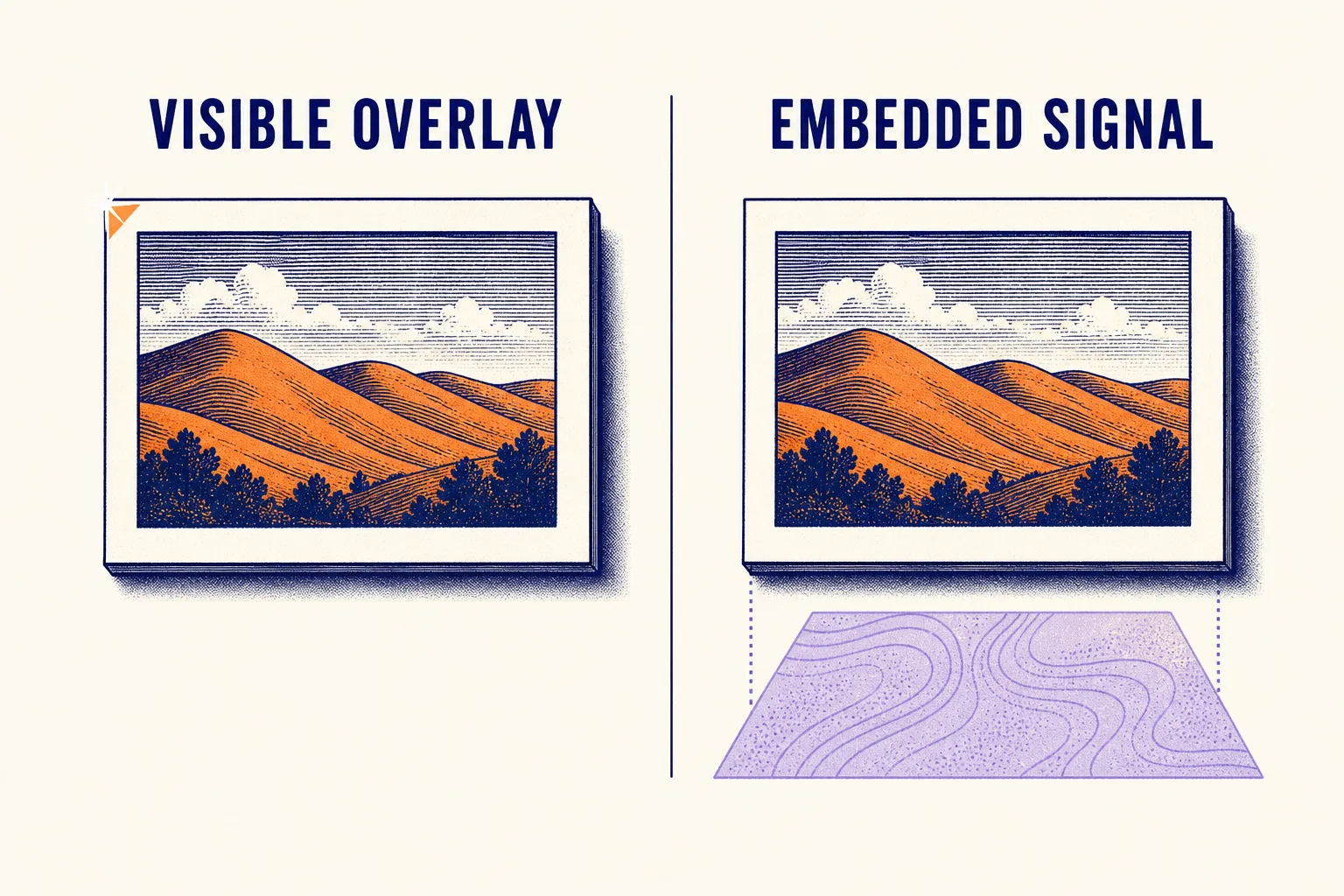
Conceptual diagram of the two watermarks. The embedded signal is illustrated so it can be discussed visually.
How to check an image you already have
- Open the actual image file. Start with the original export if you can get it. A social post, chat preview, or screenshot may show a different crop or include symbols from the surrounding interface. Inspect the downloaded file in a separate viewer to see whether a corner sparkle is part of the picture.
- Ask Gemini to check for SynthID. In the signed-in Gemini app, upload one image and ask, “Was this image created or edited by Google AI?” If the image was assembled from several sources, upload the individual image you care about when you have it. The Gemini verification instructions cover eligible accounts, upload requirements, and the meaning of each result.
- Read the SynthID result for that file. A detection points to Google AI involvement in at least part of the image. For example, a real product photo with an AI-edited background can return a positive result. If Gemini reports no detection, treat it as the result for that file and detector. Other generators may use different signals. Google also documents inconclusive results for very small edits and images with too little detail.
If the only copy you have is a repost and the result matters, ask for the original export or source link. Keep the result tied to the version you checked. See the step-by-step SynthID verification guide for more on interpreting the output.
Why a clean corner can still test positive
The visible sparkle is applied for people viewing the image. SynthID is embedded for detection by software. You can see this distinction in Gemini’s own controls. Where available, Settings → Media Watermark controls the visible label on newly generated images. Gemini applies SynthID and Content Credentials separately. Google documents this setting for the web and mobile Gemini apps and says it requires an AI Ultra subscription in India, South Korea, and Vietnam. For the current conditions on your surface, see Gemini’s watermark settings help page.
An image can also look different after it is shared or edited. A tighter crop can move the corner symbol outside the frame. DeepMind designed SynthID to withstand common edits such as cropping, filters, and lossy compression. Check the copy you plan to use. Our screenshot and export test shows why the result can depend on the file and the verification method.
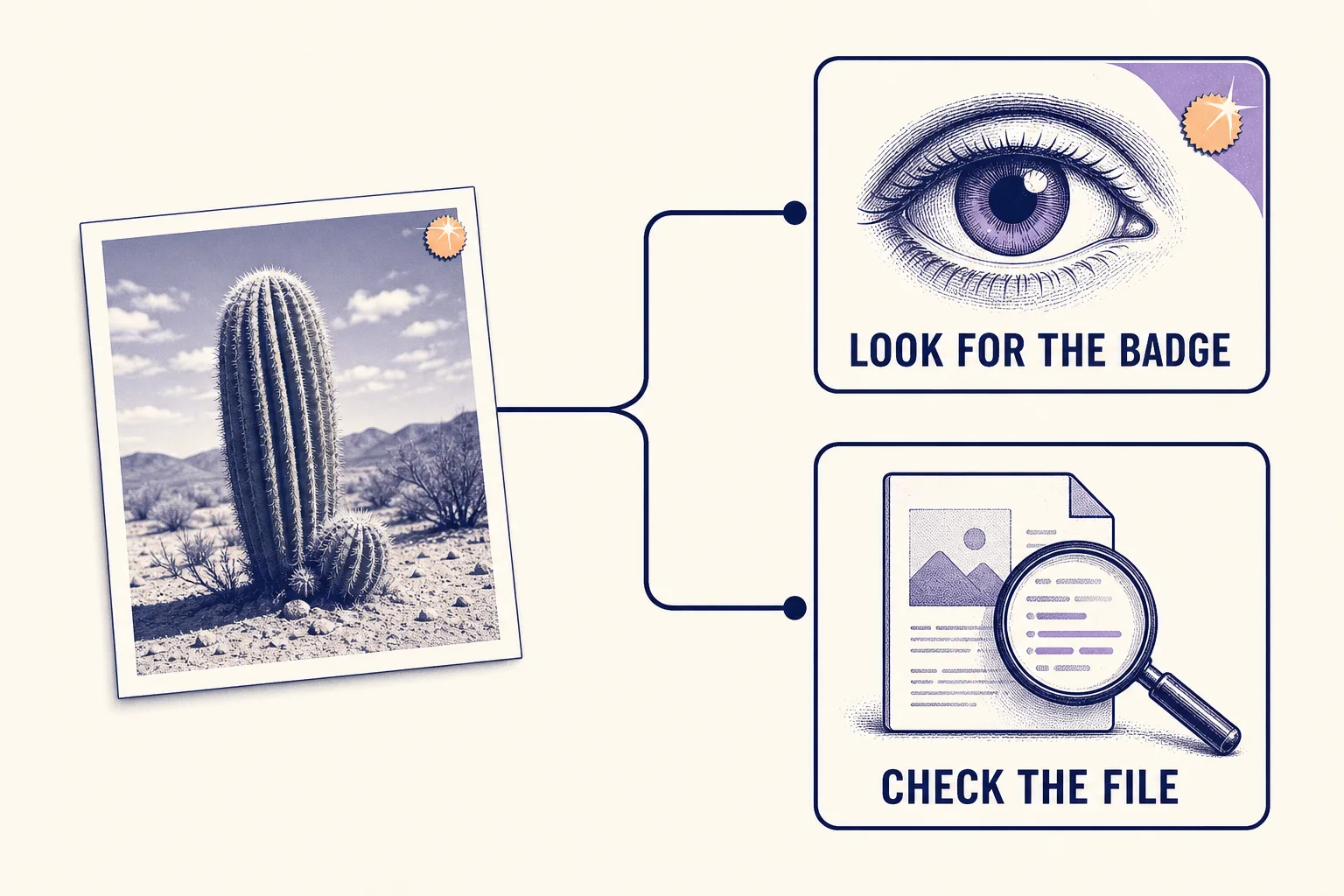
Conceptual diagram showing why visual inspection and watermark detection answer different questions.
How to read the visible label and detector result together
- You see a sparkle and SynthID is detected. Record the detector result if you need to document Google AI involvement. The corner symbol is the label your viewers will see.
- The corner is clear and SynthID is detected. Use the detection result when describing the image’s origin. For a design review, judge the appearance of the file you plan to use.
- There is a sparkle and the check is inconclusive. Find the original export or ask who made the image. A symbol in an image could have been added later or could simply resemble the Gemini mark.
- The corner is clear and no SynthID is detected. Treat the origin as unverified if you lack source evidence. Ask for the original, the creation history, or compatible Content Credentials if a decision depends on it.
If Gemini shows Content Credentials, read that result separately. It can provide details about the tools and edits recorded in the file’s provenance metadata. When you need to check for supported partner watermarks, Google’s standalone SynthID Detector covers Google and selected partners. Google describes the broader coverage in its Detector rollout announcement.
For an image you have permission to edit, Redol’s SynthID image tool explains its upload limits and lets you compare the original and processed previews before downloading a PNG. Use the previews to inspect details like text and gradients. Use a compatible detector to check the embedded signal in either file.
Related posts
About the Author

Zhang Guo
AI Product Manager · Digital Marketing Consultant
AI product manager and digital marketing consultant with a background in music. I see creativity as the bridge between rhythm and logic, where musical intuition and mathematical precision can coexist in every meaningful product decision.
Follow on X