How to Check for a SynthID Watermark on an Image Online
Check an image for SynthID in Gemini or Google's SynthID Detector. Learn what a positive, negative or inconclusive result means and what to check next.
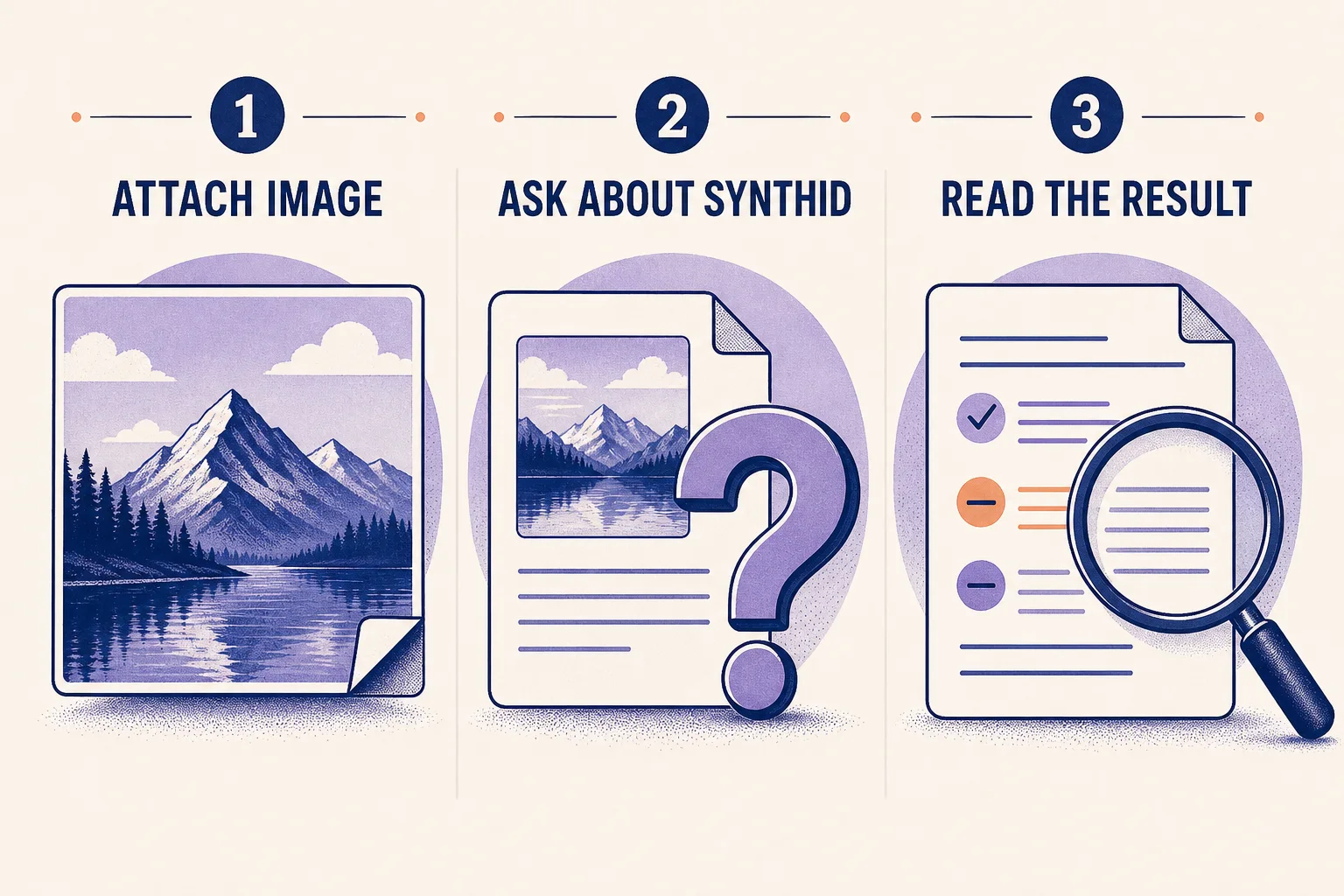
To check an image for a SynthID watermark, upload the original file to Gemini and ask, “Did Google AI generate or edit this image?” Gemini checks for an invisible signal embedded in the image. If the image might come from another provider, use Google’s standalone SynthID Detector, which checks supported files from Google and participating partners.
Check an image in Gemini
- Open Gemini on the web and sign in with a personal Google Account or an eligible Workspace account.
- Select Add files, then Upload Files. Attach one image up to 100 MB. Use the original download or ask the sender for the source file if you have a repost or screenshot.
- Send “Did Google AI generate or edit this image?” Read the SynthID finding in the reply. If Gemini also shows Content Credentials, review those as a separate piece of evidence.
Google’s help page documents the upload steps and account requirements. If you reach the image-check limit, Gemini will tell you. Google lists about 10 checks in a rolling 24-hour window. Gemini Apps verification help
Use the standalone SynthID Detector for broader coverage
Gemini’s SynthID check recognizes signals from Google AI tools. If the source is unknown or you suspect a supported partner, upload the file to the SynthID Detector. Google opened this separate tool to the public globally in English. It checks supported outputs from Google and partners such as OpenAI. Coverage depends on whether the image carries a signal the detector supports. Google’s SynthID Detector launch update
Read the SynthID result
Use these categories to interpret the finding. For a positive result, pay attention to the provider named by the tool and the file you submitted.
| What the check indicates | What you can conclude | What to do next |
|---|---|---|
| A watermark was detected | In Gemini, Google AI created or edited all or part of the image. A positive result can reflect an AI edit to an existing photo. | Record the finding as evidence of AI involvement. Look for the original if you need to know what changed. |
| No watermark was detected | The tool found no supported SynthID signal in this copy. An image from another AI system, or a copy whose signal became harder to detect after editing or sharing, can also return this result. | Try the original file. If you only checked in Gemini, try the standalone detector for broader coverage. |
| The result is unclear | The tool could not make a clear determination. Google gives very simple imagery and small edits as examples. | Record the result as inconclusive. Check the source file or look for other evidence of origin. |
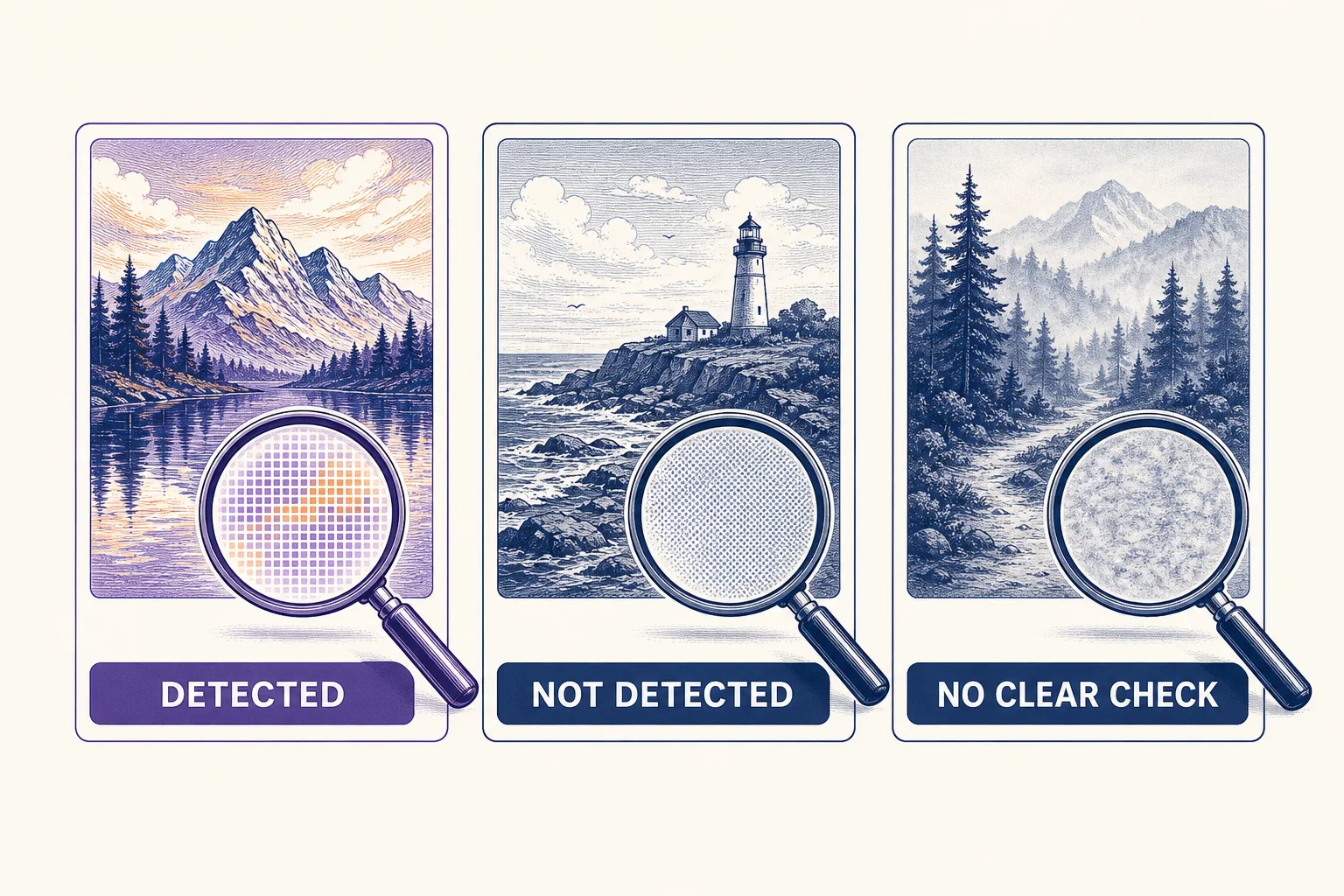
For example, if Gemini detects SynthID in a landscape photo, report that Google AI was involved in creating or editing the image. To establish whether the landscape was photographed and only the sky was edited, you need the source image or a record of the edits.
What to check when you only have a screenshot
Ask for the original first. If the screenshot is all you have, Google recommends cropping it tightly around the single image you want to check. Leave out the chat interface, caption, and neighboring images. Record that you checked a screenshot, especially if the result is negative or unclear. See how screenshots affect SynthID detection for more on what can change between copies.
Verify the source behind the image
Gemini on the web can also surface compatible C2PA Content Credentials. These are signed metadata that can identify the organization that supplied the record and describe the image’s edit history or AI use. Google’s guide to media verification and Content Credentials
A visible logo, such as the Gemini sparkle, is a separate visual clue. SynthID is embedded in the image and requires a compatible detector to read. Google DeepMind’s explanation of embedded image watermarks
For a claim about a real event, use reverse image search to look for an earlier source or a different caption, and verify the place and date independently. Google’s guide to About this image
If you’re checking both an original and an edited export, save each result against its filename. For image processing and PNG export, see Redol’s SynthID image tool.
Related posts
About the Author

Zhang Guo
AI Product Manager · Digital Marketing Consultant
AI product manager and digital marketing consultant with a background in music. I see creativity as the bridge between rhythm and logic, where musical intuition and mathematical precision can coexist in every meaningful product decision.
Follow on X