How to Share a Jupyter Notebook as HTML Online in 2026
Export a Jupyter Notebook to HTML, check outputs and private data, then publish a Redol share link for review or stakeholder handoff.
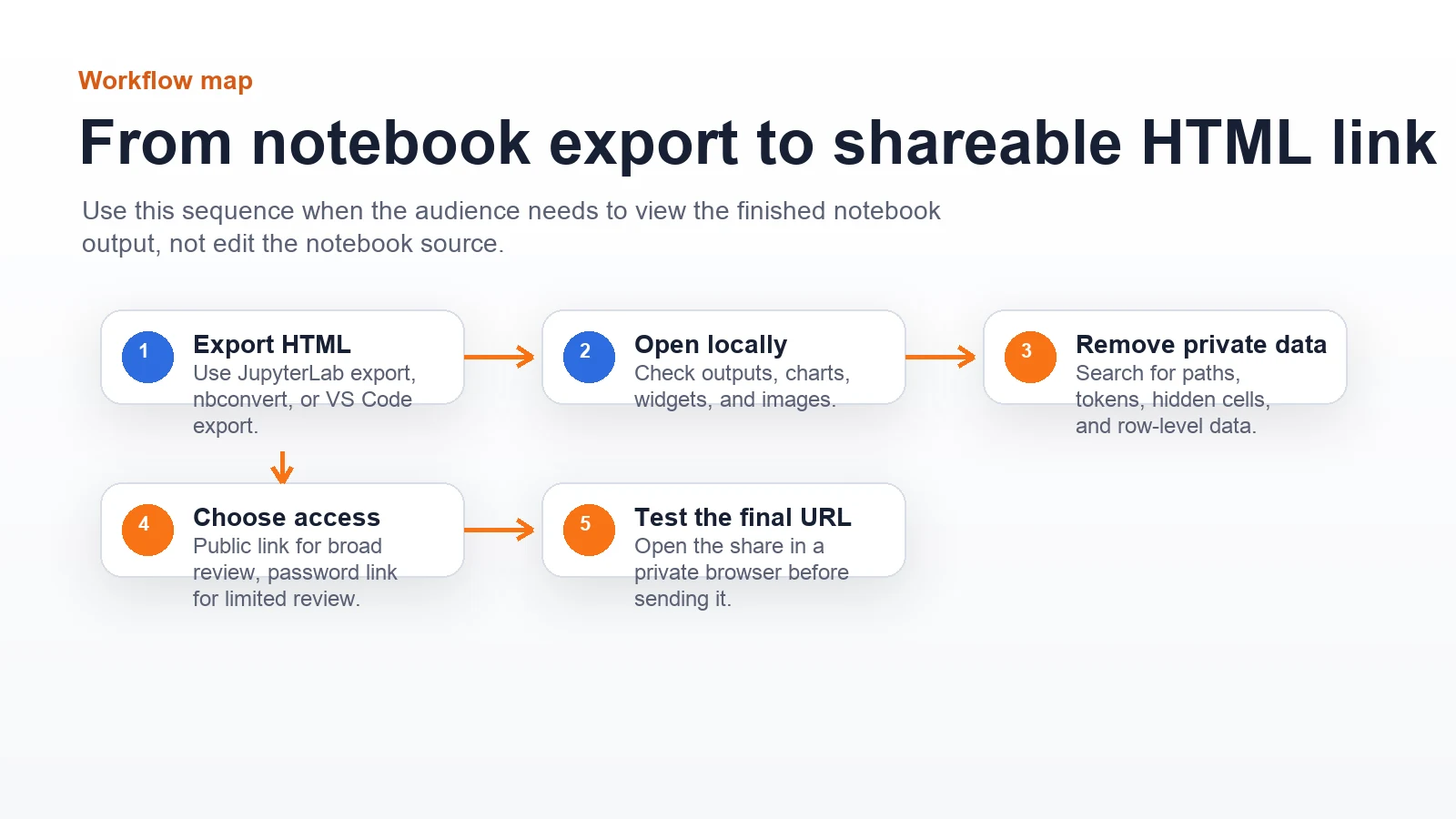
If you searched for how to share jupyter notebook as html, the safest workflow is this: export the notebook to HTML, open the file outside Jupyter, check outputs and private data, then publish a browser link only when the HTML is portable enough for the audience.
Do not start with the sharing tool. Start with the handoff. A teammate who only needs to review charts can use a hosted HTML link. A collaborator who needs to rerun code needs the .ipynb file or a repository. A public page with custom domains, analytics, and many assets belongs on a fuller static hosting path.
Choose the Right Sharing Path
Use this table before you send the notebook anywhere.
| Sharing job | Best path | Why it fits | Check before sharing |
|---|---|---|---|
| Send finished analysis to a client or teammate | Hosted HTML share link | Opens in a browser without asking them to run Jupyter | Confirm the exported HTML opens locally |
| Review sensitive results with a small group | Password-protected HTML share | Keeps casual access away from the output | Remove data that should not leave the project |
| Collaborate on code or rerun analysis | .ipynb file or repository | Preserves editable cells, environment notes, and source context | Include dependencies and data instructions |
| Publish a durable public notebook article | Static site, docs site, or notebook publishing platform | Better for indexing, domains, navigation, and updates | Decide how outputs will be regenerated |
| Share only a quick visual result | Screenshot or PDF | Simpler when interactivity and code context are not needed | Check image clarity and accessibility |
HTML is strongest when the recipient needs to read the finished notebook output. It is weaker when the recipient needs execution state, reproducibility, package versions, or a source-controlled workflow.
Export the Notebook to HTML
Jupyter workflows have more than one export path. Use the one your team already trusts.
The official JupyterLab export documentation describes exporting notebooks from the interface. The nbconvert usage documentation is the safer reference when you need a repeatable command-line conversion path.
Common options are:
- Open the notebook in JupyterLab and export it as HTML.
- Use
jupyter nbconvert --to html notebook.ipynbwhen command-line reproducibility matters. - Use your editor's notebook export command when the team standardizes around an editor such as VS Code.
After exporting, move away from Jupyter for the first check. Open the HTML file directly in a normal browser window. That catches missing assets, broken widgets, oversized output, and hidden assumptions before someone else sees them.
Make the HTML Portable
A notebook export can look finished while still carrying assumptions from your machine. Check the file before you publish it.
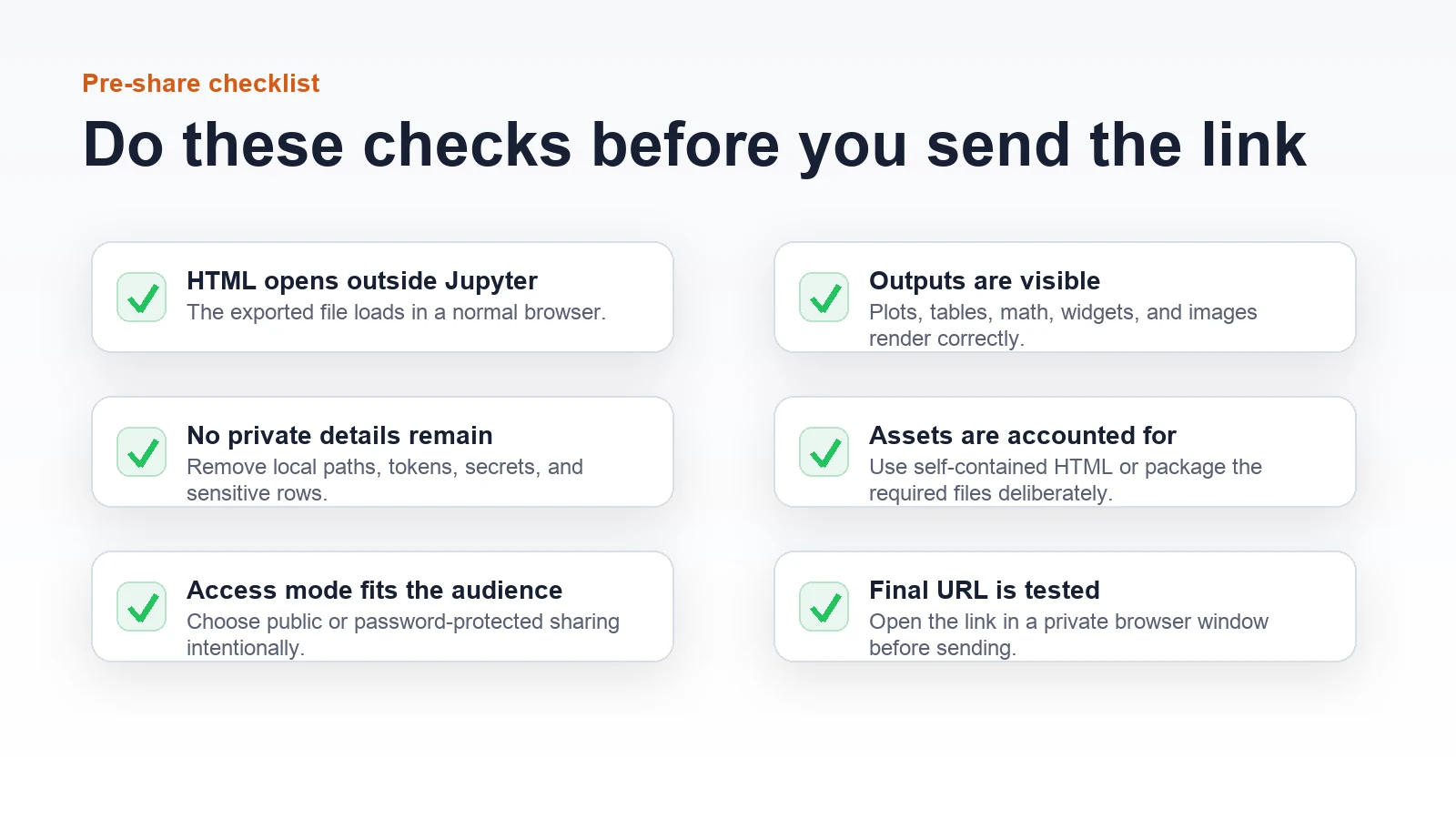
Run these checks:
- Open the exported
.htmlfile in a browser outside Jupyter. - Scroll through every chart, table, equation, image, and widget.
- Search for local paths such as
/Users/...,/home/...,C:\..., or project-only file names. - Remove secrets, API responses, customer rows, draft comments, and internal endpoint names.
- Decide whether the recipient needs a public URL, a password-protected URL, or the notebook source.
- Test the final link in a private browser window before sending it.
If the HTML export is blank, enormous, or dependent on local files, do not hide that problem behind a share link. Fix the export or choose a hosting path that can support the asset structure.
Share the Finished HTML With Redol
When the notebook is already exported and the job is browser review, Redol HTML Share can turn the finished .html file into a hosted share link. The current Redol product route is built for static HTML/HTM files and ZIP packages with an HTML entry point.
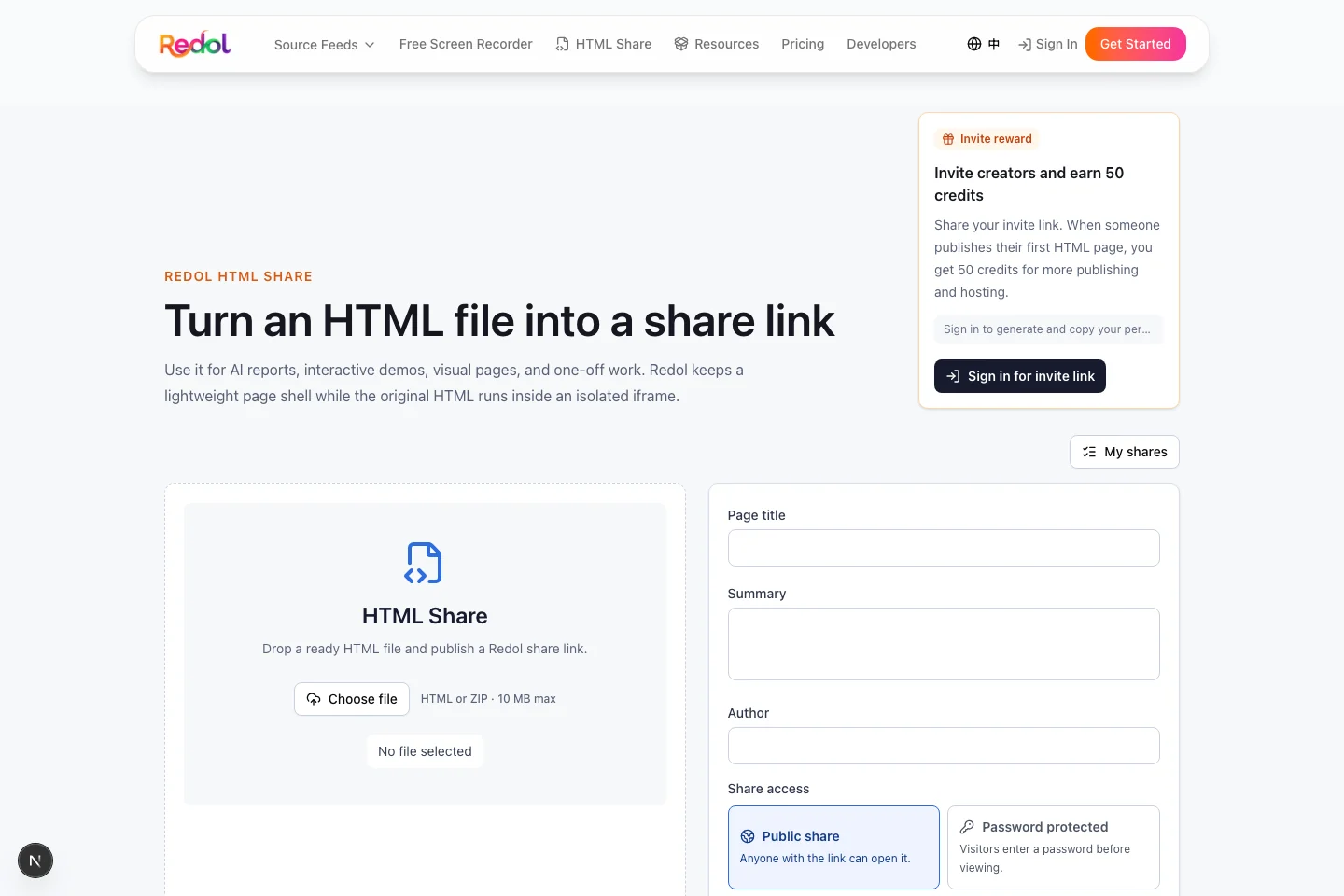
Current Redol source and local route evidence support these claims:
- Redol accepts
.html,.htm, and.zipuploads. - The current client-side upload limit is 10 MB.
- Redol lets you add page title, summary, and author metadata before publishing.
- Shares can be public or password-protected.
- Published pages render inside an isolated iframe preview.
- The uploader detects local asset references and warns that packaged asset upload is planned rather than something to assume for every asset-heavy notebook export.
Use Redol when the notebook export is already a finished HTML artifact and the audience needs a fast review link. Use a repository, JupyterHub, Binder-style environment, or a fuller static site when the audience needs source code, repeatability, scheduled regeneration, custom domains, or many supporting files.
Turn a Jupyter HTML export into a share link
Use Redol HTML Share when your notebook output is ready and you need a public or password-protected browser link for review.
When HTML Is Not Enough
HTML is output. It is not the full notebook project.
Choose another path when:
- the recipient needs to rerun code cells
- the notebook depends on private datasets or local files
- the output uses widgets that do not survive export cleanly
- the notebook must update daily or weekly
- the page needs custom domains, redirects, analytics, or search controls
- the project should be reviewed with version history
For one-off analysis review, a share link can be the cleanest handoff. For a living analytics project, keep the source in a repeatable environment and publish stable outputs intentionally.
Common Problems and Fixes
The exported HTML opens blank
Try a different export path, then open the file locally again. Some interactive widgets or external scripts do not survive every export mode. If the recipient only needs a static view, simplify the output before sharing.
Images or charts are missing
Check whether the HTML references local image, CSS, JavaScript, or JSON files. A self-contained export is easiest to share. If the notebook creates a folder of supporting files, package or host those files deliberately instead of sending only the HTML entry file.
The file is too large
Remove heavy outputs, reduce embedded images, clear unused cells, or publish through a path that can handle larger files. Redol's current client-side upload limit is 10 MB, so very large notebook exports need trimming or a different hosting workflow.
The notebook contains private data
Password protection controls access to the link, but it does not clean the content. Remove sensitive rows, hidden comments, local paths, tokens, and screenshots before publishing.
The notebook needs to stay updated
Use HTML sharing for the stable output. Use a repository, scheduled build, or notebook platform for the repeatable source workflow. If you need a broader HTML publishing decision tree, use Redol's guide on how to publish a website with HTML. If you work with R reports too, the companion guide on sharing R Markdown HTML reports covers a similar output-first checklist.
The Best Workflow for Jupyter HTML Sharing
For the exact task how to share jupyter notebook as html, the best answer is a sequence, not one universal platform:
- export the notebook to HTML,
- open the export outside Jupyter,
- check outputs and assets,
- remove private data,
- choose public or password-protected access,
- test the final URL.
Use Redol HTML Share when the notebook output is finished and the job is review, stakeholder handoff, or lightweight distribution. Use notebook-native or static-site workflows when the job requires execution, regeneration, custom domains, or a larger publishing system.
Related posts
About the Author

Zhang Guo
AI Product Manager · Digital Marketing Consultant
AI product manager and digital marketing consultant with a background in music. I see creativity as the bridge between rhythm and logic, where musical intuition and mathematical precision can coexist in every meaningful product decision.
Follow on X