The best Android screen recorder apps without root are the built-in Android recorder for simple captures, AZ Screen Recorder for an all-in-one recorder and editor, XRecorder for creator and livestream controls, ADV Screen Recorder for annotation-heavy tutorials, and Mobizen for a straightforward local recording workflow.
Start with the built-in recorder if your phone has it. Install another app only when you need a specific extra such as facecam, on-screen drawing, editing, GIF export, or livestreaming. No-root support does not guarantee that every app will allow its video or internal audio to be captured.
Quick Comparison
| Recorder | Best for | Internal audio | Creator tools | Free-plan evidence to check |
|---|---|---|---|---|
| Android built-in recorder | Quick captures without another install | Device-dependent audio choices | Touch indicators and basic capture | System feature; availability varies by device and Android version |
| AZ Screen Recorder | Recording, editing, GIFs, facecam, and livestreaming in one app | Listing says Android 10+ where capture is permitted | Facecam, drawing, editor, GIF, YouTube/Facebook live | Ads and in-app purchases; listing says no watermark or time limit |
| XRecorder | Gameplay, facecam, and YouTube or RTMP workflows | Listing says Android 10+ where capture is permitted | Facecam, editor, livestreaming | Ads and in-app purchases; listing says no watermark, root, or time limit |
| ADV Screen Recorder | Tutorials that need drawing, camera, or pause controls | Not clearly documented in the public listing | Drawing, front/rear camera, custom text, trim | Ads and in-app purchases; do not assume watermark behavior |
| Mobizen Screen Recorder | Local recording with simple editing and no-login use | Depends on Android, device, and source-app policy | Facecam, drawing, editing, Auto Tap | Ads and in-app purchases; listing says Clear Recording Mode removes its watermark |
How We Compared the Apps
This is an official-source comparison, not a benchmark of recording speed, battery use, or reliability across every Android device. We checked the current Android Help page, Android media-capture documentation, Google Play listings, and official support material on August 7, 2026.
The comparison focuses on facts a public source can support:
- whether the option works without root;
- microphone and internal-audio claims, including Android-version limits;
- facecam, drawing, pause, editing, GIF, and livestream controls;
- ads, in-app purchases, and explicit watermark or time-limit claims;
- local-storage and permission considerations;
- whether the app adds a real capability beyond Android's built-in recorder.
We did not use star ratings, download counts, user reviews, or marketing superlatives as evidence of recording quality.
1. Android Built-In Screen Recorder
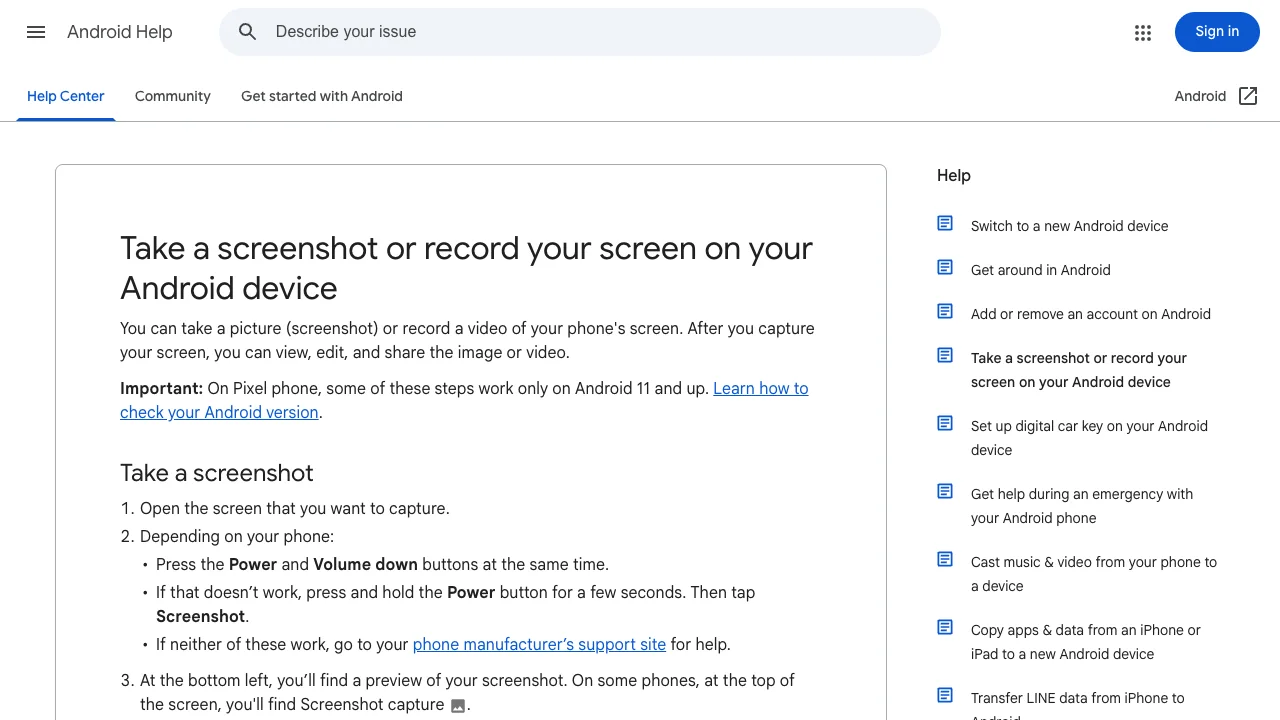
Android's built-in recorder is the best first choice when it is available because it avoids another account, another floating overlay, and another app permission set. Google's Android screen-recording instructions say to open Quick Settings, choose Screen record, select audio or touch-display options when offered, and stop from the recorder notification.
Choose the built-in recorder when you need:
- a quick bug report or app walkthrough;
- a short tutorial without facecam or advanced editing;
- fewer third-party permissions;
- a recording that stays in the phone's normal media workflow.
Availability is not universal. Google notes that some Pixel steps require Android 11 or later, and phone makers can use different Quick Settings labels or controls. If the tile is missing, check the edit panel and the manufacturer's current support page before installing a recorder.
For a full built-in-first troubleshooting workflow, use our guide to record an Android screen without root.
2. AZ Screen Recorder
AZ Screen Recorder's current Google Play listing describes a broad recorder-and-editor package: microphone and internal-audio capture, pause and resume, facecam, on-screen drawing, GIF recording, video editing, screenshots, and YouTube or Facebook livestreaming.
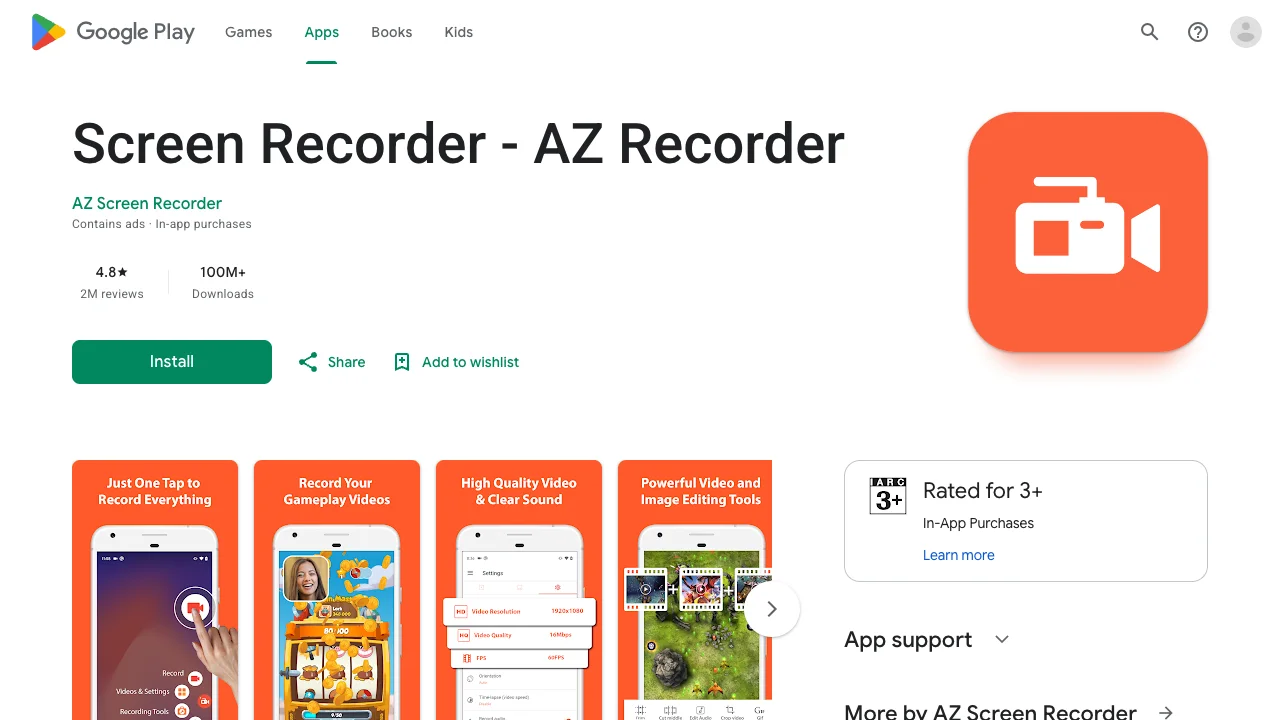
AZ is the strongest fit in this list when one app needs to cover both capture and the first editing pass. Its public listing explicitly says the app has ads and in-app purchases. It also claims no watermark and no recording-time limit, while describing internal-audio support from Android 10 onward.
That internal-audio statement still has a boundary: Android and the source app must allow playback capture. A listing cannot promise that protected streaming media, a managed work app, or every call will record with sound.
Best for: creators who want facecam, drawing, editing, GIF, and livestream tools in one Android app.
3. XRecorder
XRecorder's Google Play listing positions the app around no-root screen recording, internal audio on Android 10+, facecam, gameplay capture, editing, and YouTube or RTMP livestreaming.
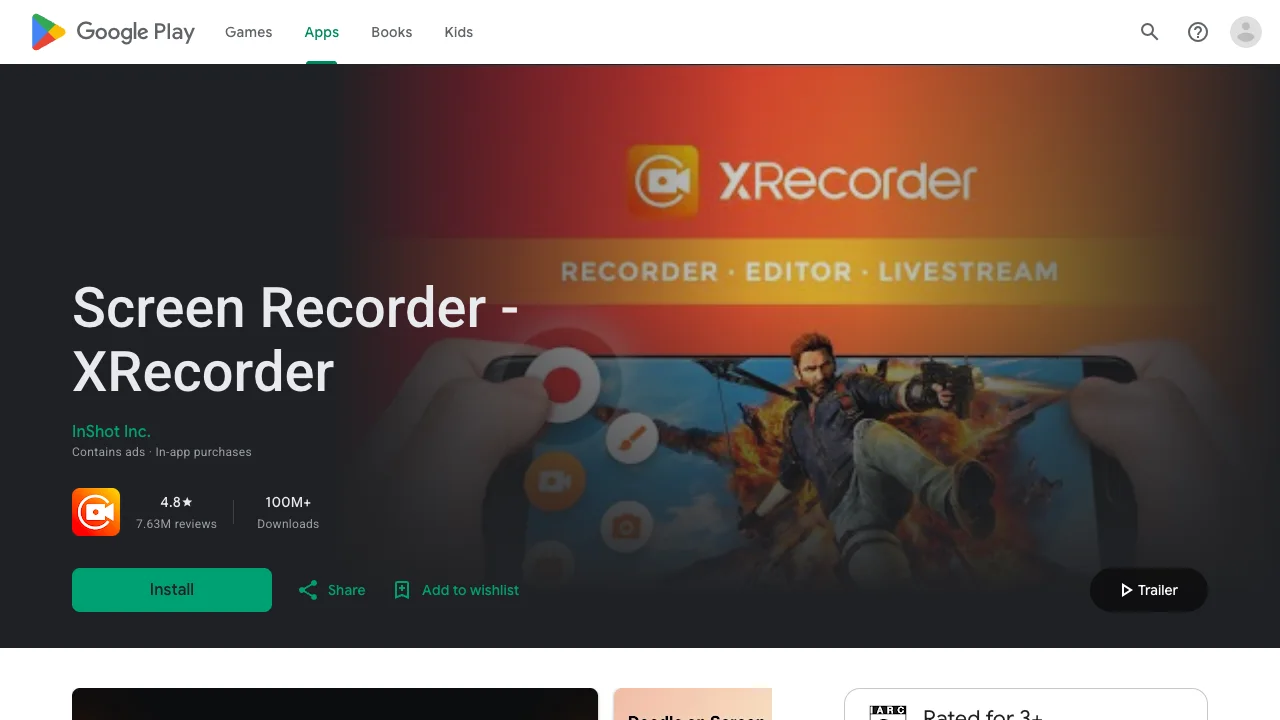
The listing states that XRecorder contains ads and in-app purchases. It also claims no watermark and no recording-time limit. Those are developer-published free-plan statements, not a guarantee that every feature is free or that every device can use every quality setting.
Choose XRecorder when the workflow is creator-led: a gameplay clip with facecam, a tutorial that needs a quick edit, or a live session sent to a documented YouTube or RTMP destination. Test the exact audio source and export on your phone before committing to a long take.
Best for: gameplay, facecam, and livestream workflows that need more than the system recorder.
4. ADV Screen Recorder
ADV Screen Recorder's Google Play listing describes two recording engines, pause support through its Advanced Engine, on-screen drawing, front or rear camera overlays, custom text or banners, and video trimming. The listing identifies ads and in-app purchases and explicitly says root is not required.
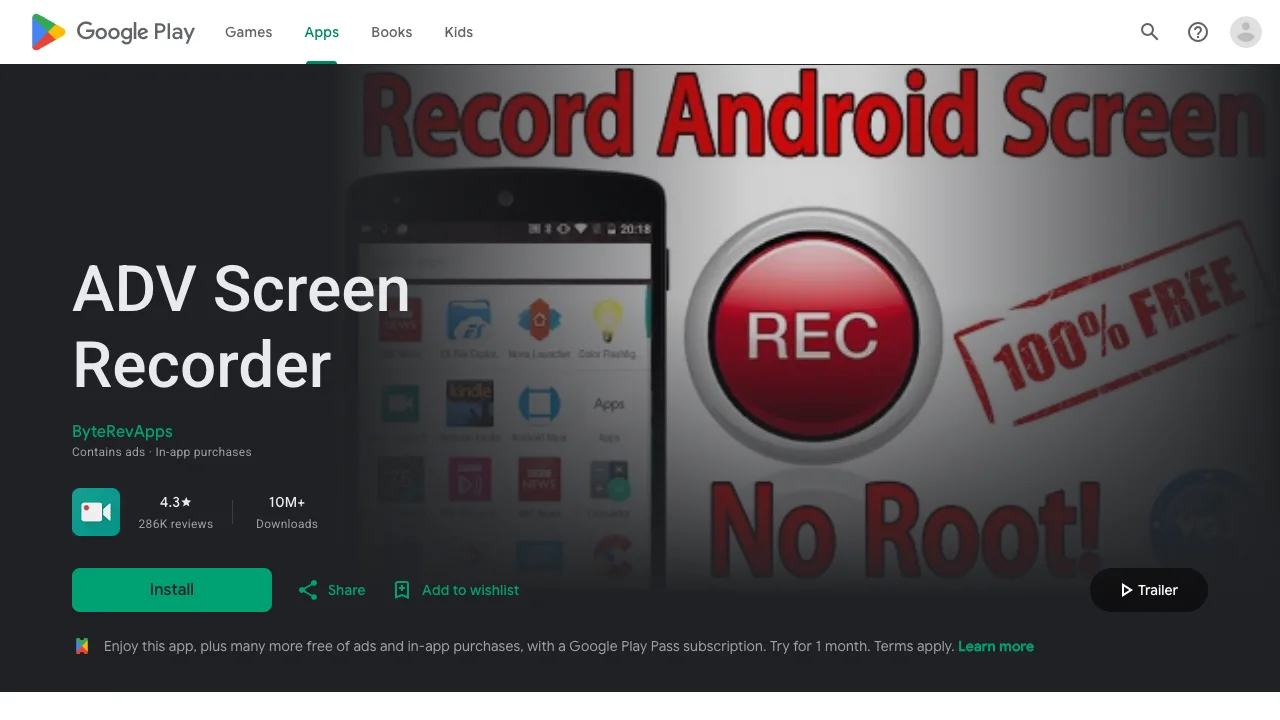
ADV is a practical choice when annotation is the job. Drawing while recording can make a settings tutorial, app demo, or support explanation easier to follow without a separate editing pass.
Its public description does not give a sufficiently clear watermark or recording-time promise, so do not assume either. Export a short sample, inspect the file, and confirm the available engine, pause, camera, and trim controls on your device.
Best for: tutorials that need drawing, camera overlays, or pause-and-resume controls.
5. Mobizen Screen Recorder
Mobizen Screen Recorder's Google Play listing describes screen recording, capture, editing, facecam, drawing, Auto Tap, and on-device storage. Its official installation support page identifies Android 4.4 or later as the base requirement, while device and Android-version compatibility still need a real test.
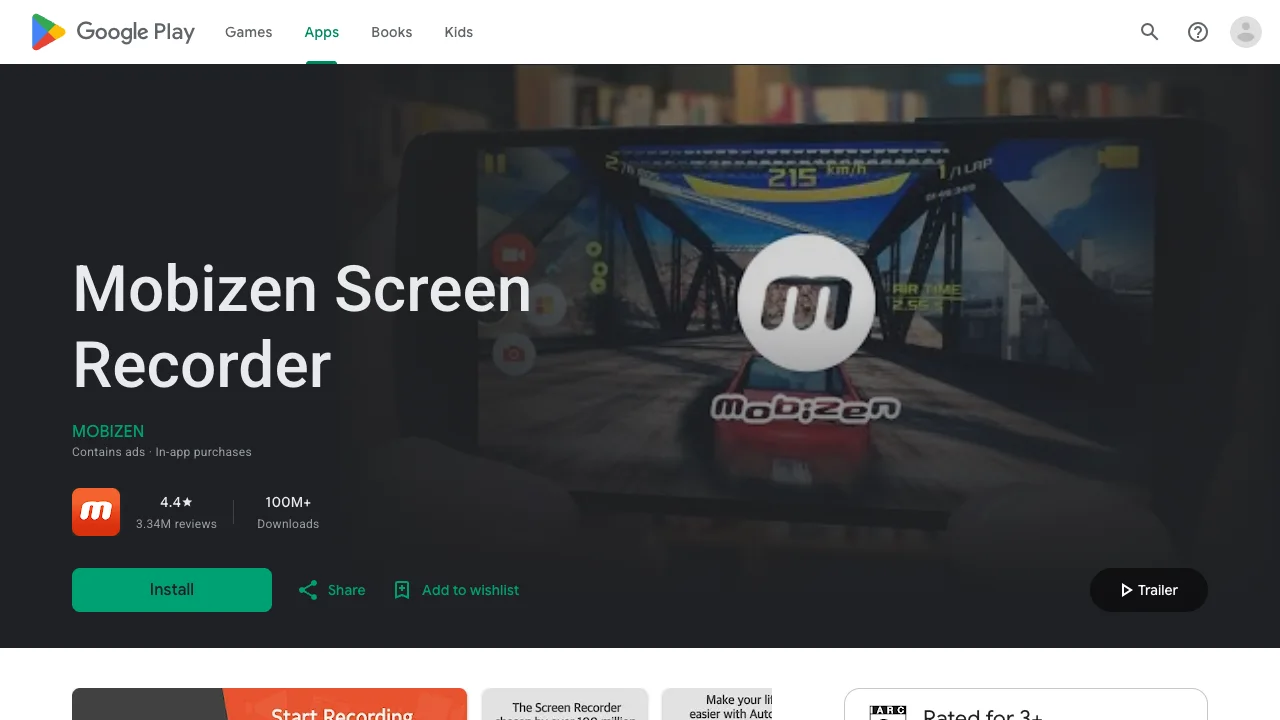
The listing says recording, capture, and editing can be used for free, and it discloses ads and in-app purchases. It also says Clear Recording Mode can remove the Mobizen watermark for free. That is a specific product mode, not a reason to assume every setup or export behaves identically.
Mobizen is the clearest fit when you want a familiar floating-control workflow, local storage, and light editing without making livestreaming the center of the decision.
Best for: straightforward local recording with facecam, drawing, and simple editing.
Why Internal Audio Is Conditional
Android's playback-capture documentation explains why an app can record the screen but still produce silence. Playback capture was introduced in Android 10, requires user approval, and depends on the source app allowing its audio to be captured. Work-profile boundaries and administrator policy can also matter.
Use this diagnosis before blaming the recorder:
| Result | Likely reason | Responsible next step |
|---|---|---|
| Video works, internal audio is silent | The source app or Android audio policy blocks playback capture | Test another non-sensitive app; use microphone narration only when appropriate |
| A protected area is black | The source app blocks screen capture | Respect the restriction and use an approved screenshot or explanation |
| Facecam or mic is missing | Camera or microphone permission is off | Enable only the permission needed, then record a short test |
| Floating control disappears | Overlay permission or background restrictions interfere | Check app permissions and battery restrictions; avoid random APK workarounds |
| Export has a watermark or unexpected limit | The current free-plan behavior differs from the listing or selected mode | Check the app's current settings and subscription screen before the real take |
No responsible screen recorder should promise to bypass protected video, private apps, work policies, or capture restrictions.
Choose by the Missing Feature
The right app is the one that adds one capability your phone's recorder lacks:
- No install and fewer permissions: Android built-in recorder.
- Recorder plus editor, GIF, and livestreaming: AZ Screen Recorder.
- Gameplay, facecam, and RTMP or YouTube workflows: XRecorder.
- Live drawing and annotation-led tutorials: ADV Screen Recorder.
- Local recording with simple editing and Clear Recording Mode: Mobizen.
Before you keep any app, record ten seconds with the intended orientation, microphone, internal audio, facecam, and overlay controls. Play the exported file outside the recorder. Confirm the picture, both audio paths, file location, watermark behavior, and any time or quality limit.
Check Permissions and Privacy Before Recording
A no-root app can still request powerful permissions. Review each prompt by job rather than tapping Allow automatically.
- Screen capture: required for the recording session; Android should show a system confirmation.
- Microphone: enable only when narration or ambient audio is needed.
- Camera: enable only for facecam.
- Display over other apps: may power floating controls; disable it if you no longer use them.
- Notifications: useful for stop controls, but preview text can expose private information.
- Media or file access: confirm where recordings are stored and whether the app uploads anything by default.
Turn on Do Not Disturb, close private apps, and remove customer data, passwords, messages, and one-time codes from the recording area. A good recorder cannot fix an unsafe capture setup after the fact.
Record the Mac Part of a Cross-Device Tutorial
An Android recorder should capture the phone. If the tutorial also needs a Mac browser, terminal, editor, or desktop setup, record that segment separately and combine the files in your normal editor.
Redol Screen Recorder is currently a macOS product, not an Android app. The current product route supports an Apple Silicon Mac workflow with screen, system audio, microphone, webcam overlay, editing controls, and local MP4 export. It should appear only as the desktop companion in this Android article.
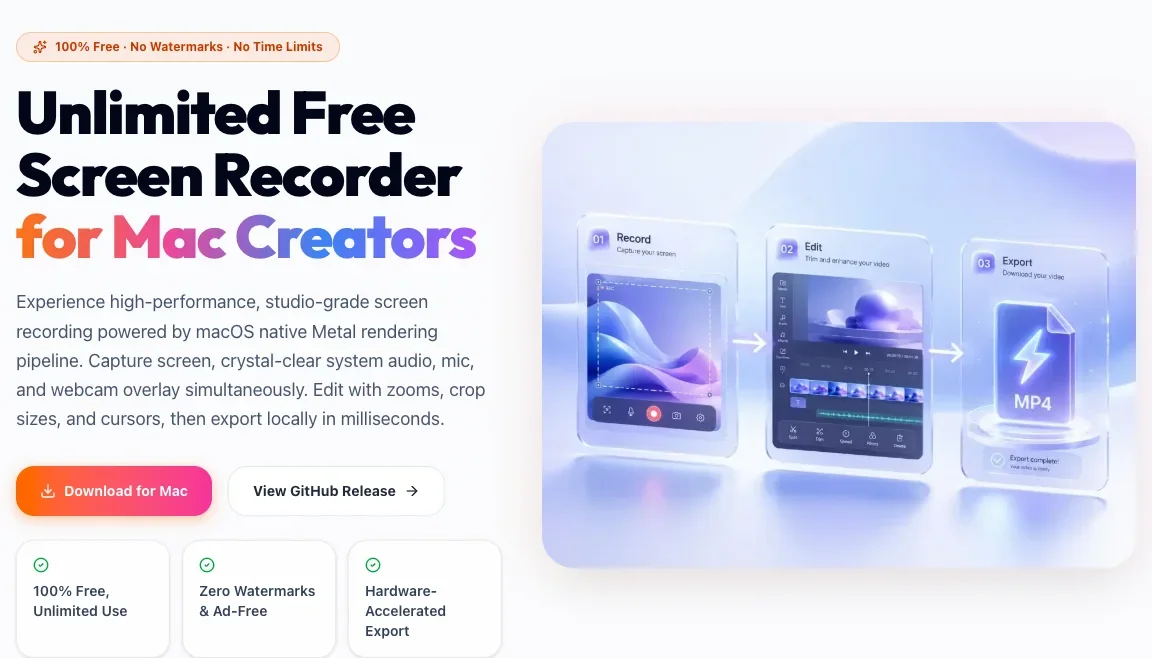
Capture the desktop half of your tutorial locally
Use Redol Screen Recorder for the Apple Silicon Mac segment while your Android phone records its own screen.
For phone-first planning across both major mobile platforms, see how to record your phone screen.
Final Verdict
Use Android's built-in recorder first. Choose AZ when you want the broadest editor-and-livestream toolkit, XRecorder for creator and gameplay workflows, ADV for drawing-led tutorials, or Mobizen for a simple local recorder with light editing.
The best no-root app is not the one with the loudest feature list. It is the one that adds a specific missing control, asks for permissions that match the job, and passes a short test on your phone without exposing private content or promising to bypass Android's capture rules.
Related posts
About the Author

Zhang Guo
AI Product Manager · Digital Marketing Consultant
AI product manager and digital marketing consultant with a background in music. I see creativity as the bridge between rhythm and logic, where musical intuition and mathematical precision can coexist in every meaningful product decision.
Follow on X