To cast Android audio to a computer, choose the path based on what you need to do after the sound arrives. Use an analog cable when you want a simple live input, use scrcpy when you need Android audio and screen mirroring on Windows, macOS, or Linux, and treat Windows Phone Link as remote control rather than audio routing because its phone sound continues to play on the phone.
Start with a 10-second test. Hearing the phone through computer speakers does not automatically mean a recorder, meeting app, or editor can capture that signal.
Choose the right Android audio method
| Method | Best for | Computer support | Main limitation |
|---|---|---|---|
| Analog cable into line-in or a USB audio interface | Stable monitoring, demos, and simple recording inputs | Windows, macOS, Linux when compatible audio hardware is available | Modern phones and laptops often need adapters; a headphone jack is not the same as a line input |
| scrcpy over USB | Screen and audio forwarding with a predictable wired connection | Windows, macOS, Linux | Audio forwarding needs Android 11 or later; USB debugging is required |
| scrcpy over Wi-Fi | Untethered demos after initial setup | Windows, macOS, Linux | More sensitive to network jitter and pairing problems |
| Windows Phone Link | Viewing and controlling supported Android phones | Windows only | Microsoft says mirrored phone sound keeps playing on the Android device, not the PC |
| Android native screen recorder | Saving a phone video without involving a computer | Supported Android phones | Produces a file on the phone rather than a live computer audio input |
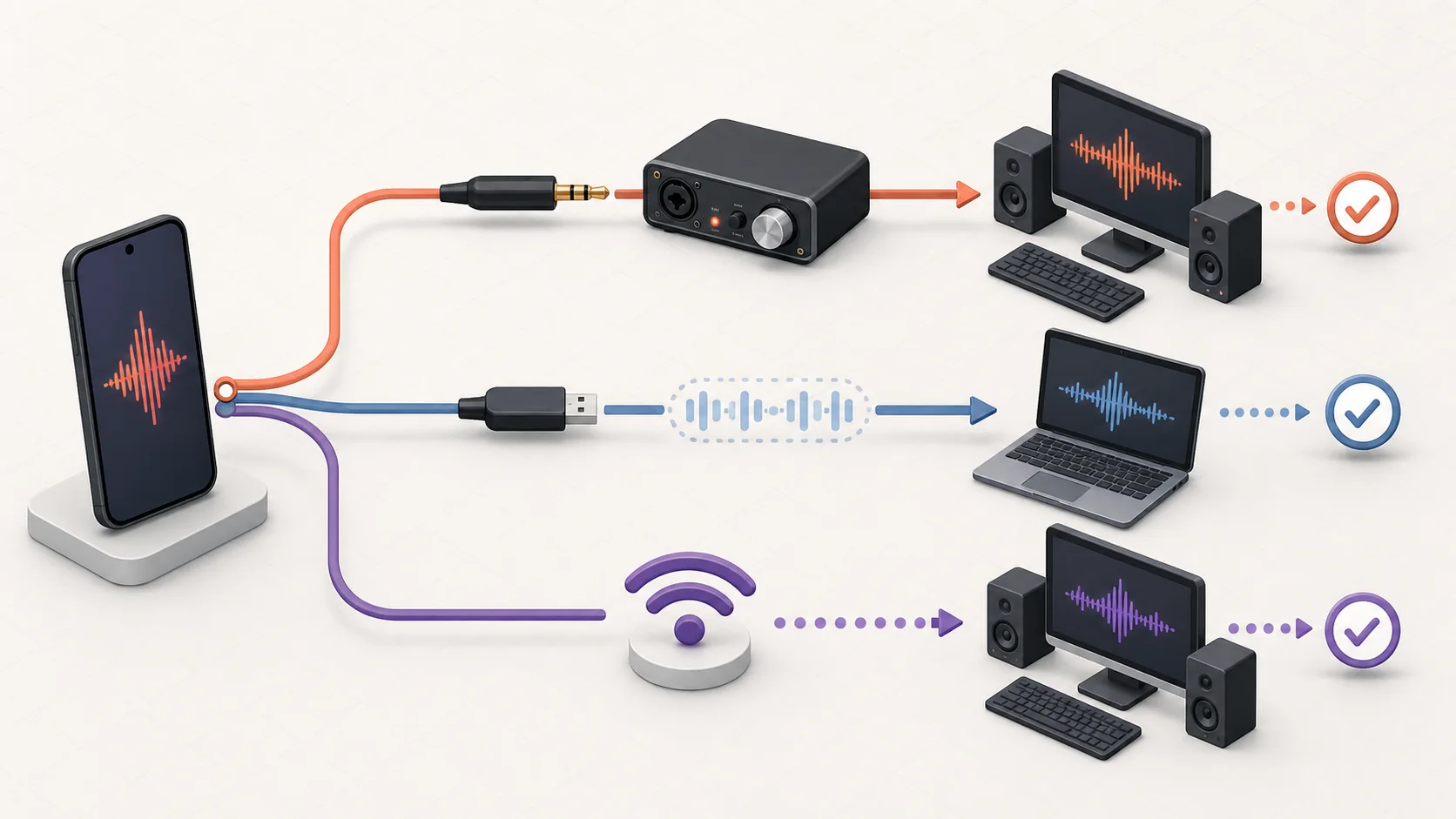
Method one use an analog cable or USB audio interface
The most direct hardware path is Android audio output into a real computer input:
- Connect the phone's 3.5 mm output, or a compatible USB-C audio adapter, to a computer line input or USB audio interface.
- On the computer, select that interface as the input or monitoring source.
- Keep the phone volume moderate before raising the computer input gain.
- Play a short test sound and confirm that both left and right channels are present.
- Record 10 seconds in the destination app and listen to the saved file.
This method does not require Android debugging, but the ports matter. Many laptops expose only a headset jack, which combines headphone output and microphone input; it is not a stereo line input. A small USB audio interface is usually clearer than stacking unverified TRRS adapters.
If you hear hum, distortion, or only one channel, lower the phone volume, change the cable, and check whether the interface expects microphone level or line level. Do not continue a long recording until the saved test file is clean.
Method two forward Android audio with scrcpy over USB
scrcpy is an open-source Android mirroring tool for Windows, macOS, and Linux. Its official repository documents screen mirroring, control, recording, and audio forwarding without installing an app on the phone.
The current official audio documentation sets important boundaries:
- Android 12 or later normally supports audio forwarding out of the box.
- Android 11 needs the device unlocked when scrcpy starts.
- Android 10 or earlier does not support scrcpy audio forwarding.
- If audio capture fails, scrcpy can continue with video only unless audio is explicitly required.
- Apps can opt out of playback capture, so protected or security-sensitive audio may remain unavailable.
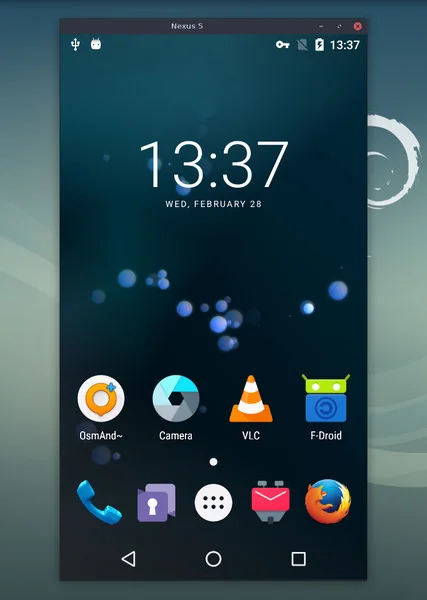
A conservative USB workflow is:
- Install scrcpy only from its official repository or an operating-system package source linked there.
- Enable Android developer options and USB debugging.
- Connect the phone with a data-capable USB cable and approve the computer on the phone.
- Start scrcpy with its default audio forwarding.
- Play a short, non-protected sound and confirm that it comes from the computer.
- If the mirror works but audio does not, check the Android version and scrcpy console output before changing codecs or buffers.
USB debugging grants a computer powerful access to the device. Revoke the authorization after using a shared computer, and do not approve an unfamiliar host.
Method three use scrcpy over Wi-Fi
Wireless scrcpy removes the cable after the Android Debug Bridge connection is established. Android's official hardware-device documentation supports wireless debugging on Android 11 and later, while scrcpy also documents its own USB-to-TCP setup path.
Use Wi-Fi when you need to move the phone during a demo, not because it guarantees better audio. Both devices should be on a trusted, stable network, and a wired first test is useful for separating network trouble from device or codec trouble.
If sound glitches:
- move the phone and computer closer to the same access point;
- close high-traffic downloads and cloud backups;
- reconnect over USB to confirm the device can forward audio at all;
- increase scrcpy audio buffering only after confirming the basic path works;
- use the wired method for a final take when sync matters more than mobility.
Why Phone Link does not route phone sound to the PC
Windows Phone Link can show a supported Android phone screen, but Microsoft draws a line between media controls and audio output. Its Phone screen troubleshooting page says the sound continues to play on the Android device while mirroring. Its audio controls can control playback, but the Phone Link feature documentation says audio still plays from the phone or speakers connected to it, not from the PC.
That makes Phone Link useful for remote control and screen viewing, but not a dependable answer to the audio-routing task. If the goal is to capture phone audio on the computer, use a separate supported audio path.
Record the routed Android audio on a Mac
Once Android audio is genuinely playing through a Mac, a Mac recorder can capture the computer workflow. Redol does not connect to, mirror, or discover an Android phone; it only becomes relevant after scrcpy or supported audio hardware has created the computer-side source.
Redol Screen Recorder is currently an Apple silicon Mac recorder. The product page documents system audio and microphone capture, webcam overlay, crop and resize controls, quick editing, and local MP4 export. Windows and Intel Mac versions should not be assumed available.
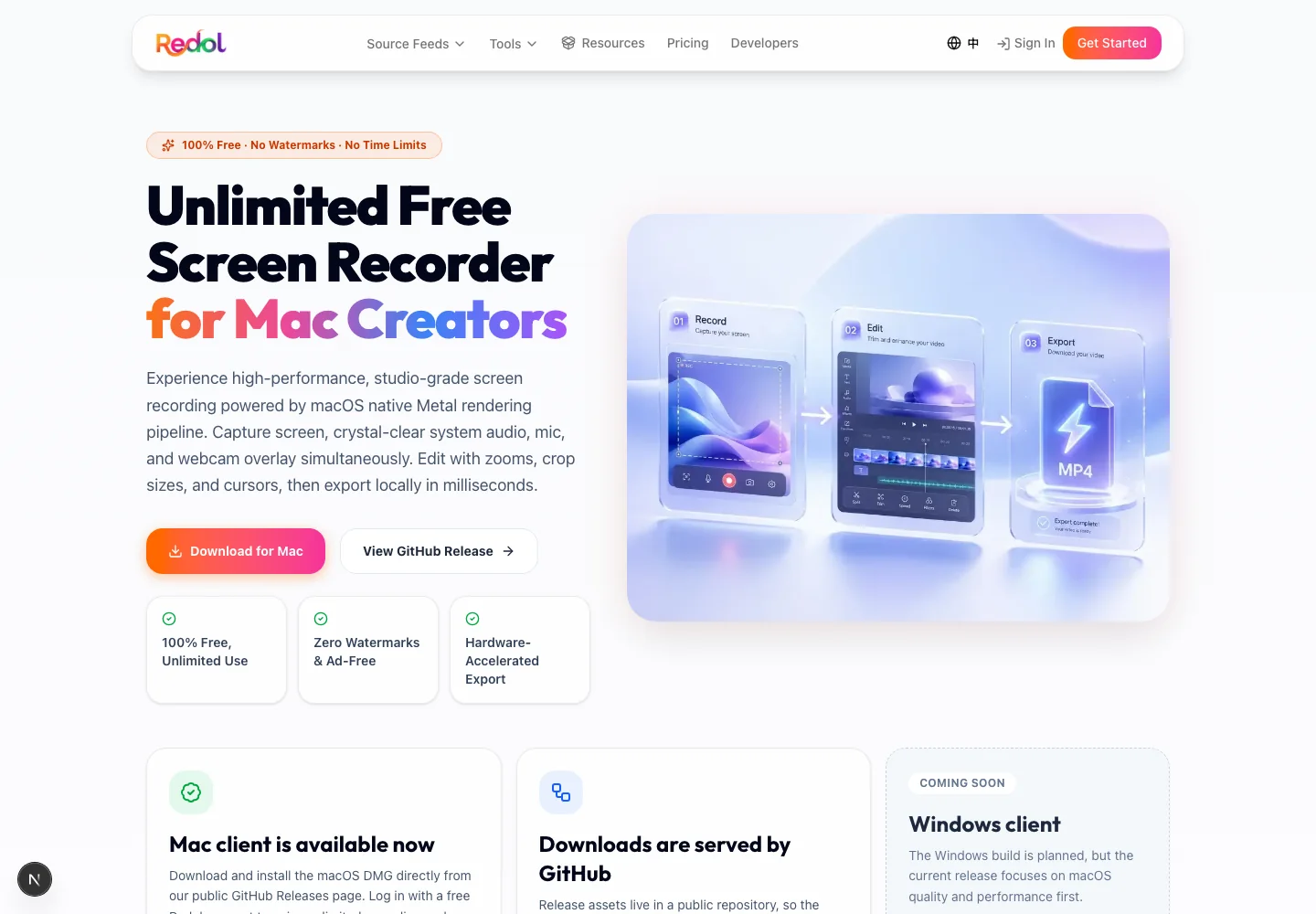
Use this sequence:
- Route or mirror the Android audio to the Mac.
- Confirm the sound comes from the Mac with the phone speaker muted or separated from the test.
- Open Redol and select the mirrored window or the relevant screen area.
- Enable system audio, and add a microphone only if narration is needed.
- Record and replay 10 seconds.
- Record the final workflow only after the local MP4 contains the expected sound.
Record the Android workflow already playing on your Mac
Use Redol for local Mac screen and system-audio capture after a supported tool or audio interface has routed the phone into the computer.
Fix common Android audio routing problems
The computer shows the phone but stays silent
Screen mirroring and audio forwarding are separate capabilities. Check the Android version, confirm that the chosen tool explicitly supports audio, and test with a normal system sound before testing a streaming, banking, or protected app.
scrcpy shows video only
Confirm the phone runs Android 11 or later. On Android 11, unlock the device before starting scrcpy. If the device lacks the default Opus encoder, the official docs suggest trying AAC, but read the console error before changing a codec blindly.
The sound remains on the Android phone
That is expected with Phone Link phone-screen mirroring. With scrcpy, the default audio source can redirect device output to the computer; Android 13 or later also supports a playback duplication mode, but apps may opt out. Choose the behavior deliberately and test the exact app.
The recording is silent even though the computer has sound
The recorder may be listening to the microphone instead of computer system audio, or to the wrong interface. Select the intended source, record a test, and verify the exported file rather than trusting only the live meters.
The audio is delayed or unstable
Switch from Wi-Fi to USB, close high-load apps, and avoid solving every glitch by adding buffer time. More buffering can smooth playback while increasing latency, which may make tutorial clicks and sound feel out of sync.
Android-to-computer audio checklist
Before the final session, confirm:
- The chosen method supports the phone's Android version.
- The cable carries data or the audio interface exposes a real input.
- USB debugging is enabled only on a trusted computer when required.
- A normal, non-protected app produces sound on the computer.
- The destination recorder or meeting app can capture that exact source.
- A 10-second saved test has correct sound and acceptable sync.
- Private notifications and account details are hidden.
- Debugging authorization is revoked after using a shared computer.
For most cross-platform workflows, start with scrcpy over USB because it separates device compatibility from Wi-Fi stability. Choose analog hardware when you need a simple computer input without debugging. Use Phone Link for viewing and control, not as proof that Android sound has reached the PC, and add Redol only when the resulting workflow is already running on a supported Mac.
Related posts
About the Author

Zhang Guo
AI Product Manager · Digital Marketing Consultant
AI product manager and digital marketing consultant with a background in music. I see creativity as the bridge between rhythm and logic, where musical intuition and mathematical precision can coexist in every meaningful product decision.
Follow on X