Topic: Screen recording guides
The best Chrome screen recorder depends on where the finished video should go. Choose an extension for a short tab walkthrough, fast annotation, or an instant share link. Choose a desktop recorder when the session is long, several apps are involved, computer audio matters, or the file should remain local.
This guide compares five current options using official public product pages and listings. It does not treat an extension as automatically easier, safer, or more reliable. Capture scope, audio routing, browser permissions, storage, and export workflow matter more than the install button.
| Recorder | Best fit | Capture model | Output or storage path | Main check before recording |
|---|---|---|---|---|
| Screencastify | Chrome lessons and annotated tab walkthroughs | Extension for tab, desktop, or webcam | Google Drive and export workflows | Requested permissions and current plan limits |
| Loom | Fast async video with a ready-to-share link | Chrome extension with screen and camera modes | Hosted Loom workflow | Account, sharing defaults, and cloud handling |
| Screenity | Open-source Chrome capture with local recording | Extension for tab, window, app, or full screen | Local recording; optional editor/share path | Difference between the free recorder and paid editor |
| Awesome Screenshot | Screenshot plus video capture in one extension | Current tab, desktop, or camera | Local disk or online account | Website access, upload destination, and sharing state |
| Redol Screen Recorder | Longer Chrome tutorials on a supported Mac | Desktop screen, audio, microphone, and webcam capture | Local MP4 workflow | Apple-silicon Mac only; not a Chrome extension |
How We Evaluated Chrome Screen Recorders
We reviewed each recorder against the same practical questions:
- Can it capture one Chrome tab, one window, the desktop, or several apps?
- Does the official documentation describe tab, system, or microphone audio?
- Is the result local, account-based, cloud-hosted, or available through several paths?
- Which browser permissions and sharing defaults deserve review?
- Does it support webcam, annotation, editing, or a reusable production layout?
- Is it better for a quick bug report, a lesson, an async update, or a long tutorial?
Chrome's sharing picker, the operating system, and the recorder all influence what is actually captured. Protected media, private browser pages, extension pages, and missing camera or microphone permissions can still produce a blank or silent result. Record and play back a short sample before the real session.
Best Chrome Screen Recorders
1. Screencastify
Screencastify's official Chrome extension page describes recording a browser tab, desktop, or webcam, with microphone narration and real-time annotation. Its public product page also documents browser-based editing and Google Drive or classroom-oriented sharing workflows.
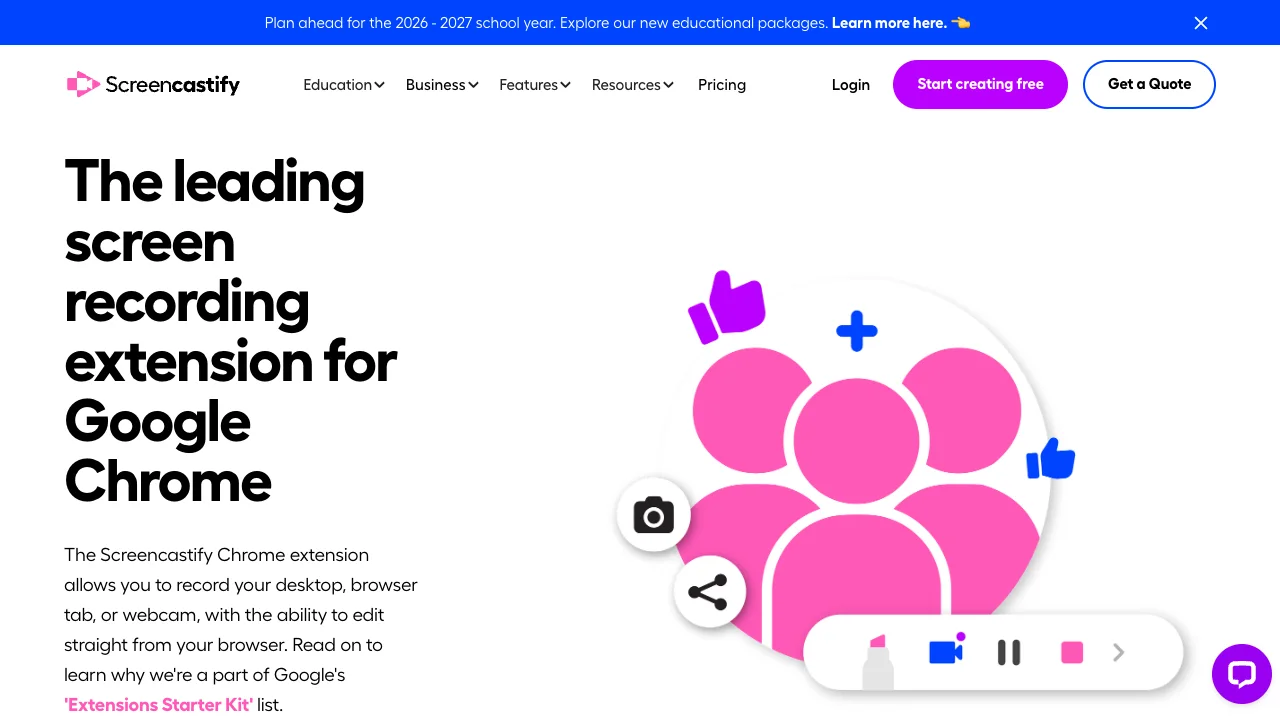
Choose Screencastify when a teacher, trainer, or support writer needs to mark up a Chrome tab while explaining it. Tab-level capture keeps the boundary clear, while desktop mode is available when the walkthrough leaves the browser.
The permission model deserves a deliberate review. Screencastify's permission explanation says microphone and webcam access enable narration and camera embedding, while website access supports annotation tools and the embedded webcam. Review those permissions, the destination folder, and current plan limits before using it with student, customer, or confidential material.
2. Loom
Loom for Chrome is the strongest fit in this list when recording and hosted sharing are one task. Its current public page describes screen-only and screen-plus-camera capture, browser editing, and an automatically prepared link after recording.
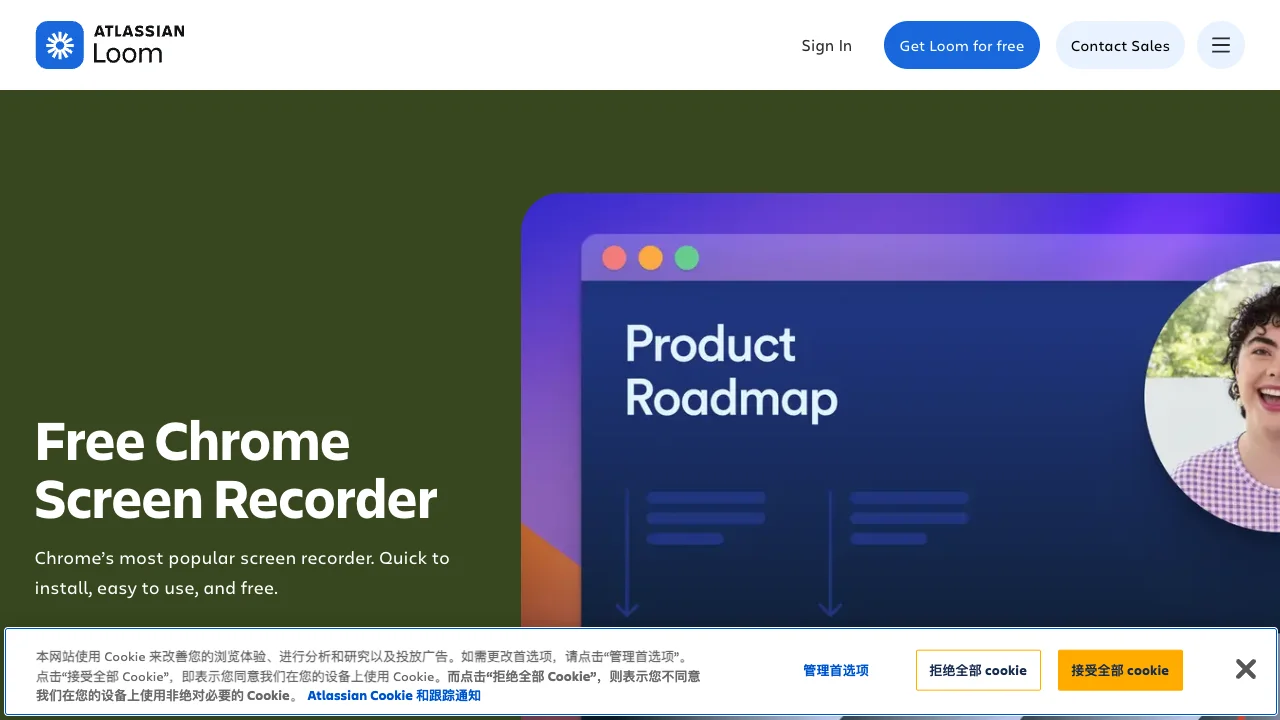
Choose Loom for async team updates, design feedback, support explanations, and product walkthroughs that should be reviewed through a link rather than passed around as a video attachment.
That convenience also defines the tradeoff. The recording enters an account and hosting workflow, so confirm workspace ownership, link access, download policy, retention, and the current plan's recording limits. A hosted-first tool is not the right default when the source page or narration must remain local.
3. Screenity
Screenity is the clearest open-source, local-first Chrome extension in this comparison. Its official page says the free recorder is GPLv3, needs no account for recording, and can capture a tab, window, app, or whole screen with microphone and tab audio.
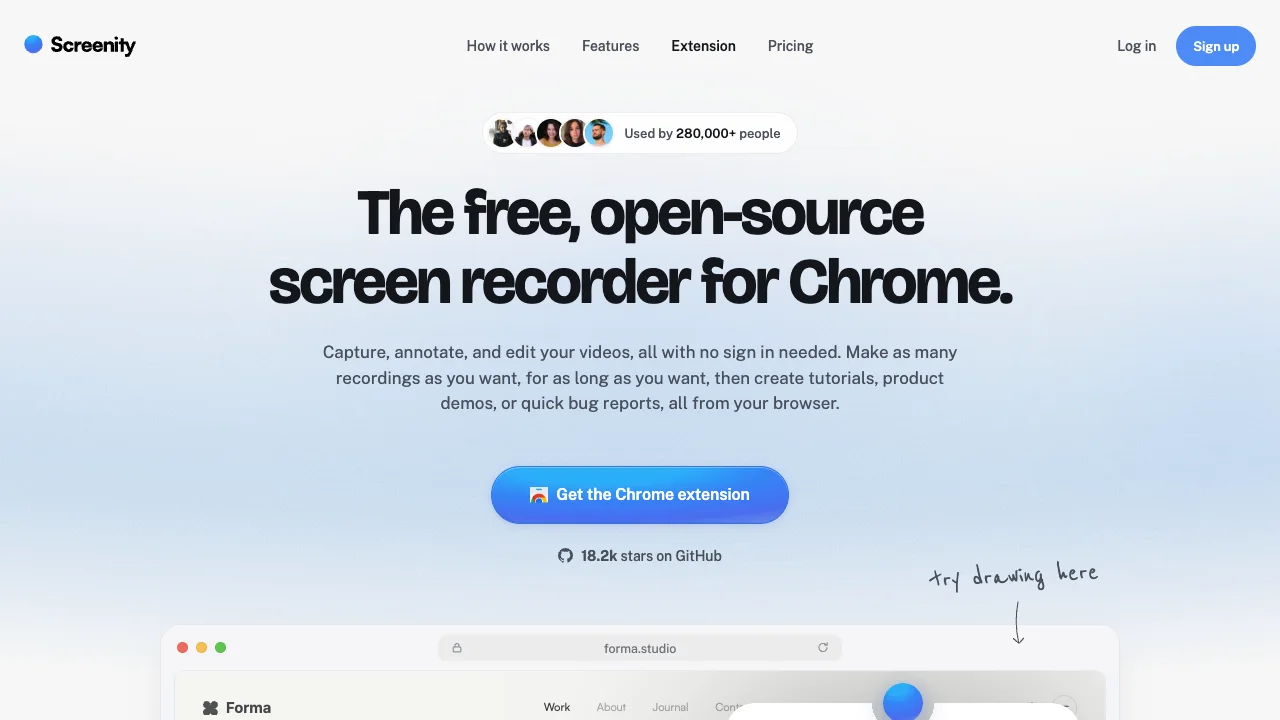
The extension also documents drawing, live blur, a camera bubble, cursor emphasis, and local saving. This makes it useful for bug reports and tutorials where browser-native annotation matters but an automatic cloud upload does not.
Screenity now separates the free recorder from an optional editor and sharing product. Read the current product and privacy pages carefully so you know which steps stay local and which features open a hosted workflow. Open source improves inspectability; it does not replace permission review or an exported-file test.
4. Awesome Screenshot & Screen Recorder
The current Chrome Web Store listing for Awesome Screenshot describes a combined screenshot and video tool. It can record the current tab, desktop, or camera, add microphone and webcam input, and save recordings either locally or through an online account.
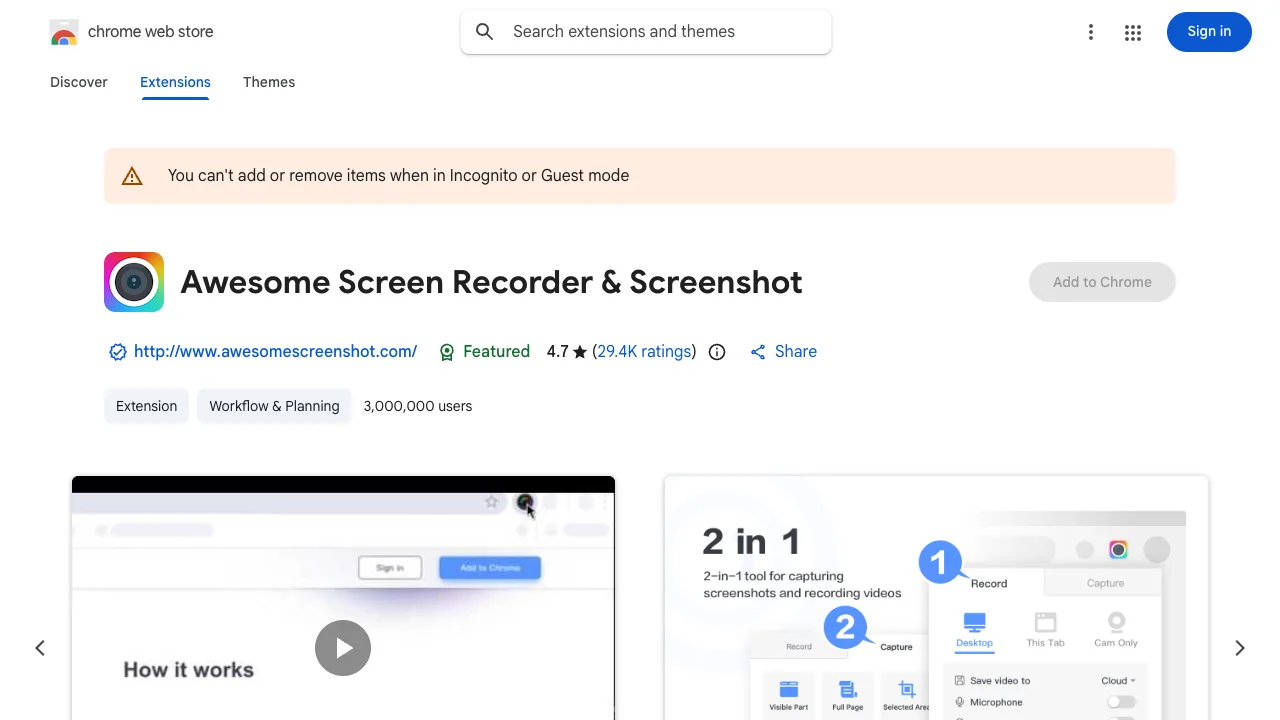
Choose it when screenshots, annotation, short recordings, and shareable evidence belong in the same support or QA workflow. A single extension can reduce tool switching when a bug report needs both a full-page image and a narrated clip.
Before installation, review the current Web Store privacy disclosure, requested website access, local-versus-cloud setting, and default sharing state. Do not rely on a rating or user count as a privacy or reliability guarantee; those numbers change and do not describe your recording's destination.
5. Redol Screen Recorder
Redol Screen Recorder is not a Chrome extension. It is the desktop fallback in this list for a supported Apple-silicon Mac when a Chrome recording needs system audio, microphone narration, a webcam layer, local editing controls, and local MP4 export.
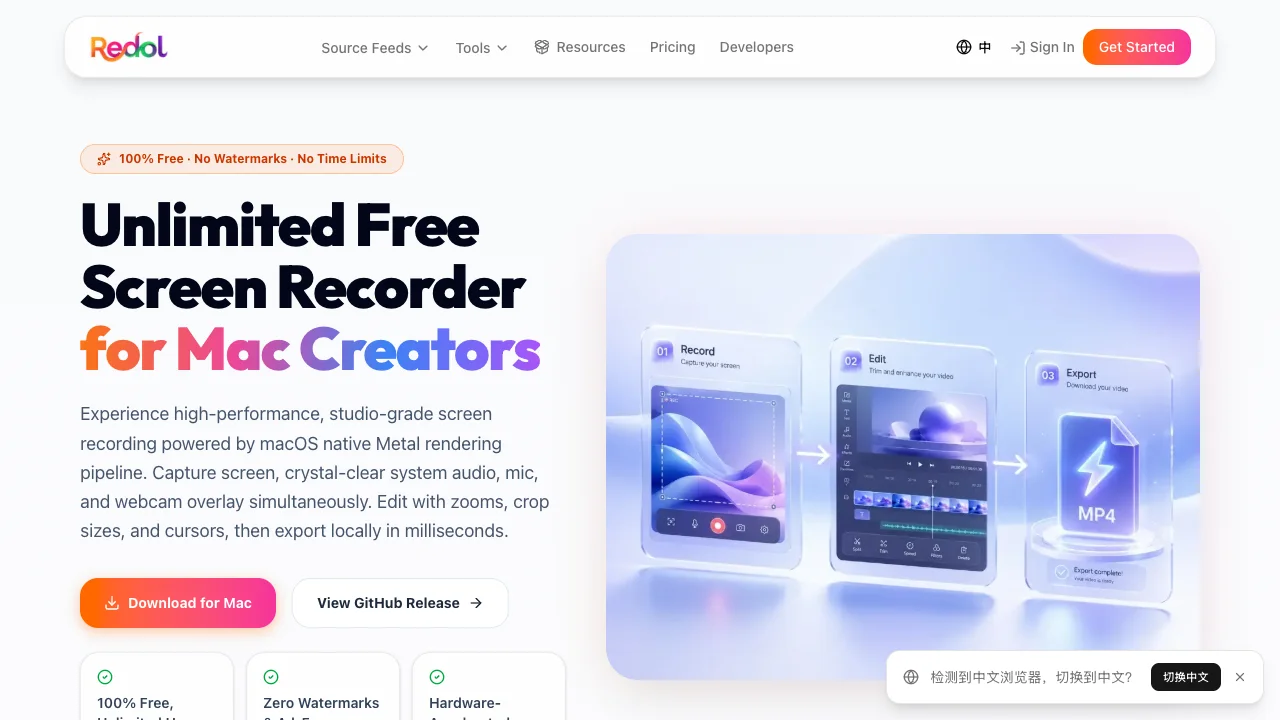
Choose Redol when Chrome is only one part of a longer tutorial or product demo, when the recording moves between apps, or when the raw result should stay on the Mac until the creator chooses to publish it. The current product route also documents cursor emphasis, zoom, crop and resize controls, and local export.
Do not treat it as a Windows, Chromebook, or browser-extension option. The live download is currently focused on Apple-silicon macOS. For a short Chrome-only clip with immediate hosted sharing, one of the extensions above is likely the more direct path.
Record a longer Chrome walkthrough with Redol
Capture Chrome, system audio, microphone, and webcam, then refine the result in a local Apple-silicon Mac workflow.
Chrome Extension or Desktop Recorder
The categories solve different operating problems.
| Requirement | Chrome extension | Desktop recorder |
|---|---|---|
| One-tab walkthrough | Strong fit | Works, but may be more setup than needed |
| Instant hosted link | Common in account-based extensions | Usually needs a separate upload step |
| Long session | Test browser stability and memory first | Usually the safer starting point |
| Several apps or sources | Limited by the browser picker and extension | Better fit for broader capture boundaries |
| Local-only file | Available in some extensions; verify settings | Clear fit with local-output tools |
| Annotation in the browser | Often built into the extension | Depends on the recorder |
| Sensitive page | Review website access and cloud destination | Review OS permissions and local file handling |
If installation is restricted on a managed computer, a Chrome extension may still require administrator approval. If browser extensions are prohibited, a built-in operating-system recorder or approved desktop application may be the only compliant option.
For adjacent choices, compare the best Firefox screen recorders when browser ecosystem support matters, or review the best free online screen recorders when installing an extension is not possible.
Run This Chrome Recording Preflight
- Define the capture boundary. Choose one tab, one Chrome window, a selected region, or the whole desktop.
- Close private surfaces. Hide password managers, customer tabs, bookmarks, notifications, chat windows, and unrelated applications.
- Review permissions. Check camera, microphone, website access, screen-recording permission, and any administrator policy.
- Select the audio path. Confirm tab or system audio and microphone input separately. Wear headphones when the setup could create echo.
- Choose the destination. Know whether the result stays local, enters Drive, uploads to a workspace, or becomes reachable through a link.
- Record the hardest 30 seconds. Include scrolling, media playback, a tab change, narration, and any camera overlay you need.
- Play the exported result outside the recorder. Check missing audio, blank protected content, resolution, sync, cursor visibility, file format, and sharing state.
Which Chrome Screen Recorder Should You Choose
Choose Screencastify for annotated lessons and Chrome-centered training. Choose Loom when an instant hosted review link is the main deliverable. Choose Screenity for an open-source extension with a local recording path, and Awesome Screenshot when screenshots and short videos belong in the same evidence workflow.
Choose Redol Screen Recorder for a supported Mac workflow that goes beyond one tab and benefits from local system audio, narration, webcam, editing controls, and MP4 export.
The safest default is the smallest recorder that passes your real preflight. Verify the exact Chrome surface, audio route, permissions, output destination, and final file before the important take.
Related posts
About the Author

Zhang Guo
AI Product Manager · Digital Marketing Consultant
AI product manager and digital marketing consultant with a background in music. I see creativity as the bridge between rhythm and logic, where musical intuition and mathematical precision can coexist in every meaningful product decision.
Follow on X