Topic: Screen recording guides
The best Firefox screen recorder depends on what must be captured. A Firefox add-on is convenient for a short tab recording. A desktop recorder is usually the safer choice for long sessions, system audio, several sources, or a file that must stay local.
This guide compares six current options without pretending that one recorder wins every job. The important differences are capture scope, audio path, storage model, permissions, platform support, and how much setup the recording deserves.
| Recorder | Best fit | Platform | Storage path | Main limit to check |
|---|---|---|---|---|
| Redol Screen Recorder | Local Firefox demos and tutorials on a supported Mac | Apple-silicon macOS | Local MP4 workflow | Not available for Windows or Intel Mac |
| OBS Studio | Long recordings, reusable scenes, and several sources | Windows, macOS, Linux | Local recording | More setup than a quick tab clip needs |
| Xbox Game Bar | Fast recording of a Firefox app window on Windows | Windows 10 and 11 | Local MP4 in Captures | Limited production and area-selection controls |
| Apple Screenshot and QuickTime | Simple built-in Mac capture | macOS | Local MOV workflow | Confirm the audio path before the real take |
| Awesome Screenshot & Screen Recorder | Firefox add-on with capture, annotation, and sharing | Firefox | Account and sharing workflow available | Broad permissions and cloud handling need review |
| Screen Recorder Lite | Minimal local Firefox add-on for a quick WebM file | Firefox | Local WebM download | Very limited public review history |
How We Evaluated Firefox Recorders
This is an official-source comparison, not a claim that every current build was benchmarked on the same computer. We checked public product pages, support documentation, and Mozilla Add-ons listings for:
- whether the tool can capture a Firefox window, tab, or selected screen area;
- whether microphone and computer or tab audio are documented;
- whether the output stays local or enters an account or sharing workflow;
- which operating systems are supported;
- which browser permissions or product limits deserve a preflight check;
- whether the tool fits a short support clip, a tutorial, or a longer production.
Firefox itself uses the operating system or browser sharing picker for many capture workflows. Protected media, private browser pages, extension pages, and application permissions can still block or alter a recording. Always test the exact page and audio source you plan to use.
Best Firefox Screen Recorders
1. Redol Screen Recorder
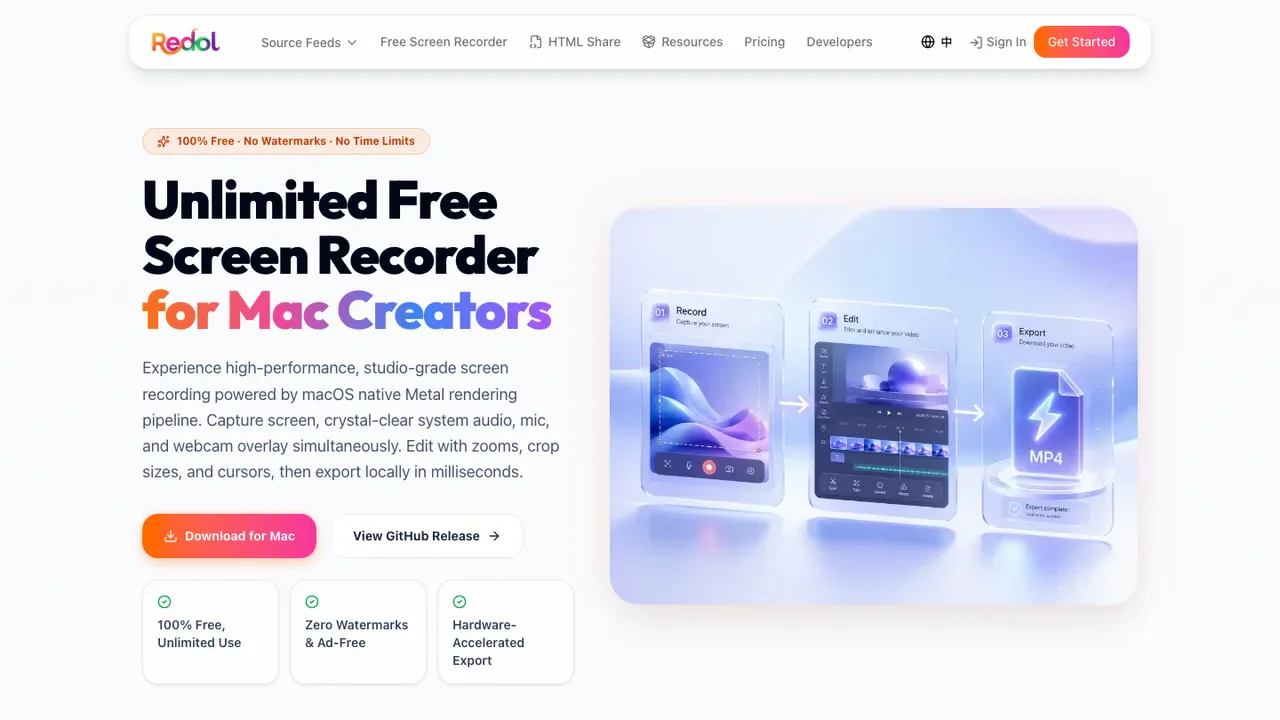
Redol Screen Recorder is the most direct choice here for an Apple-silicon Mac user who wants to record Firefox as part of a private local creator workflow.
The current Redol product surface documents screen capture, system audio, microphone narration, webcam overlay, cursor emphasis, zooms, crop and resize controls, quick editing, and local MP4 export. That makes it useful for product walkthroughs, support clips, browser tutorials, and course segments where the raw recording should stay on the Mac.
Choose Redol when:
- Firefox is one part of a Mac tutorial or product demo;
- system audio and microphone narration must be captured together;
- a local file is preferred before any upload or sharing step;
- cursor emphasis, crop, zoom, or a webcam layer will improve the explanation.
Do not present it as a Windows option. The current route is Apple-silicon focused, with Intel Mac and Windows availability not yet part of the live download path.
Record a Firefox walkthrough with Redol
Capture the browser, system audio, microphone, and webcam, then refine the result in a local Mac workflow.
2. OBS Studio
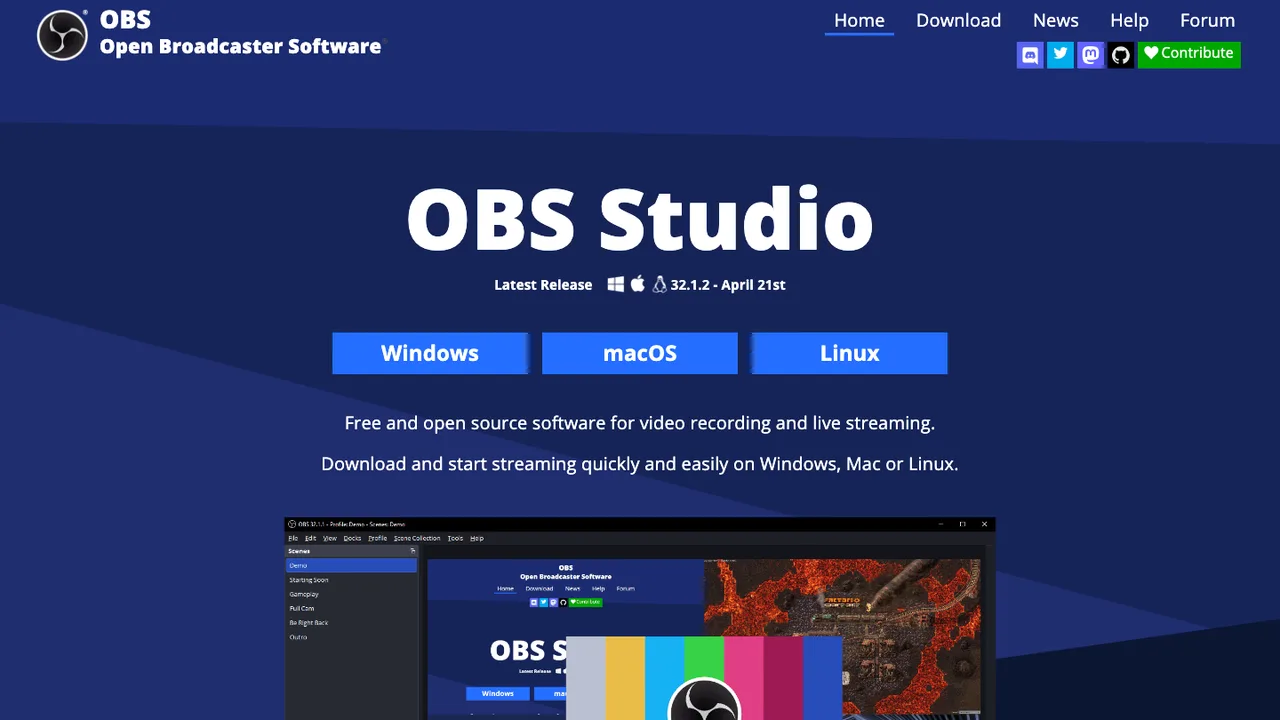
OBS Studio is the strongest option in this list when a Firefox recording needs reusable scenes, several sources, separate audio controls, or a repeatable production setup.
OBS's official page describes free, open-source recording and streaming software for Windows, macOS, and Linux. It supports sources such as windows, browser content, webcams, images, capture cards, and audio inputs, then combines them into scenes.
Choose OBS when the recording includes:
- Firefox plus slides, a camera, or another application;
- reusable scene layouts for a series;
- separate audio sources that need individual control;
- long-form tutorials or demonstrations with consistent settings.
The tradeoff is setup. A one-minute browser bug report may not justify scene configuration, canvas sizing, audio routing, and output settings. Build one simple scene first, record a short sample, and add sources only after the exported file is correct.
3. Xbox Game Bar
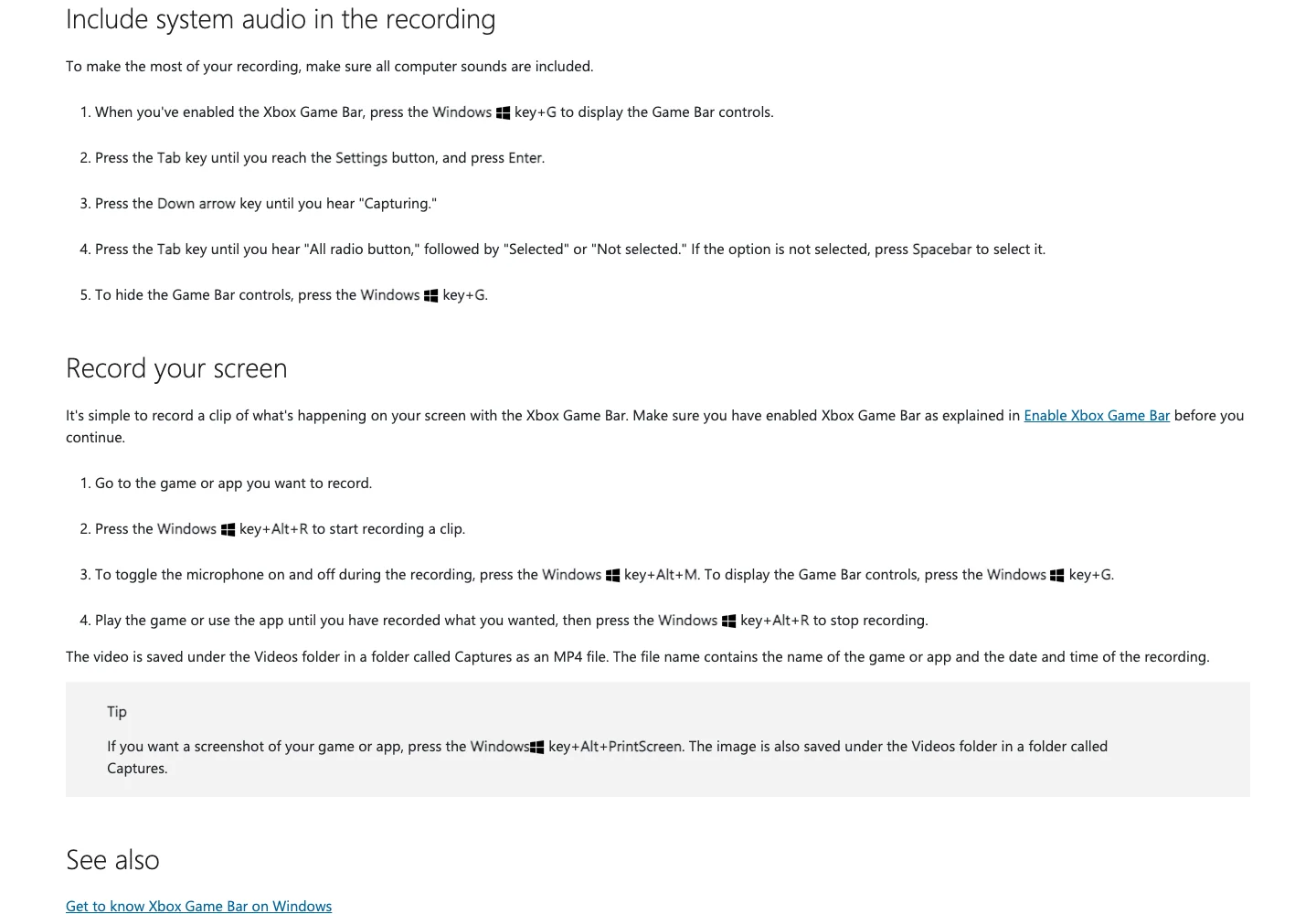
Microsoft's Xbox Game Bar recording guide documents a fast Windows path for recording an app or game.
The guide uses Windows + Alt + R to start or stop recording and Windows + Alt + M to toggle the microphone. It also documents a system-audio setting and saves the result as an MP4 file in the Captures folder.
Choose Game Bar when you need a quick Firefox app-window clip on Windows and do not need a production scene, precise region layout, annotation workflow, or several camera and audio sources.
Before the real recording, confirm that Firefox is the active app, the correct audio setting is selected, notifications are hidden, and the exported MP4 contains both the browser sound and narration you expected.
4. Apple Screenshot and QuickTime
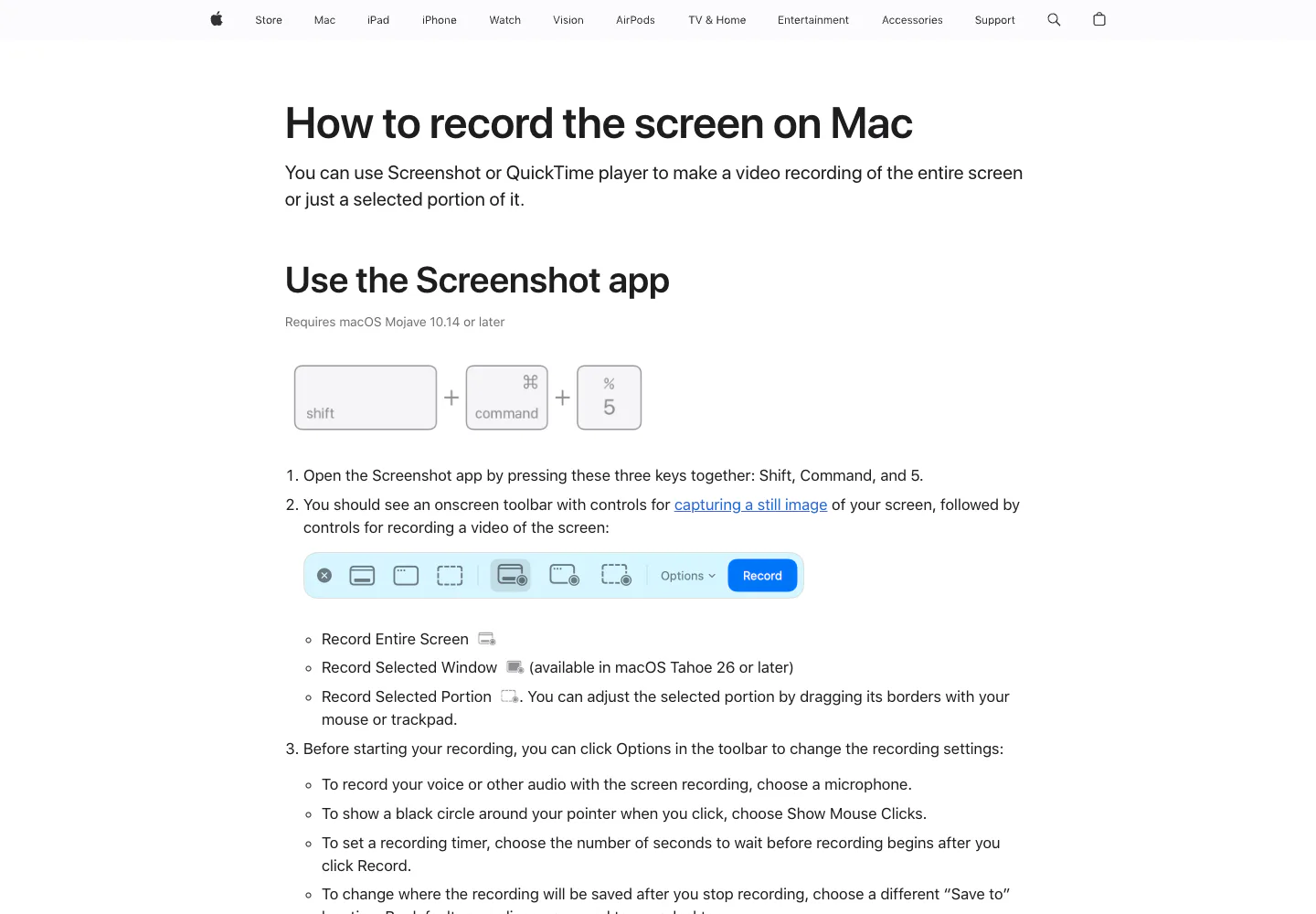
Apple's Mac screen-recording guide documents two built-in paths: Screenshot and QuickTime Player.
Screenshot opens with Shift + Command + 5 and can record the entire screen or a selected portion. Apple's current guide also documents microphone selection, click indicators, a start timer, and the save location. QuickTime provides another built-in route for a straightforward screen recording.
Choose the built-in Mac option for a short Firefox clip when microphone narration is enough and you do not need a webcam layout, cursor effects, scene switching, or a richer editing handoff.
Do not assume the available computer-audio path matches a dedicated recorder. Run a 30-second test with the exact Firefox tab and audio source. If the result stutters or grows unexpectedly large, use the QuickTime lag troubleshooting guide before recording the full session.
5. Awesome Screenshot & Screen Recorder
Mozilla lists Awesome Screenshot & Screen Recorder as a Recommended Firefox extension. Its current listing describes desktop or camera recording, microphone capture, screenshots, annotation, and link-based sharing.
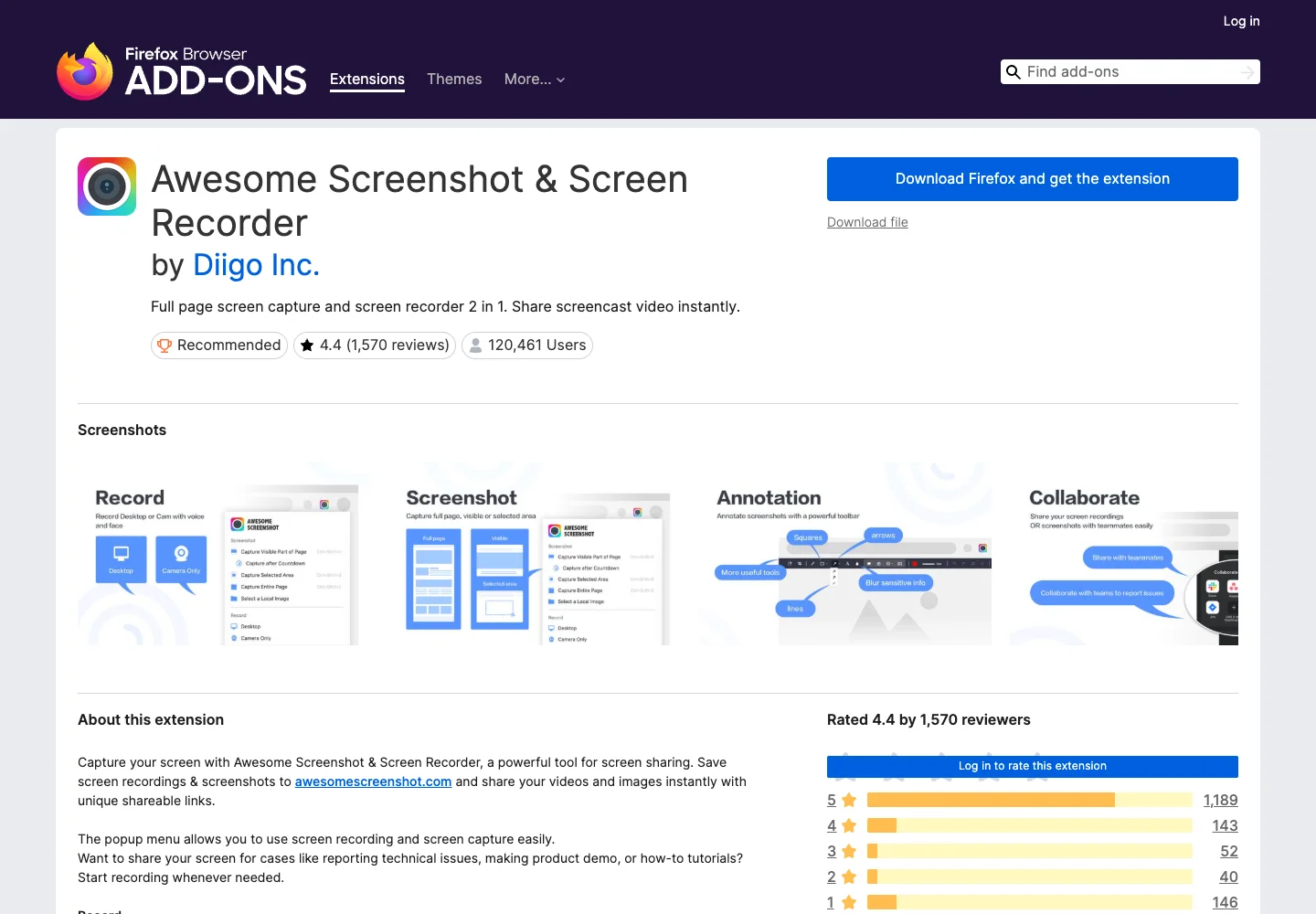
This is the most established add-on option in the comparison when a browser-first workflow and quick sharing matter. It can also combine screenshot annotation and video capture in one extension.
The storage and permission model needs deliberate review. The Mozilla listing describes uploaded recordings and shareable links, and it shows permissions that include access to browser tabs and data for websites. That does not make the extension unsafe, but it makes the decision different from a local desktop recorder.
Choose it when:
- an extension is easier to deploy than a desktop application;
- screenshot annotation and video sharing belong in the same workflow;
- the account, privacy, permission, and sharing model is acceptable for the material.
Avoid recording private customer data, credentials, or confidential pages until the extension permissions, destination, and sharing defaults have been reviewed for your organization.
6. Screen Recorder Lite
The current Mozilla listing for Screen Recorder Lite describes a deliberately small Firefox add-on that records a screen, window, or tab and saves a WebM file locally.
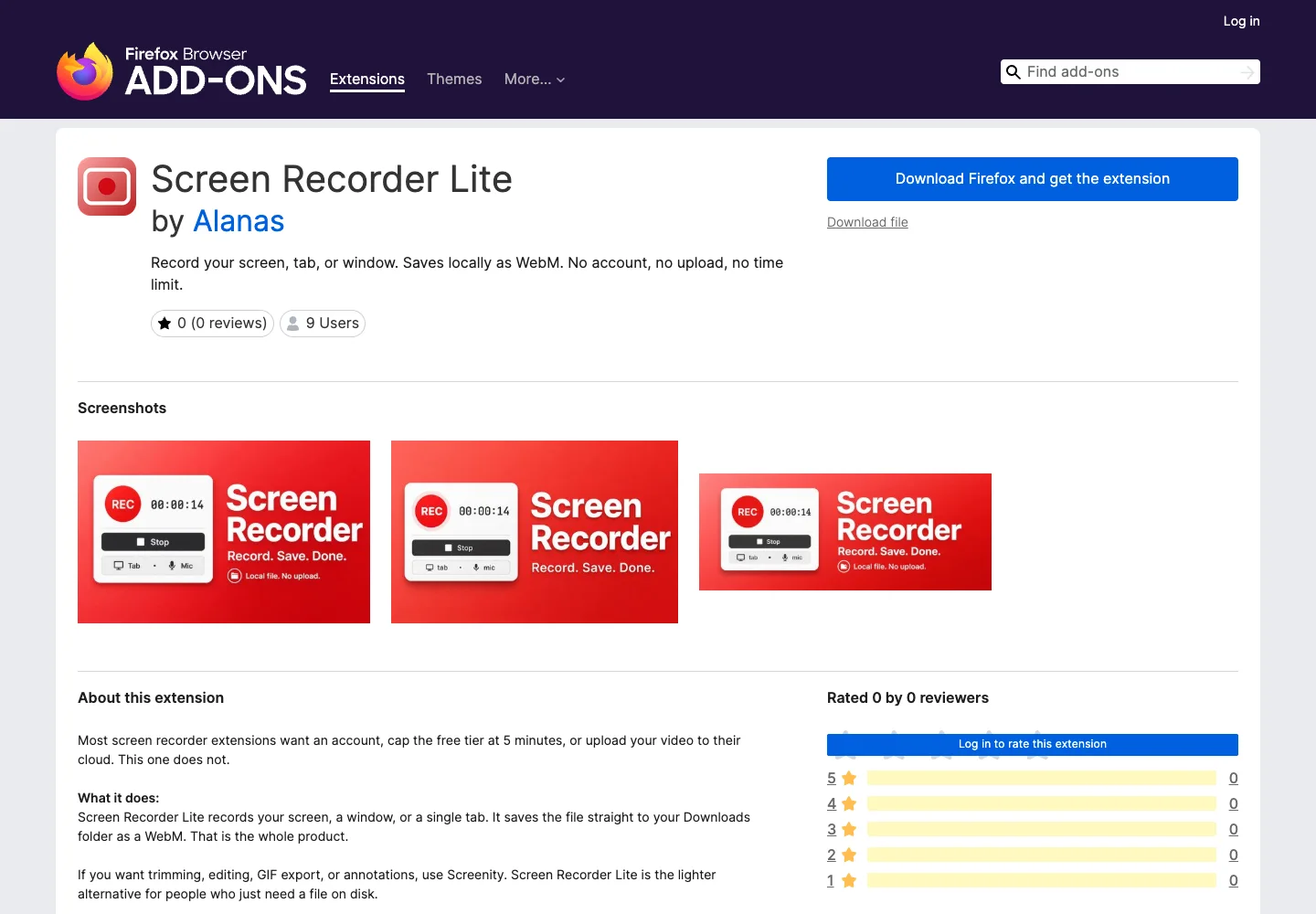
The listing also describes an optional microphone, no account, no cloud upload, and no editing or annotation layer. This makes the product concept attractive for a low-friction local clip.
The caution is maturity. The public listing has very little review history, so it should not be treated as a proven default for important recordings. Verify the developer, current permissions, privacy policy, update history, output playback, and one complete test file before using it around sensitive material.
Choose Screen Recorder Lite for a short, low-risk WebM capture when local download matters more than editing. Use a more established desktop recorder for long, confidential, or production-critical sessions.
Desktop Recorder or Firefox Add-On
The two categories solve different problems.
| Requirement | Desktop recorder | Firefox add-on |
|---|---|---|
| Long session | Usually the safer starting point | Test memory, browser stability, and output first |
| System audio plus microphone | Often documented as a core workflow | Depends on browser, OS, picker, and extension |
| Local-only output | Available with Redol, OBS, built-in tools, and others | Available in some add-ons; verify the listing |
| No installation permission | May be blocked | Often easier if add-ons are allowed |
| Several sources or scenes | Strong fit | Usually limited |
| Link-based sharing | Separate upload step may be needed | Often built into the extension workflow |
| Sensitive page capture | Fewer browser-wide permissions may be needed | Review every requested permission and destination |
An add-on is not automatically more private because it runs in Firefox, and a desktop app is not automatically more reliable because it is installed. The evidence is the current permission model, storage destination, platform support, and a successful exported test.
Run This Firefox Recording Preflight
Use this checklist before any important browser capture:
- Define the capture boundary. Decide whether the viewer needs one tab, one Firefox window, a selected region, or the full desktop.
- Close private surfaces. Hide password managers, customer tabs, messages, notifications, bookmarks, and unrelated windows.
- Check browser permissions. Review what the add-on or desktop app can access and where the recording will be stored.
- Select audio deliberately. Confirm tab or system audio and microphone input separately.
- Record the hardest 30 seconds. Include scrolling, media playback, tab changes, and narration rather than a static page.
- Inspect the exported file. Check audio sync, missing sound, resolution, cursor visibility, file format, and save location.
- Confirm the sharing state. Know whether the result is only on disk, uploaded privately, or reachable through a link.
Which Firefox Screen Recorder Should You Choose
Choose Redol Screen Recorder for a supported Apple-silicon Mac workflow that needs local capture, system audio, narration, and a clean creator handoff. Choose OBS Studio for scenes and several sources. Use Xbox Game Bar for a fast Windows app clip and Apple Screenshot or QuickTime for a simple built-in Mac recording.
Choose Awesome Screenshot & Screen Recorder when Firefox-native capture, annotation, and sharing are more important than a local-only workflow. Treat Screen Recorder Lite as a promising minimal local add-on that still needs cautious validation because its public history is limited.
The safest default is the smallest tool that passes your real preflight. Test the exact Firefox page, audio path, storage destination, and exported file before recording anything difficult to repeat.
Related posts
About the Author

Zhang Guo
AI Product Manager · Digital Marketing Consultant
AI product manager and digital marketing consultant with a background in music. I see creativity as the bridge between rhythm and logic, where musical intuition and mathematical precision can coexist in every meaningful product decision.
Follow on X