7 Best Free Online Screen Recorders for Browser Workflows in 2026
Compare seven free online screen recorders by setup, audio, webcam, privacy, export, and limits, plus when a local Mac recorder is the better fit.
Topic: Screen recording guides
The best free online screen recorder for most people is Panopto Express when the priority is starting immediately without an account or installation. ScreenPal Online Recorder is the stronger pick for live drawing and zoom tools, while RecordCast is useful when you want a lightweight browser editor after capture. Loom, Clipchamp, VEED, and Apowersoft fit different extension, editing, sharing, and audio workflows.
The important distinction is that “online” does not always mean “nothing installed.” Some tools run directly in a browser, some require an account, Loom uses a Chrome extension, and Apowersoft still exposes an app or launcher path. This roundup separates those setup models so you can choose based on the recording job instead of the marketing label.
Quick comparison of the best free online screen recorders
| Recorder | Best for | Setup model | Screen and webcam | Audio path | Main free-use friction |
|---|---|---|---|---|---|
| Panopto Express | Fast recording without signup | True browser recorder | Yes, including multiple sources | Microphone and supported browser/system sources | Few stated restrictions on the public Express page |
| ScreenPal Online Recorder | Browser capture with drawing and zoom | True browser recorder | Yes | Voice plus supported tab/system audio | Some advanced editing and system-audio features sit in paid or desktop workflows |
| RecordCast | Recording plus a simple browser editor | True browser recorder | Yes | System and microphone audio | Account and export terms should be checked before a long project |
| Microsoft Clipchamp | Recording that continues into timeline editing | Browser editor and recorder | Yes | Microphone; tab audio has the clearest browser support | Microsoft account and browser-specific audio behavior |
| Loom | Instant links and asynchronous team updates | Chrome extension or desktop app | Yes | Microphone and capture audio supported by the recorder | Extension install and Starter workspace limits |
| VEED | Recording that moves into captions and online editing | Browser recorder with cloud editor | Yes | Microphone and browser-supported system audio | Account, upload, and free-export conditions |
| Apowersoft | Flexible capture modes and cloud/local save choices | Browser entry with app or launcher signals | Yes | System sound and microphone | The official page mixes “online” claims with download and launcher paths |
How we evaluated these tools
The comparison uses current official product pages and help documentation checked on July 19, 2026. The criteria are setup model, account friction, screen and webcam capture, audio options, output workflow, free-plan boundaries, and whether the recording stays local or moves into a hosted editor. We do not invent benchmark scores or claim hands-on tests that were not performed.
Browser recording also has a shared technical constraint: the browser controls which tab, window, or display can be shared. System-audio support can differ by browser, operating system, and the selected capture source. Always run a 20-second audio test before recording a class, customer call, or product demo.
1. Panopto Express is best for immediate no-account capture
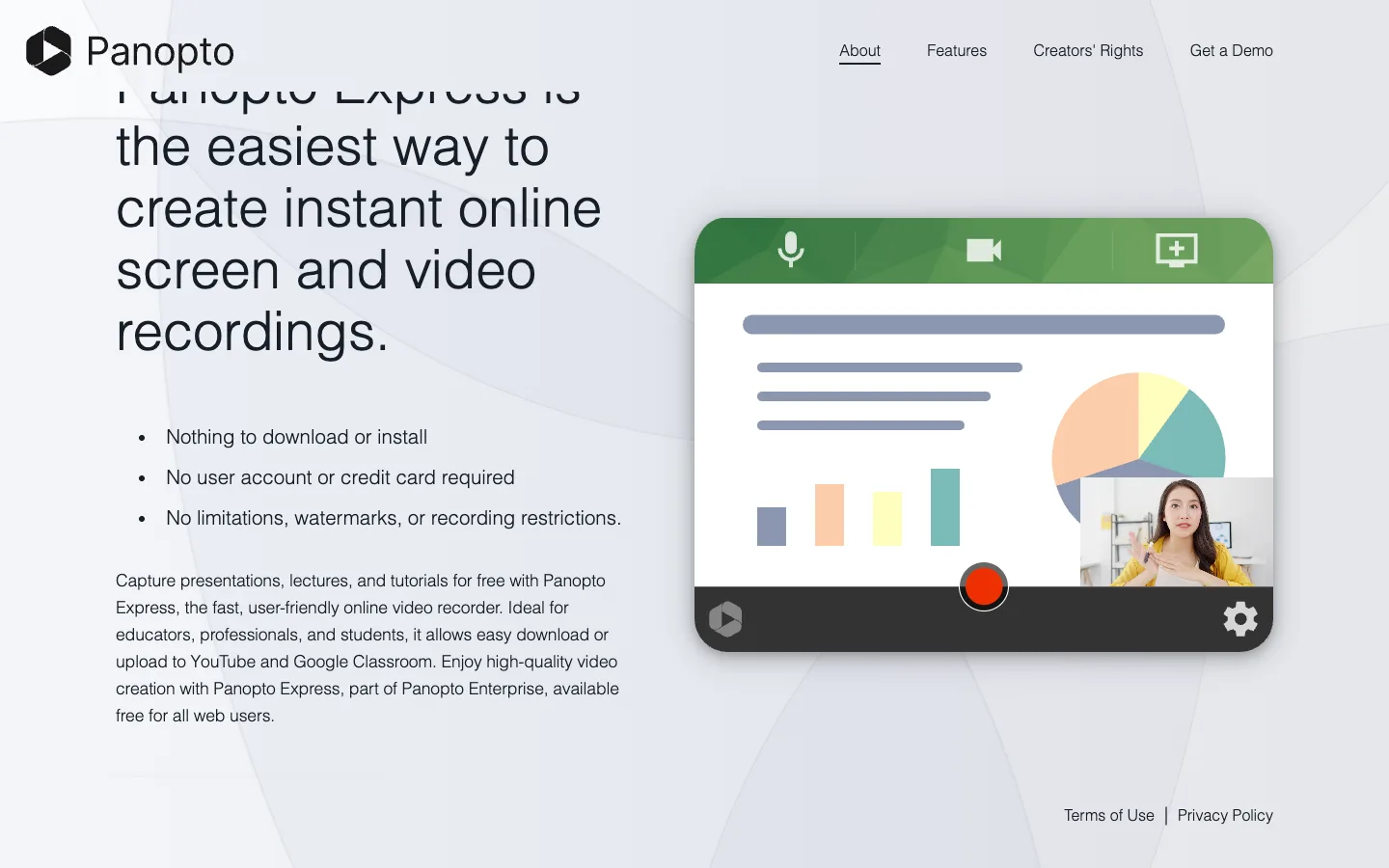
Panopto Express has the clearest zero-friction public offer in this group. Its official recorder page says there is nothing to download, no account or credit card is required, and the Express recorder has no watermark or stated recording restriction. It can combine a screen, browser tab, application, webcam, microphone, and other supported video sources.
The finished recording can be downloaded or sent to Panopto, YouTube, or Google Classroom. That makes it a practical choice for lectures, quick demonstrations, and one-off tutorials where creating another workspace would be unnecessary.
Best for: a first recording with the fewest setup decisions.
Watch for: a simple browser recorder is not the same as a full non-linear editor or team video library.
2. ScreenPal Online Recorder is best for live annotations
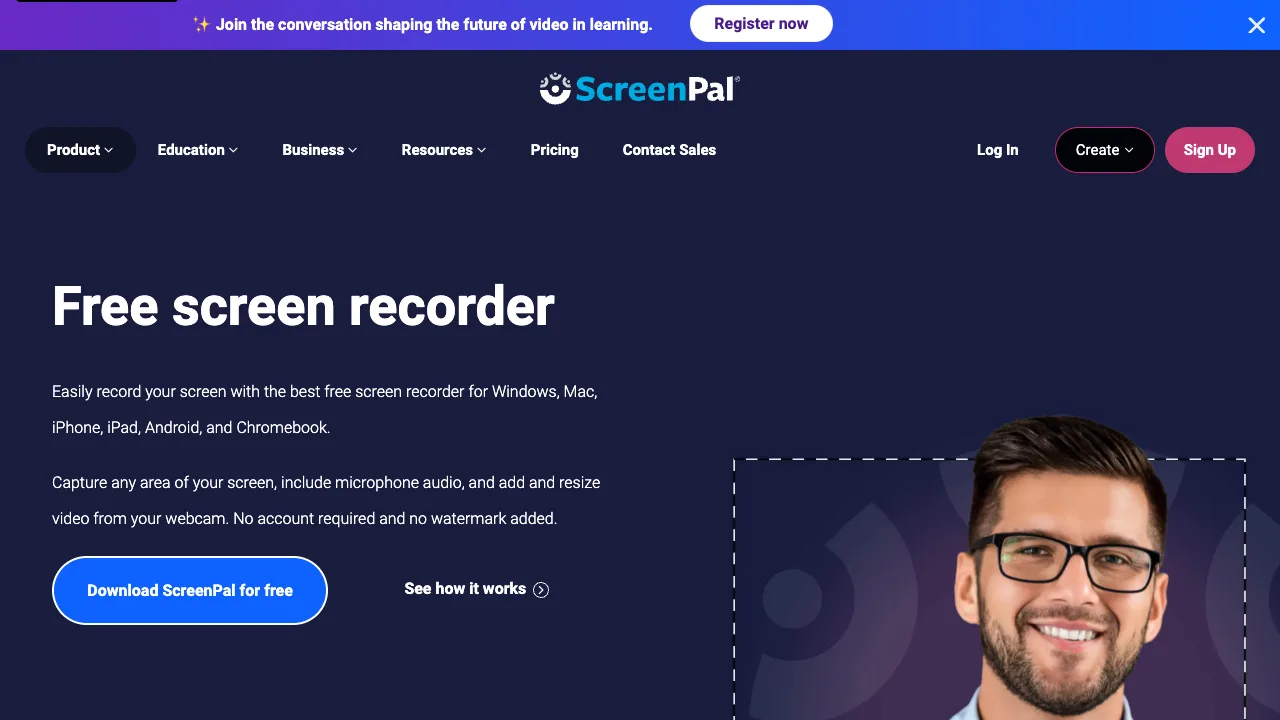
ScreenPal now documents a dedicated online recorder in its official help center. The browser workflow supports a tab, window, or full display; screen, webcam, and voice capture; pause and resume; live drawing; zoom; and effects. After recording, you can save locally, move into its desktop editor, or upload to a ScreenPal hosting account.
ScreenPal is a good middle ground when you want more teaching or demonstration controls than a bare recorder but still want to begin in the browser. Its public pages also distinguish the online recorder from the classic desktop and Chrome-extension paths, so choose the online option deliberately.
Best for: tutorials, feedback videos, and lessons that benefit from drawing or zooming during capture.
Watch for: advanced editing, hosting, system-audio, and duration terms vary across the online, extension, desktop, and plan surfaces.
3. RecordCast is best for a simple record-and-edit loop
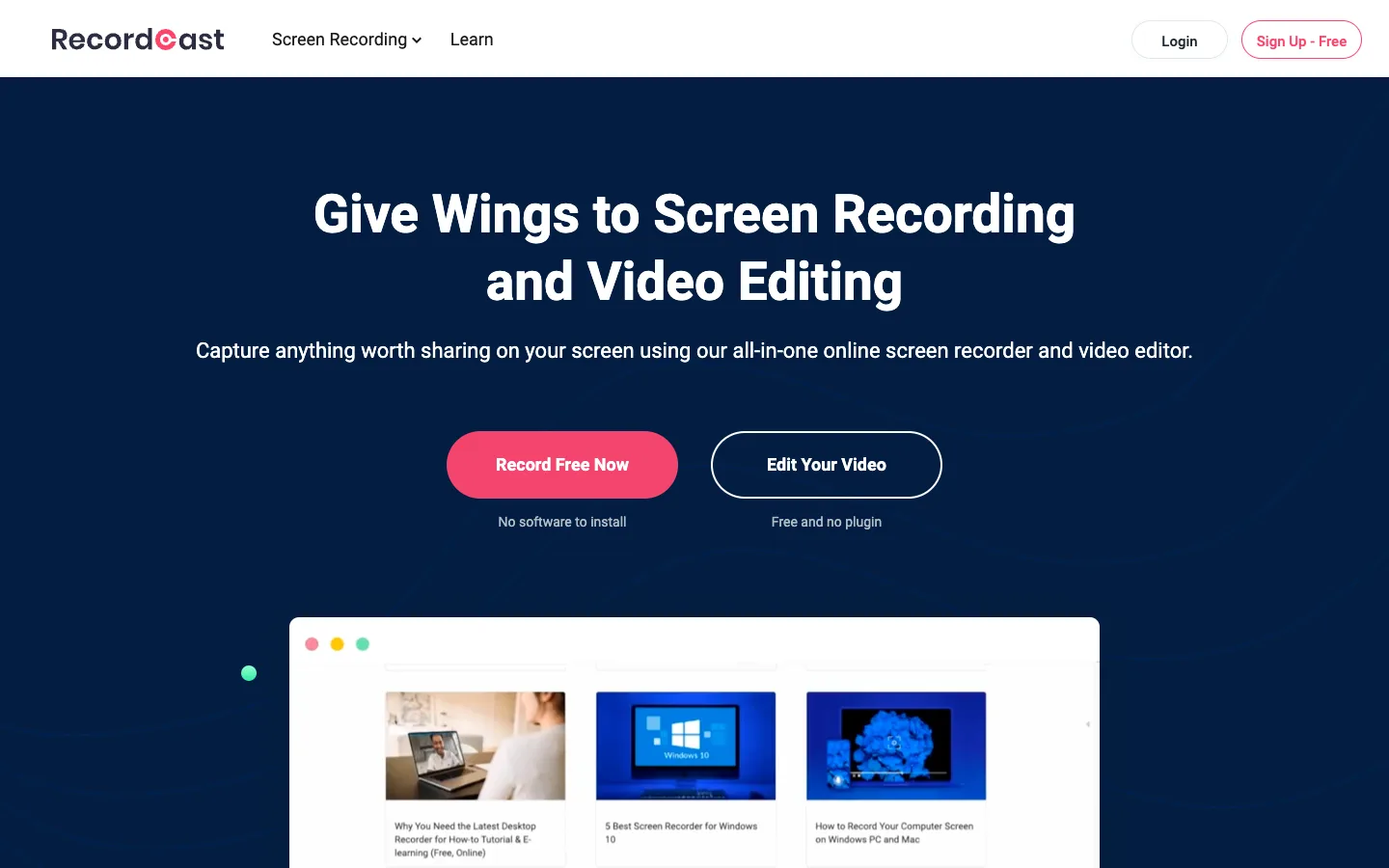
The RecordCast official site presents a no-plugin, no-software browser workflow with three capture modes: screen plus webcam, webcam only, or screen only. It also describes simultaneous system and microphone audio plus an integrated editor for trimming and adding text, overlays, music, and other elements.
RecordCast is the useful choice when you do not need a large collaboration platform but do want to clean up the result before export. The public page also says editing happens locally, which is worth confirming again in the product flow before recording sensitive material.
Best for: quick tutorials that need basic editing without switching products.
Watch for: verify current account, project-length, storage, and export conditions before committing to a long recording.
4. Microsoft Clipchamp is best for timeline editing after capture
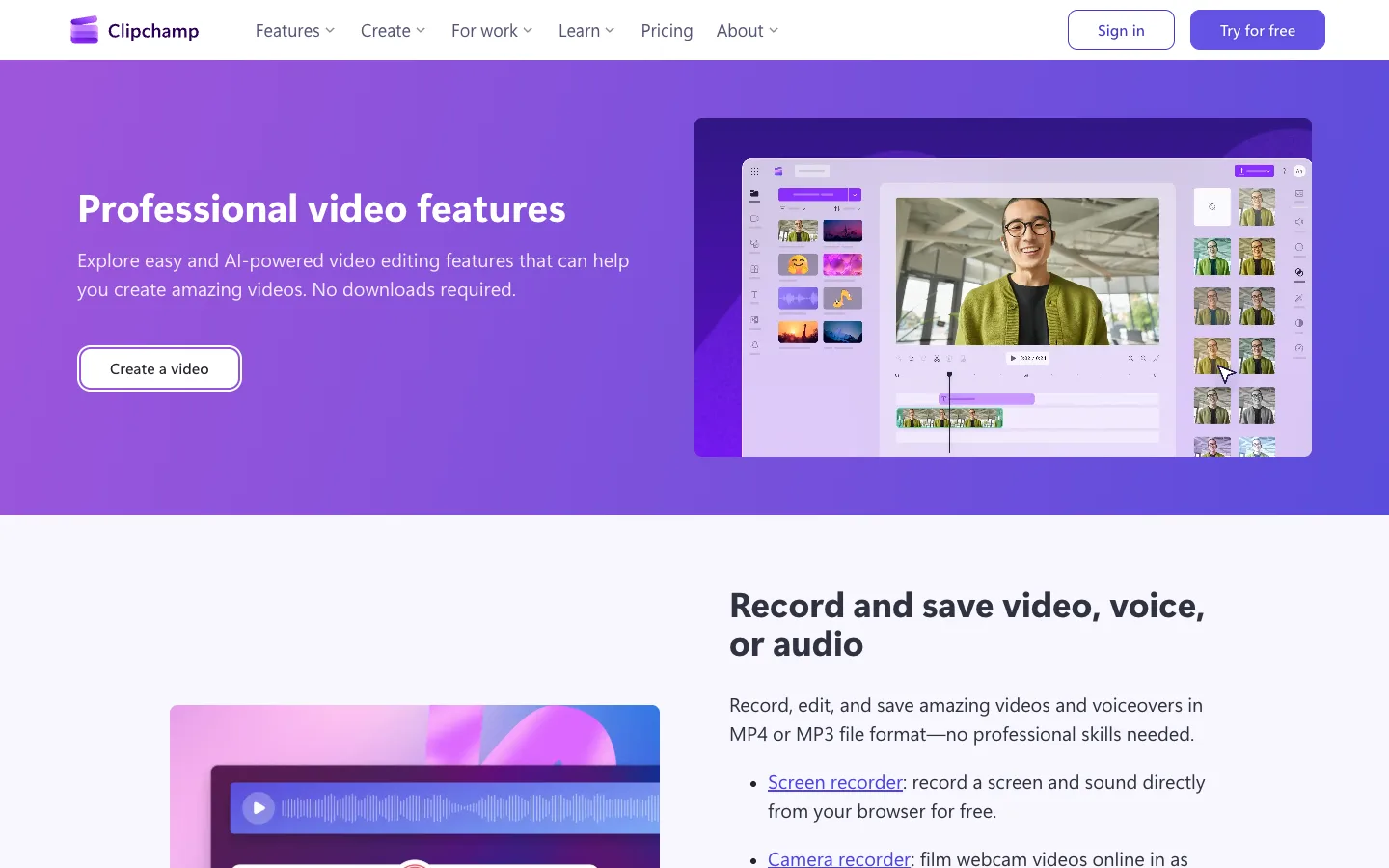
Clipchamp is more than a single-purpose recorder. Microsoft’s official screen-recording guide covers screen-only and screen-plus-camera recording, followed by editing in the Clipchamp timeline. Its public features page describes screen and sound recording directly from the browser for free.
The audio details matter. Microsoft notes that browser-tab audio has the clearest support in the personal recorder flow, while a full-screen or application capture may not include the same system-audio path. Clipchamp is therefore strongest when editing matters and the source fits its browser rules.
Best for: creators who want to record, trim, arrange, and export in one browser editor.
Watch for: Microsoft account context, supported browser, maximum clip behavior, and tab-audio rules.
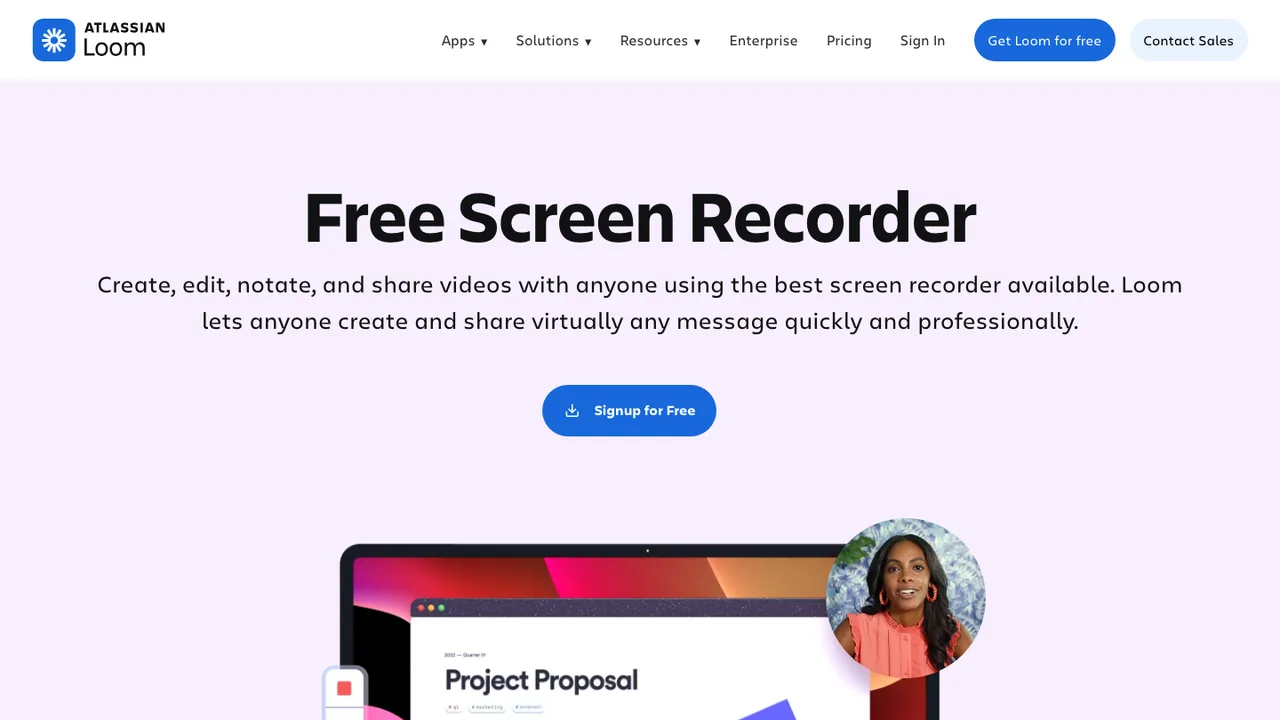
5. Loom is best for instant sharing and team feedback
Loom is an online video workflow, but its Chrome option is an extension rather than a zero-install web recorder. The official Chrome recorder page describes screen, camera, and audio capture, a generated share link, browser editing, comments, and reactions. It also states that the free Starter plan has a 25-video limit per member.
That tradeoff is reasonable when the main job is asynchronous communication. A bug report, design walkthrough, or sales explanation can move from recording to a shareable link without managing a local file. It is less attractive when you need anonymous use, no extension, or a purely local archive.
Best for: link-first team updates and feedback.
Watch for: extension installation, workspace limits, hosted-video privacy settings, and plan-dependent resolution or editing features.
6. VEED is best for captions and browser-based editing
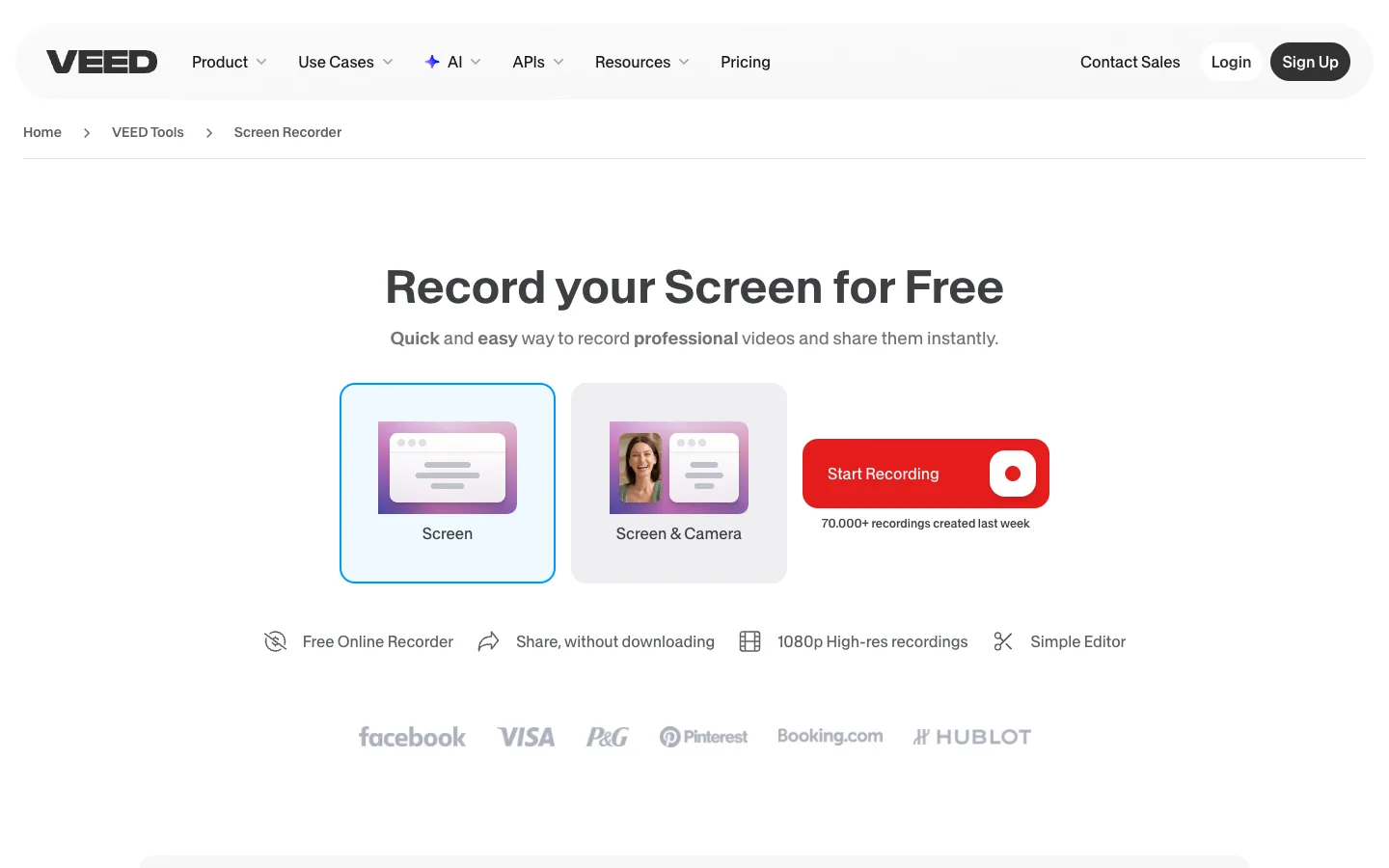
VEED’s official screen recorder can capture a screen, webcam, or both from the browser and then continue into VEED’s online editor. Its current help documentation covers layouts, camera and microphone selection, recording quality, pause and retake controls, and the upload step that happens after capture.
VEED is strongest when the recording is only the beginning of the job and you expect to add captions, clean audio, change the layout, or prepare a publishable clip. That convenience comes with a cloud-editing workflow rather than a purely local recorder.
Best for: social, training, and presentation videos that need post-recording polish.
Watch for: account requirements, upload processing, watermark or export terms on the free plan, and browser-specific system-audio support.
7. Apowersoft is best when capture modes matter more than zero-install purity
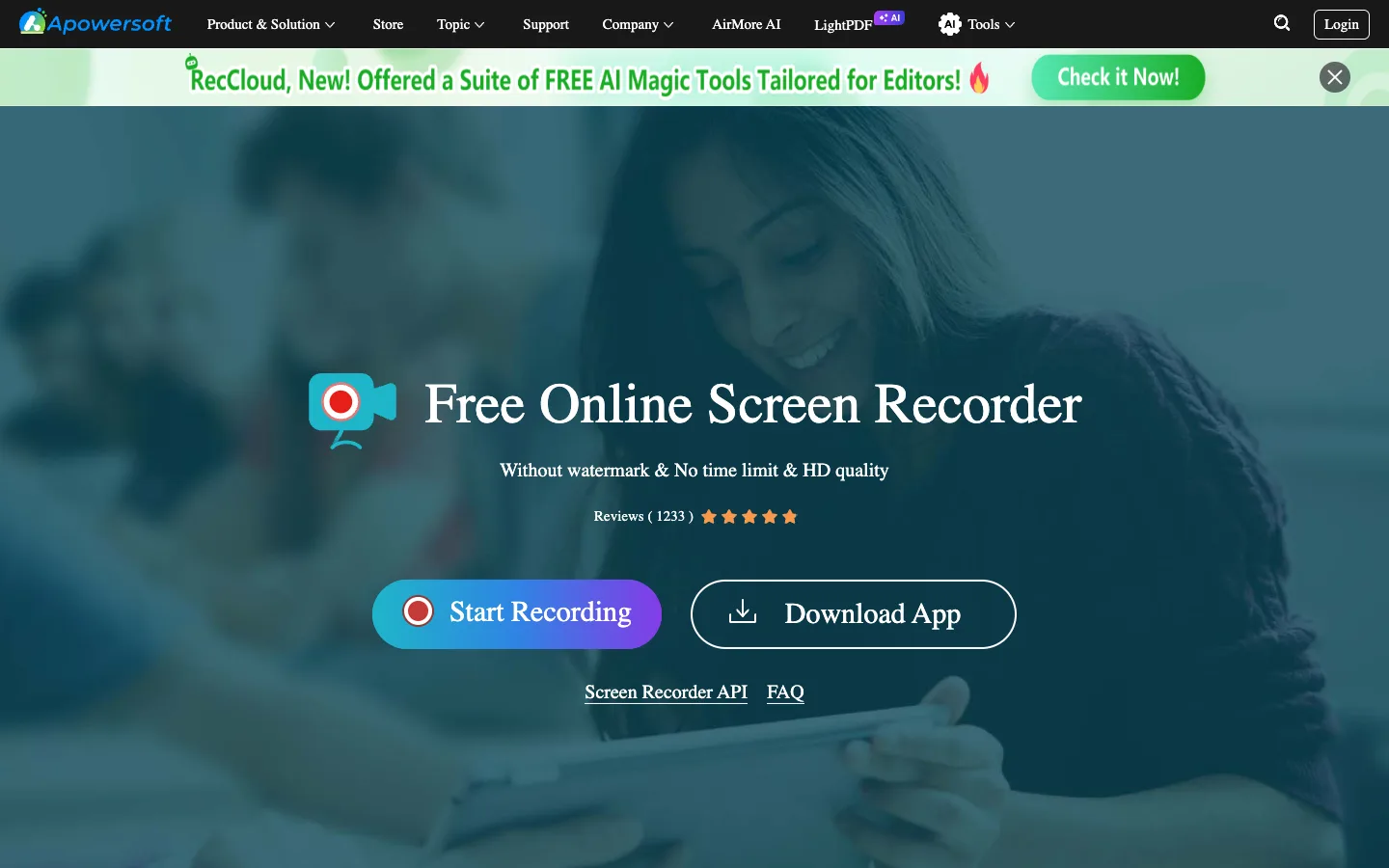
The Apowersoft official page advertises screen, webcam, system-sound, and microphone capture with local save or cloud upload. The same live page also exposes a “Download App” control, and its support text references an online launcher in troubleshooting guidance.
That mixed setup model is exactly why the “online” label needs scrutiny. Apowersoft may still fit a user who values region recording, system audio, picture-in-picture, and flexible save options, but it should not be the first recommendation for someone whose non-negotiable requirement is no installation.
Best for: users willing to accept an app or launcher layer for broader capture controls.
Watch for: which experience the Start Recording button launches on your operating system, plus current cloud and free-use terms.
When an online recorder is the wrong choice
Use an online recorder for quick demos, browser walkthroughs, short lessons, and videos that need an immediate sharing or editing flow. Prefer a local recorder when you need long sessions, predictable system-audio capture, offline work, a local-only file path, or less dependence on account and upload policies.
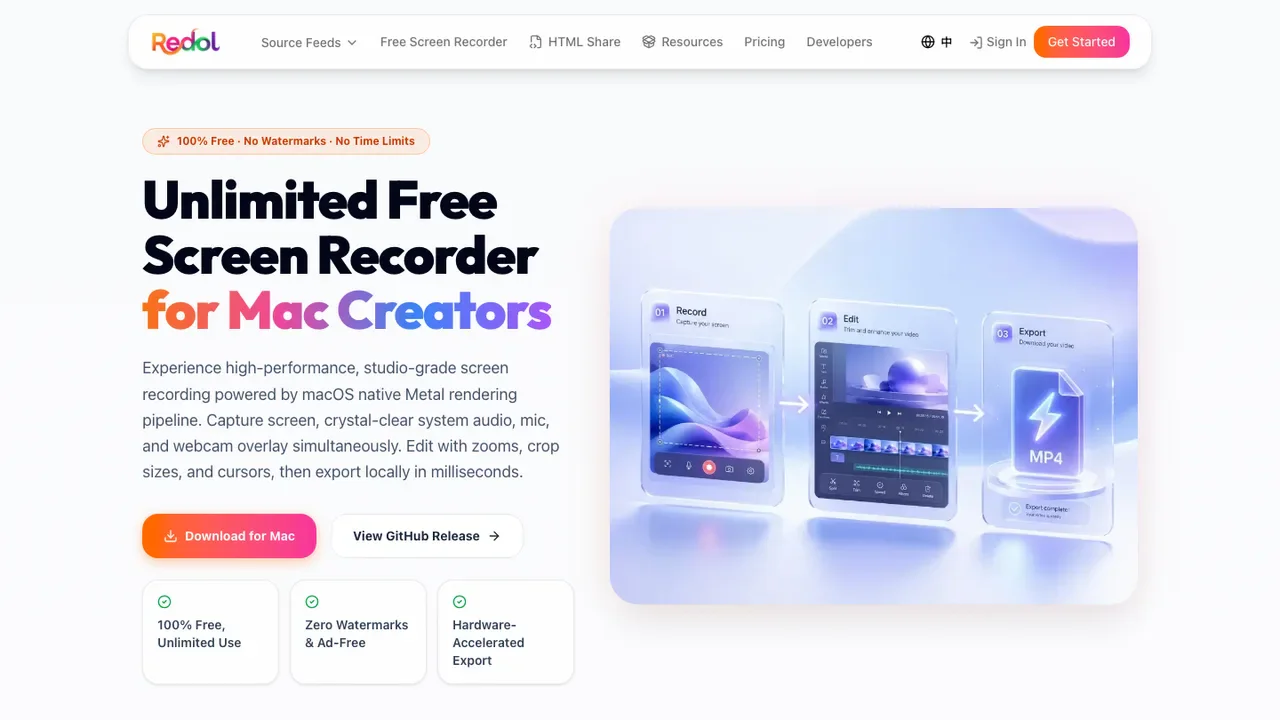
For Mac users, Redol Screen Recorder is a local-first alternative rather than another online tool. The current product page positions it around Apple Silicon, screen plus system audio and microphone capture, optional webcam overlay, local editing, and MP4 export without a watermark or stated recording-time limit. Windows support is still planned, so this recommendation is Mac-specific.
If you want a broader desktop comparison, read our free screen recorders without watermarks. For a task-focused Mac workflow, see how to screen record on Mac with audio.
Record locally when the browser is the constraint
Use Redol Screen Recorder on Apple Silicon Mac when you need a local MP4 workflow, system audio, microphone narration, and no browser upload step.
Final decision checklist
Before pressing record, answer five questions:
- Does the tool run directly in the browser, require an extension, or launch a helper app?
- Can it capture the exact audio source you need on your browser and operating system?
- Does the free path add a watermark, duration limit, video-count limit, or export restriction?
- Does the file download locally, upload automatically, or remain in a hosted workspace?
- Can you run a short privacy-safe test before recording the real session?
For the least setup, start with Panopto Express. For teaching controls, try ScreenPal Online Recorder. For an edit-after-capture workflow, compare RecordCast, Clipchamp, or VEED. For link-first collaboration, Loom is the clearest fit. If browser audio, privacy, or long-session reliability becomes the bottleneck, switch to a local recorder.
Related posts
About the Author

Zhang Guo
AI Product Manager · Digital Marketing Consultant
AI product manager and digital marketing consultant with a background in music. I see creativity as the bridge between rhythm and logic, where musical intuition and mathematical precision can coexist in every meaningful product decision.
Follow on X