Topic: Screen recording guides
The best no lag screen recorder is not the app with the loudest performance claim. It is the recorder whose capture method, encoder, resolution, frame rate, and storage load fit your computer.
No recorder can guarantee zero lag on every device. A browser with twenty tabs, a 4K game, software encoding, a slow drive, and a webcam layer can overload an otherwise capable recorder. The useful choice is the one that gives you enough control to reduce that workload and test it before the real take.
| Recorder | Best fit | Platform | Main performance control | Important limit |
|---|---|---|---|---|
| Redol Screen Recorder | Local Mac demos, tutorials, and creator clips | Apple-silicon Mac | Limit the capture area and keep the workflow local | Not a Windows or game-benchmarking tool |
| OBS Studio | Advanced scenes, sources, and encoder control | Windows, macOS, Linux | Hardware encoder selection and configurable output | More settings create more ways to overload the system |
| Bandicam | Windows screen or game capture with adjustable load | Windows | Hardware H.264 encoders, resolution, FPS, and quality controls | Windows-only and performance still depends on the PC |
| FonePaw Screen Recorder | General-purpose screen, audio, and webcam capture | Windows, macOS | Vendor-documented hardware acceleration and adjustable frame rate | "No lag" is a vendor claim, not a universal benchmark result |
| Xbox Game Bar | Fast recording of a Windows game or app | Windows 10, Windows 11 | Built-in app/game capture with minimal setup | Not a flexible full-desktop production recorder |
| QuickTime Player and Screenshot | Simple built-in Mac screen capture | macOS | Record only the selected portion when possible | Basic production controls compared with dedicated tools |
1. Redol Screen Recorder for Local Mac Creator Workflows
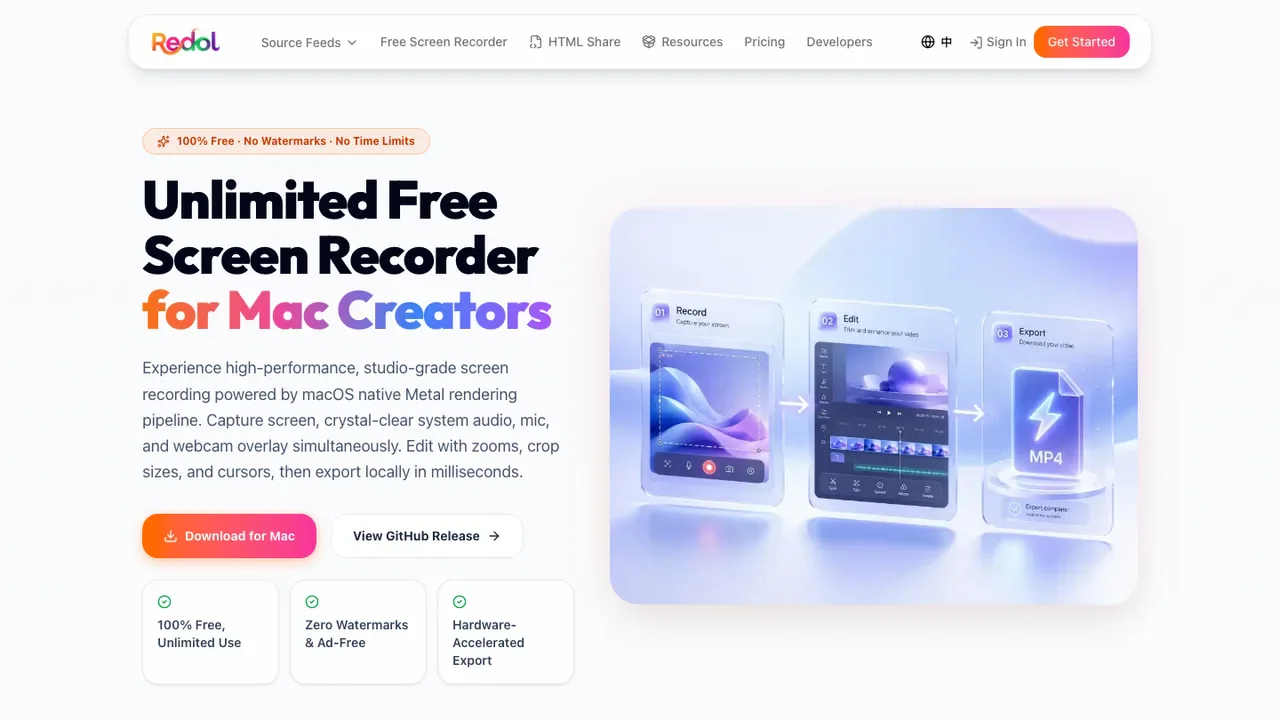
Redol Screen Recorder is the best fit in this list when the job is a private local Mac tutorial, product walkthrough, support clip, or creator recording.
The current Redol product surface is Mac-focused and provides an Apple-silicon download. It supports screen capture with system audio, microphone narration, webcam overlay, crop and resize controls, cursor actions, zooms, and local MP4 export. Those controls matter because a smaller capture area and a simpler scene usually create less work than an oversized recording with unnecessary layers.
Choose Redol when:
- you are recording on a supported Apple-silicon Mac;
- the final asset is a tutorial, demo, explanation, or clean creator clip;
- local capture and local export matter;
- you need system audio, narration, webcam, or visual emphasis in one workflow.
Do not choose it as a Windows recommendation or as proof of game FPS performance. Redol does not publish a universal "zero lag" benchmark, so the preflight test later in this guide still applies.
Record a clean local Mac clip with Redol
Capture the screen, system audio, microphone, and webcam, then shape the result for a clear local MP4 workflow.
2. OBS Studio for Hardware Encoder and Scene Control
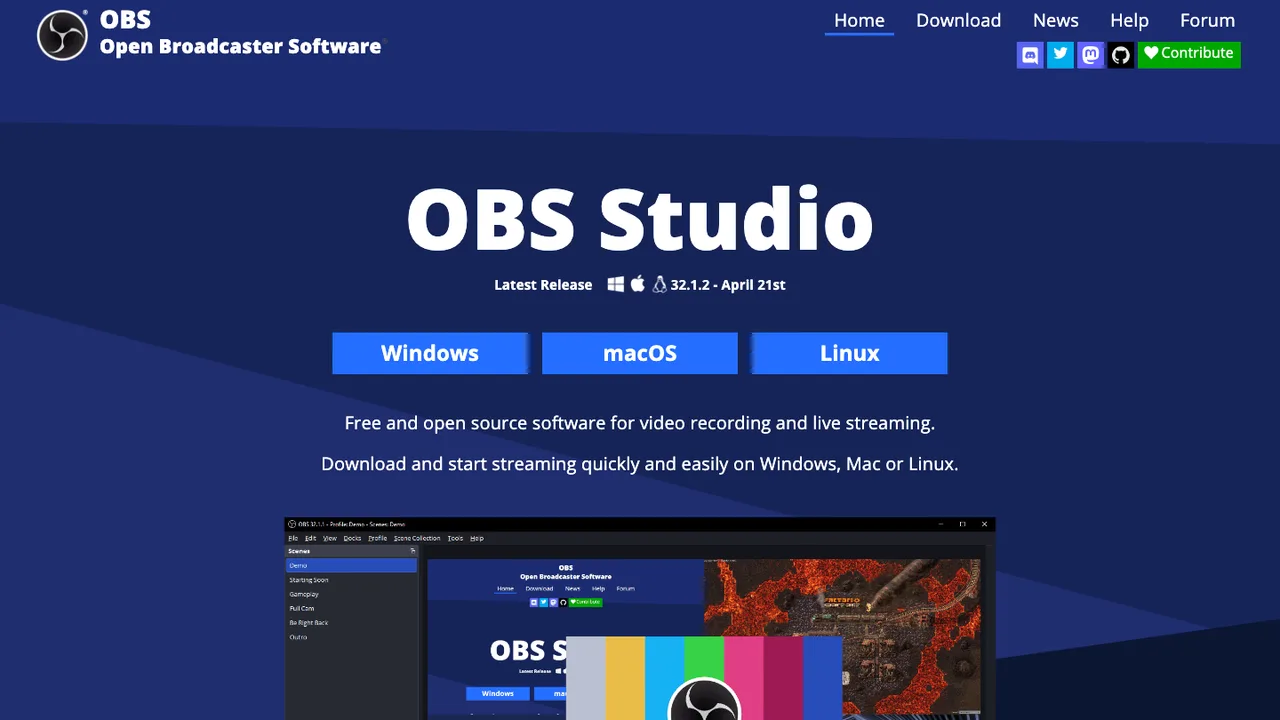
OBS Studio is the strongest option here when you need reusable scenes, several sources, separate audio paths, or detailed encoder control.
OBS's official hardware encoding guide recommends hardware encoders for performance because they move video encoding work away from the CPU to specialized GPU hardware. The same guide documents NVIDIA NVENC, AMD AMF, Intel Quick Sync, and Apple VideoToolbox paths.
That control does not make every OBS recording smooth by default. A complex scene with a camera, browser sources, filters, high resolution, high frame rate, and an aggressive quality preset can still overload the machine. Start with one scene and one hardware encoder. Add sources only after the base recording passes.
If the preview or export turns black instead of merely stuttering, use the OBS black-screen diagnostic guide rather than increasing quality settings.
3. Bandicam for Adjustable Windows Capture Load
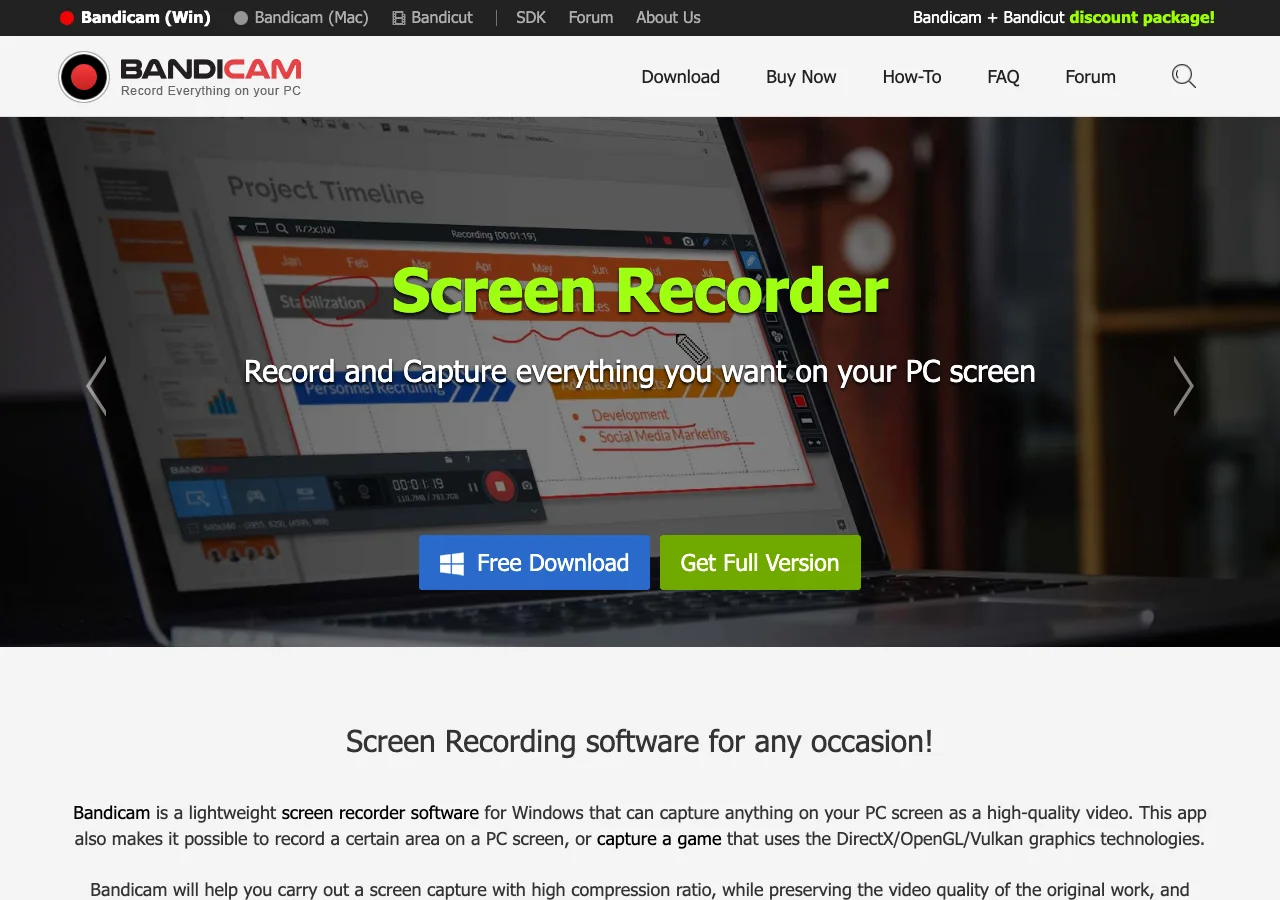
Bandicam is a practical Windows choice when you want separate screen, game, and device recording modes plus direct control over the variables that commonly cause stutter.
The official Bandicam recording-lag guide recommends reducing the recording target resolution, video size, FPS, or quality when the system cannot keep up. It also documents hardware-accelerated H.264 options through NVIDIA NVENC, Intel Quick Sync, and AMD VCE or VCN.
Choose Bandicam when:
- the recording target is a Windows game, app, selected area, or external device;
- you want a vendor-documented troubleshooting path for recording load;
- you are willing to trade some resolution, FPS, or quality for a smoother result.
Bandicam is not a Mac option. Its official guidance also makes an important point that applies to every tool here: recording performance depends on CPU, GPU, memory, and the rest of the system, not only the recorder.
4. FonePaw Screen Recorder for Adjustable General Capture
The competitor opportunity behind this article is FonePaw's six-product no-lag screen recorder comparison. Its current page presents FonePaw Screen Recorder as a Windows and Mac recorder with hardware acceleration plus adjustable frame rate, video quality, audio quality, capture area, system audio, microphone, and webcam options.
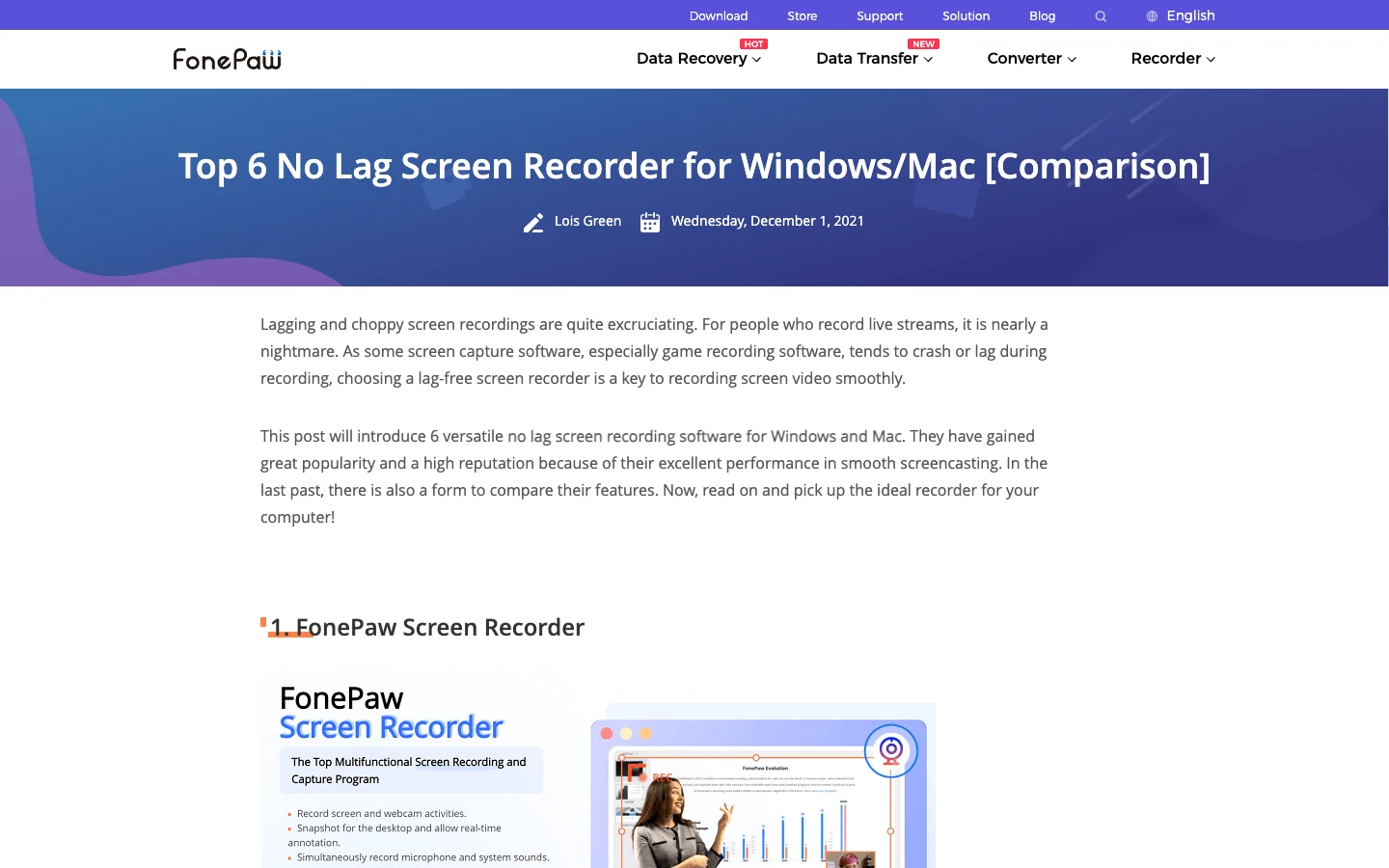
Those are useful workload controls, but the page's smooth-performance language remains a vendor claim. It does not establish that FonePaw will beat OBS, Bandicam, a built-in recorder, or Redol on your hardware.
Choose FonePaw when its public platform and feature set match the job, then verify:
- the current trial or license limits;
- the encoder and frame-rate choices available on your computer;
- a demanding local test with the same audio, webcam, and capture area planned for the final recording.
That evidence-first framing is more reliable than copying a "lag-free" ranking.
5. Xbox Game Bar for a Fast Windows App or Game Clip
Xbox Game Bar is the shortest setup path in this list for recording one Windows game or supported app.
Microsoft's official Xbox Game Bar recording guide documents Windows + Alt + R to start or stop a clip, Windows + Alt + M to toggle the microphone, system-audio settings, and MP4 output in the Captures folder.
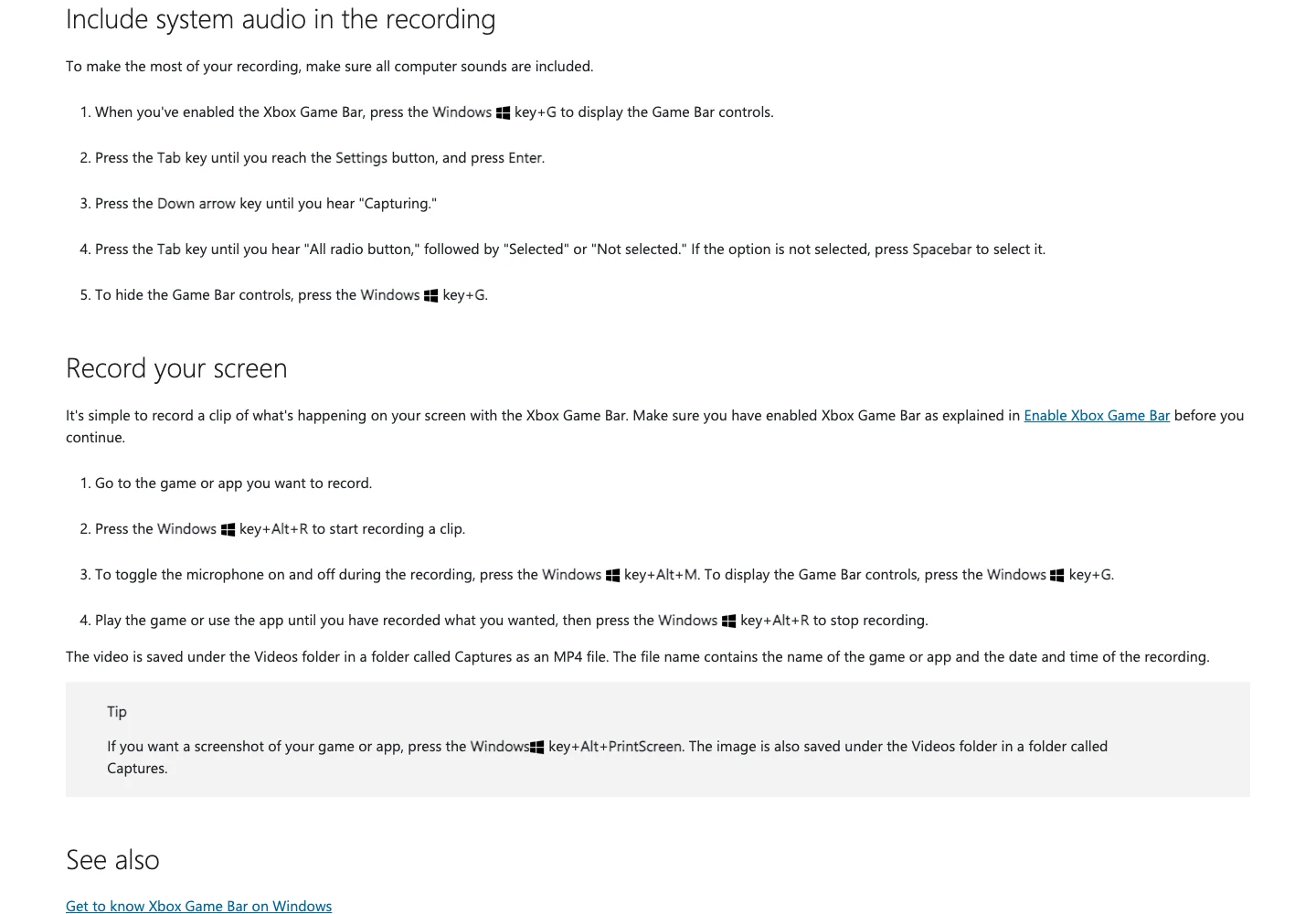
Choose Game Bar when the task is a quick game or app clip and you do not need a production scene, selected desktop region, several cameras, or advanced source routing. Fewer moving parts can make the workflow easier to stabilize, but it still does not guarantee that a demanding game and recording will share the GPU without dropped frames.
6. QuickTime Player and Screenshot for Simple Mac Capture
Apple's built-in path is often enough for a short Mac recording that does not need webcam layout, scene composition, or advanced audio routing.
Apple's Mac screen recording guide documents recording the entire screen or a selected portion with Screenshot or QuickTime Player. Selecting only the necessary region is one of the simplest ways to avoid capturing and encoding pixels the viewer will never need.
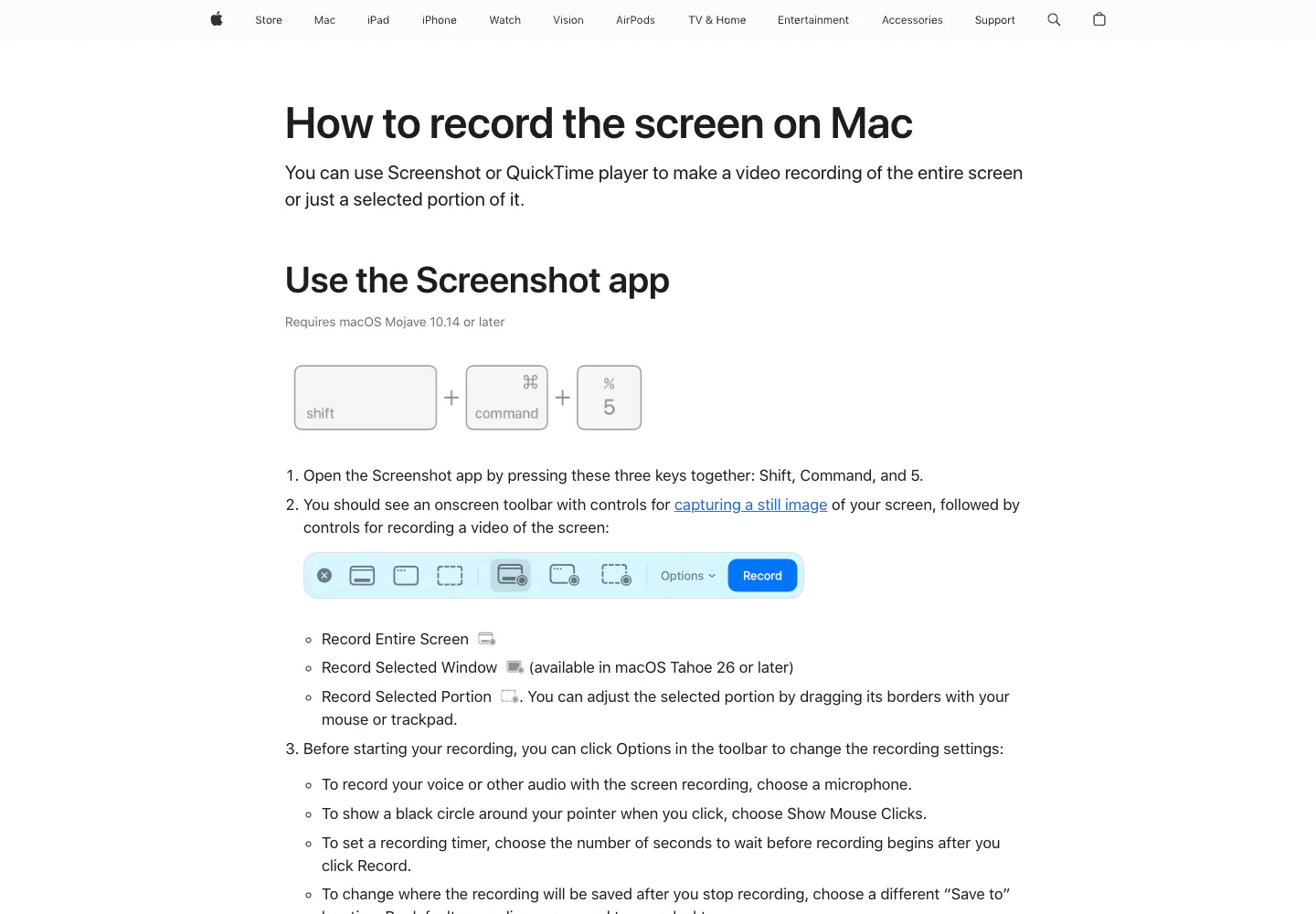
Choose the built-in Mac recorder when speed and simplicity matter more than production controls. If a QuickTime recording is already stuttering, the QuickTime lag troubleshooting guide covers capture scope, competing workloads, export choices, and diagnostic checks in more detail.
Why Screen Recordings Lag
Recorder lag usually comes from a bottleneck, not a brand name.
| Bottleneck | What you may see | First change to test |
|---|---|---|
| CPU encoding load | Choppy preview, dropped frames, slow app response | Use a supported hardware encoder or simplify the scene |
| GPU contention | Game FPS drops while the recording stutters | Lower game settings, recording resolution, or recording FPS |
| Excess capture area | Large files and uneven motion | Record one window or selected region |
| Slow storage | Recording pauses or frames arrive unevenly | Save to a fast local drive with enough free space |
| Too many sources | Preview is smooth until webcam, browser, or filters are added | Remove layers, then add them back one at a time |
| Aggressive quality settings | The machine cannot encode in real time | Use a lighter preset, lower bitrate, or lower frame rate |
| Audio or device conflict | Video is smooth but audio drifts or disappears | Make a short test with the final audio devices selected |
The practical goal is not to maximize every setting. It is to keep the capture workload below the computer's sustained limit.
Run This 60-Second No-Lag Preflight Test
Use the same test before committing to any recorder in the table.
- Match the final scene. Open the game, browser tabs, slides, camera, microphone, and other sources you actually plan to use.
- Record the hardest minute. Capture motion, scrolling, scene changes, and speech rather than a static desktop.
- Watch the exported file. Do not judge only from the live preview.
- Check three failure signals. Look for motion stutter, audio drift, and delayed cursor or camera movement.
- Change one variable. Reduce capture area first, then frame rate, resolution, source count, or quality preset.
- Repeat until stable. Keep the first stable configuration as a named preset or checklist.
Which No-Lag Screen Recorder Should You Choose
Choose Redol Screen Recorder for a supported Apple-silicon Mac workflow that needs local creator-focused capture. Choose OBS Studio for hardware encoder control and complex scenes. Choose Bandicam for adjustable Windows screen or game capture. Evaluate FonePaw from its current public features and your own test, not from a universal lag claim. Use Xbox Game Bar for a fast Windows game or app clip. Use QuickTime Player or Screenshot for a simple built-in Mac recording.
The most reliable recorder is the one that survives your real workload. Start smaller than you think you need, test the exported file, and add complexity only after the recording stays smooth.
Related posts
About the Author

Zhang Guo
AI Product Manager · Digital Marketing Consultant
AI product manager and digital marketing consultant with a background in music. I see creativity as the bridge between rhythm and logic, where musical intuition and mathematical precision can coexist in every meaningful product decision.
Follow on X