Topic: Screen recording guides
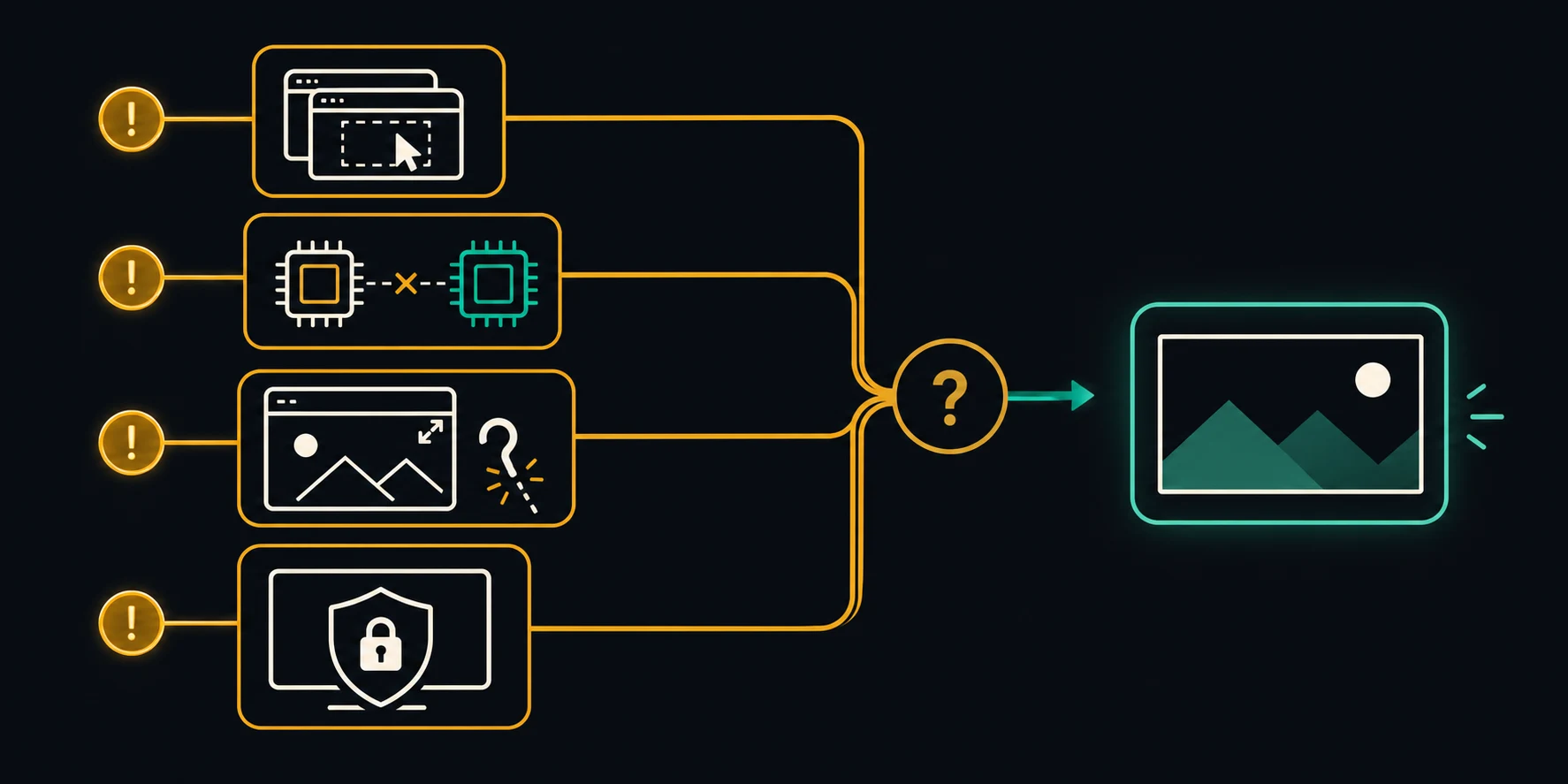
An OBS black screen usually means the wrong capture path is being used, OBS and the target app are running on different GPUs, a game is blocking the capture hook, or macOS has not granted screen-recording permission. Start by identifying which source is black—Game Capture, Display Capture, Window Capture, or macOS Screen Capture—then apply the matching fix below.
Do not change every setting at once. Make one change, restart the affected app when the step requires it, and record a ten-second test clip before moving on.
OBS Black Screen Quick Fix Table
| What is black | Most likely cause | First fix to try |
|---|---|---|
| Game Capture on a Windows laptop | OBS and the game are using different GPUs | Put both apps on the high-performance GPU, then restart both |
| One fullscreen game | The game blocks the capture hook or stops rendering when minimized | Test a recording without Alt-Tab, then try borderless fullscreen and Window Capture |
| Display Capture | Wrong source method, stale source, or GPU mismatch | Recreate the source and test the Windows capture method |
| Window Capture | Wrong window selected or the app uses an incompatible render path | Select the exact window again, then try Display Capture |
| Any capture on macOS | Screen-recording permission is missing | Enable Screen Recording for OBS and restart the app |
| Preview is black but the source exists | Source is hidden, behind another source, or transformed off-canvas | Check the eye icon, source order, Reset Transform, and Fit to Screen |
1. Identify Which OBS Source Is Failing
The fastest fix depends on the source type. Open the affected scene and look in the Sources dock.
- Game Capture directly hooks supported games on Windows.
- Display Capture records an entire display.
- Window Capture records one application window.
- macOS Screen Capture is the current OBS source for capturing a display, window, or application on recent macOS versions.
OBS's official Sources Guide distinguishes these capture paths. Its Game Capture documentation also states that Game Capture is available on Windows, while macOS users should use macOS Screen Capture or Display Capture.
Before changing system settings:
- Confirm the source eye icon is enabled.
- Move the source above background images or color sources.
- Open the source properties and select the intended game, display, or window again.
- Right-click the source, choose Transform, then use Reset Transform and Fit to Screen.
- Record a short test instead of judging only the live preview.
If one source works and another does not, the problem is probably source-specific rather than a general OBS failure.
2. Fix Game Capture Black Screen on Windows
Start with the official Game Capture sequence:
- Close OBS and the game.
- Reopen OBS as administrator if the game requires an elevated capture hook.
- Add a fresh Game Capture source and select the specific game window.
- Disable overlays, FPS counters, or other hook-based utilities temporarily.
- Launch the game and make a short recording.
- If fullscreen capture remains black, try borderless fullscreen and Window Capture.
OBS's Game Capture Troubleshooting guide lists known game-specific limitations and recommends Window Capture for titles that do not allow the normal hook. It also identifies overlay and monitoring tools as possible conflicts.
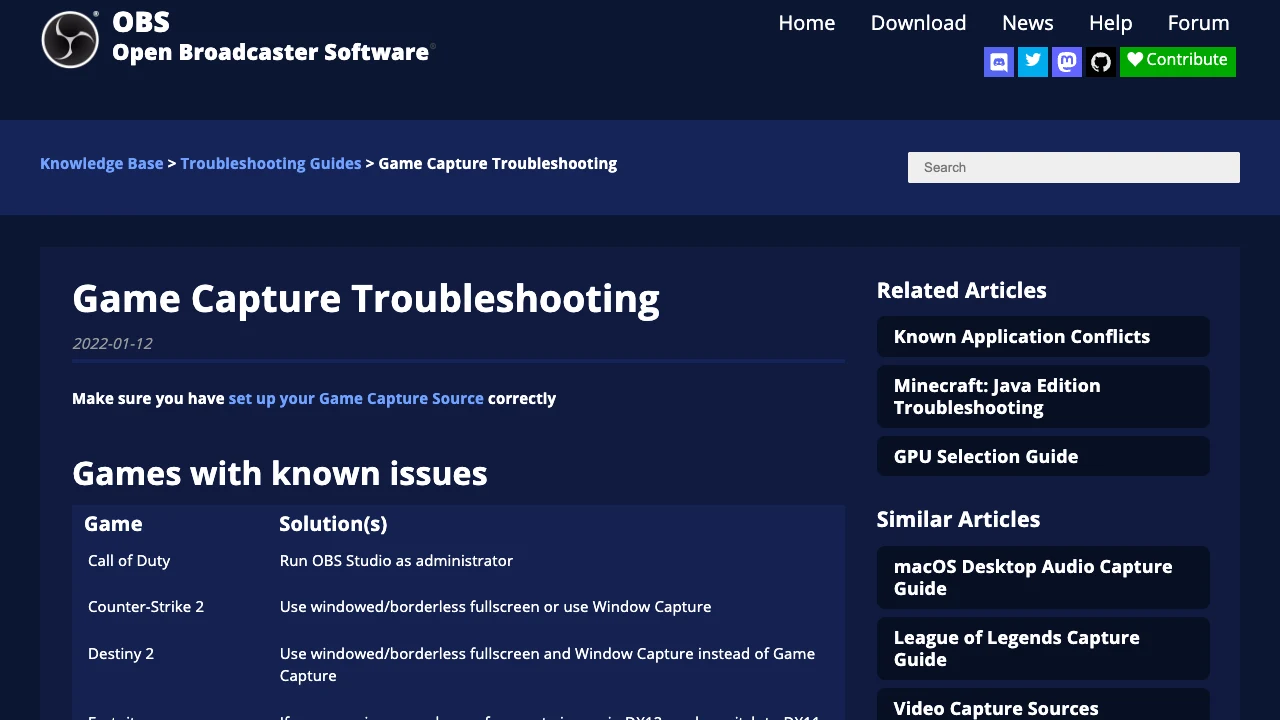
If the game has a documented capture limitation, switching from Game Capture to Window Capture is a compatibility decision, not a quality failure. Use Display Capture only when recording the entire desktop is acceptable from a privacy standpoint.
3. Put OBS and the Game on the Same GPU
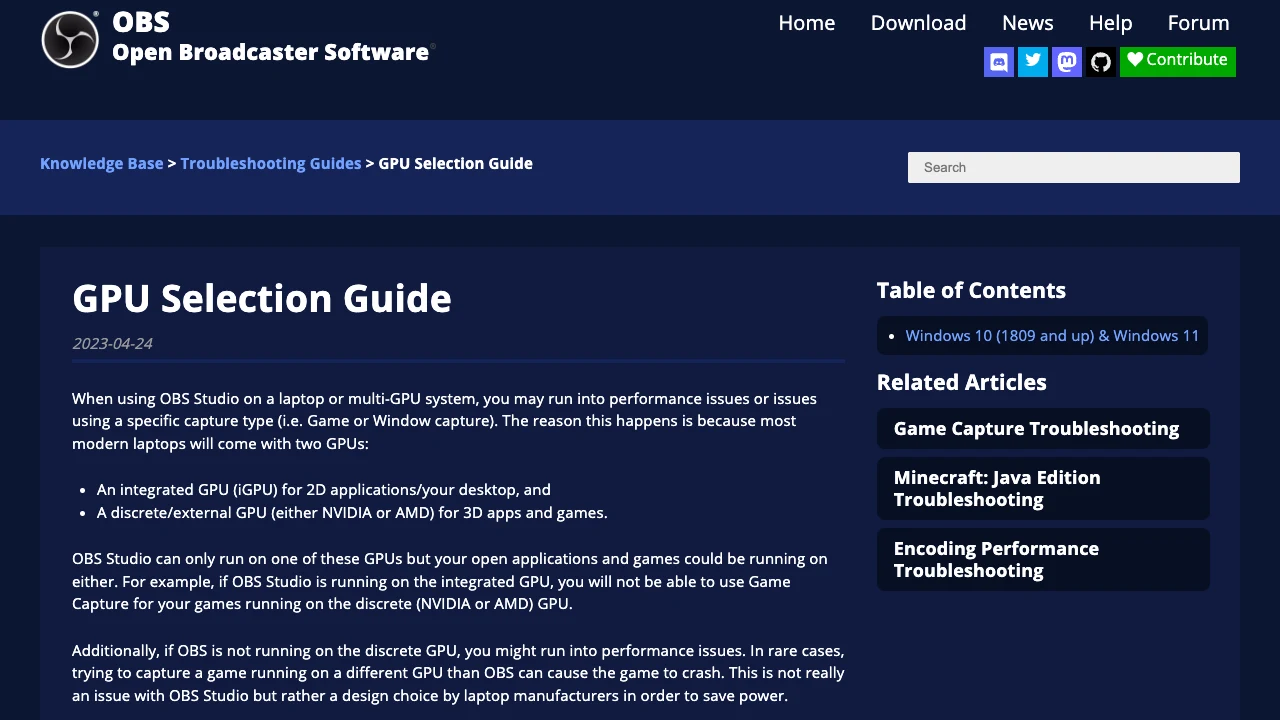
Multi-GPU laptops are a common black-screen case. A laptop may use an integrated GPU for the desktop and a discrete NVIDIA or AMD GPU for games. Game Capture can fail when OBS and the game run on different GPUs.
The official OBS GPU Selection Guide recommends using Windows graphics settings to choose the GPU for OBS. For Game Capture, OBS and the game should normally use the high-performance GPU.
On Windows 10 or 11:
- Close OBS and the game.
- Open Settings → System → Display → Graphics.
- Add the OBS executable if it is not listed.
- Set OBS to High performance.
- Check the game in the same Graphics list and set it to the same high-performance GPU.
- Restart both applications and test Game Capture again.
Do not force a GPU change if current OBS and Windows builds already capture correctly. The goal is to align the failing apps, not to create a permanent exception without evidence.
4. Fix Display Capture or Window Capture
If Game Capture works but Display Capture is black, recreate the Display Capture source before changing drivers or reinstalling OBS.
For Display Capture:
- Remove the failing source from a test scene.
- Add a new Display Capture source.
- Select the intended monitor.
- On supported Windows builds, test the available capture method in source properties.
- Confirm the source is visible and fitted to the canvas.
For Window Capture:
- Open the target application before selecting the source.
- Choose the exact window again.
- Keep the window open and visible during the test.
- If the window remains black, try Display Capture for a short diagnostic recording.
These tests tell you whether the problem is the selected source, the target application's render path, or the wider display-capture pipeline. They also prevent a full OBS reset when only one scene source is stale.
5. Restore Screen Capture Permission on macOS
On macOS, a black source often means OBS cannot read the screen. OBS's macOS Permissions Guide says Screen Recording permission is required to capture desktops, windows, and apps.
In OBS:
- Open OBS Studio → Review App Permissions.
- Enable Screen Recording.
- Enable Camera or Microphone only if the scene uses those devices.
- Quit OBS completely.
- Reopen OBS and recreate the macOS Screen Capture source if needed.
On recent macOS versions, use the macOS Screen Capture source for a display, window, or application. Do not follow Windows Game Capture instructions on a Mac; Game Capture is a Windows source.
6. Check Conflicting Software and Capture Limits
If the correct source and GPU still produce black video, reduce the number of programs trying to hook the same game.
Temporarily close:
- FPS counters and performance overlays
- GPU tuning overlays
- another screen recorder
- game overlays you do not need
- security software only when its own documentation identifies a capture conflict
Then restart OBS and the game. Do not disable security controls broadly or permanently just to test a recorder.
Some protected video services, anti-cheat systems, and games intentionally limit capture. A black screen caused by protected playback is not something to bypass. Use the service's supported offline, sharing, or recording options instead.
7. When a Simpler Recorder Is the Better Fix
Fix OBS when you need scenes, multiple sources, plugins, live switching, or streaming control. Switch workflows when the real task is only a local product demo, tutorial, support clip, or course recording.
For tool-selection guidance, compare the best OBS alternatives. If the work is on an Apple Silicon Mac, Redol Screen Recorder is a simpler local recording path with system audio, microphone, webcam overlay, crop and zoom controls, cursor emphasis, and local MP4 export. It is not an OBS repair tool, a livestream studio, or a Windows recorder.
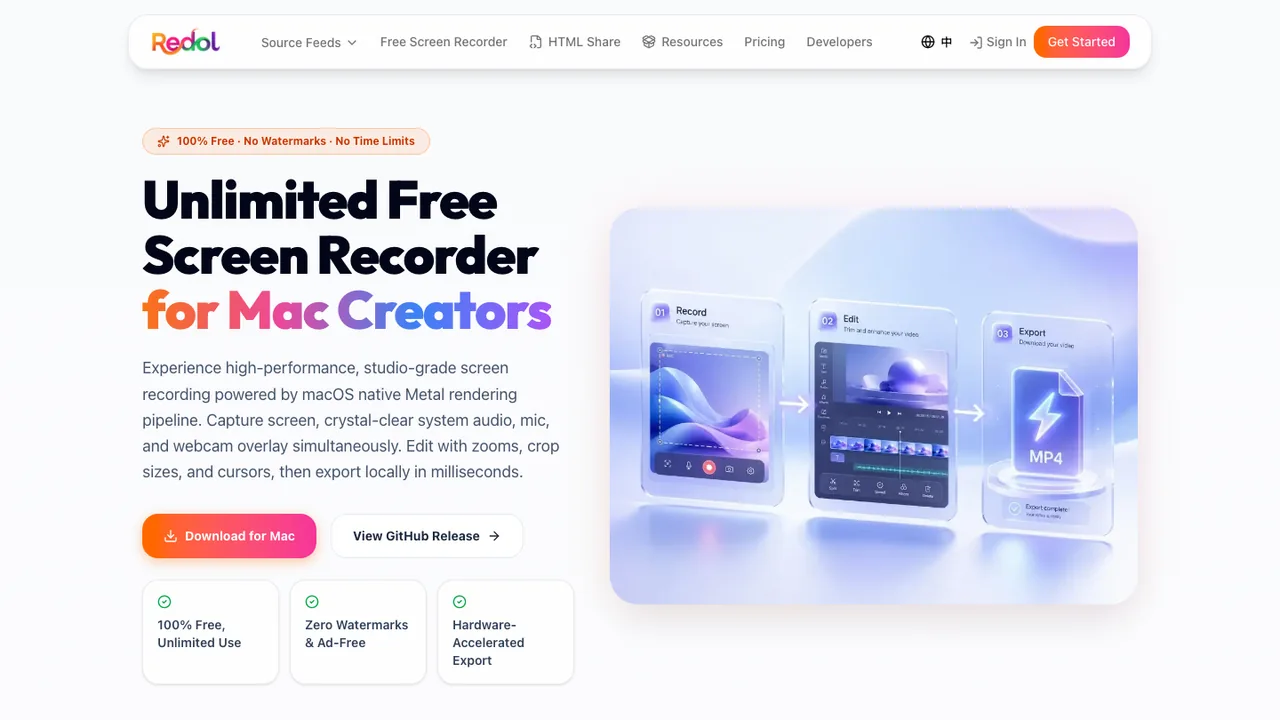
Record a clean local Mac clip without an OBS scene setup
Use Redol when you need a private tutorial, demo, or support recording rather than streaming and multi-source production.
Final OBS Black Screen Checklist
Run this checklist in order:
- Identify the failing source type.
- Confirm the source is visible, selected correctly, and fitted to the canvas.
- Use Game Capture only for supported Windows games.
- Put OBS and the game on the same high-performance GPU.
- Test borderless fullscreen or Window Capture for incompatible games.
- Close conflicting overlays and other recorders.
- Grant Screen Recording permission on macOS and restart OBS.
- Make a ten-second recording after each change.
- Keep OBS when you need production control; use a simpler recorder when you only need a clean local clip.
This order keeps the diagnosis narrow. It also gives you a clear stopping point: once one source records correctly, preserve that working setup instead of changing unrelated output, encoder, or streaming settings.
Related posts
About the Author

Zhang Guo
AI Product Manager · Digital Marketing Consultant
AI product manager and digital marketing consultant with a background in music. I see creativity as the bridge between rhythm and logic, where musical intuition and mathematical precision can coexist in every meaningful product decision.
Follow on X