If you are searching for an Icecream Screen Recorder review, the useful question is not whether the product page looks simple. It is whether Icecream fits the recording job you actually have: quick screen capture, screenshots, webcam narration, scheduled recording, a one-off tutorial, or a repeatable Mac creator workflow.
The short verdict: Icecream Screen Recorder is worth evaluating when you want a straightforward recorder for Windows, Mac, or Android and your work includes basic screen capture, audio, webcam, and screenshots. Before depending on it, verify the current free-version limits, watermark behavior, license terms, platform support, and export needs on Icecream's official pages. If your main job is local Mac recording with no watermark, system audio, mic narration, webcam overlay, crop controls, zooms, cursor emphasis, and MP4 export, Redol Screen Recorder is the cleaner fit.
Quick Verdict
| Review question | Public-source answer | What to check before recording |
|---|---|---|
| What is Icecream Screen Recorder for? | Screen recording, audio recording, webcam overlay, screenshots, and related capture tasks | Confirm the exact operating system, export format, and feature set you need |
| Who should consider it? | Users who want a simple conventional recorder instead of a production suite | Test a short clip with your real audio, webcam, and screenshot workflow |
| Where does it look strongest? | Basic capture, screenshot support, and a familiar desktop-recorder interface | Check whether the free or paid plan matches your recording length and output needs |
| Where should you be careful? | Plan limits, watermark rules, scheduled recording, and platform-specific behavior | Verify the current PRO page before buying or recording important work |
| When is Redol better? | Local Mac creator recordings that need no-watermark MP4 export and repeatable setup | Keep this recommendation Mac-specific because Redol's Windows client is planned, not live |
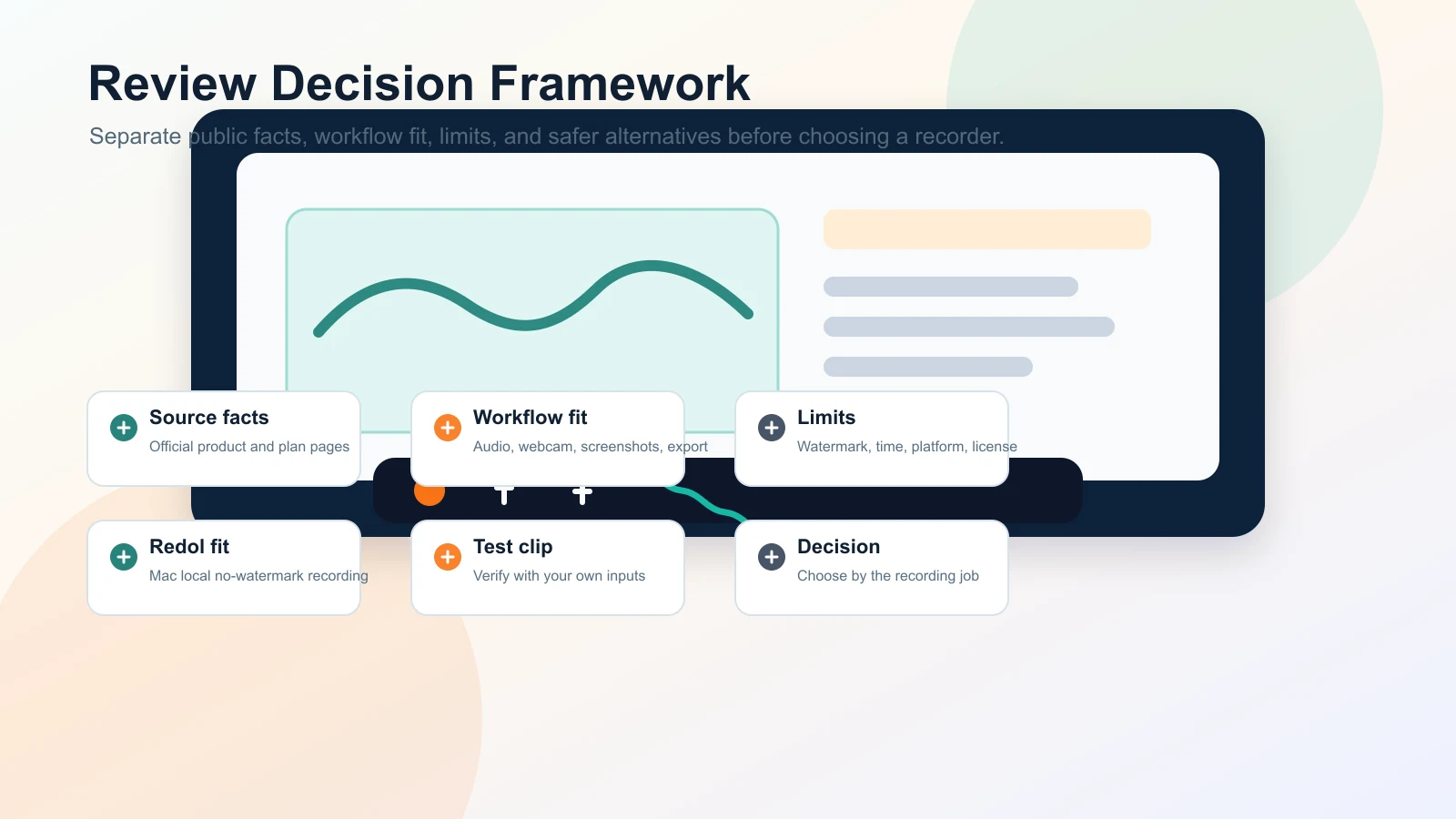
Review Method and Official Sources
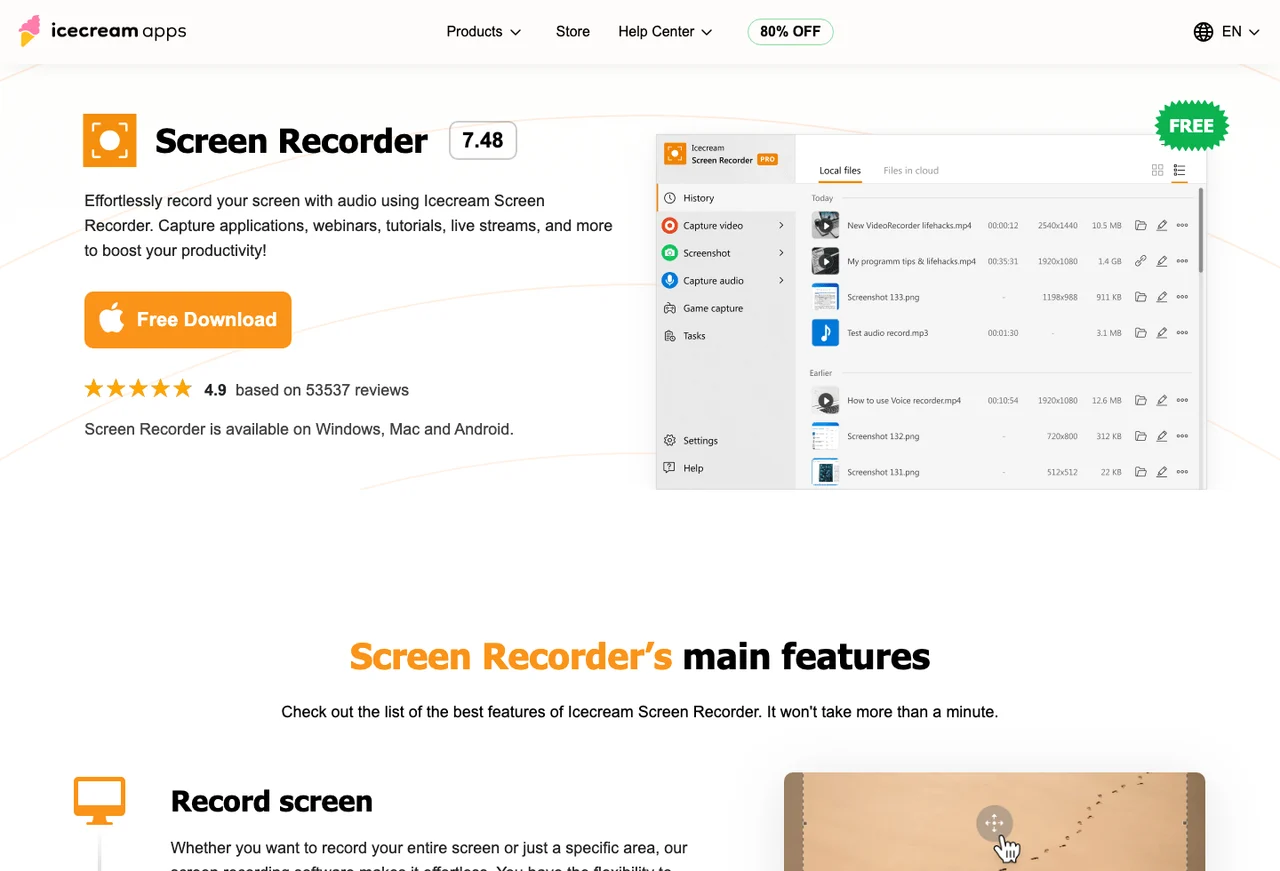
This review uses Icecream's official public pages and local screenshots. The main sources are the official Icecream Screen Recorder product page and the official Icecream Screen Recorder PRO page.
That method matters because recorder reviews often mix three separate claims:
- product positioning: what the vendor says the app can do
- plan behavior: what the current free or paid page allows
- workflow fit: whether the recorder helps your specific recording job
Keep those separate. A recorder can be easy to understand and still be wrong for a weekly product-demo workflow if audio, watermark, export, privacy, or setup friction gets in the way.
What Icecream Appears to Offer
Icecream's current product page positions Screen Recorder as a tool for capturing screen video with audio and taking screenshots of the whole screen or a selected area. The page also presents webcam recording, microphone and system audio capture, hotkey display, logo/watermark options, and scheduled recording as part of the broader product story.
That makes Icecream reasonable to evaluate when you need:
- a simple desktop screen recorder
- full-screen or selected-area capture
- screenshots as well as video
- webcam overlay for explanation
- microphone and system audio support
- scheduled or repeated recording features
- Windows, Mac, or Android availability from the same vendor family
The most practical way to review it is to make a small test project. Record 60 seconds with the exact inputs you need: screen area, microphone, system audio, webcam overlay, cursor movement, and final export format. Then inspect the file before recording a course lesson, customer walkthrough, or public tutorial.
Free, PRO, and Limit Checks
Icecream's official PRO page is part of the review because plan details shape the real workflow. At the time this draft was prepared on July 1, 2026, the page showed paid plan cards for Screen Recorder PRO and listed plan-side capabilities such as no recording time limit, no watermark, cloud storage, multiple video formats, scheduled screen recording, and commercial use. Treat those details as changeable vendor terms, not timeless guarantees.
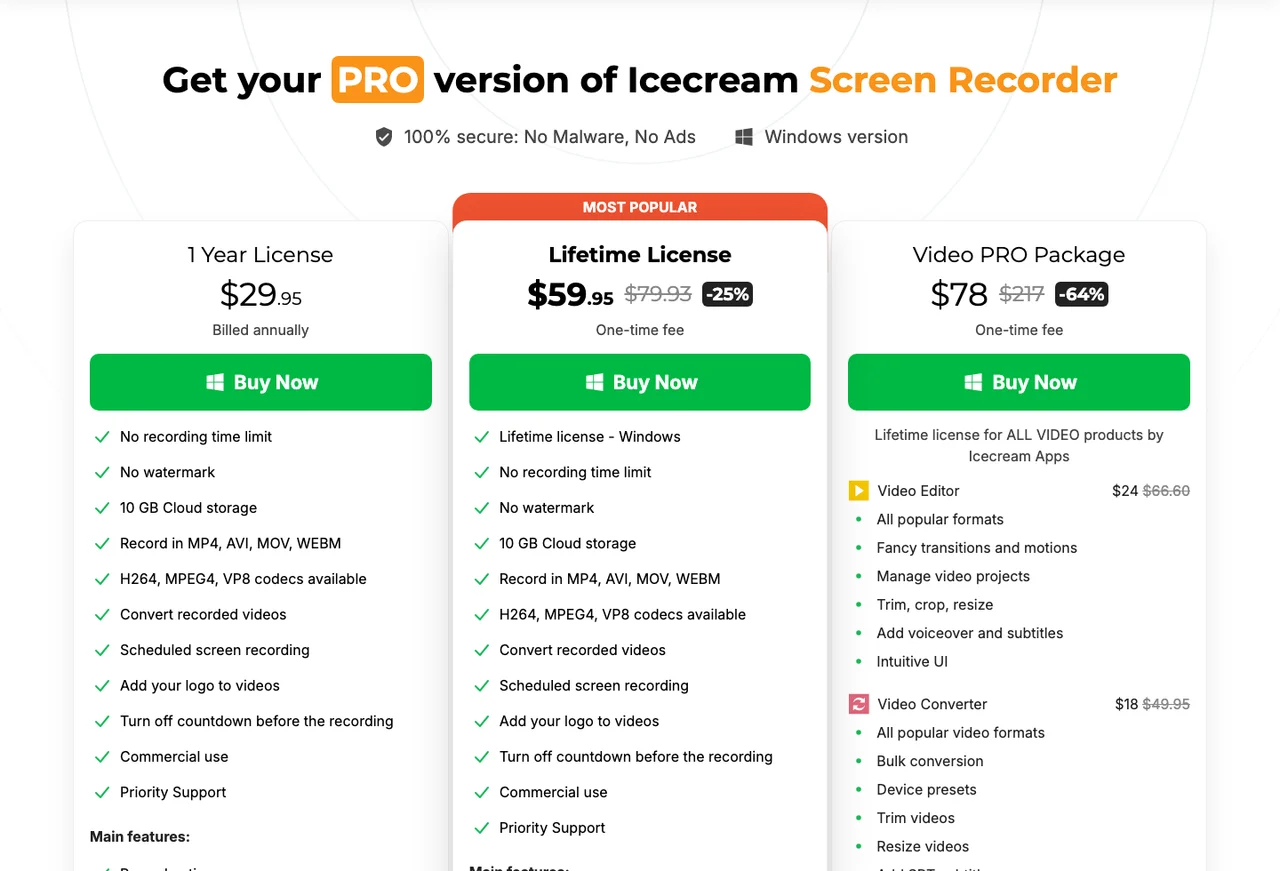
Before you choose Icecream, check:
- Watermark behavior: whether the output is usable for public tutorials, courses, or client work.
- Recording length: whether the free or paid workflow supports the session length you need.
- Platform fit: whether the current Mac, Windows, or Android build supports your device and operating system.
- Audio setup: whether system audio and microphone narration work together in your environment.
- Screenshot workflow: whether screenshot capture and editing are important enough to influence the choice.
- Scheduled recording: whether the scheduler works for the exact webinar, class, or recurring capture job you have.
- License terms: whether the current renewal, commercial-use, support, and cloud-storage terms fit your work.
These checks are not special criticism of Icecream. They are the basic due diligence for any screen recorder that will produce public or reusable video.
Where Icecream Fits Well
Icecream looks strongest when the user wants a conventional recorder that also handles screenshots. If your recording job is occasional, if the interface matters more than advanced scene control, and if you are willing to verify the current plan limits, it deserves a place on the shortlist.
Use Icecream when:
- you need screen recording and screenshots in one product family
- the recording is occasional rather than a weekly production workflow
- you want a simpler path than OBS-style scene setup
- you need to compare Windows, Mac, or Android availability
- scheduled recording is a real requirement and the current plan supports it
The official page also displays vendor-published social proof. That can help you understand how Icecream markets the product, but it should not replace your own test clip. Ratings, screenshots, and feature lists do not prove that your microphone, app audio, webcam position, and export workflow will work on the first long recording.
Limits to Check Before You Rely on It
The main review risk is treating "simple screen recorder" as a complete workflow answer. A short bug clip, a software demo, a course module, a webinar capture, and a social video all fail in different ways.
Use this checklist before depending on Icecream:
| If your recording needs... | Test this before relying on Icecream |
|---|---|
| System audio plus microphone | Export a short clip and listen for missing audio, drift, or uneven volume |
| Webcam overlay | Confirm the size, position, and final clarity after export |
| Screenshots and video | Check whether screenshot editing and video export both fit your task |
| Scheduled recording | Run a short scheduled test before trusting a webinar or class |
| Long tutorials | Verify recording length, plan limits, and file format before starting |
| Client or course content | Confirm watermark, commercial-use terms, and local/cloud storage behavior |
| Repeat weekly recording | Make sure the setup can be repeated without extra cleanup every time |
If the test clip passes, Icecream may be enough. If the test reveals watermark friction, missing audio, unclear webcam placement, or plan uncertainty, switch before recording the full piece.
When Redol Is the Better Alternative
Redol Screen Recorder is the better fit when the job is specifically a local Mac creator recording that should become a reusable asset: a product demo, support answer, course clip, async update, software walkthrough, or tutorial.
The current Redol product page and source position it as a free macOS screen recorder with no watermarks, no recording time limits, system audio, microphone narration, webcam overlay, crop and resize controls, zooms, cursor actions, and local MP4 export. The current public page also shows the Windows client as planned, so keep this recommendation Mac-specific.
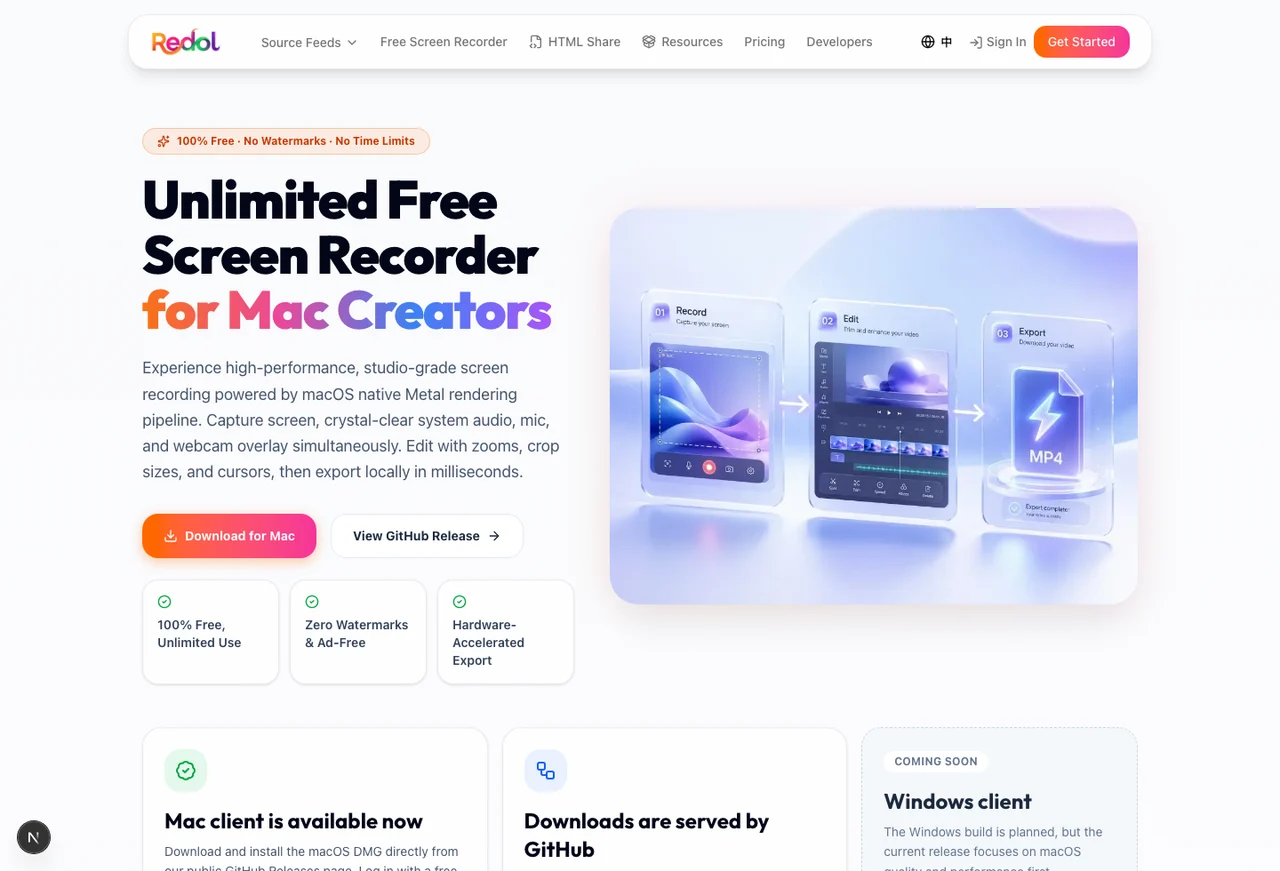
Choose Redol when:
- your recording is on Mac
- you want a no-watermark local MP4
- raw footage should stay local before sharing
- system audio and microphone narration both matter
- webcam overlay, crop, zoom, or cursor emphasis would make the video clearer
- you record product walkthroughs, tutorials, or support clips repeatedly
Do not choose Redol for Windows-first work yet. For Windows recording, compare Icecream, OBS, Xbox Game Bar, ShareX, Movavi, Bandicam, and other Windows tools from their current official pages.
Record a clean local Mac video
Use Redol Screen Recorder for no-watermark Mac captures with system audio, mic narration, webcam overlay, zooms, crop controls, cursor actions, and local MP4 export.
Icecream vs Redol
| Need | Icecream Screen Recorder | Redol Screen Recorder |
|---|---|---|
| Simple recorder category | Strong fit to evaluate from official pages | More focused on Mac creator capture |
| Screenshots plus recording | Product page positions both screenshots and video capture | Focuses on screen recording workflow rather than screenshot editing |
| Mac local recording | Check current Mac build, plan, and export behavior | Strong fit for local no-watermark MP4 workflows |
| Windows recording | Product page positions Windows availability | Windows client is planned, not live |
| Scheduled recording | PRO page lists scheduled recording as a plan-side capability | Not the main Redol positioning today |
| Webcam plus audio | Product page positions webcam, mic, and audio capture | Current Redol page positions webcam, system audio, and mic capture |
| Pricing confidence | Check the current PRO page before buying | Current Redol screen-recorder page positions the Mac recorder as free |
For broader comparisons, read Redol's guide to the best screen recording software for Mac. If avoiding export marks is the main requirement, compare the best free screen recorders without watermarks. If OBS is the tool you are trying to replace, use the guide to best OBS alternatives.
Final Recommendation
Icecream Screen Recorder is worth checking if you want a straightforward screen recorder with screenshot support and you are comfortable verifying the current plan terms before recording important work. It looks most useful for basic capture jobs where simplicity matters more than a highly tuned creator workflow.
Use Icecream if its current official pages and your own short test clip confirm the capture, screenshot, audio, webcam, schedule, and export behavior you need. Use Redol if your main job is a local Mac recording with system audio, mic narration, webcam overlay, no watermark, and a clean MP4 export path.
Related posts
About the Author

Zhang Guo
AI Product Manager · Digital Marketing Consultant
AI product manager and digital marketing consultant with a background in music. I see creativity as the bridge between rhythm and logic, where musical intuition and mathematical precision can coexist in every meaningful product decision.
Follow on X