If you searched for a Movavi Screen Recorder review, the useful question is not whether Movavi can record a screen. Its official pages make that clear enough. The real question is whether Movavi is the right recorder for your job: a quick tutorial, a scheduled webinar, a customer walkthrough, a Mac product demo, or a reusable local video asset.
The short verdict: Movavi Screen Recorder is worth evaluating when you want a conventional desktop recorder with screen capture, audio, webcam overlay, annotations, scheduling, and simple export workflows. Before relying on it, verify the current trial limits, watermark behavior, plan terms, protected-stream disclaimer, and platform fit on Movavi's official pages. If your main job is local Mac recording with no watermark, system audio, mic narration, webcam overlay, crop controls, zooms, cursor emphasis, and MP4 export, Redol Screen Recorder is the cleaner fit.
| Question | Practical answer |
|---|---|
| What is Movavi Screen Recorder for? | Desktop screen recording with audio, webcam, annotations, scheduling, and screenshots |
| Where does it fit best? | Webinars, meetings, presentations, tutorials, and general desktop capture |
| What should you verify first? | Trial limits, watermark behavior, current plan terms, OS support, export needs, and protected-stream restrictions |
| When is Redol a better fit? | Local Mac creator recordings where no-watermark MP4 export and source privacy matter more than a broad commercial suite |
What This Review Checks
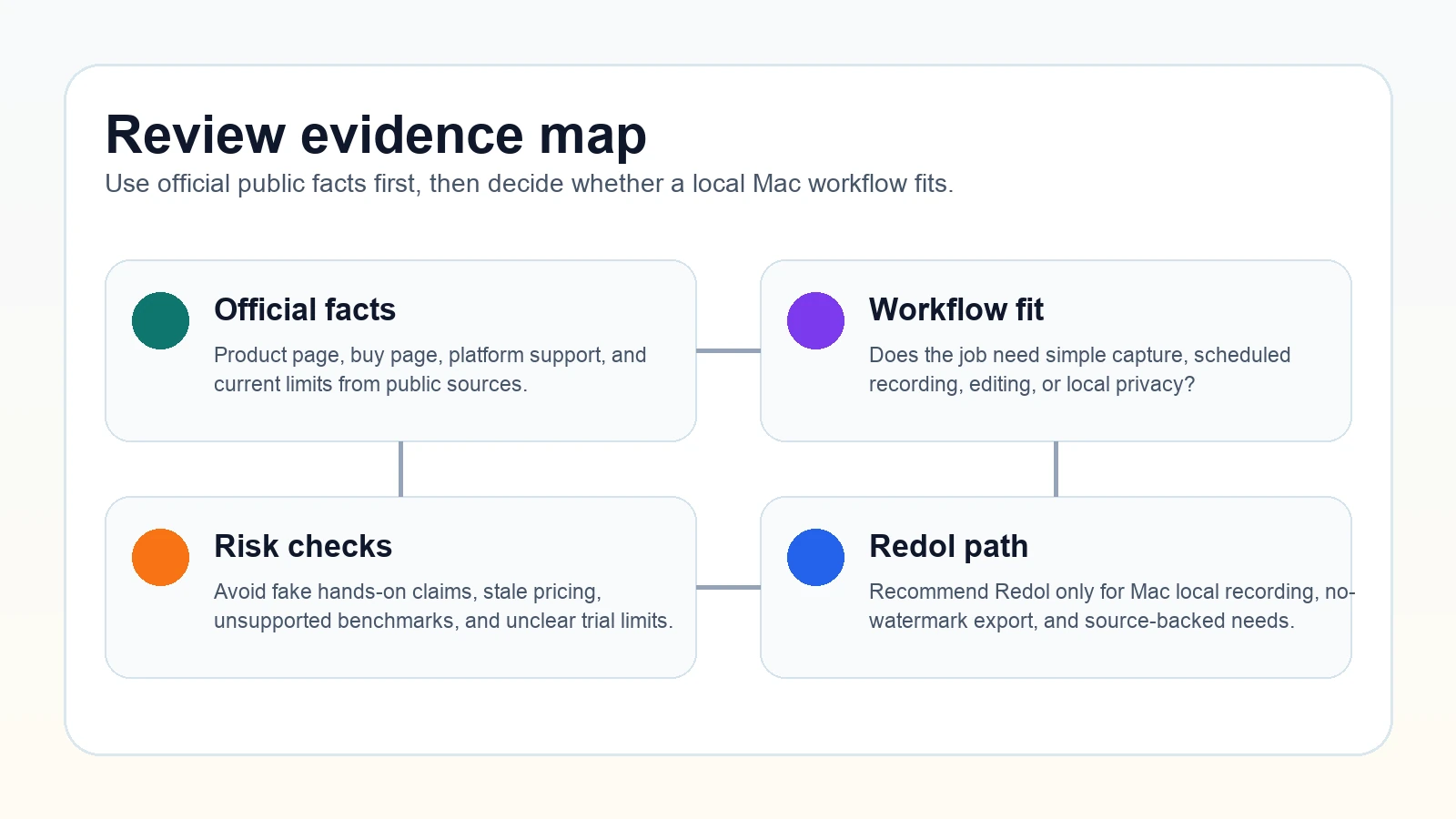
This review uses current public surfaces rather than invented hands-on claims. The main sources are the official Movavi Screen Recorder page, the official Movavi Screen Recorder buy page, and the competitor page that surfaced this opportunity, FonePaw's Movavi Screen Recorder review.
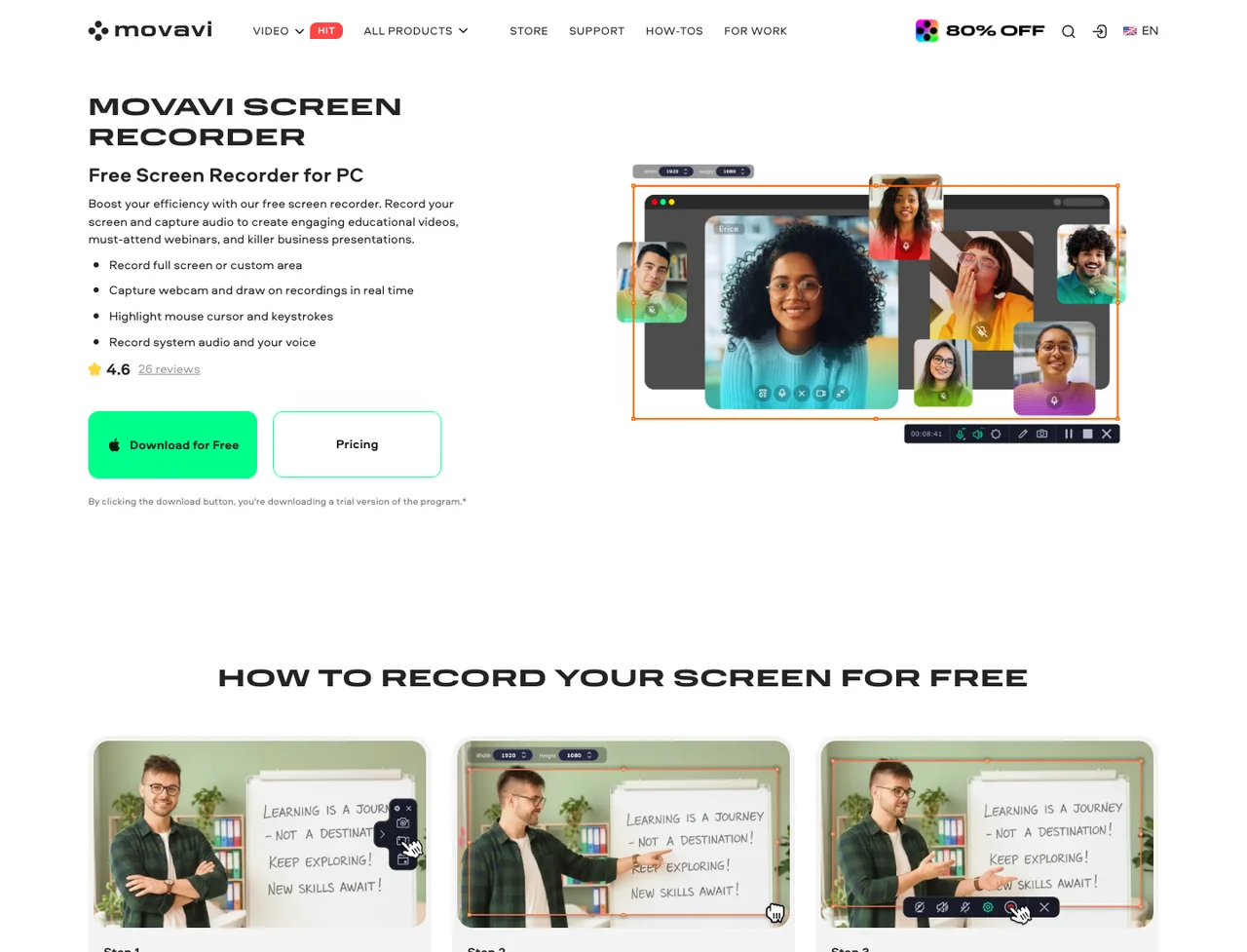
The official Movavi page positions Screen Recorder around recording the full screen or a custom area, capturing webcam video, drawing on recordings, highlighting mouse actions and keystrokes, and recording system audio plus voice. It also presents use cases such as webinars, presentations, prospecting videos, Google Meet, Teams, Zoom calls, and YouTube clips.
That is enough to treat Movavi as a real candidate for general desktop recording. It is not enough to assume every plan, export rule, watermark policy, or protected-video case will work for your exact project. Those are the details to verify before you record anything important.
Movavi Strengths
Movavi's best fit is the middle ground between built-in screen capture and a heavier production tool. It looks most relevant when you want one commercial app for common recording jobs:
- selecting a full-screen or custom capture area
- recording screen, voice, system audio, or webcam
- adding mouse, keystroke, and drawing cues
- scheduling recordings for webinars or streams
- making screenshots and scrolling screenshots
- exporting a straightforward desktop recording
Those features map well to training clips, short customer explanations, presentations, online calls, and tutorial drafts. If your team wants a familiar commercial recorder and is comfortable checking plan details before a project, Movavi belongs on the shortlist.
Limits to Verify Before You Rely on It
The official product page labels the download as a trial version. The same public page states trial restrictions including a 7-day trial period, watermark on output videos, and a YouTube-sharing metadata limitation. It also includes a protected-stream disclaimer. That means you should not treat "download for free" as the same thing as "unlimited free production recorder."
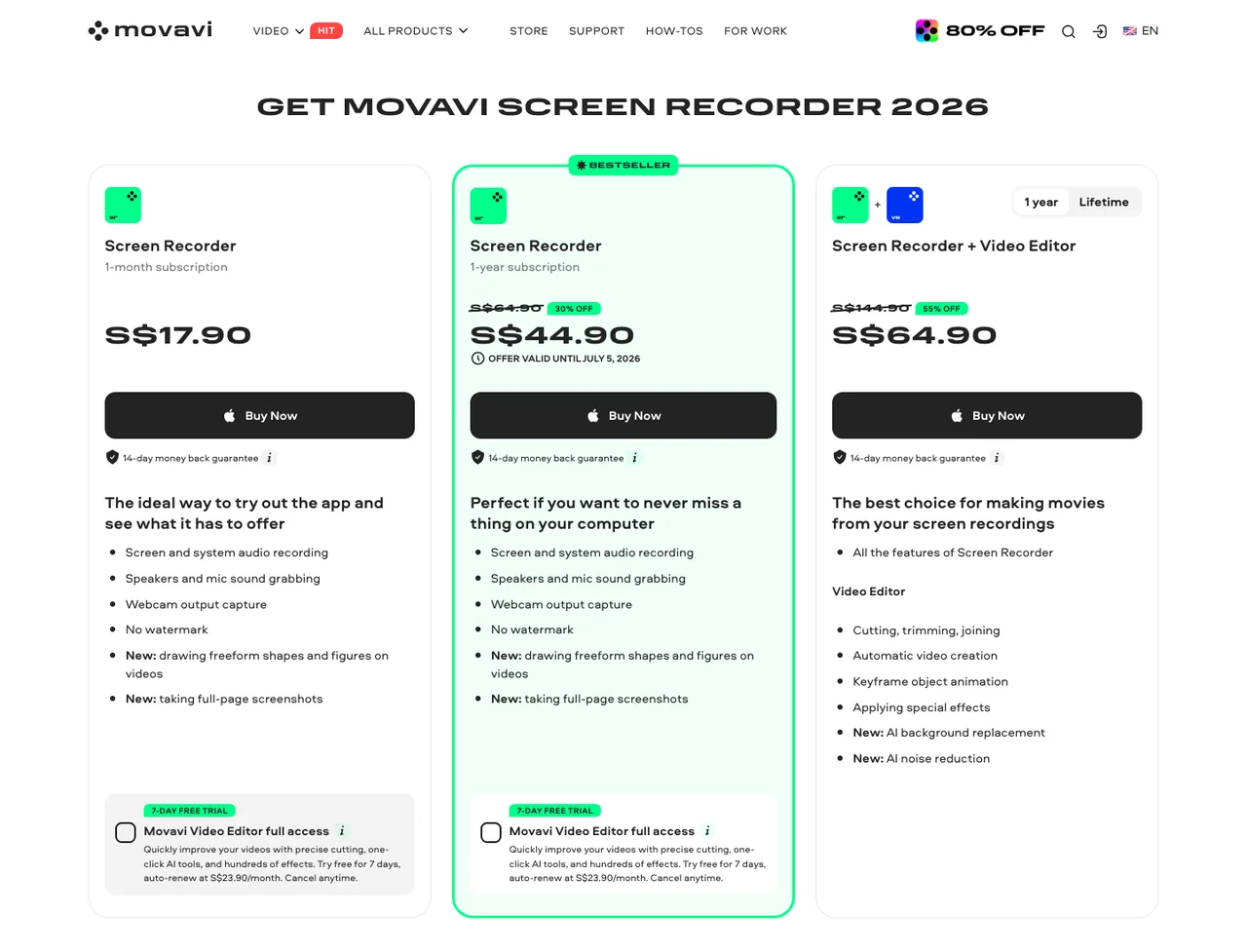
Before recording a long tutorial, course lesson, or client deliverable, check:
- whether your current download is a trial or paid build
- whether exports carry a watermark
- whether your plan covers the operating system and device you use
- whether scheduling, webcam, microphone, and system audio work in your setup
- whether your target content is allowed to be captured
- whether you need editing tools that live in a separate Movavi product or bundle
When Movavi Fits Well
Choose Movavi as a candidate when your recording job is broad and you want one commercial recorder for everyday desktop capture. It is especially relevant when scheduling, annotation, webcam overlay, mouse/keystroke display, or screenshot capture matters.
Movavi is also a practical option to compare when OBS feels too complex but built-in tools feel too thin. It gives you more recording workflow than a basic screenshot utility without asking you to build a scene system, streaming setup, or plugin stack.
For Mac users, the key question is whether you want a broad commercial app or a narrower local recording path. If you need scheduling or a conventional paid recorder, Movavi may be worth testing. If you mainly need a private Mac clip that becomes a clean MP4, a focused local recorder can be faster.
When Redol Is the Better Fit
Redol Screen Recorder is the better fit when the job is specifically a Mac creator recording that should become a reusable local asset: a product demo, support answer, course clip, async update, software walkthrough, or tutorial.
The current Redol product page and source position it as a free macOS screen recorder with no watermarks, no recording time limits, system audio, microphone narration, webcam overlay, crop and resize controls, zooms, cursor actions, and local MP4 export. The current public page also shows the Windows client as planned, so keep this recommendation Mac-specific.
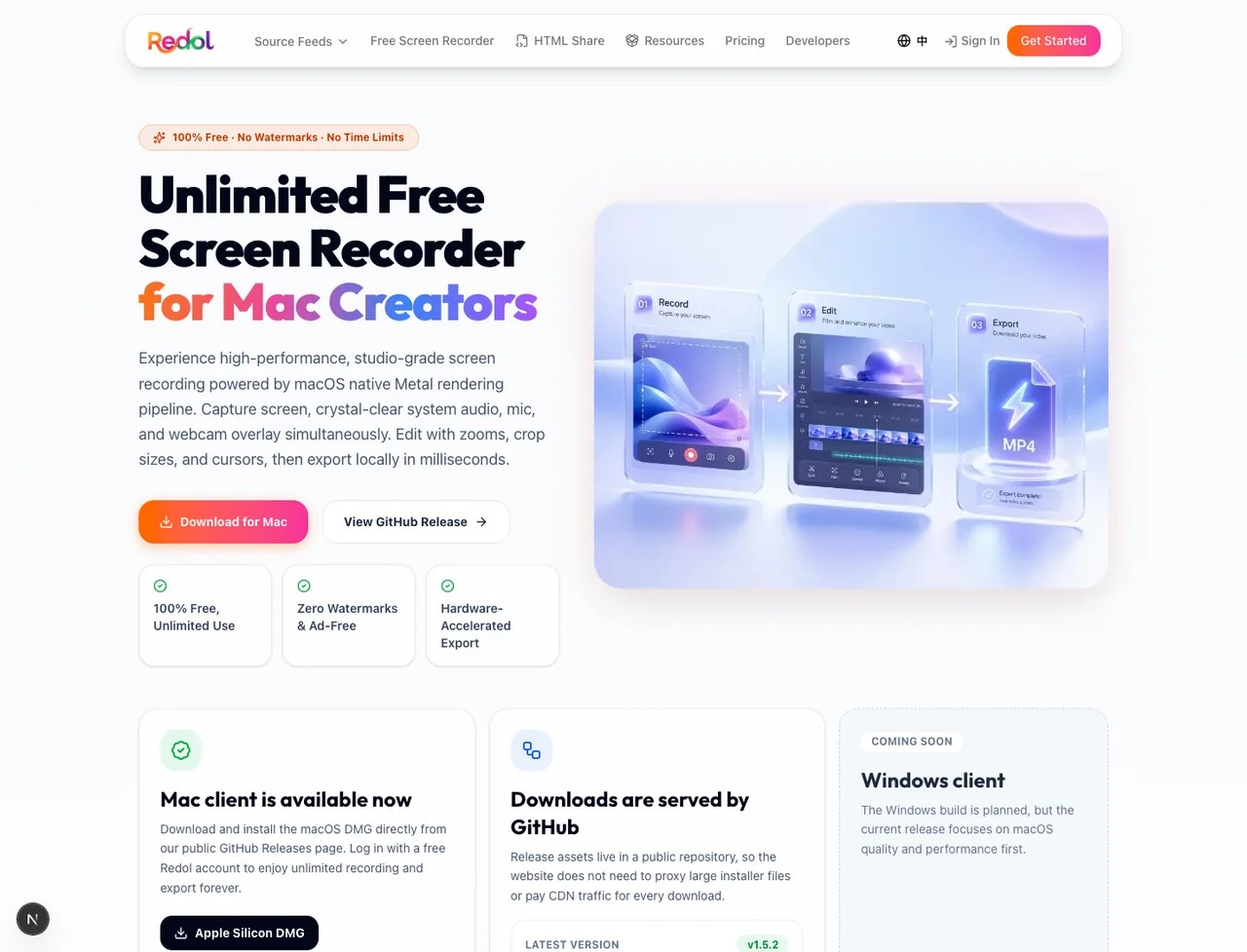
Use Redol when:
- you record on Mac
- you want local capture and local MP4 export
- you need system audio plus microphone narration
- you need a webcam overlay without building an OBS-style scene
- you want no-watermark exports and no recording time limit
- you care more about a clean capture workflow than a broad software bundle
Do not choose Redol for Windows-first work yet. The current Redol page presents Windows as planned rather than live. For Windows recording, compare the current Movavi build, OBS, Xbox Game Bar, ShareX, and other Windows tools instead.
Record Mac tutorials without watermark cleanup
Use Redol Screen Recorder for local Mac captures with system audio, mic narration, webcam overlay, zooms, crop controls, cursor actions, and clean MP4 export.
Movavi vs Redol
| Need | Movavi Screen Recorder | Redol Screen Recorder |
|---|---|---|
| Broad desktop recorder | Stronger fit when you want a conventional commercial recorder | Better only when the job is Mac local recording |
| Scheduling | Official Movavi page highlights recording scheduler use cases | Not the primary Redol fit |
| System audio and voice | Official pages mention screen/system audio and mic capture | Redol product page says it supports system audio and mic narration |
| Webcam overlay | Official pages mention webcam capture | Redol product page says webcam overlay is supported |
| No-watermark workflow | Verify current plan/trial behavior before relying on exports | Current Redol page positions Mac exports as no-watermark |
| Windows recording | Movavi is a stronger current candidate to check | Windows client is planned, not live |
| Local Mac creator clips | Useful if you want a broader commercial app | Cleaner fit for focused Mac MP4 recording |
This comparison is not a universal ranking. Movavi and Redol solve overlapping but different jobs. Movavi is a broader commercial recorder. Redol is a focused Mac recording workflow.
How to Decide
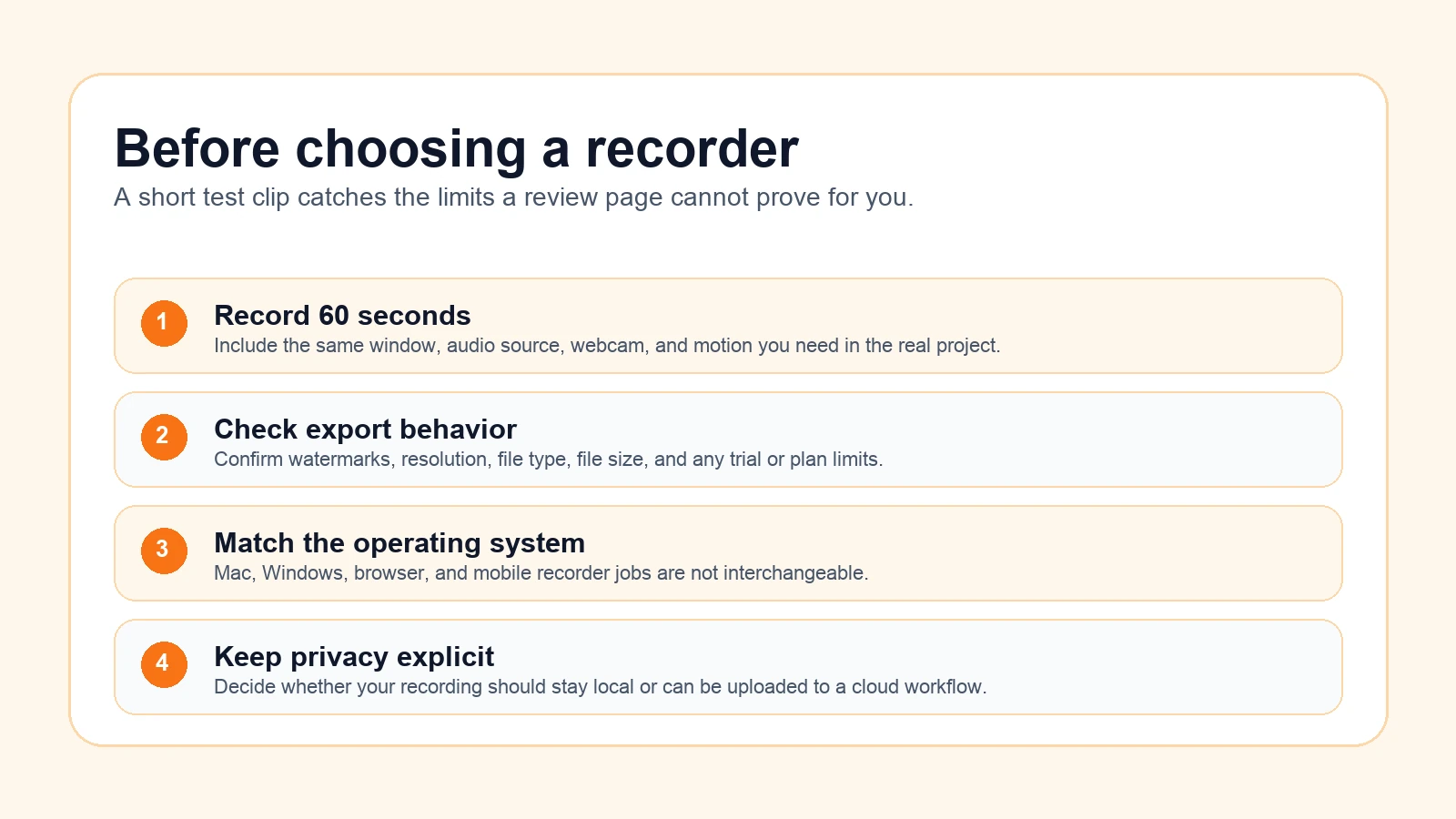
Use Movavi if its current official pages and your own short test clip confirm the recording, export, plan, and platform behavior you need. It is a sensible candidate for scheduled webinars, business presentations, general desktop tutorials, and users who prefer a conventional paid screen recorder.
Use Redol if your main job is a local Mac recording with system audio, mic narration, webcam overlay, no watermark, no recording time limit, and a clean MP4 export path. For broader context, compare Redol's guide to the best screen recording software for Mac, the best OBS alternatives, and the best free screen recorders without watermarks.
Bottom Line
Movavi Screen Recorder is worth evaluating if you want a broad desktop recorder and are willing to verify the current trial, plan, export, and protected-stream details before depending on it. The product's public pages describe enough recording features to make it a legitimate candidate.
Redol is the better fit when the recording is Mac-first, local, no-watermark, and meant to become a reusable tutorial, demo, support clip, or course asset. Start with the job, run a one-minute test, and choose the recorder that fails the fewest real constraints.
Related posts
About the Author

Zhang Guo
AI Product Manager · Digital Marketing Consultant
AI product manager and digital marketing consultant with a background in music. I see creativity as the bridge between rhythm and logic, where musical intuition and mathematical precision can coexist in every meaningful product decision.
Follow on X