The best screen recorder for gaming depends on whether you need a full match, the last unexpected highlight, a scene-based production, or a clean tutorial built around gameplay. There is no universal winner: the right recorder must fit your operating system, graphics hardware, game launcher, audio mix, camera needs, and final file workflow.
For most players, start with the recorder already closest to the game. Use Xbox Game Bar for a simple Windows clip, NVIDIA App for rolling highlights on a supported RTX PC, or Steam Game Recording for Steam-native background capture. Choose OBS Studio when scenes and source control matter, Bandicam for a Windows-focused game capture workflow, and Redol Screen Recorder for local Mac gameplay tutorials that need narration, webcam, and editing controls.
| Recorder | Best fit | Platform or hardware | Capture model | Main limitation to check |
|---|---|---|---|---|
| OBS Studio | Complex scenes, capture cards, and creator control | Windows, macOS, Linux; Windows-only Game Capture source | Full recording plus optional Replay Buffer | Setup and encoder choices require testing |
| Xbox Game Bar | Fast built-in Windows game or app clips | Windows 10/11 | Manual clip recording | Limited production controls in current official guidance |
| NVIDIA App | Highlights and rolling capture on an RTX gaming PC | Windows 10/11 with supported RTX GPU | Manual recording plus Instant Replay | Hardware, driver, anti-cheat, and protected-content constraints |
| Steam Game Recording | Steam games and Steam Deck workflows | Steam Desktop Client and Steam Deck | Record in Background or Record on Demand | Does not capture the desktop or other apps |
| Bandicam | Windows DirectX, OpenGL, or Vulkan capture | Windows | Manual game recording mode | Free version adds a watermark and 10-minute limit |
| Redol Screen Recorder | Local Mac gameplay tutorials and creator clips | Apple-silicon macOS | Manual screen or area recording | Not a Windows recorder or instant-replay tool |
How We Compared Gaming Screen Recorders
This roundup uses current official product and support pages rather than invented benchmark scores. We compared each recorder on the questions that change a real gameplay workflow:
- Does it record a complete session, save a rolling highlight, or support both?
- Does it capture the game directly, the screen, a selected area, or a launcher-managed session?
- Which operating systems, GPUs, or launchers does the official documentation support?
- Can it combine game audio, microphone narration, webcam, overlays, or several sources?
- Does the finished clip stay local, require an export step, or enter a hosted workflow?
- What happens when anti-cheat, protected content, storage pressure, or an unsupported game blocks capture?
We did not rank tools by an unrepeatable “lowest FPS loss” claim. Capture overhead changes with the game, encoder, GPU, resolution, frame rate, storage device, overlays, and other software. The useful test is a short recording on the machine and game you will actually use.
1. OBS Studio for Flexible Scenes and Source Control
OBS Studio is the strongest option in this list when gaming footage is part of a production rather than a single raw clip. It is free and open source on Windows, macOS, and Linux, and its scene system can combine a game, webcam, capture card, browser source, images, and several audio sources.
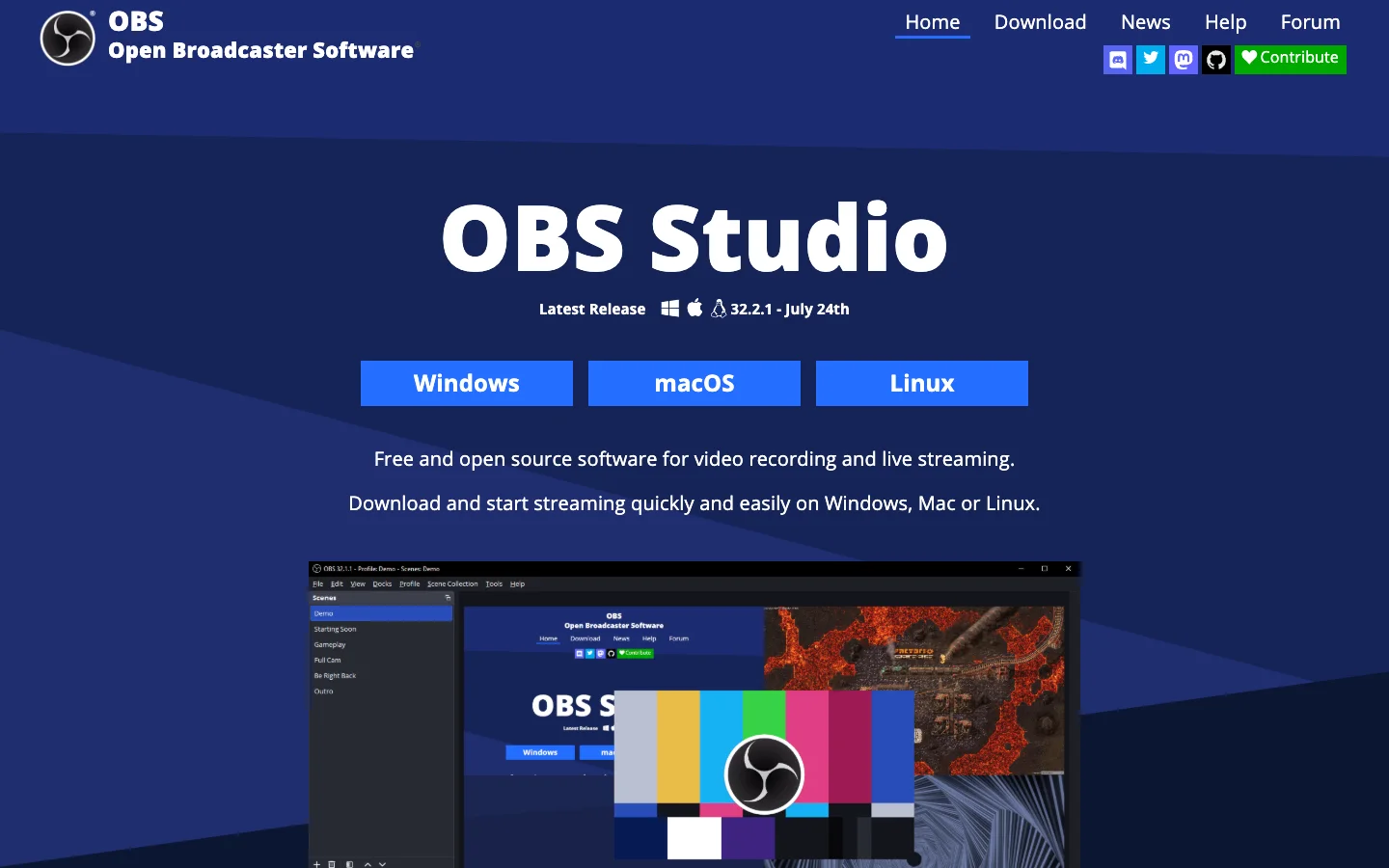
On Windows, OBS documents a dedicated Game Capture source for directly capturing DirectX and OpenGL games. Its official overview also documents Replay Buffer, which can keep recent footage available for a hotkey save when enabled.
Choose OBS for streaming-style scenes, a capture-card console setup, several audio sources, or a creator workflow that will grow over time. Expect more setup than a built-in recorder. Test the selected source, encoder, audio tracks, Replay Buffer duration, storage path, and recovery format before a long session.
2. Xbox Game Bar for Simple Built-In Windows Clips
Xbox Game Bar is the shortest path when you want to record a selected game or app on Windows 10 or 11 without installing a full production suite. Microsoft's current Game Bar capture guide documents Win + Alt + R to start and stop, a microphone toggle during recording, and MP4 files saved under Videos\\Captures.
Choose Game Bar for a quick bug clip, a short achievement, or a lightweight app recording. It is not the best starting point when you need several scenes, a camera layout, detailed audio routing, or a repeatable post-production template.
The official Xbox Support page remained in a loading state during this run's browser capture, so this section intentionally uses verified public documentation without pretending a usable local screenshot was captured. Test the shortcut and audio selection in the exact game before relying on it.
3. NVIDIA App for RTX Instant Replay and Highlights
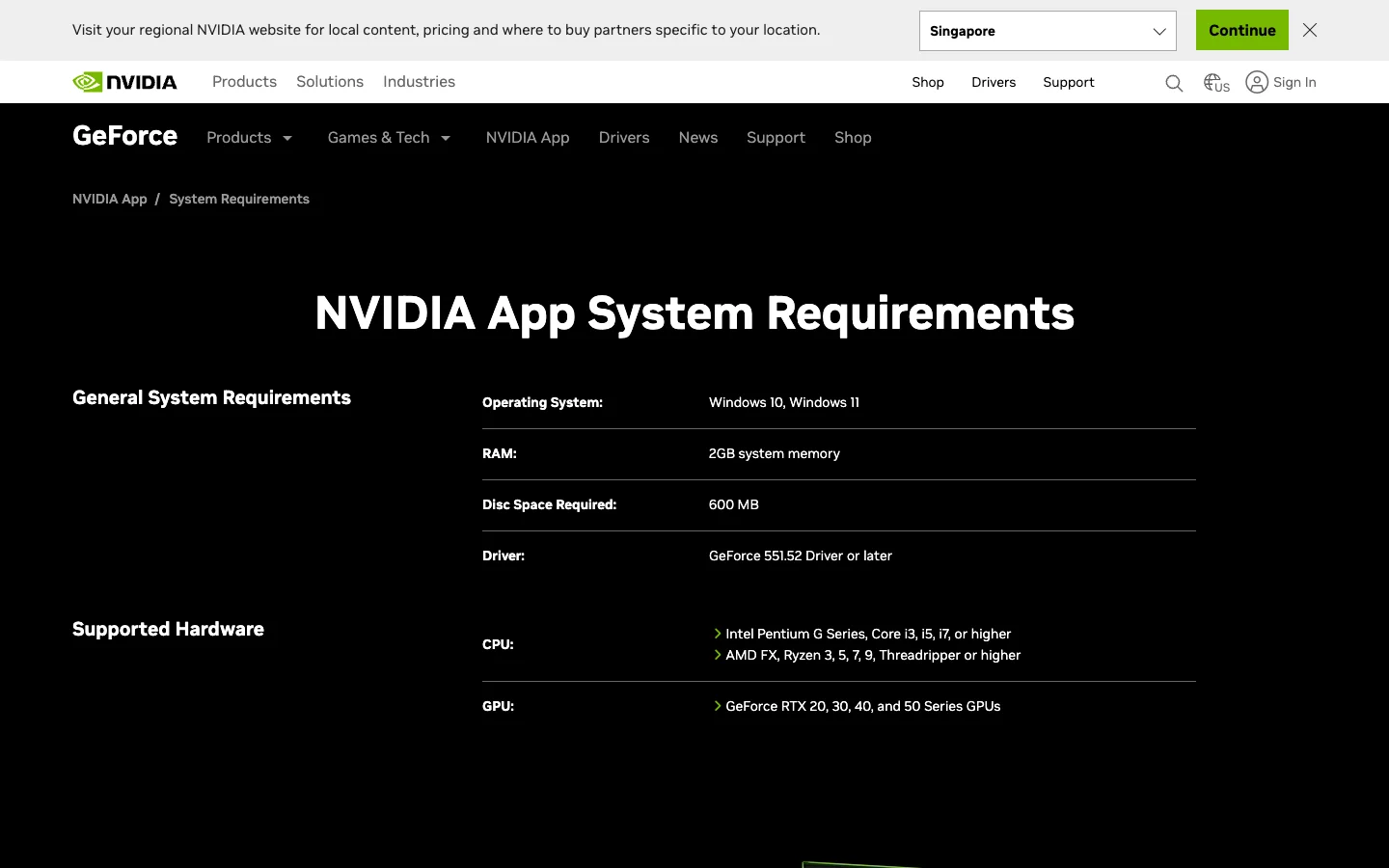
The NVIDIA App is built for a narrower but valuable job: recording on a supported GeForce RTX gaming PC. NVIDIA's current system requirements specify Windows 10 or 11, a recent GeForce driver, and RTX 20, 30, 40, or 50 Series hardware.
Its in-game overlay separates ordinary recording from Instant Replay. NVIDIA describes Instant Replay as a rolling capture that can save a recent moment after it happens. That makes it a better fit than manual-only recording when the highlight is unpredictable.
Choose NVIDIA App when you already have supported hardware and want low-friction highlights close to the GPU ecosystem. Verify the current driver, overlay shortcut, save folder, audio-track setting, and clip length. NVIDIA also warns that copy-protected content and some aggressive anti-cheat software can block or stop desktop capture, so run a sample in the exact game.
4. Steam Game Recording for Steam-Native Background Capture
Steam Game Recording is the most direct option when the game already runs through Steam. Valve's official Steam Game Recording FAQ documents two modes: Record in Background keeps temporary rolling footage, while Record on Demand captures only after you turn it on.
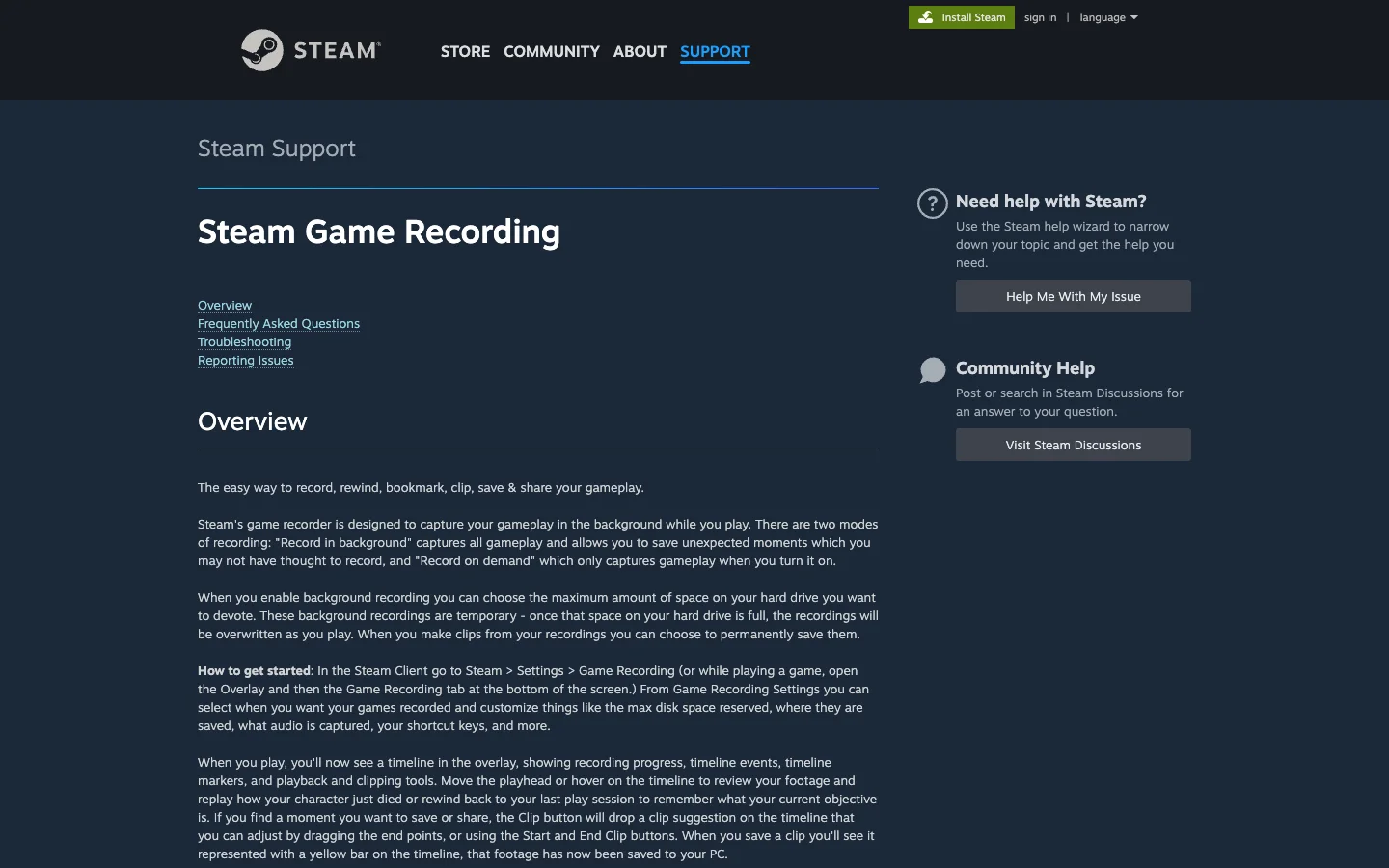
The Steam overlay provides a timeline, markers, clipping tools, disk-space controls, and audio settings. Saved clips can be exported as MP4 files. On Steam Deck, recordings and clips are available through the Media view.
The boundary is important: Valve says the recorder captures games played through the Steam Client, not the desktop or other programs. Choose it for Steam highlights and Deck-to-PC clip handling. Choose another recorder when the tutorial must move between the game, browser, launcher, settings, and editing apps.
5. Bandicam for Windows Game Recording Mode
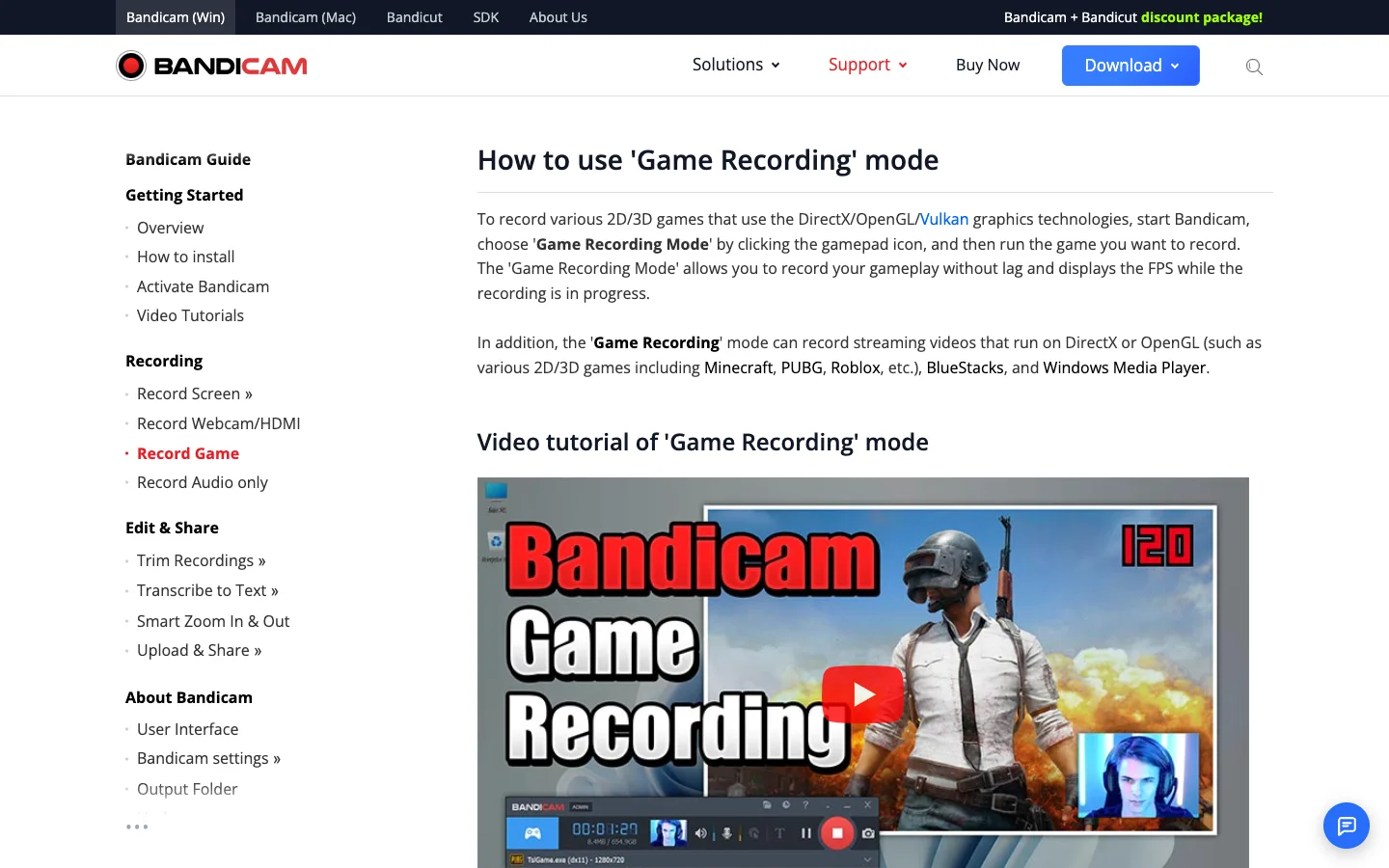
Bandicam is a Windows-focused choice for DirectX, OpenGL, and Vulkan games. Its official Game Recording Mode guide shows the FPS indicator and the F12 start/stop workflow, while its settings documentation covers computer audio, microphone input, webcam picture-in-picture, and AVI or MP4 output.
Choose Bandicam when the game is on Windows and you want a conventional recorder with gameplay, voice, and webcam options in one product. Its official free-versus-full documentation states that the free version limits each recording to 10 minutes and adds a Bandicam watermark; the registered version removes those two limits.
Do not assume Game Recording Mode will attach to every title. If the FPS indicator does not appear, Bandicam's own guide recommends trying a specific-window or screen-recording path. That fallback changes the capture model, so verify the result before the real take.
6. Redol Screen Recorder for Local Mac Gameplay Tutorials
Redol Screen Recorder is the Mac-local option in this comparison. The current product route supports screen or selected-area capture, system audio, microphone narration, webcam overlay, zooms, cursor emphasis, crop and resize controls, and local MP4 export on Apple-silicon macOS.
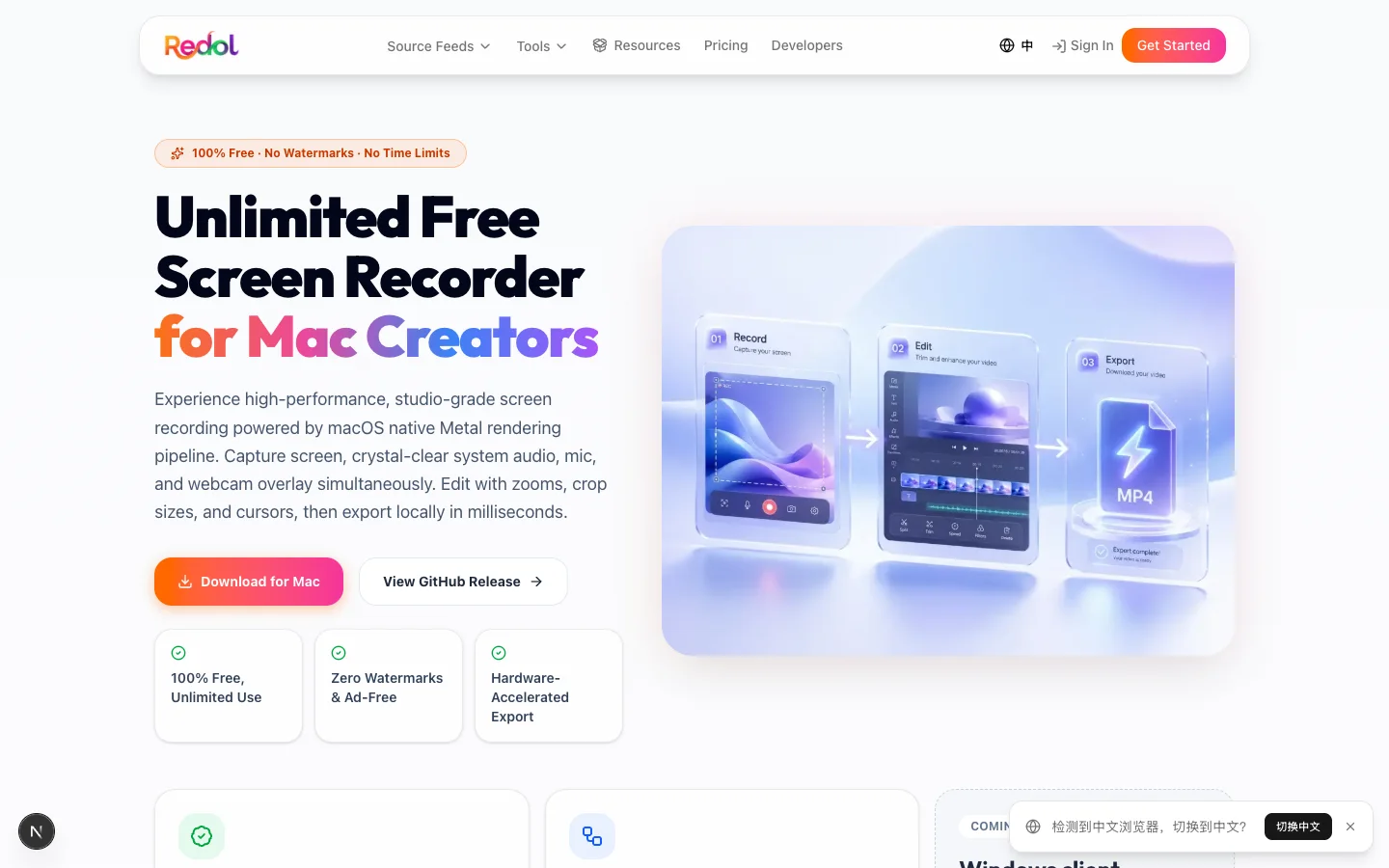
Choose Redol when gameplay is one part of a narrated tutorial, walkthrough, course lesson, or creator clip and the result should remain local until you decide to share it. It is especially useful when the final video needs facecam, cursor clarity, crop changes, or quick editing around a Mac game or emulator window.
Do not choose Redol as a Windows game recorder, hardware-specific instant replay system, or proof of zero capture overhead. It does not replace a benchmark on your machine, and the current public release is Mac-focused.
Turn a Mac game session into a polished tutorial
Capture the game, system audio, microphone, and webcam, then refine the recording and export a local MP4.
Full-Session Recording or Instant Replay
These workflows solve different failure modes.
| Workflow | Use it when | Main risk | Better-fit tools in this guide |
|---|---|---|---|
| Full-session recording | You know the session matters before it starts | Large files, long review time, sustained capture load | OBS, Game Bar, Bandicam, Redol |
| Instant replay or rolling buffer | The useful moment is unpredictable | Temporary footage can be overwritten | NVIDIA App, OBS Replay Buffer |
| Launcher-managed background capture | You want highlights inside one game ecosystem | The capture boundary may exclude desktop and other apps | Steam Game Recording |
| Scene-based production | Gameplay, camera, alerts, and multiple sources need a layout | More setup and more ways to misconfigure audio | OBS Studio |
If performance stability is the main concern, use the broader no-lag screen recorder comparison to plan a realistic machine test. If the recording needs a presenter camera, follow the guide to record your screen with facecam.
Run This Gaming Recording Preflight
- Choose the moment model. Decide whether you need the whole session, a rolling replay window, or only a short manual clip.
- Confirm the capture boundary. Test game capture, window capture, selected area, launcher-managed capture, or the full display.
- Set a realistic output. Start with the game's display resolution and a frame rate your encoder and storage can sustain. Higher settings are not automatically better.
- Separate audio checks. Record game sound, microphone, voice chat, and music only when you have permission. Replay the file through headphones.
- Check overlays and protected surfaces. Anti-cheat, DRM, admin privileges, HDR, overlays, and exclusive fullscreen modes can change the result.
- Watch storage. Confirm the save path, free space, file format, and how rolling footage is overwritten.
- Record the hardest 60 seconds. Include fast motion, a menu, a scene change, voice, and the camera layer you intend to use.
- Inspect the exported artifact. Check frame pacing, audio sync, color, cursor visibility, camera placement, and whether the clip opens outside the recorder.
Which Gaming Screen Recorder Should You Choose
Choose OBS Studio for flexible scenes, capture cards, and creator control. Choose Xbox Game Bar for a fast built-in Windows clip. Choose NVIDIA App when a supported RTX PC needs Instant Replay, and Steam Game Recording when Steam-native background capture is the cleanest boundary.
Choose Bandicam for a conventional Windows game-recording workflow with audio and webcam options. Choose Redol Screen Recorder for local Apple-silicon Mac gameplay tutorials that need narration, camera, editing controls, and a clean MP4 file.
The best recorder is the one that matches the moment model and passes the short preflight on your actual game. Pick the smallest tool that captures the right boundary, preserves the audio you need, and produces a file you can verify.
Related posts
About the Author

Zhang Guo
AI Product Manager · Digital Marketing Consultant
AI product manager and digital marketing consultant with a background in music. I see creativity as the bridge between rhythm and logic, where musical intuition and mathematical precision can coexist in every meaningful product decision.
Follow on X