If you need to screen record on Windows 7, the safest practical answer is to upgrade the computer first. Windows 7 does not include a Microsoft video screen recorder, and Microsoft ended extended support on January 14, 2020. Its final Extended Security Update year ended in January 2023.
When an upgrade is temporarily impossible because the computer controls legacy hardware or software, use a recorder whose current vendor page still lists Windows 7, download it only from that vendor, record a short test, and move the finished file through a controlled transfer path. Do not use Xbox Game Bar, Clipchamp, or the Snipping Tool recorder as Windows 7 instructions; those are newer-Windows workflows.
Choose the Right Windows 7 Recording Method
| Method | Best for | Video and audio | Main limitation |
|---|---|---|---|
| Upgrade to a supported Windows version | Any machine that can be migrated | Modern built-in and current third-party options | Requires application and hardware compatibility planning |
| Current vendor-listed recorder | An unavoidable legacy PC that needs a real video file | Screen plus speaker or microphone audio, depending on the product | App compatibility does not restore Windows security support |
| Existing compatible PowerPoint installation | A selected-area demo when Office is already installed | Screen recording with optional audio in supported editions | Current Microsoft guidance does not promise Windows 7 compatibility for today's Office builds |
| Problem Steps Recorder | A support reproduction made from screenshots and action text | No playable video | Produces a troubleshooting record, not a screen recording video |
If your real task is choosing software across current platforms, use the free screen recorders without watermarks comparison instead. This guide stays focused on the narrower Windows 7 support task.
Understand the Security Limit Before Recording
Microsoft's current lifecycle page says support for Windows 7 has ended. That means a recorder vendor may still make an application that launches on Windows 7, but the operating system beneath it no longer receives normal security servicing from Microsoft.
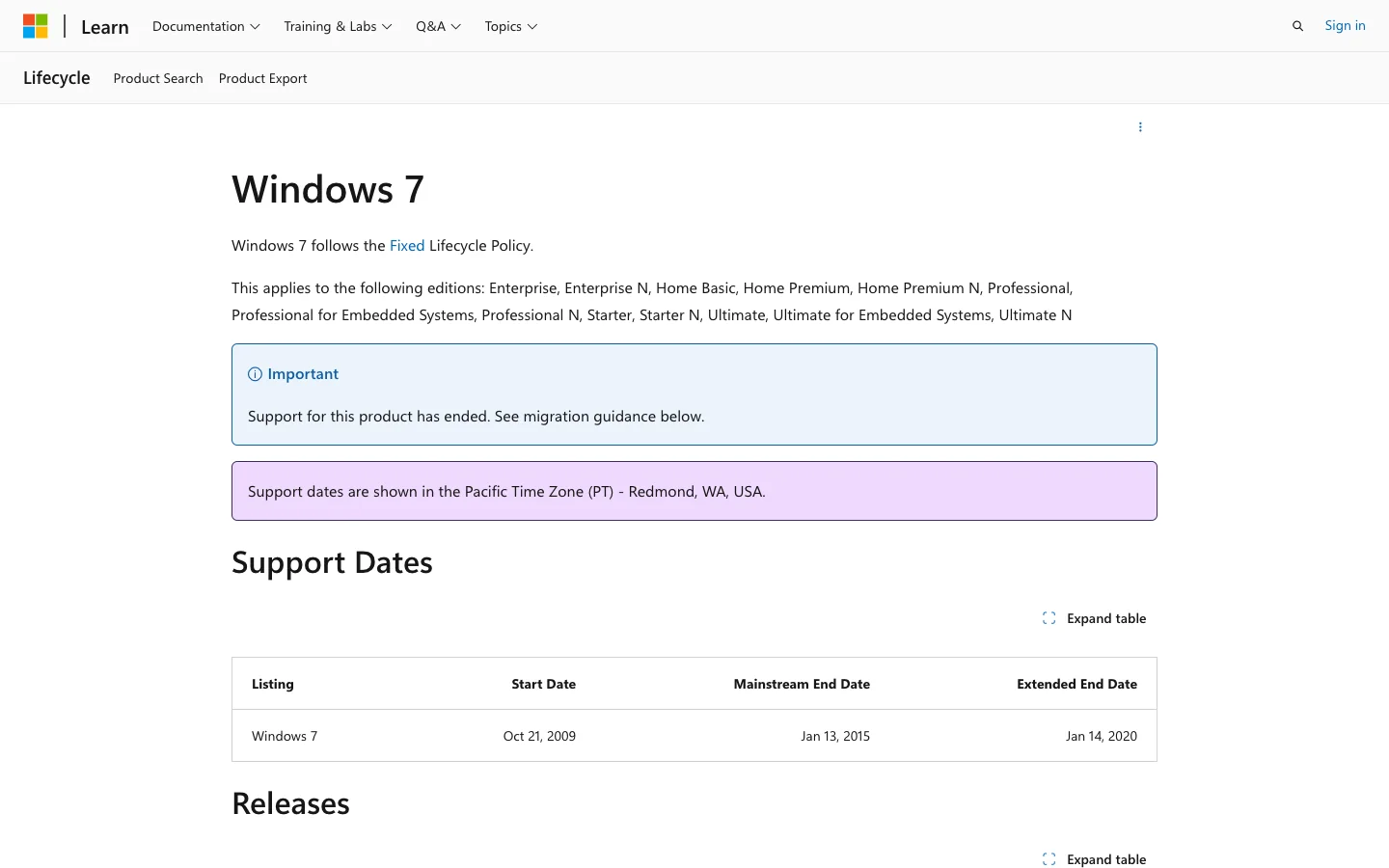
Check the dates on the official Windows 7 lifecycle page before treating an old machine as an everyday workstation. If the machine must stay in service, reduce its exposure:
- Keep it off the public internet unless the recording task requires a connection.
- Do not sign in to email, password managers, banking, production dashboards, or sensitive cloud accounts.
- Download the installer on a maintained computer from the vendor's official site.
- Verify the installer signature and scan it before transferring it to the legacy PC.
- Record only the window or area required for the demonstration.
- Move the output through approved removable media or a controlled internal transfer path.
Screen-recording software does not compensate for an unsupported operating system. The long-term fix is migration.
Method 1 Use a Recorder That Still Lists Windows 7
Bandicam is the clearest current-source example found during this review. Its official system-requirements table lists Windows 7 for 64-bit systems and provides a separate legacy 32-bit build. Its guide also documents screen recording and speaker or microphone audio.
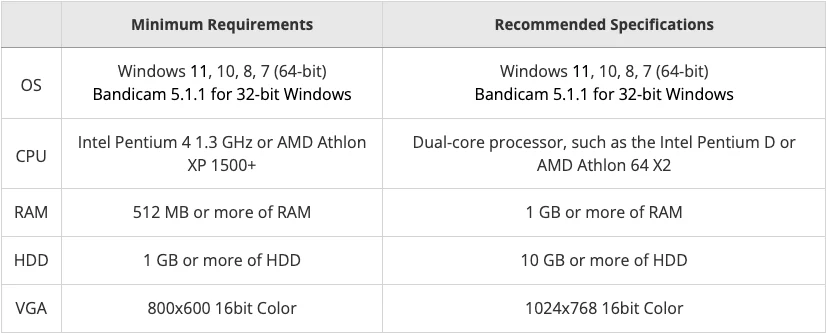
Confirm the requirement on the official Bandicam overview, then follow a cautious recording sequence:
- Download the installer from the vendor on a maintained computer.
- Verify the digital signature and scan the file before transferring it.
- On the Windows 7 PC, close private applications and disable notifications that could expose data.
- Choose a rectangular area, one window, or full-screen capture according to the task.
- Select the speaker device for computer sound and the microphone only if narration is required.
- Record ten seconds while playing a test sound and speaking one sentence.
- Play back the test and confirm picture, system audio, and microphone as separate signals.
- Record the real task, stop the capture, and verify the complete output before transferring it.
Bandicam's current screen-recording instructions show its current capture modes and audio workflow. Treat every capability statement as a vendor claim until it is confirmed on the exact Windows 7 machine.
Other current vendor pages still listing Windows 7 include CyberLink Screen Recorder 4 and NCH Debut. Their presence gives you alternatives, but it does not justify installing several recorders at once. Pick one official installer, test it, and stop if the machine becomes unstable.
Method 2 Use PowerPoint Only When It Is Already Compatible
PowerPoint includes screen recording in supported editions. It can capture a selected area with audio and save the embedded recording as a media file. That can be useful on a legacy workstation where a compatible Office installation already exists.
Do not install a current Microsoft 365 build on Windows 7 and assume it will work. Microsoft's current support page explains the feature, but it is not a promise that today's Office builds support Windows 7. Use this method only when the existing PowerPoint installation already exposes Insert > Screen Recording or the equivalent recording control.
- Create a blank slide.
- Open the screen-recording control.
- Select only the required area.
- Leave audio enabled if the demonstration needs sound.
- Record a short test and stop.
- Right-click the recording and save the media file when that option is available.
Use the current Microsoft PowerPoint recording guide for the control sequence, while keeping the operating-system limitation explicit.
Problem Steps Recorder Is Not Video
Windows 7 includes Problem Steps Recorder, later called Steps Recorder. It automatically captures screenshots and descriptive action text for troubleshooting. The result can help a support technician reproduce a problem, but it is not a playable screen-recording video and it does not capture continuous motion or audio.
Microsoft's Steps Recorder deprecation notice confirms that the Windows 7 tool records screenshots and annotated steps. Use it when the deliverable is a support record, not when someone asked for an MP4 tutorial, meeting clip, or software demo.
This distinction is the main information gap in the competing FonePaw Windows 7 guide. That page includes Problem Steps Recorder as a method, but its own text later acknowledges that the output is an HTML-based step record. A useful 2026 guide should separate screenshot-based troubleshooting from video capture at the decision stage.
Do Not Use Current OBS Instructions for Windows 7
OBS Studio is a strong current recorder on supported operating systems, but its official system requirements list Windows 10 and Windows 11, not Windows 7.
An old OBS release may have run on Windows 7, but recommending an archived build creates another unsupported-software dependency on an already unsupported operating system. Use a current vendor-listed Windows 7 recorder or migrate the machine instead.
Fix Black Video or Missing Audio
Run short tests and change one variable at a time.
| Problem | Check first | Safer next step |
|---|---|---|
| Black or blank recording | Protected content or hardware acceleration | Test an ordinary desktop window; respect capture restrictions |
| Picture works but system sound is missing | Selected speaker/output device | Choose the active playback device and record a ten-second test |
| Microphone is silent | Input selection and Windows privacy/device settings | Select one microphone and record one spoken sentence |
| Voice echoes | Speakers feeding back into the microphone | Use headphones and disable unused inputs |
| Recorder crashes or freezes | Driver age, capture mode, and available storage | Reduce capture area and quality; stop if the legacy machine is unstable |
| File plays incorrectly on another computer | Codec and container compatibility | Export a common MP4 profile when the recorder offers it, then test on the destination device |
Bandicam's official black-screen troubleshooting page notes that copyright protection, hardware acceleration, and codec problems can produce blank video. Do not treat protected streaming content as a recorder defect or attempt to bypass protection.
If the Recording Job Moves to a Mac
Redol Screen Recorder is not a Windows 7 recorder. It currently focuses on Apple Silicon Macs, so it only fits when the recording task can move to a supported Mac or when a cross-device tutorial needs a separate Mac segment.
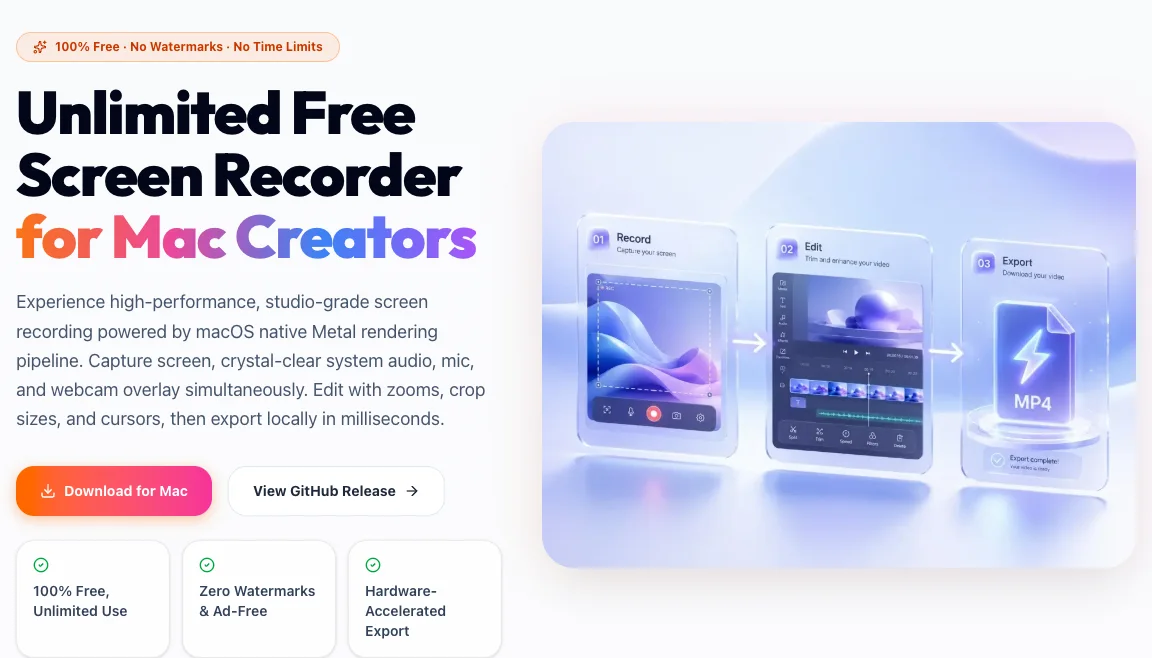
The current Redol page says it can capture a Mac screen, system audio, microphone narration, and a webcam overlay, then export a local MP4. For a Mac-specific workflow, see how to screen record on Mac with audio.
Move the recording task to a maintained Mac
Use Redol Screen Recorder on an Apple Silicon Mac for local screen, system-audio, microphone, and webcam capture when the job no longer has to stay on Windows 7.
Windows 7 Recording Checklist
Before sharing the final recording, confirm:
- the machine truly cannot be migrated before the task
- the recorder's current official page still lists Windows 7
- the installer came directly from the vendor and was verified elsewhere
- the capture area excludes passwords, notifications, and private data
- picture, system audio, and microphone passed a ten-second test
- the output was played from beginning to end
- protected or restricted content was not treated as a technical failure
- the transfer path does not expose the legacy computer to routine internet use
- a migration owner and retirement plan exist for the Windows 7 machine
The practical answer is simple: Windows 7 has no Microsoft-native video recorder. Upgrade when possible. When a legacy machine must remain, use one current vendor-listed recorder, keep the computer isolated, test each audio path, and treat the recording workflow as a temporary exception rather than a permanent setup.
Related posts
About the Author

Zhang Guo
AI Product Manager · Digital Marketing Consultant
AI product manager and digital marketing consultant with a background in music. I see creativity as the bridge between rhythm and logic, where musical intuition and mathematical precision can coexist in every meaningful product decision.
Follow on X