Best Free Screen Capture Software for Windows and Mac
Compare free screen capture software for Windows and Mac by platform, audio, capture mode, export, and privacy before you install.
If you need the best free screen capture software, start with the output you need: a quick tutorial clip, a game recording, a meeting capture, or a local Mac video with system audio. “Free” can mean built in, open source, browser based, or a limited trial, and those choices have very different export and privacy tradeoffs.
This guide compares seven practical options for Windows and Mac. The table gives you a fast shortlist; the sections below explain which tool fits each job and which limits to check before recording something important.
Quick comparison
| Tool | Platform | Best for | Audio and capture notes | Main tradeoff |
|---|---|---|---|---|
| Redol Screen Recorder | macOS | Local tutorials and product demos | Screen or region capture, system audio, microphone, webcam overlay, cursor emphasis, local MP4 export | Mac-first; Windows build is planned |
| OBS Studio | Windows, macOS, Linux | Flexible scenes and streaming | Multiple sources, scenes, audio mixer, plugins | More setup than a one-click recorder |
| ShareX | Windows | Fast screenshots and lightweight clips | Region capture, screenshots, workflows, sharing destinations | Windows only; video workflow is less focused |
| QuickTime Player | macOS | A built-in Mac recording | Screen capture and microphone through the native macOS workflow | System-audio capture needs the right macOS setup |
| Xbox Game Bar | Windows | Recording a game or app quickly | Built-in shortcut and microphone controls | Not designed for every desktop or window workflow |
| NVIDIA App capture | Windows with supported NVIDIA hardware | Gameplay highlights | GPU-assisted game capture and instant replay | Hardware and game compatibility matter |
| iMovie | macOS | Trimming a finished capture | Useful for basic edits after recording | It is an editor, not a full capture tool |
The comparison is based on each tool’s current public documentation and product pages, not invented benchmark scores. Check the linked official source before relying on a feature that matters to your project.
Best for a local Mac workflow: Redol Screen Recorder
Redol is the strongest fit when the job is a private Mac tutorial, product walkthrough, support clip, or course lesson that should become a clean local file. The current product route presents screen capture, system audio, microphone narration, webcam overlay, crop and resize controls, zooms, cursor actions, and local MP4 export. It does not add a watermark or a recording time limit in the current product positioning.
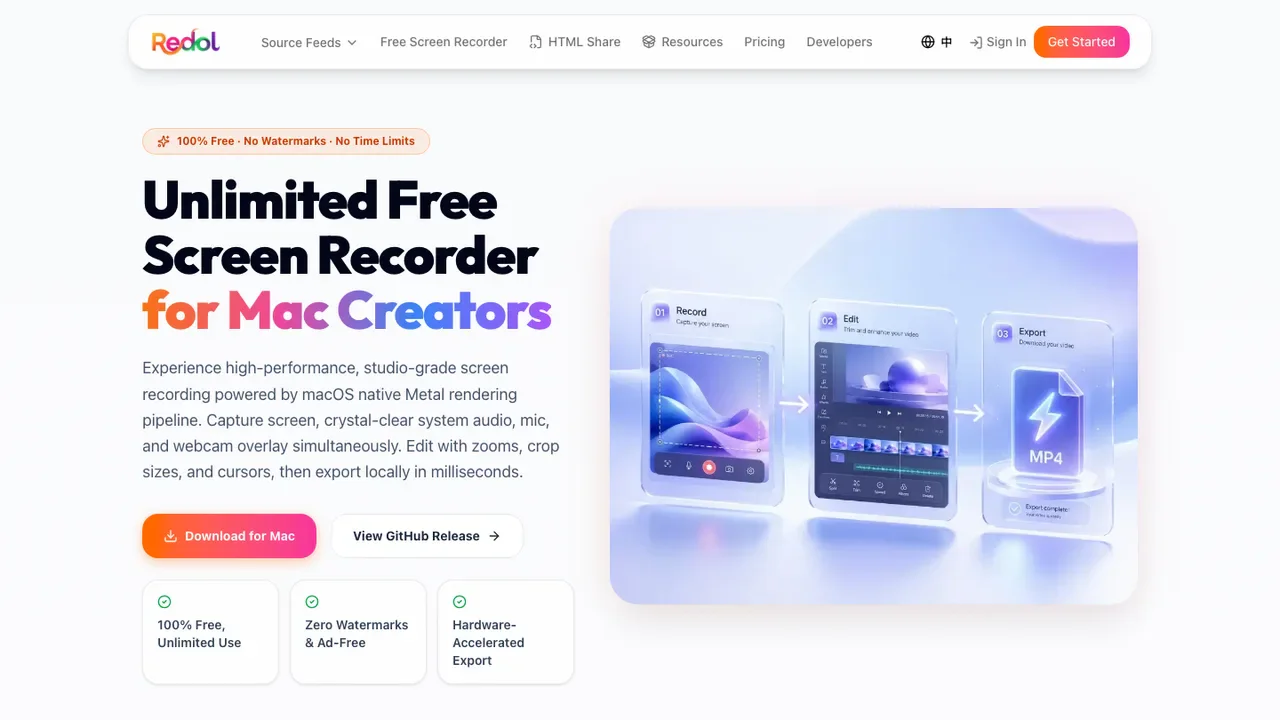
Use the Redol Screen Recorder route when you want the recorder and the output workflow in one place. The Mac-first limitation is important: the Windows client is shown as planned, so Windows users should choose a native or cross-platform option below.
Best open-source option: OBS Studio
OBS Studio's official site describes a free, open-source tool for recording and live streaming. It is the right choice when you need scenes, several source types, a detailed audio mixer, or a repeatable streaming layout.
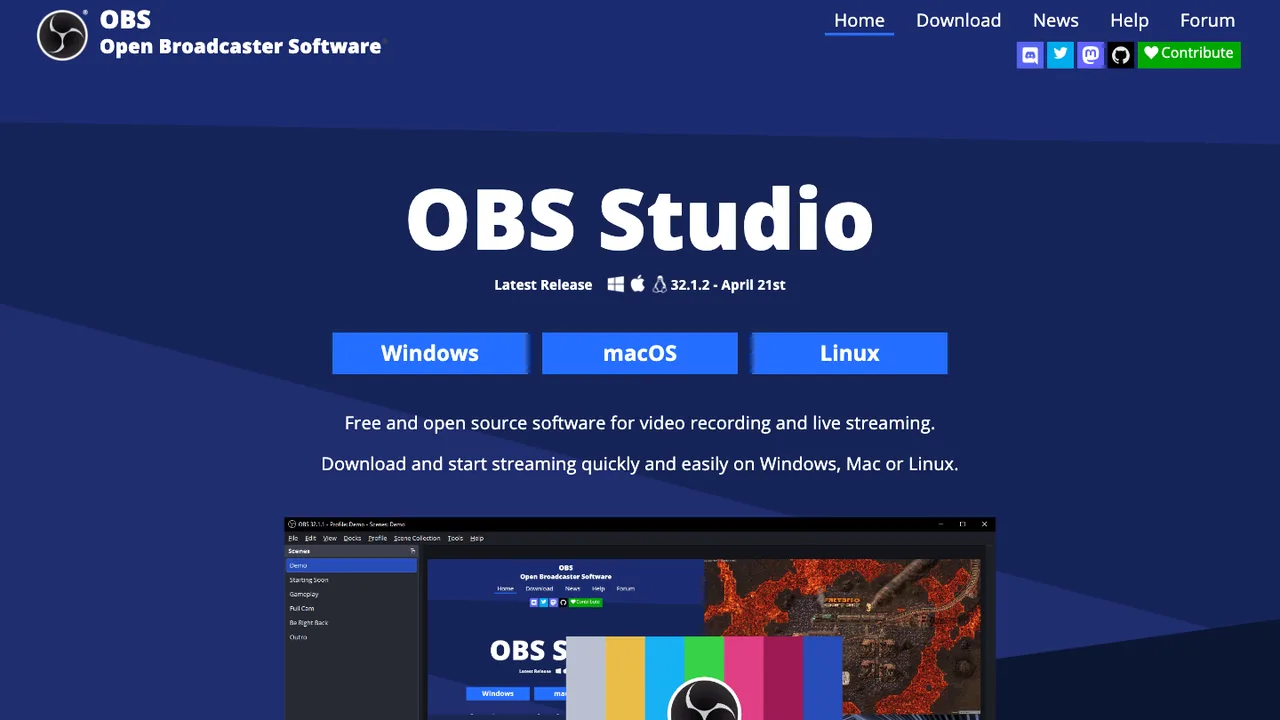
OBS is powerful, but the setup cost is real. Build a scene, confirm the correct display or window source, test the audio meters, and record a short clip before a long session. For a single talking-head tutorial, a simpler recorder can be faster.
Best for fast Windows capture: ShareX
ShareX's official site positions the Windows app around screenshots, screen capture, and workflow automation. It is useful when your output is often an annotated image or a short, targeted capture rather than a polished course video.
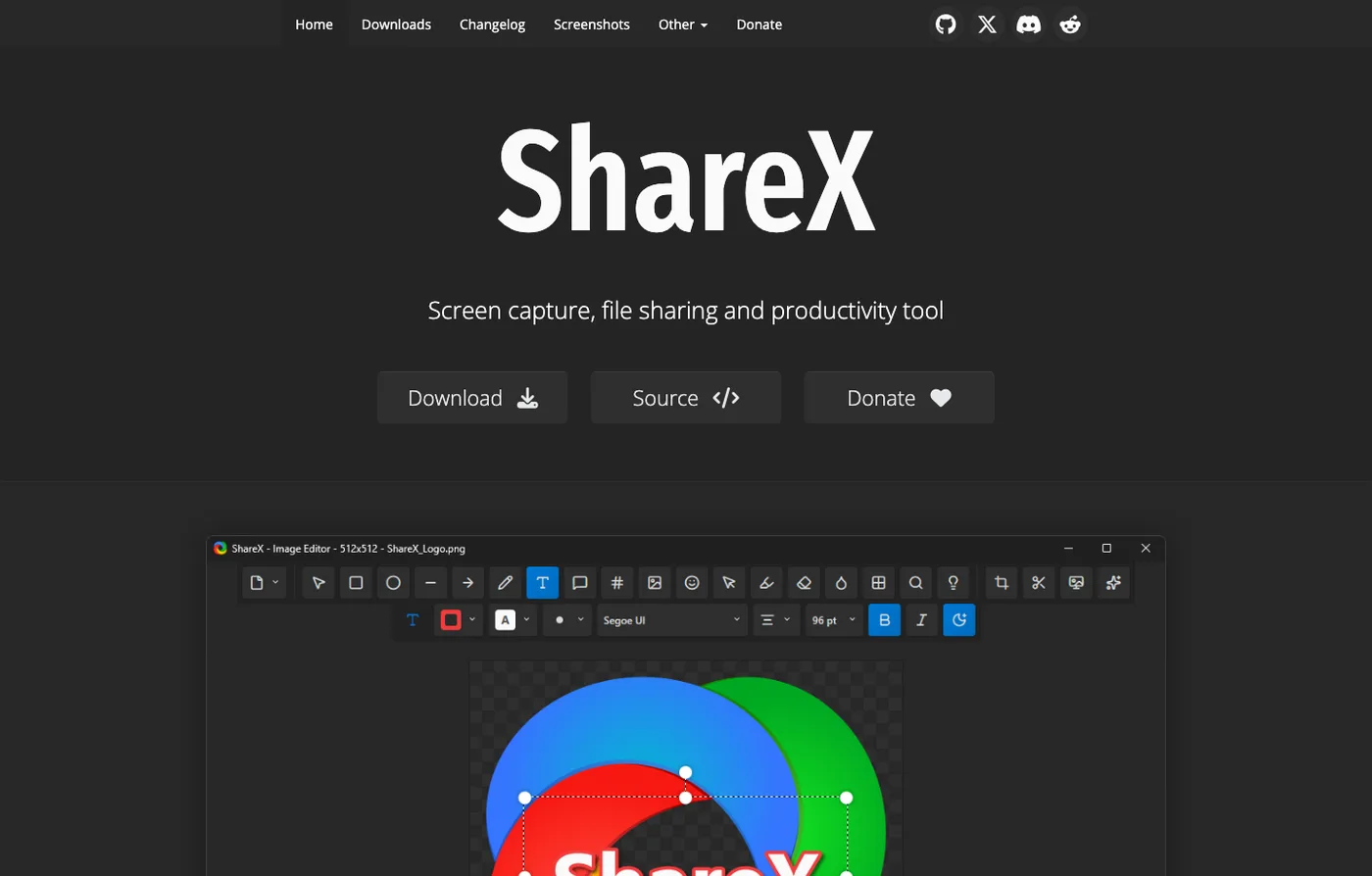
ShareX makes the most sense for support teams, documentation writers, and power users who want capture destinations and repeatable actions. It is not the best answer if you need a Mac-compatible workflow or a purpose-built webcam-and-audio recording setup.
Best built-in Mac option: QuickTime Player
QuickTime Player is already available on macOS and is a practical first test for a simple screen recording. Use the macOS screen-recording controls to select the full display or a region, choose a microphone when needed, and save the result locally.
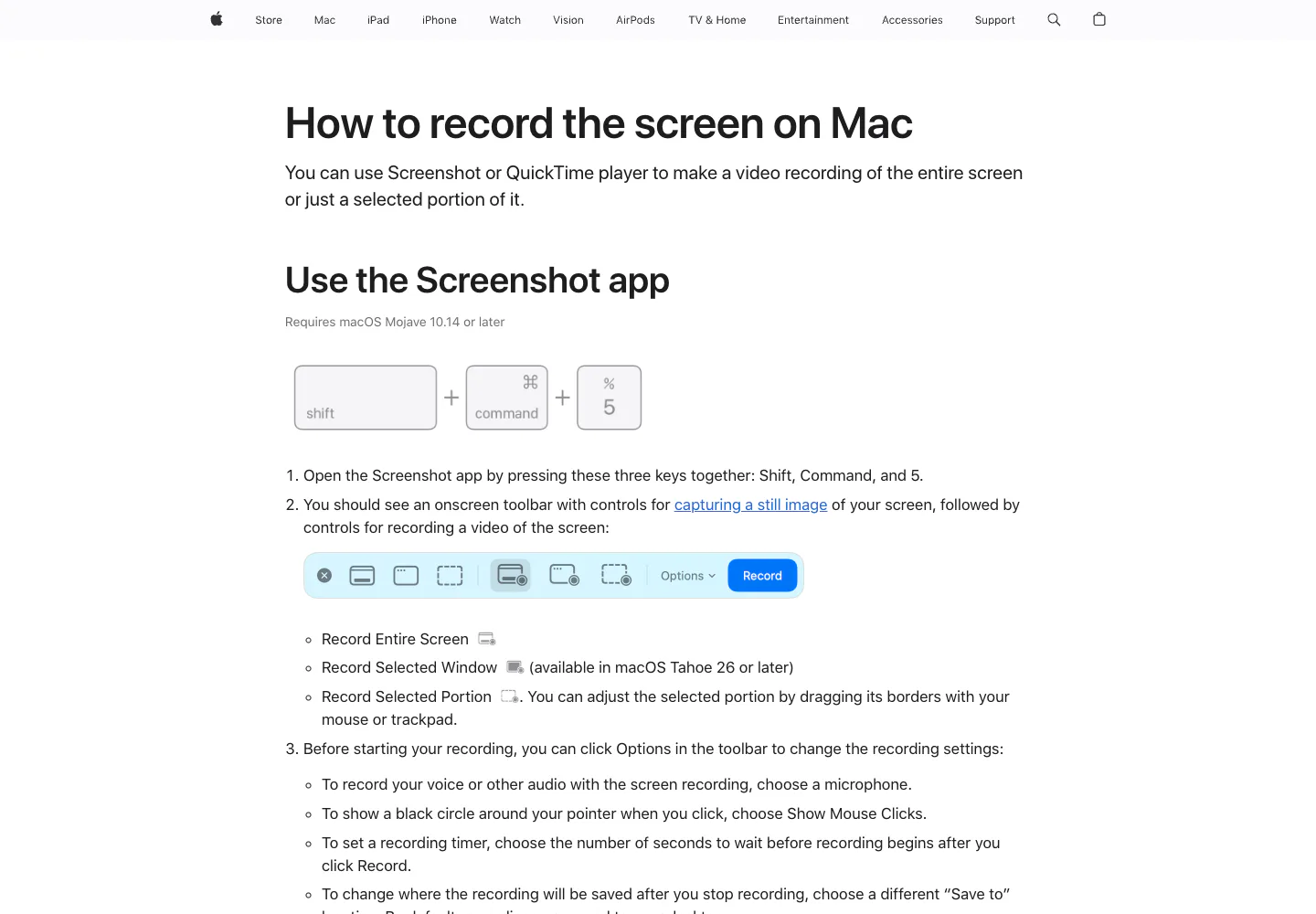
The important caveat is internal audio. Apple’s native workflow and the app you are recording may require additional audio routing or permissions. Make a short test recording and play it back before capturing a meeting, webinar, or software demo.
Best for gaming: NVIDIA App capture
NVIDIA’s current capture tools are designed around supported GeForce hardware and gameplay workflows. They can be a good fit for instant replay or game clips when the machine already meets the hardware and driver requirements. They are a poor general-purpose recommendation for Mac users or for recording arbitrary desktop windows.
For a gaming-specific shortlist, compare capture latency, frame-rate overhead, microphone mixing, and the destination format rather than assuming that the highest advertised resolution is the best result.
Best for editing after capture: iMovie
iMovie is useful when you already have a recording and need to trim mistakes, add titles, or export a shareable video on a Mac. It should be treated as the editing step, not as a replacement for a dedicated capture workflow. Pair it with QuickTime or Redol when you need to record the screen first.
Browser-first tools and the “free” question
Browser recorders can be convenient when you cannot install software, but they add a different set of checks: browser permissions, upload behavior, export limits, and whether a watermark appears on the free tier. They belong on a separate shortlist from local desktop recorders because the privacy and handoff job is different.
Before you press record, confirm these five details:
- Platform: Is the tool available for the operating system and hardware you actually use?
- Capture target: Do you need a full display, one window, a region, a webcam, or a game source?
- Audio: Will it capture microphone, system sound, both, or neither without extra routing?
- Export: Where is the file saved, which format is available, and does the free tier add a watermark or duration cap?
- Privacy: Does the workflow stay local, or does it upload footage to a web service?
A practical decision path
Choose Redol for a local Mac recording with system audio, narration, webcam overlay, and a clean MP4 handoff. Choose OBS Studio for multi-source scenes or streaming. Choose ShareX for Windows screenshot-heavy workflows. Choose QuickTime Player for a quick built-in Mac capture. Choose NVIDIA App capture for supported gaming hardware, and use iMovie when the recording already exists and needs a simple edit.
The best free screen capture software is the one that matches the handoff after recording. A short, reliable test clip is more useful than a long feature list: record ten seconds, verify the picture and audio, inspect the exported file, and then start the real session.
Record a clean tutorial without a watermark
Use Redol Screen Recorder for local Mac captures with system audio, microphone narration, webcam overlay, and MP4 export.
For related workflows, see the guides to screen recording on Mac with audio, recording part of a screen, and choosing a screen recorder with timer tools.
Related posts
About the Author

Zhang Guo
AI Product Manager · Digital Marketing Consultant
AI product manager and digital marketing consultant with a background in music. I see creativity as the bridge between rhythm and logic, where musical intuition and mathematical precision can coexist in every meaningful product decision.
Follow on X