Topic: Screen recording guides
The best HD screen recorder is the one that preserves readable detail without making the recording unstable or unnecessarily large. For most people, that means 1080p output, a short quality test, clean audio, and enough encoder control to match the computer doing the work.
Start with the recording job. OBS Studio gives you the most control. Bandicam is a strong Windows choice when its documented 4K support matters. Movavi is easier for conventional desktop capture. ScreenFlow combines Mac recording and deeper editing. Redol fits local, no-watermark Mac creator workflows, but its current public page does not promise a specific 1080p or 4K ceiling. Apple's built-in tools are enough for simple Mac clips. FonePaw is another commercial option whose current vendor page makes explicit HD and 4K claims that should be verified in a short export.
Quick Comparison
| Tool | Verified quality evidence | Best for | Platform | Main caution |
|---|---|---|---|---|
| OBS Studio | Output resolution, recording-quality presets, encoder, bitrate, format, and FPS controls | Users who want the most control over quality and file size | Windows, macOS, Linux | More setup and more ways to overload the computer |
| Bandicam | Official page says up to 3840×2160 recording | Windows desktop and game capture | Windows | High resolution and frame rate still depend on hardware and source |
| Movavi Screen Recorder | Official page promotes 4K screencasts plus full-screen or custom-area capture | Straightforward tutorials, webinars, and presentations | Windows, macOS | Trial and export rules should be checked before a long recording |
| ScreenFlow | Mac screen, camera, and microphone capture plus MP4 and ProRes export options | Mac users who need recording and editing in one workflow | macOS | Paid, editing-heavy workflow |
| Redol Screen Recorder | Local MP4 workflow with screen, system audio, mic, webcam, zoom, crop, and cursor controls | No-watermark Mac tutorials, demos, courses, and support clips | macOS on Apple Silicon today | Current public evidence does not state a specific HD or 4K output ceiling |
| Screenshot or QuickTime | Apple's guide supports entire-screen or selected-area recording | Fast built-in Mac clips | macOS | Fewer quality and production controls |
| FonePaw Screen Recorder | Vendor HD roundup states 1080p/4K, up to 60 FPS, H.265, and multiple formats | Users comparing a conventional commercial recorder | Windows, macOS | Treat specifications as vendor claims and verify the current build |
What HD Recording Actually Means
HD is often used as a loose marketing label. In a real workflow, you need to separate five decisions:
- Source resolution: the pixels available on the display, app, camera, or capture device.
- Capture resolution: the area the recorder collects. A small app window does not become detailed just because the export is 4K.
- Output resolution: the dimensions of the saved video, such as 1920×1080 or 3840×2160.
- Frame rate: 30 FPS is enough for many tutorials; 60 FPS can help fast motion but increases encoding load and file size.
- Codec and bitrate: these determine how much detail survives compression and how portable the file is.
This is why a clean 1080p recording can look better than a badly scaled 4K file. Text clarity, smooth motion, audio sync, and reliable export matter more than the label on the settings panel.
How We Evaluated These Recorders
This comparison uses current public product pages, official documentation, and Redol's local product source. It does not claim private benchmarks or hands-on access that did not happen.
The selection criteria are:
- documented resolution and quality controls
- frame-rate and encoder control where the official source explains it
- operating-system fit
- system audio, microphone, and camera workflow
- capture-area and editing options
- output format and file-size tradeoffs
- whether a short test export is easy to validate
The Best HD Screen Recorders
1. OBS Studio for Maximum Quality Control
OBS Studio's official recording output guide documents recording-quality presets, encoder settings, bitrate and keyframe controls, output rescaling, recording formats, and remuxing. Its overview guide also explains base canvas resolution, scaled output resolution, and common 30 or 60 FPS choices.
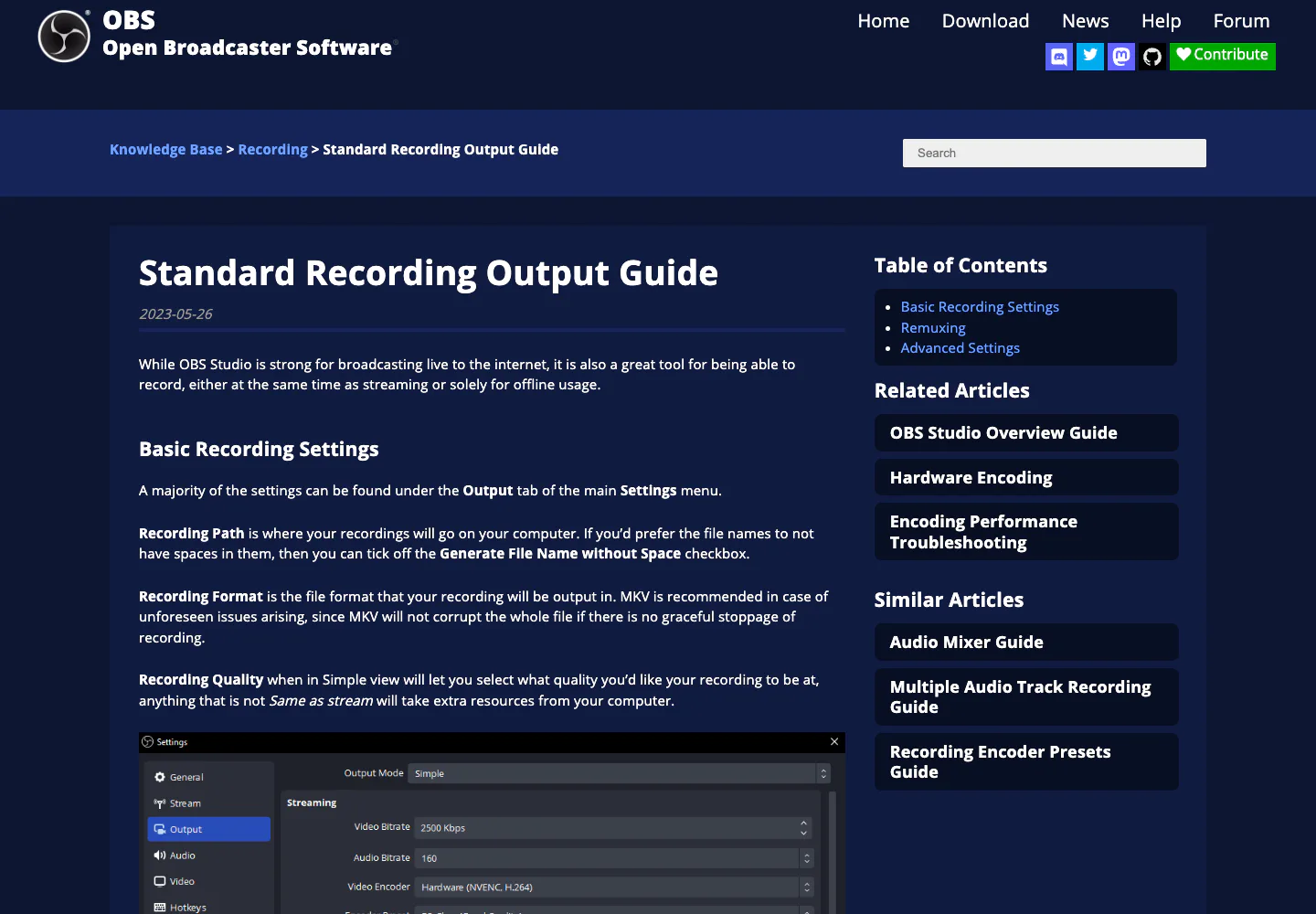
That makes OBS the strongest option here when the question is not merely “Can it export HD?” but “How precisely can I control the recording pipeline?” You can match the canvas to the source, choose an output resolution, select a quality preset or encoder, and keep a safer recording container before remuxing to MP4.
The tradeoff is setup and performance risk. OBS's own documentation warns that higher-quality recording choices consume more resources. Run a short test while the actual app, game, browser, or camera source is active. A perfect settings screen does not prove the machine can encode the real session without skipped frames.
2. Bandicam for Documented Windows 4K Capture
Bandicam's official feature and system-requirements page says it can record 4K Ultra HD video up to 3840×2160. The product is Windows-focused and supports desktop, game, device, webcam, and audio recording workflows.
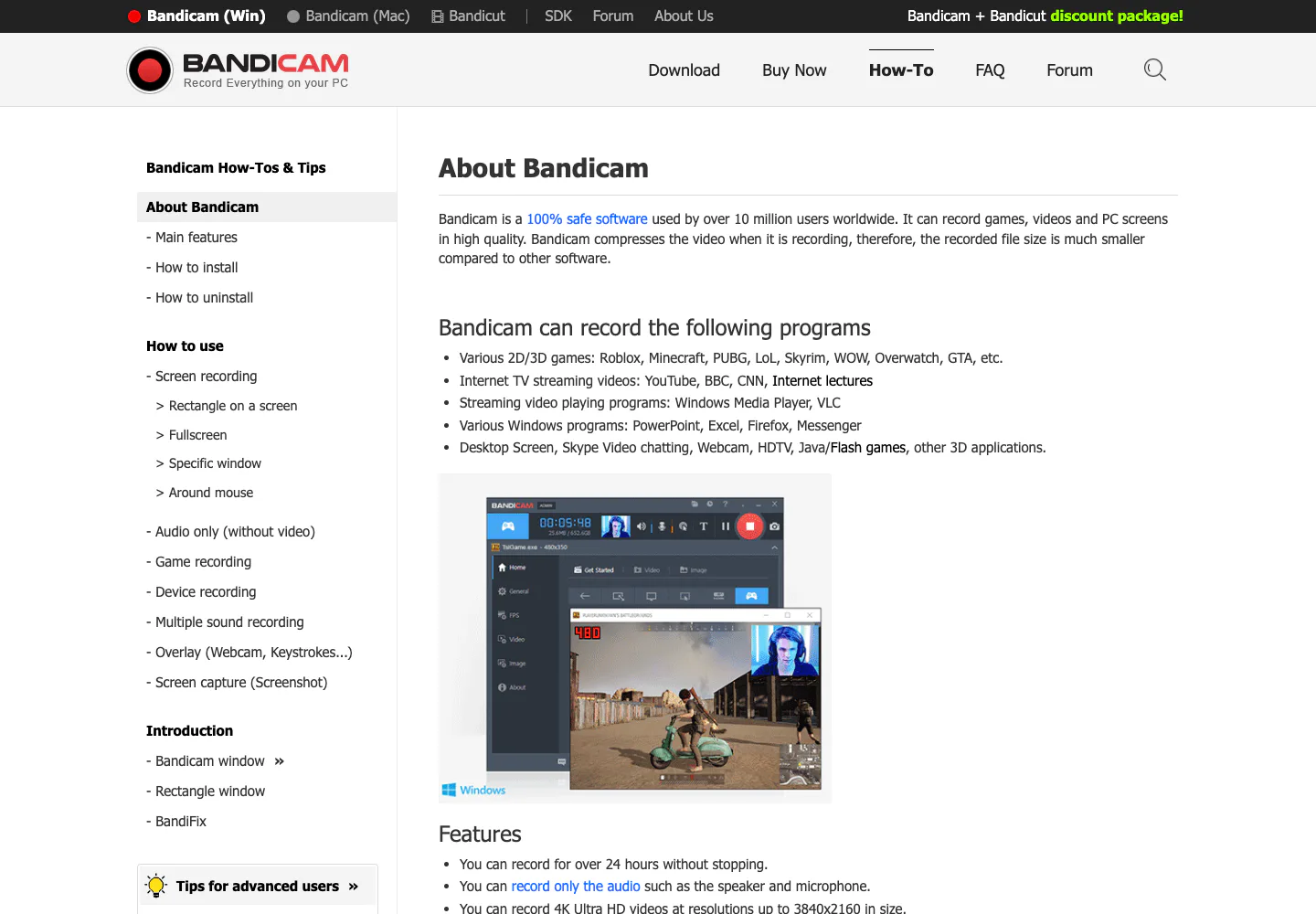
Bandicam is a practical fit when Windows is fixed, high-resolution capture is required, and a conventional recorder is easier than building an OBS scene. It is especially relevant to game or device capture where motion and hardware encoding matter.
Do not treat “supports 4K” as a guarantee that every computer will record every source smoothly. Display resolution, game load, capture mode, encoder, FPS, storage speed, and the selected area all change the result. Test the exact source at the exact settings you plan to keep.
3. Movavi Screen Recorder for Easier 4K Screencasts
Movavi's official Screen Recorder page describes full-screen and custom-area recording, webcam capture, system audio, microphone narration, cursor and keystroke emphasis, and 4K screencasts. The current page offers Windows and Mac versions and identifies the download as a trial.
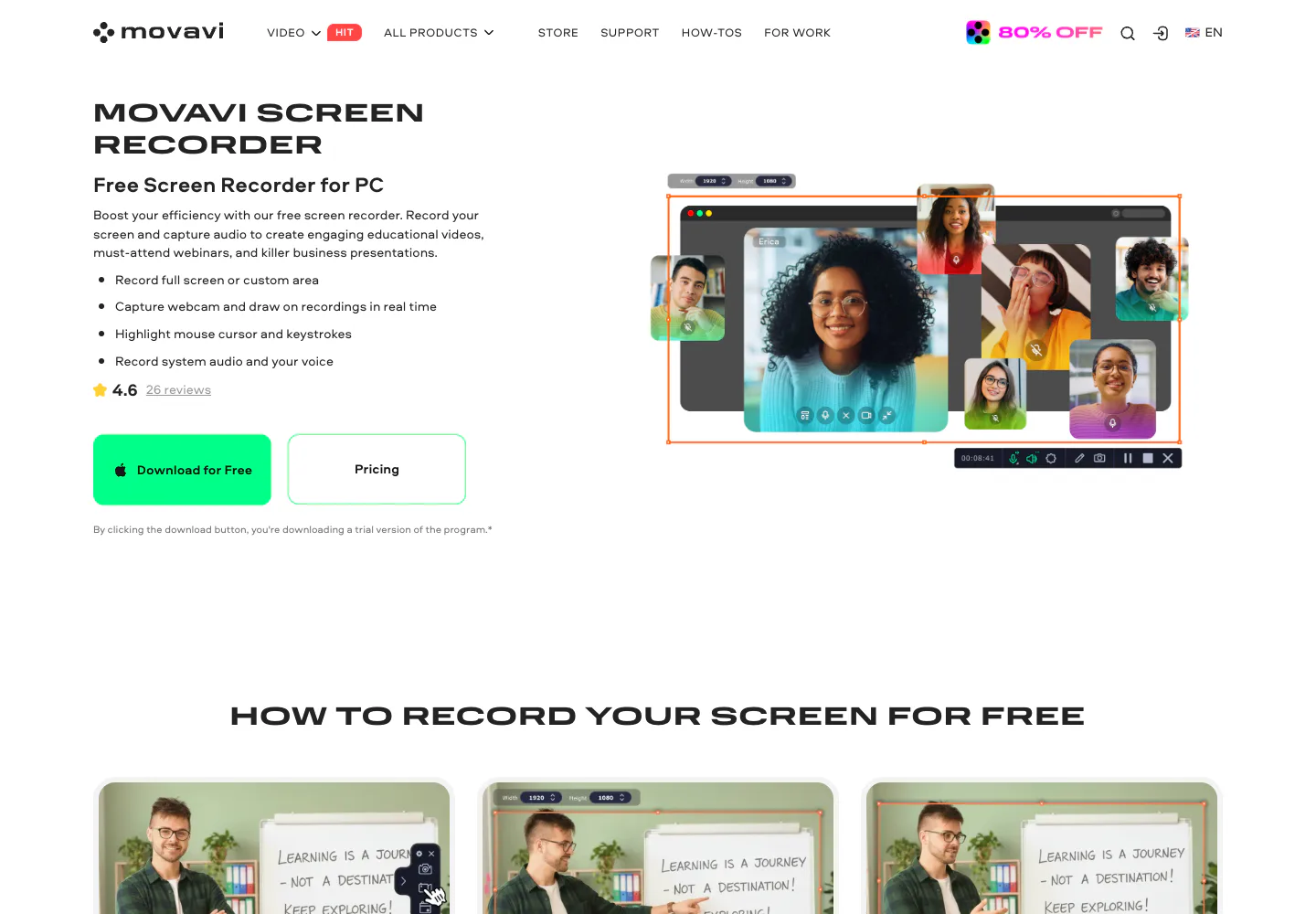
Movavi fits people who want a recognizable desktop-recorder workflow without OBS-level configuration. It is useful for lessons, presentations, webinars, meetings, and product walkthroughs where the capture area, narration, and on-screen emphasis matter as much as raw resolution.
Before a long session, confirm the current trial restrictions, watermark behavior, output settings, and storage location. Those commercial details can change, and a one-minute test export is faster than repairing a finished tutorial.
4. ScreenFlow for Mac Recording and Editing
ScreenFlow's official page positions the product as Mac-only recording and editing software. It documents simultaneous screen, camera, and microphone recording, multi-app recording, editing tools, and preset export options including MP4 and ProRes.
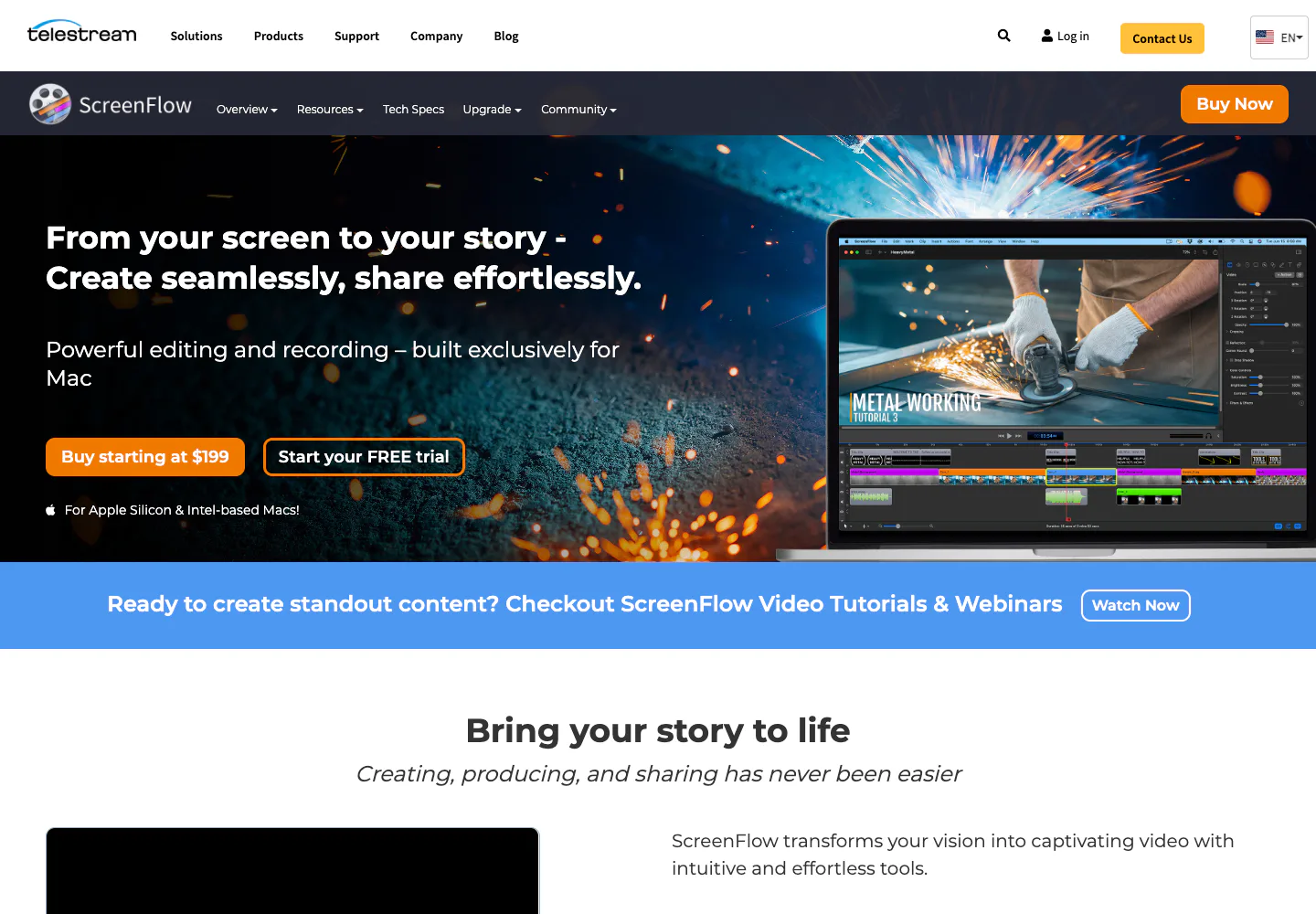
ScreenFlow is the best fit in this list when capture is only the first half of the job. Training videos, polished software tutorials, product demos, and courses often need a timeline, annotations, captions, motion, and repeatable export settings.
The tradeoff is cost and workflow weight. If you only need a short clean clip, a full recording-and-editing suite may slow you down. If the video needs production work after capture, that extra depth becomes the reason to choose it.
5. Redol Screen Recorder for Local Mac Creator Workflows
Redol Screen Recorder is a Mac-first choice for local creator recordings. Current Redol source and page copy support screen capture, system audio, microphone narration, webcam overlay, zooms, crop and resize controls, cursor emphasis, and local MP4 export. The page also says recordings have no watermarks or time limits. The current download is for Apple Silicon, while Intel Mac and Windows availability should not be claimed as live.
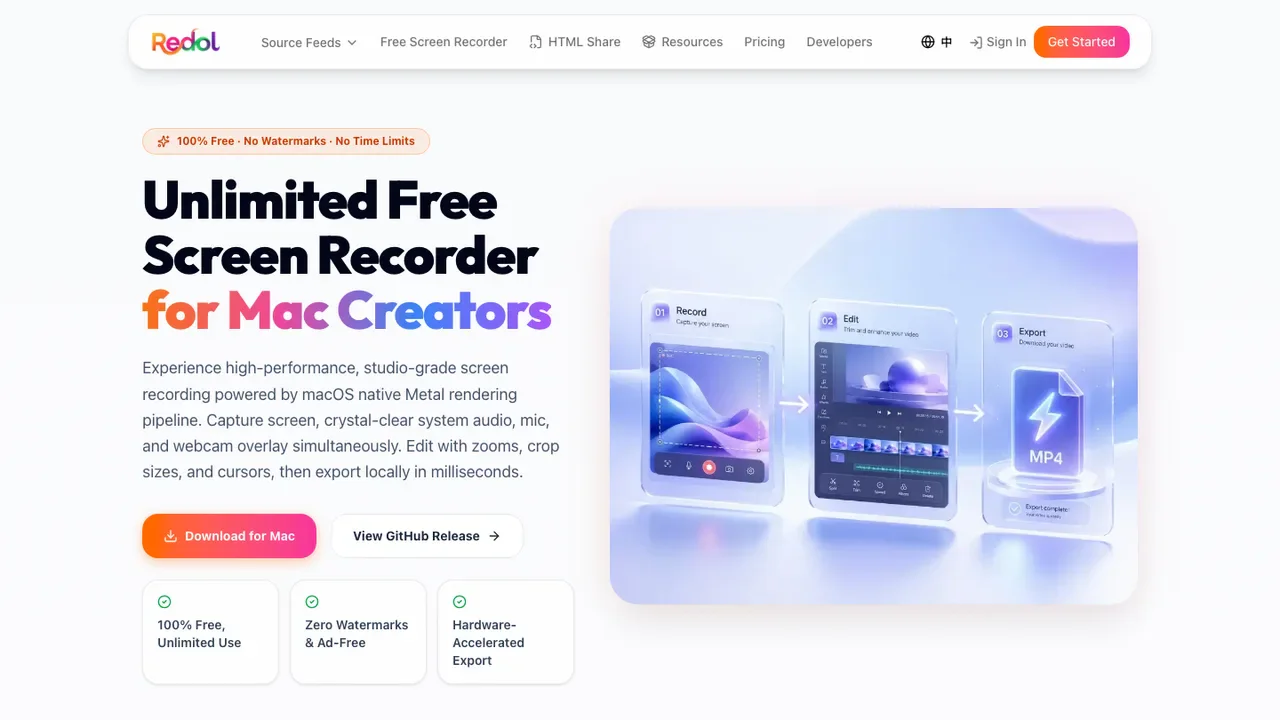
Redol fits tutorials, software demos, course clips, bug reports, and support videos when raw footage should stay local and the workflow needs to move quickly from capture to a reusable MP4.
The important quality boundary is explicit: the current public product evidence does not state a fixed 1080p or 4K ceiling. Do not assume one. Record a short sample at the intended display scale, export it, and inspect text clarity, motion, audio sync, and dimensions before the real session.
Record a clean no-watermark Mac video
Use Redol Screen Recorder for local tutorials, demos, courses, and support clips with system audio, mic, webcam, zoom, crop, cursor controls, and MP4 export.
6. Apple Screenshot or QuickTime for Built-In Mac Clips
Apple's official Mac screen-recording guide explains how to record the entire screen or a selected portion with Screenshot or QuickTime Player. It also documents microphone selection and where the recording is saved.
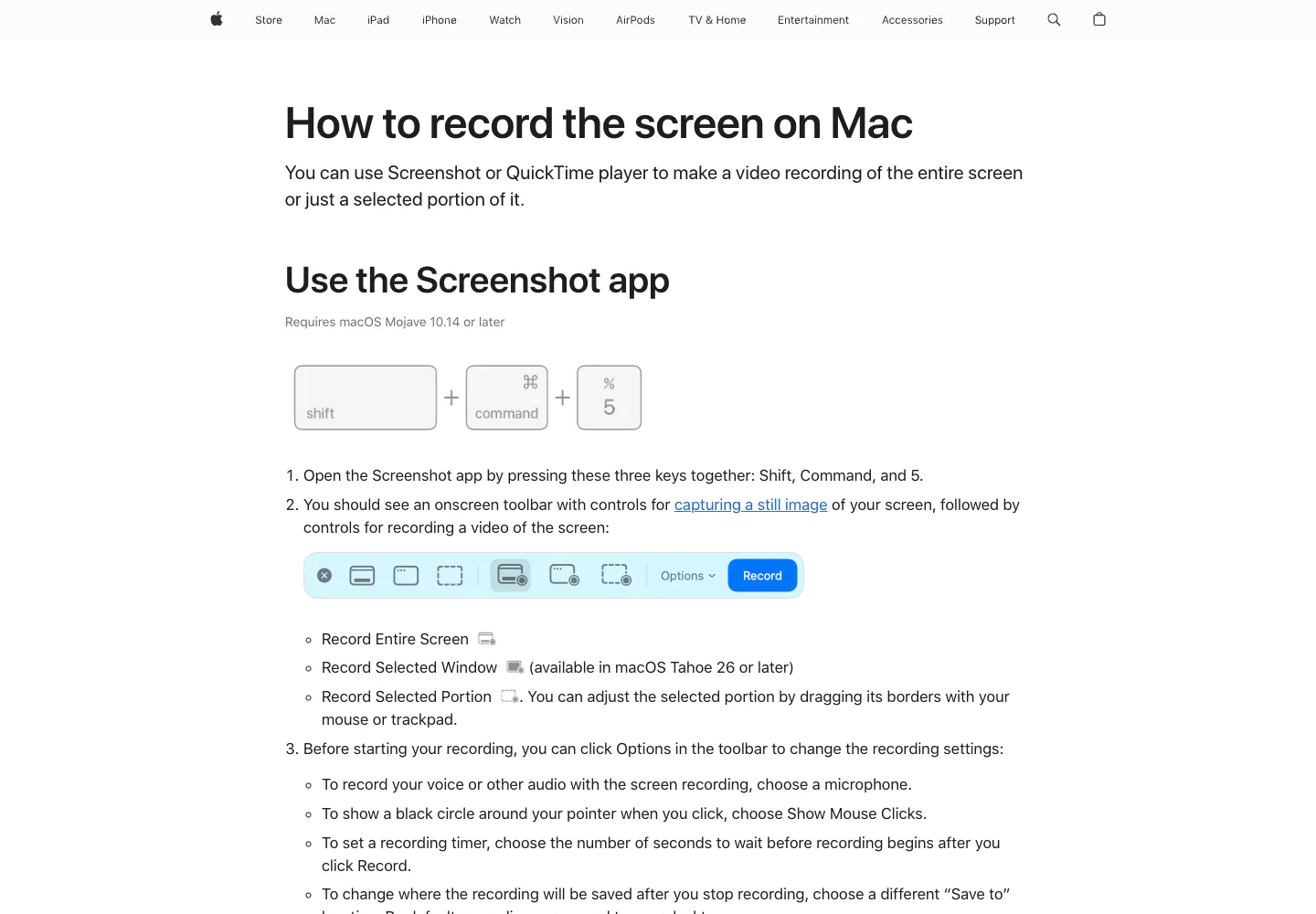
This is the best zero-install path for a short clip. If the Mac display and source are already clear, the built-in tools can preserve enough detail for a quick walkthrough without adding another app.
The guide does not present the same encoder, bitrate, format, camera-overlay, or editing controls as a dedicated production recorder. Use it when simplicity wins. If the file becomes large or playback feels uneven, use the Redol guide to fix a lagging QuickTime screen recording before re-recording everything.
7. FonePaw Screen Recorder for a Conventional Commercial Option
FonePaw's current HD screen-recorder roundup states that its recorder supports 1080p and 4K, frame rates from 5 to 60 FPS, H.265, and several output formats. Its official product page presents Windows and Mac downloads.
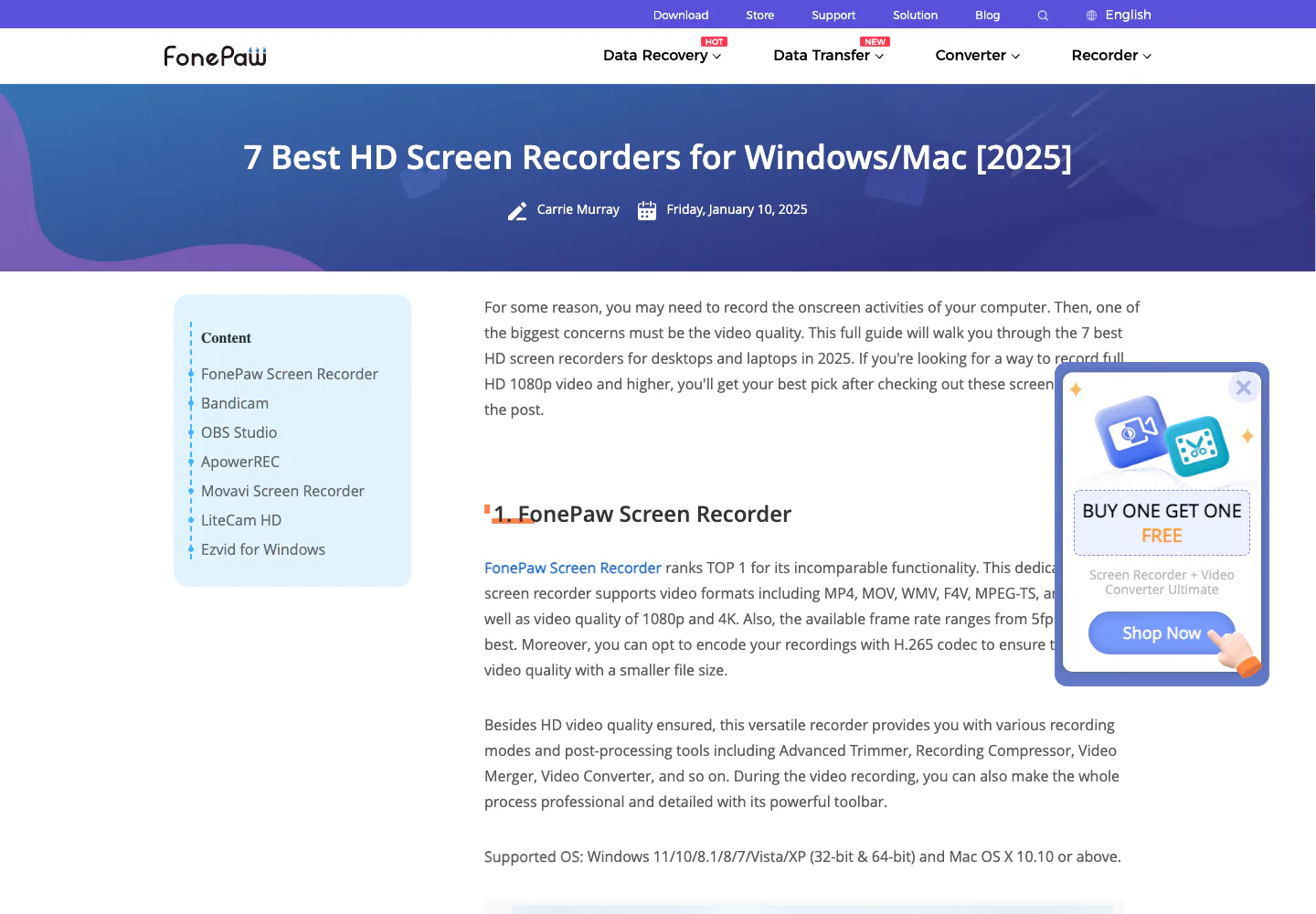
FonePaw is worth comparing when you want a familiar commercial desktop recorder with explicit vendor quality claims. Those claims come from FonePaw's own pages, not an independent benchmark. Check the current installer, supported operating system, available encoder and format settings, trial behavior, and one short export before making it part of a production workflow.
For a broader evidence-based product assessment, read the Redol FonePaw Screen Recorder review.
Set Up an HD Recording That Actually Looks Clear
The tool matters, but the preflight matters more.
- Choose the destination first. A documentation clip, YouTube tutorial, course lesson, and bug report do not need the same resolution or frame rate.
- Match the source. Avoid enlarging a low-resolution app window into a 4K canvas and expecting new detail.
- Use the smallest useful capture area. Larger areas increase pixel and privacy load.
- Test 30 FPS before 60 FPS. Use 60 when motion needs it and the machine can sustain it.
- Check display scaling. Tiny interface text can remain unreadable even in a high-resolution file.
- Record system audio and mic separately when the tool supports it. Separate tracks make repairs easier.
- Export ten seconds. Confirm dimensions, motion, text sharpness, audio sync, watermark, and file size.
- Watch the sample on the viewer's likely device. A desktop-only check can miss mobile readability problems.
If watermark-free export is the bigger requirement, compare the dedicated roundup of free screen recorders without watermarks. If the workflow is Mac-only, the best screen recording software for Mac guide compares privacy, audio, editing, and sharing in more detail.
Final Recommendation
Choose OBS when you need maximum control over resolution, encoder, format, and file size. Choose Bandicam for a Windows-focused recorder with documented 4K support. Choose Movavi for a simpler cross-platform commercial workflow. Choose ScreenFlow when Mac editing depth matters. Choose Apple's built-in tools for quick clips. Choose Redol when the job is a local, no-watermark Apple Silicon Mac recording and you are willing to verify quality with a short export. Compare FonePaw when its current vendor settings fit the job, but validate those claims in the installed build.
The best HD screen recorder is not the one with the biggest number in its marketing copy. It is the one that produces a clear, stable, correctly sized file on your actual computer with your actual source.
Related posts
About the Author

Zhang Guo
AI Product Manager · Digital Marketing Consultant
AI product manager and digital marketing consultant with a background in music. I see creativity as the bridge between rhythm and logic, where musical intuition and mathematical precision can coexist in every meaningful product decision.
Follow on X